








Download Wondershare UniConverter for macOS
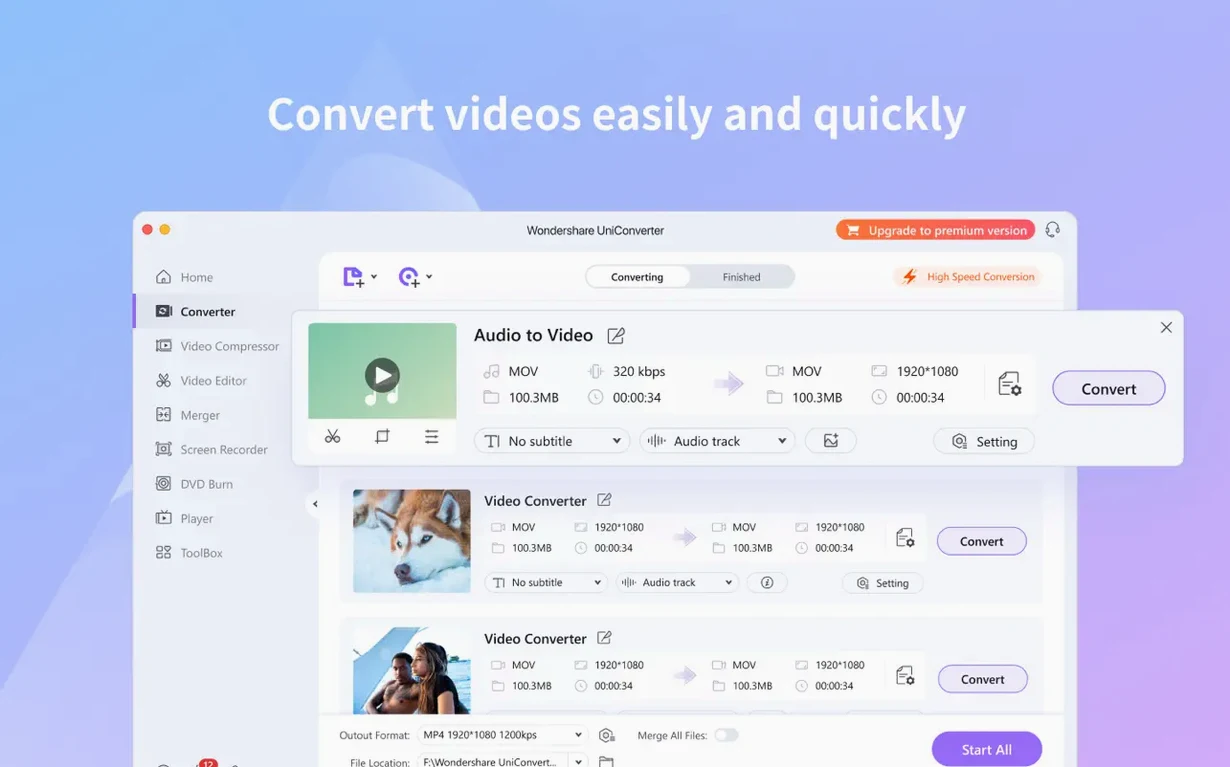
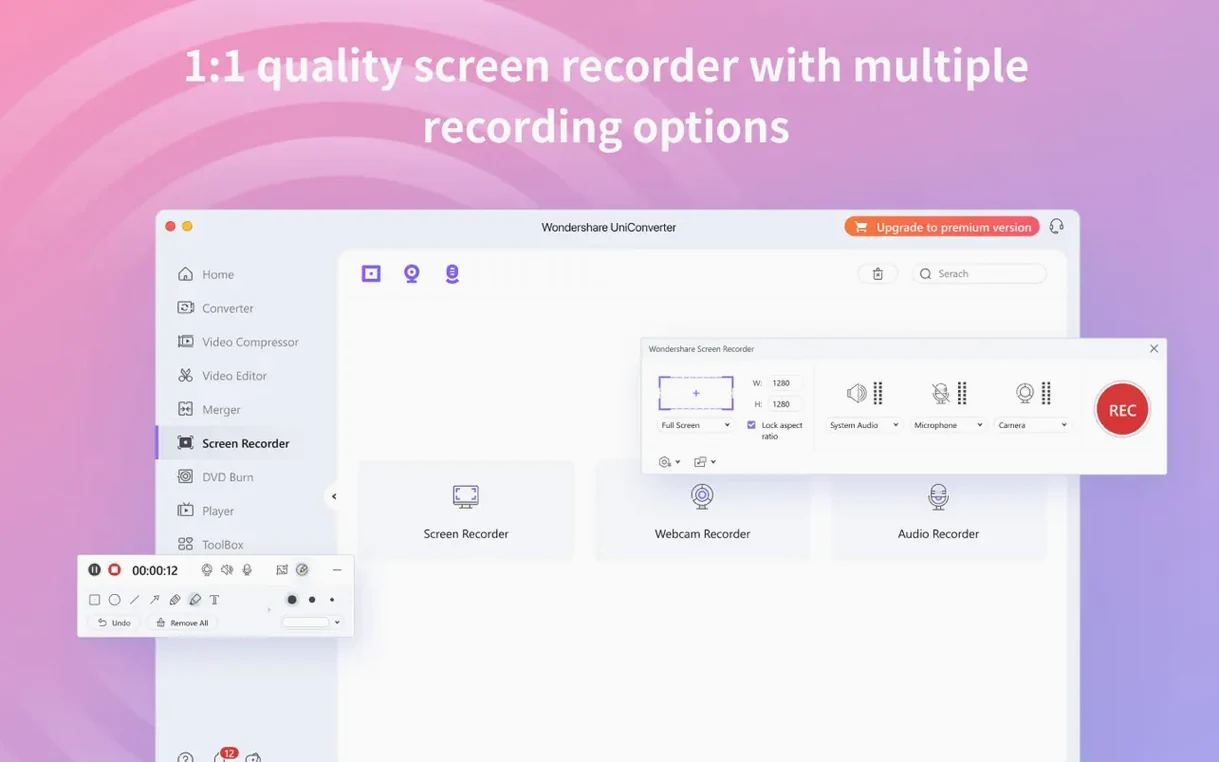
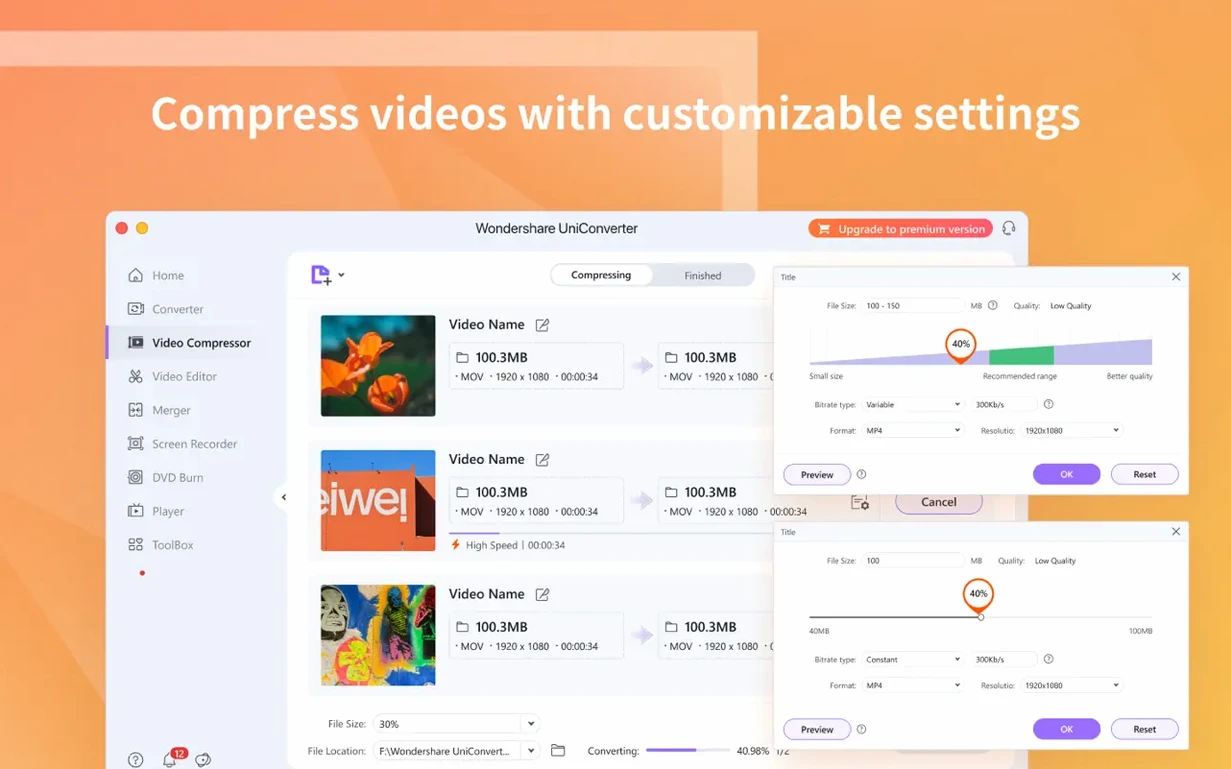
UniConverter runs on practically any Mac you have in reach — OS X 10.11 El Capitan and later, on 64-bit Intel or Apple Silicon chips. It doesn't pick sides, and it doesn't demand the latest macOS just to launch.
159 formats, a trimmer, and a DVD toolkit built in
- Convert between over 159 video and audio formats, including 4K and DRM-protected files
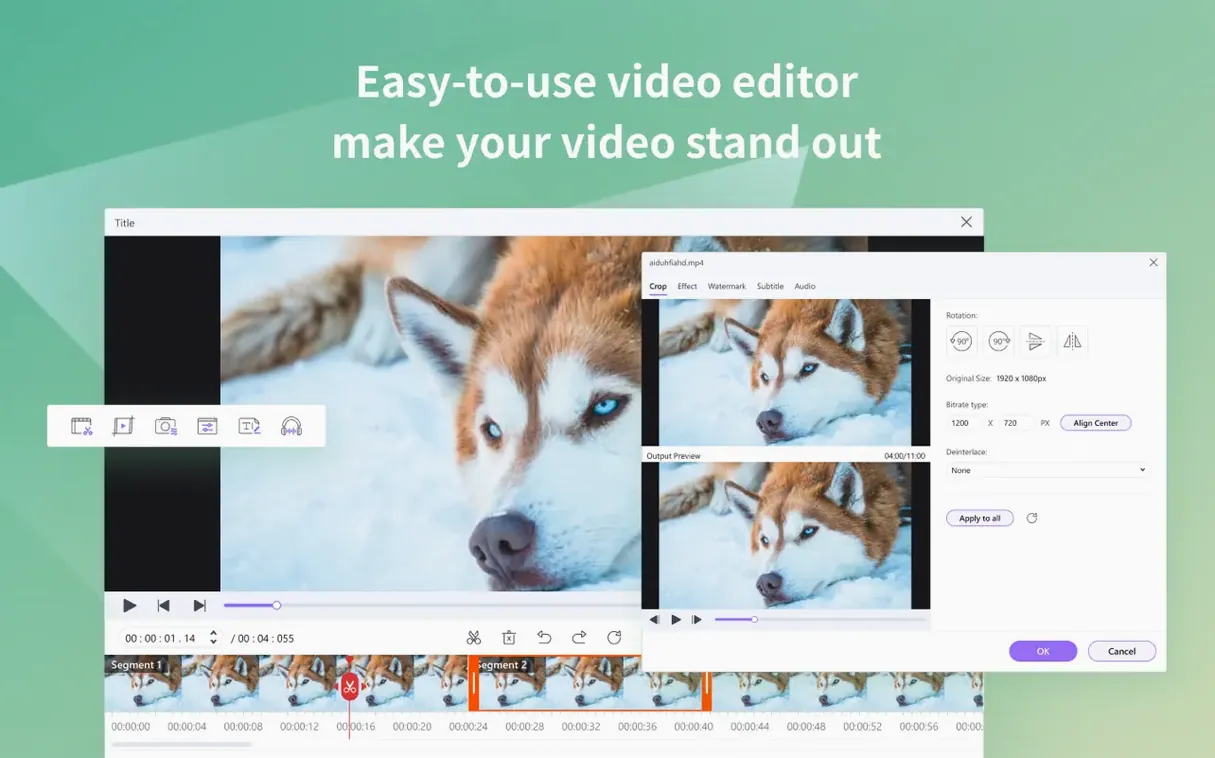
- Built-in video editor for trimming, cropping, and removing black bars
- DVD toolkit — rip discs, extract audio tracks, or burn new DVDs from common file types
- Batch conversion so you can queue up a pile of files and walk away
- A codec library with native codecs for iMovie and Final Cut Pro
- Download, preview, and organize media from one window
Filling the codec gaps between DVDs, iMovie, and Final Cut
This is the swiss-army-knife approach to video on a Mac. If you still have DVDs you want to digitize, or you bounce between editing tools and need codecs that play nice with iMovie and Final Cut, UniConverter fills those gaps without making you hunt down separate utilities. The batch conversion alone saves real time when you're dealing with a folder full of mismatched clips. It won't replace a dedicated editor for serious timeline work, but for format gymnastics, quick trims, and getting stubborn files to actually open where you need them, it does the job.
El Capitan support and Apple Silicon readiness in the latest update
Version 15.7.3.564 isn't a flashy rewrite — and that's kind of the point. The changelog zeroes in on two things that matter in daily use: it now runs on OS X 10.11 El Capitan and later, and it's built for both ARM and 64-bit Intel Macs. On an M-series machine, that means the app launches without Rosetta overhead, which you notice most during 4K HEVC conversions and batch jobs. The encoding pipeline feels native, not translated.
The El Capitan compatibility is quietly useful if you keep an older Mac around as a media server or a dedicated ripping station. Plenty of video toolkits have dropped support for anything pre-Catalina — UniConverter 15.7.3.564 still shows up on those machines, and the DVD toolkit works exactly the same as it does on a current Mac. No feature gating by OS version.
Beyond the build targets, the codec library has kept pace with what iMovie and Final Cut Pro expect nowadays. The native codecs bundle means you're less likely to see that annoying "missing codec" flag when you drop a converted file onto a timeline. It's the kind of fix you don't think about until it saves you ten minutes of troubleshooting.
A real-world Saturday with a DVD collection
Picture someone who inherited a box of old concert DVDs and wants them on an iPad for a long flight. The discs are a mix — some region-locked, some with copy protection, a few home-burned and already scratched. This person isn't a video pro; they just want the files to land in the TV app without fuss.
They launch UniConverter, pop in a disc, and the DVD loader reads it in about twenty seconds. The interface shows the main title and a few extras — they uncheck the bonus interviews and queue up just the concert. Output is set to H.265 at 1080p, because storage on the iPad is tight. While that disc converts, they start pulling audio from another DVD: a live album they want as ALAC files for the Music app. UniConverter handles both jobs in parallel without slowing the Mac to a crawl.
They crop black bars off one widescreen rip using the built-in editor, preview it quickly, and add the whole batch to the conversion queue. An hour later, the files are in the iTunes library with metadata intact — artist, album art, track names. The iPad picks them up on the next Wi-Fi sync. No cables, no command-line tools, no hunting for a separate metadata editor.
For the family archivist dealing with MiniDV tapes and old spindles
People who straddle Apple's ecosystem and stubborn legacy formats. If your media life is entirely streaming, you probably don't need this. But if you're the person relatives call when they find a shoebox of MiniDV tapes or a spindle of unlabeled DVD-Rs, UniConverter earns its keep. The DVD-to-digital pipeline alone justifies the download — ripping, cropping, converting, and tagging all happen in one app instead of four.
Video editors who work in Final Cut or iMovie get a quiet bonus from the codec pack. Footage that arrives in oddball formats — screen recordings from an old Windows machine, clips pulled from a drone's internal storage, video downloaded from a site that only serves MKV — lands on the timeline without extra transcoding steps. It's not glamorous, but it removes friction.
Anyone juggling an iPhone, an iPad, and a Mac without wanting to think about cables will use the wireless transfer feature more than they expect. Drop a converted movie into the device tab, and it shows up in the TV app on the target device. Simple enough that it becomes a habit.
People searching for a wondershare uniconverter full mac experience — with DVD support, batch conversion, and device presets all working — will find that this build delivers the whole toolkit, not a feature-crippled sampler.
Redirect 4K output before it floods your Movies folder
The default output folder usually lands in the Movies directory, which fills up fast if you work with 4K files. Point it at an external drive or a folder that your cloud storage ignores — you don't want a batch of temporary encodes syncing to iCloud and eating bandwidth.
Switch the default hardware acceleration setting to match your Mac. On Apple Silicon, leave it on — the Media Engine handles HEVC encoding without breaking a sweat. On an older Intel Mac with a discrete GPU, turning it off sometimes avoids glitchy frames in long conversions, especially with variable bitrate encodes. Test a two-minute clip both ways and trust what your eyes see.
The audio extractor defaults to MP3 at 192 kbps. If you're pulling soundtracks from DVDs or concert videos, bump it to AAC at 256 kbps — the difference is audible on anything better than laptop speakers, and the file size penalty is negligible.
If you wind up using the online video downloader regularly — and many people do, whether they're grabbing reference clips for an edit or saving tutorials for offline watching — set a download location separate from your conversion output folder. It keeps the library pane tidy and prevents you from accidentally batch-converting videos that were already in the right format.
Those grabbing a uniconverter mac torrent will want to check the codec library is fully registered after install; the app should show native codecs available for iMovie and Final Cut in the preferences pane, and if they're listed but grayed out, a quick relaunch usually sorts it. The wireless device transfer also needs a one-time permission on the local network — macOS will prompt for it the first time you send a file to an iPhone or iPad.
Version 15.7.3.564 brings two under-the-hood changes that matter for compatibility: native support for ARM Macs alongside 64-bit Intel, and a lowered bar for macOS — it now works back to OS X 10.11 El Capitan.
- OS X 10.11 or later
- Works on Apple Silicon and 64-bit Intel Macs
Also on readers' docks
Sign in or create an account to leave a comment.
No comments yet. Tell me how it got on with your other devices.
More in Mac Apps
See all Wondershare Recoverit
14.0.20.6 Mac Apps
212 MB
Wondershare Recoverit
14.0.20.6 Mac Apps
212 MB
 Wondershare Filmora
14.8.17 Mac Apps
924 MB
Wondershare Filmora
14.8.17 Mac Apps
924 MB
 Updated Wirecast Pro
16.5.5 Mac Apps
820 MB
Updated Wirecast Pro
16.5.5 Mac Apps
820 MB
 Wipr
2.38 Mac Apps
7 MB
Wipr
2.38 Mac Apps
7 MB
 YT Saver
10.15.0 Mac Apps
115 MB
YT Saver
10.15.0 Mac Apps
115 MB
 WinZip Mac Pro
12.0.7282 Mac Apps
36 MB
WinZip Mac Pro
12.0.7282 Mac Apps
36 MB
 YTD Video Downloader PRO
7.8.0 Mac Apps
93 MB
YTD Video Downloader PRO
7.8.0 Mac Apps
93 MB
 Winclone Pro
10.5 Mac Apps
21 MB
Winclone Pro
10.5 Mac Apps
21 MB