








Download YT Saver for macOS
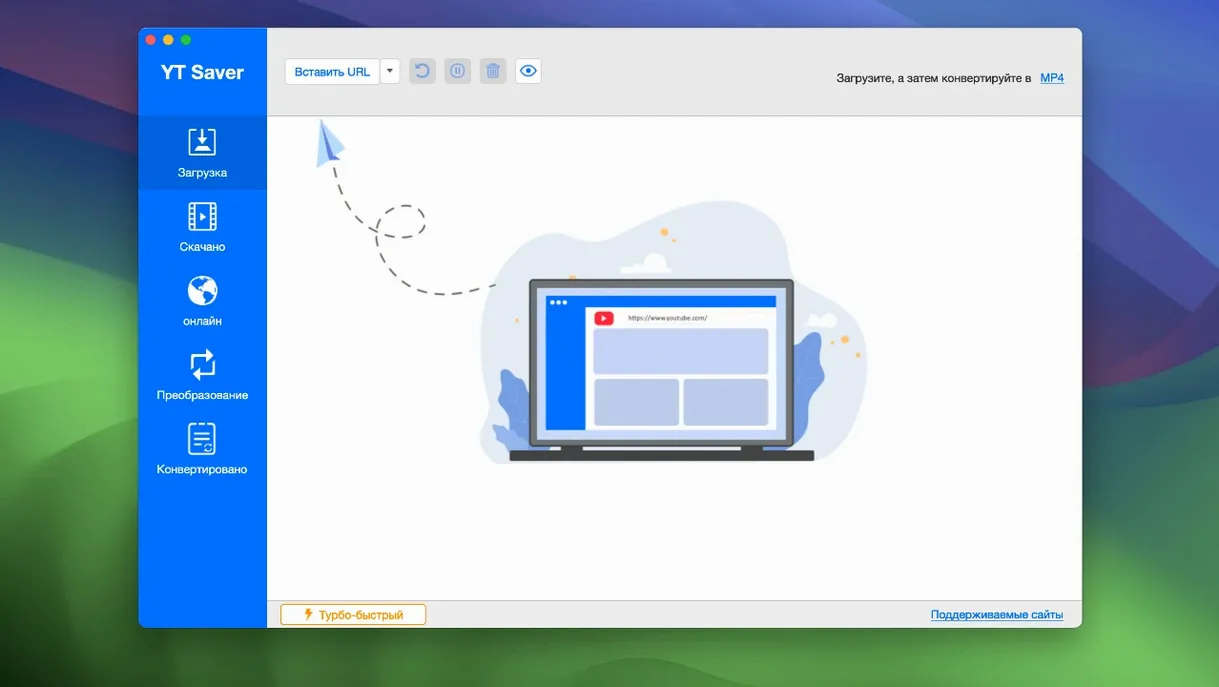
You probably know the drill from other video grabbers: paste a link, pick a format, hit download. YT Saver follows that same familiar rhythm but bundles a built-in browser so you can browse streaming sites straight from the app. Before you jump in, though, it’s worth checking whether your Mac can actually run version 10.15.0.
Runs on OS X 10.10 Yosemite and Newer
You’ll need OS X 10.10 Yosemite or anything newer. That covers a long stretch of Mac history, so even a machine that’s been sitting in a drawer for years can probably handle it.
Intel-Only, Relies on Rosetta 2 for Apple Silicon
Officially, the app is listed as Intel-only. It’ll run on Apple Silicon via Rosetta 2, but don’t expect a native ARM build — at least not in this release.
What formats can I download and convert to?
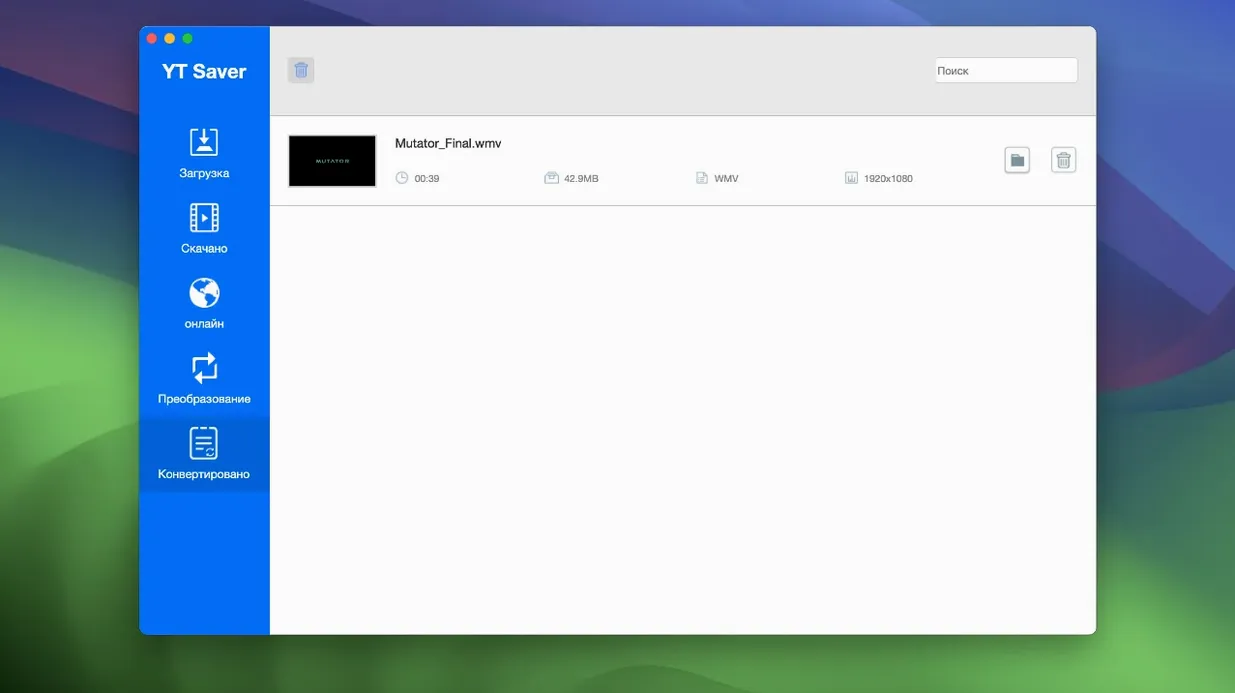
Once a video lands, you can export it as MP4, MOV, MKV, HEVC MP4, AVI, and a bunch of device-ready presets for iPhone, iPad, and Android. Audio extraction covers M4A, WAV, AAC, FLAC, OGG, and more, so ripping a soundtrack or podcast episode is just a few clicks away.
FLAC, OPUS, and WEBM Prove It Handles Audio Too
The app description points to streaming site support, and the format list suggests it can handle audio-only sources too — FLAC, OPUS, and WEBM are in its input roster alongside typical video containers like MPEG, FLV, and VOB.
A few minutes inside YT Saver
Let’s say you’ve just spotted a four-part documentary someone uploaded to a video platform — the kind that might vanish next week. You fire up YT Saver and click the built-in browser. It’s a stripped-down WebKit window, not a full Safari replacement, but that’s exactly the point: you’re here to grab media, not to browse the morning news. You log into the streaming site right inside the app, navigate to the first episode, and the link auto-populates in the download queue. No copy-paste dance required.
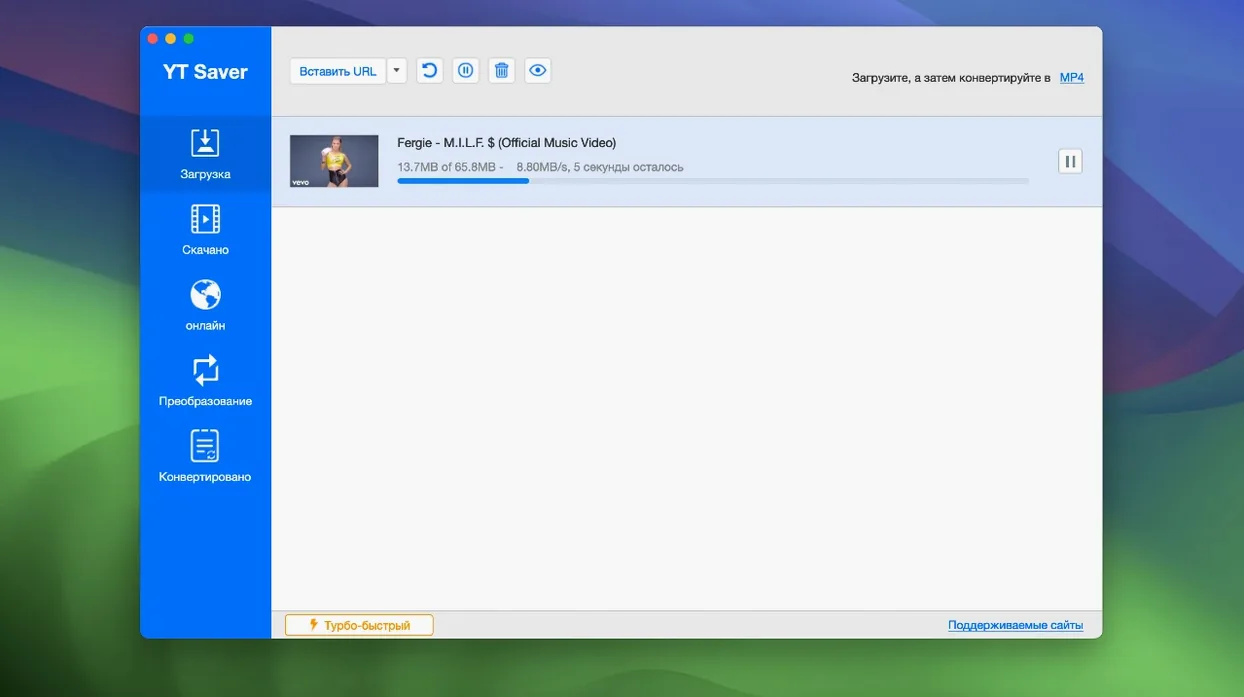
You tick all four episodes, set the format to MP4 — 1080p where available — and tell it to go. The queue panel shows each file’s progress side by side, and the app pulls them down simultaneously. While that runs, you hop over to a music blog, find a live set you’ve wanted offline for ages, and add it as M4A. The audio-only extraction skips the video stream entirely, so the file size stays small and the download finishes in under a minute. By the time your tea has cooled, the documentary episodes are sitting in your Movies folder and the live set is synced to your phone.
If you’ve turned on the private mode, that live set won’t show up in your regular download history — it lands in a password-protected folder only the app can unlock. Handy when you’re on a shared Mac and your media collection is nobody else’s business.
Less Polished Than PullTube, but in the Same Arena
There’s no shortage of Mac downloaders, so where does YT Saver fit? The closest cousins are apps like PullTube and Downie. PullTube feels more polished — its interface is all rounded corners and drag-and-drop elegance, and it handles Apple Silicon natively. But its format options are narrower, and it lacks the built-in browser that makes YT Saver feel self-contained. If your workflow is “paste link, download, walk away,” PullTube is snappier. If you’d rather browse inside the tool and queue up batches from different tabs, YT Saver pulls ahead.
Downie is the power user’s pick. It supports an enormous range of sites and offers clever features like custom extractors and browser extensions. YT Saver doesn’t match that depth, but it counters with the private folder and a conversion panel that handles more niche output formats — HEVC MKV, 3GP, and device-specific Android presets aren’t always present in Downie’s default export list. For someone who downloads once or twice a week and wants the converter baked in, YT Saver’s all-in-one approach cuts out an extra trip to HandBrake.
Where YT Saver shows its age is the Intel-only build. On an M1 or M2 Mac, Rosetta 2 does the job, but you’ll feel a slight lag opening the browser compared to a native app. If you’ve tried a ytsaver download on newer Apple Silicon, you already know the app works — just not with the instant snap of something compiled for ARM. The interface language support is genuinely broad, though: switching to German, Japanese, or Korean is a single menu selection, which makes it friendlier for multilingual households than many competitors.
Point Downloads to a Dedicated Folder Right Away
A few small moves make the app feel less like a stranger. Try these during the first week:
- Set your default export folder early. The preferences pane lets you point everything to a dedicated “YT Saver” directory instead of scattering files across Downloads. If you use the private mode, pick a separate location — it’ll save you from hunting later.
- Test the speed boost on short clips. The app claims faster-than-standard downloading, and it shows most clearly with files under 100 MB. Grab a three-minute music video first to see how your connection handles it before queueing a full playlist.
- Use the built-in browser for sites that fight external pasting. Some streaming platforms detect when a link is copied and block it. Browsing inside YT Saver sidesteps that entirely — the app sees the media stream directly and can parse it without the clipboard tango.
- Check the conversion panel before you download. You can target MP4 for video and M4A for audio right in the queue, which means you’re not converting twice. Picking the right output upfront keeps the file from being re-encoded later.
- Don’t sleep on the device presets. The iPad and Android tablet options encode at resolutions and bitrates those screens actually handle well. If you’re loading up a tablet for a long flight, using the preset avoids a file that chokes the video player.
- OS X 10.10 or later
- Intel processor (Apple Silicon runs via Rosetta 2)
Also on readers' docks
Sign in or create an account to leave a comment.
No comments yet. Tell me how it got on with your other devices.
More in Mac Apps
See all YTD Video Downloader PRO
7.8.0 Mac Apps
93 MB
YTD Video Downloader PRO
7.8.0 Mac Apps
93 MB
 Zipic
1.10.1 Mac Apps
13 MB
Zipic
1.10.1 Mac Apps
13 MB
 Wondershare UniConverter
15.7.3.564 Mac Apps
324 MB
Wondershare UniConverter
15.7.3.564 Mac Apps
324 MB
 Wondershare Recoverit
14.0.20.6 Mac Apps
212 MB
Wondershare Recoverit
14.0.20.6 Mac Apps
212 MB
 Wondershare Filmora
14.8.17 Mac Apps
924 MB
Wondershare Filmora
14.8.17 Mac Apps
924 MB
 Updated Wirecast Pro
16.5.5 Mac Apps
820 MB
Updated Wirecast Pro
16.5.5 Mac Apps
820 MB
 Wipr
2.38 Mac Apps
7 MB
Wipr
2.38 Mac Apps
7 MB
 WinZip Mac Pro
12.0.7282 Mac Apps
36 MB
WinZip Mac Pro
12.0.7282 Mac Apps
36 MB