








Download Wondershare Filmora for macOS
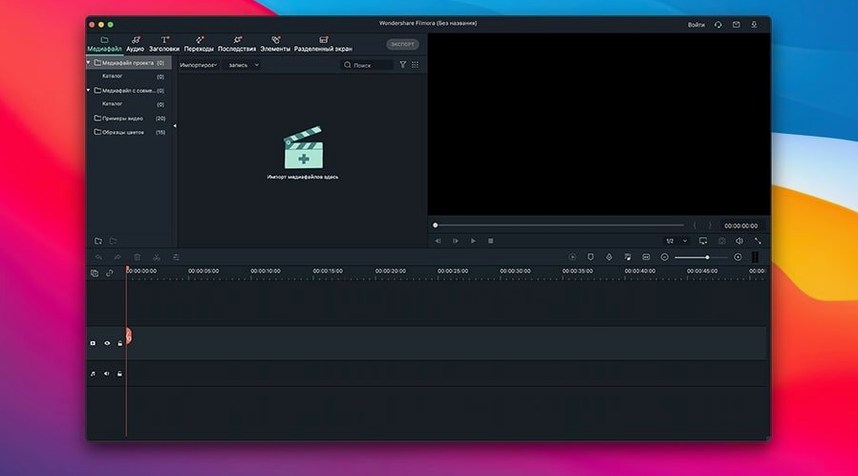
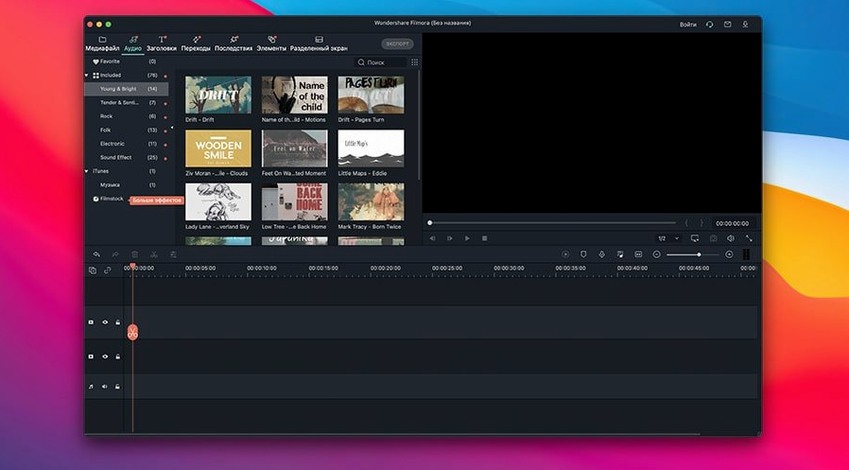
Filmora is a Mac video editor from Wondershare for putting together and polishing video projects. Before you try a Filmora X torrent or any unofficial download, it's worth knowing exactly what the official app needs to run. The current version asks for macOS 10.14 or later, and Wondershare's product page stretches compatibility all the way from macOS 10.15 through macOS 26. It runs natively on Apple Silicon too, with official support listed for M1 through M4 chips, so it's comfortable on the latest hardware.
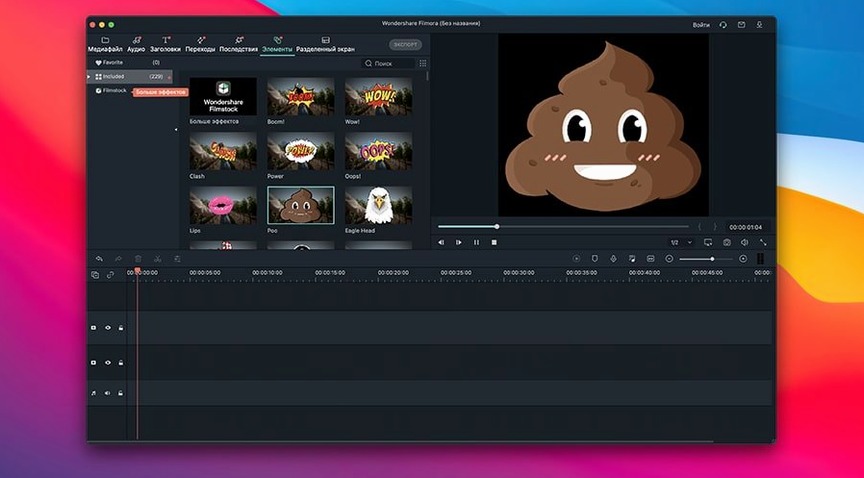
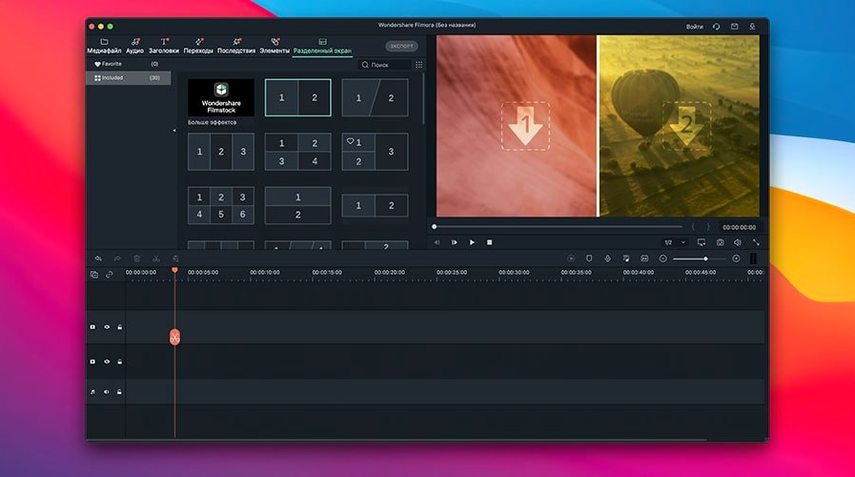
Once you're up and running, you get a timeline-based editor stocked with transitions, filters, overlays, and other effects for building out your timeline. The interface supports plenty of languages, including Russian, English, German, French, Japanese, and several others, which makes it accessible if you're working across different localizations. Finished projects can be exported in multiple formats straight to your computer.
While a filmora cracked torrent might seem like a shortcut, the real app is straightforward to install and doesn't need any fuss. You just mount the disk image, drag it into Applications, and launch it once to complete the setup. After that, it's ready to go—no activation acrobatics required.
Option-drag for instant timeline copies
Filmora packs a bunch of little conveniences that aren't shouted about on the feature list. Holding Option while dragging a clip on the timeline creates an instant copy instead of moving the original — handy when you want the same clip to appear twice without hunting through the media bin. The J-K-L keys work as shuttle controls (reverse, pause, forward), and tapping J or L multiple times speeds up the playback rate incrementally, which makes scrubbing through long interviews far less tedious than dragging the playhead with a mouse.
Another one people often miss: you can right-click any effect, transition, or filter in the library and add it to a Favorites folder. If you gravitate toward the same half-dozen transitions for every project, building that custom collection saves real time over digging through the full list. And when you're placing text overlays, holding Command while resizing locks the aspect ratio, so your title doesn't end up looking stretched and amateurish.
The snap toggle lives in the timeline toolbar and is worth paying attention to. It's on by default and makes clips magnetically align to each other, which is usually what you want. Turn it off temporarily when you need frame-precise nudges — otherwise Filmora will keep trying to helpfully snap your clip to the edge of the one next to it, and that helpfulness becomes a fight when you're doing detailed cuts.
How Filmora stacks up next to similar editors
On the Mac, Filmora sits between the dead-simple editors like iMovie and the timeline-heavy monsters like DaVinci Resolve. Compared to iMovie, Filmora gives you a proper track-based timeline with more than two video tracks, keyframe control over effects, and a much deeper library of built-in transitions and overlays. iMovie is free and fine for a family vacation montage, but the moment you want to do picture-in-picture with custom positioning or animate a lower-third title, you hit its ceiling. Filmora doesn't have that ceiling — or at least it's a few storeys higher.
Next to DaVinci Resolve, the difference is largely about friction. Resolve is monstrously capable and the free version alone does things Filmora doesn't touch, especially around color grading and audio sweetening. But Resolve demands you learn its way of thinking. Filmora is gentler: the learning curve is shallow, the interface doesn't intimidate, and most tasks that a YouTube creator or marketer actually does — trimming clips, adding text, dropping in B-roll, slapping on a LUT — take fewer clicks in Filmora. You trade power for speed, and for plenty of people that's the right trade.
CapCut for Mac is probably Filmora's most direct rival, and it's interesting because CapCut leans hard into TikTok-style templating and trending effects. Filmora has its own AI tricks and effect packs, but it still feels more like a traditional editor wearing modern clothes. CapCut assumes you want to make vertical social content; Filmora assumes you might want to make that and a longer YouTube export and a polished presentation video, all from the same project. The multi-track editing and export flexibility in Filmora are stronger, though CapCut's template library is snappier for quick, disposable content.
Who clicks with Filmora and who doesn't
Filmora suits content creators who edit regularly but don't need Hollywood-grade compositing. If your week involves uploading to YouTube, cutting together course videos, or producing social ads for a small brand, you'll feel at home. The app treats effects and transitions as first-class citizens — they're not buried in some "advanced" menu you're afraid to open. That design philosophy means you're more likely to actually use the polish tools, which makes for better-looking videos without a second round of learning.
Mac users who just upgraded from an iPad workflow also tend to appreciate Filmora. The interface is busy enough to feel like a "real computer" app but not so complex that it punishes you for coming from a touch-first editor. And because it runs natively on Apple Silicon, you're not losing battery life to Rosetta translation while editing on an M-series MacBook Air somewhere without a charger.
On the flip side, professional colorists and multi-camera editors will chafe against its limits. If your work involves grading raw footage with node-based corrections or syncing six angles from a live event, Filmora isn't built for that — and it doesn't pretend to be. It's also not the right tool if you collaborate with a team using Premiere Pro project files or need round-tripping to After Effects. Filmora's ecosystem is self-contained, which is fine for solo creators but a dead end for shared pipelines.
4K preview stutter fix: lower resolution
One common hiccup is choppy preview playback with 4K footage, even on a capable Mac. The default preview quality is set to "Full" — dropping it to "Half" or "Quarter" in the preview window settings keeps the timeline responsive without affecting your final export. If that doesn't smooth things out, check whether the proxy option is enabled in the project settings; Filmora can generate lower-resolution stand-in files automatically, and that's often the fix for stuttery edits on larger projects.
Some users find that exported videos look brighter or more saturated than what they saw in the editor. This is almost always a color space mismatch between Filmora's viewer and QuickTime's playback. Under Preferences, switching the color space to Rec.709 usually aligns the preview with what most screens and platforms expect. If you're delivering for YouTube or social media, Rec.709 is the safe bet.
Another snag: audio drifting out of sync on long clips recorded with variable frame rate, which is common with screen recordings and iPhone footage shot in certain modes. Filmora handles constant frame rate media without issues, but VFR can confuse its timeline. The simplest fix is to run the offending clip through HandBrake or a similar converter to lock it to a constant frame rate before importing. Once that's done, sync stays put.
When people search for shortcuts like a filmora mac download through unofficial channels or a filmora utorrent link, they sometimes end up with an installer that behaves oddly — missing effect packs, languages not switching properly, or projects that refuse to reopen. A clean drag-from-DMG installation using the official file structure avoids nearly all of that. If your timeline goes blank after reopening a saved project, check that the original media files haven't been moved or renamed; Filmora links to them by path, and if the path breaks, you'll just need to relink the media through the "Locate Missing Files" prompt that appears on load.
- macOS 10.14 or later
- Apple Silicon or Intel Mac
Questions people ask
Does Filmora work on Apple Silicon Macs?
Yes, the official Mac product page states Filmora supports Apple M1 through M4 chips, so it runs natively on newer Macs without Rosetta.
Also on readers' docks
Sign in or create an account to leave a comment.
No comments yet. Tell me how it got on with your other devices.
More in Mac Apps
See all Wondershare Recoverit
14.0.20.6 Mac Apps
212 MB
Wondershare Recoverit
14.0.20.6 Mac Apps
212 MB
 Wondershare UniConverter
15.7.3.564 Mac Apps
324 MB
Wondershare UniConverter
15.7.3.564 Mac Apps
324 MB
 Updated Wirecast Pro
16.5.5 Mac Apps
820 MB
Updated Wirecast Pro
16.5.5 Mac Apps
820 MB
 Wipr
2.38 Mac Apps
7 MB
Wipr
2.38 Mac Apps
7 MB
 WinZip Mac Pro
12.0.7282 Mac Apps
36 MB
WinZip Mac Pro
12.0.7282 Mac Apps
36 MB
 Winclone Pro
10.5 Mac Apps
21 MB
Winclone Pro
10.5 Mac Apps
21 MB
 WidgetWall
3.15.2 Mac Apps
396 MB
WidgetWall
3.15.2 Mac Apps
396 MB
 YT Saver
10.15.0 Mac Apps
115 MB
YT Saver
10.15.0 Mac Apps
115 MB