Download Disk Drill for macOS
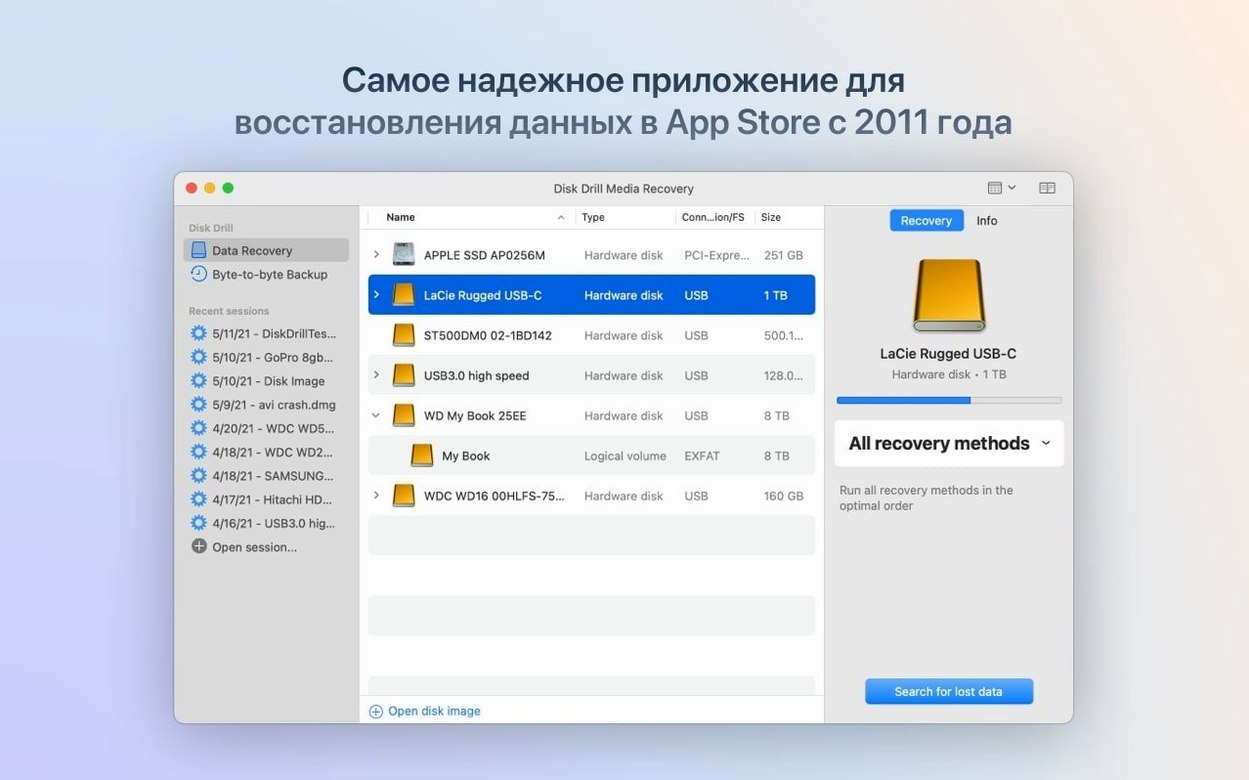
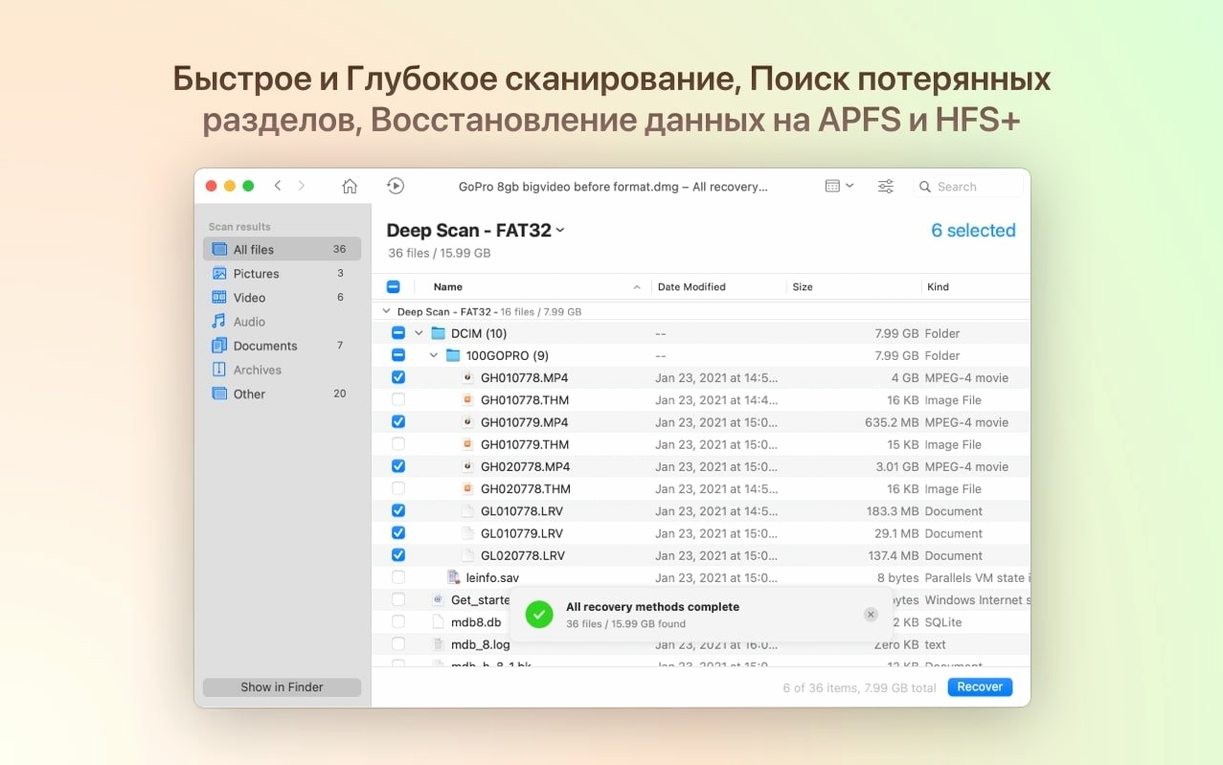
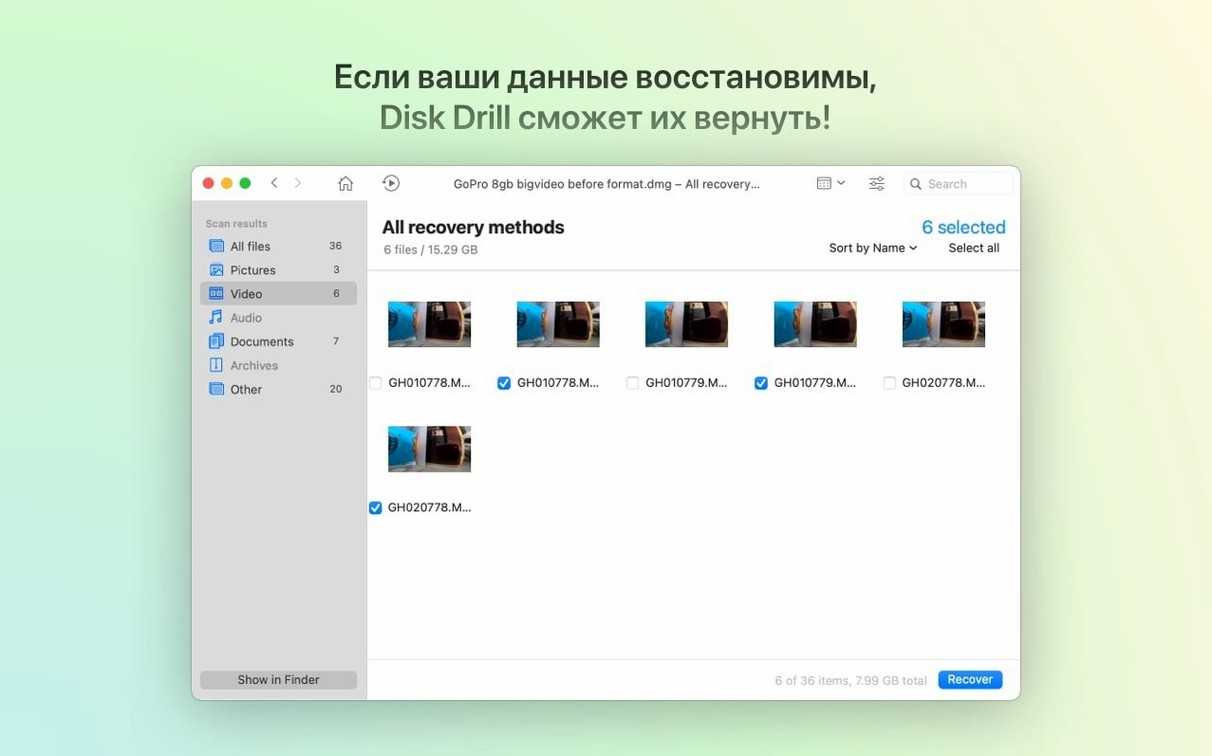
You empty the Trash, then realize the project file wasn't backed up. A camera card refuses to mount. Your external drive suddenly shows as unreadable. Those moments are why recovery tools exist, and Disk Drill 6 has been steadily refining how it handles them on macOS.
Version 6.3.2326 doesn't reinvent the wheel — it sands off rough edges and quietly expands what the scanner recognizes. The big addition for Windows cross-overs is detection and recovery of lost BitLocker partitions, which pairs nicely with the improved ReFS sparse-file handling. On the Apple side, encrypted APFS partition handling got smarter, and the ACR module now groups iPhone photos and videos more smoothly while adding .m4a support.
Two new file formats arrive: .p8 and .pfx, both common in certificate and key workflows. The byte-to-byte DMG scanning fix means fewer hiccups when you're creating and recovering from disk images — a workflow I've leaned on more than once when cloning a failing drive before attempting recovery.
Beyond recovery, the app still bundles cleanup tools, duplicate finders, backup creation, and disk health monitoring. It reaches beyond the Mac too, pulling call history, contacts and messages from iPhones and iPads, plus data from Android devices. It won't prevent the moment you delete the wrong file, but it makes that moment a lot less permanent.
Where Disk Drill Fits Among Mac Recovery Apps
Disk Drill has always occupied a particular niche, and that niche becomes clearer when you set it next to a few other tools people search for alongside terms like diskdrill mac torrent. It's an all-in-one toolkit rather than a single-purpose scanner, which shapes how it feels in daily use.
Next to EaseUS Data Recovery Wizard, the philosophical difference is immediate. EaseUS puts a heavier emphasis on guided wizards that walk you through recovery step by step. That's comforting when you're panicking. Disk Drill leans the other way — it surfaces scanning options upfront and trusts you to choose. Neither approach is wrong, but Disk Drill rewards users who want to tinker with scan depth, pick specific file signatures, and see what's actually happening under the hood. EaseUS covers fewer companion features too: you won't find a disk health monitor or duplicate finder bundled in.
R-Studio sits at the other end of the spectrum. It's a forensic-grade tool that expects you to understand hex viewers, RAID reconstruction parameters, and custom file signatures defined by hand. Disk Drill shares some of that DNA — the byte-to-byte backup feature and partition-level scanning feel like they were designed by people who've used R-Studio — but wraps it in an interface that doesn't assume you've memorized sector offsets. For most recoveries, Disk Drill gets you to the same result faster. For deeply technical edge cases, R-Studio still has the edge.
Then there's PhotoRec, the open-source workhorse. PhotoRec is command-line only (the bundled QPhotoRec GUI is barebones), ignores directory structures entirely, and recovers files purely by signature matching. Disk Drill preserves folder hierarchies when possible and lets you preview files before committing to recovery. If you're digging through a formatted SD card where folder structure doesn't matter, PhotoRec is perfectly capable. If you're recovering a project folder from a corrupted external drive and need to see which file is which before restoring, Disk Drill's preview pane makes that feasible in a way PhotoRec doesn't attempt.
Recovery Vault and Session-Saving Traps
Some of Disk Drill's best conveniences aren't on the main screen. They're tucked in places you only notice after using the app a few times — or after losing data in a specific, frustrating way.
The Recovery Vault sits quietly in the background once enabled. It doesn't back up your files. Instead, it keeps a lightweight record of file metadata — names, paths, and deletion timestamps — so that if something gets deleted later, Disk Drill can recover it instantly with its original name intact. It's the difference between getting back "Q3_report_final.xlsx" and hunting through a pile of numbered .xlsx files guessing which one matters. The tradeoff is a tiny amount of disk activity, but on modern SSDs you won't notice it.
The scan session save feature is easy to overlook because it appears as a small prompt after a scan completes. Saving a session means you can come back tomorrow, next week, even after restarting the Mac, and pick up exactly where you left off — no rescanning required. If you're scanning a 4TB external drive, that's hours saved.
In the duplicate finder, holding the Option key while clicking a file reveals its full path inline rather than making you dig through a separate info panel. The disk health monitor's S.M.A.R.T. readouts include a "lifetime writes" counter that's genuinely useful for SSD owners — when that number approaches the manufacturer's rated endurance, you know it's time to clone the drive, and Disk Drill's byte-to-byte backup tool is right there waiting.
One more: the pause and resume button during deep scans. Not all recovery apps offer this. When a scan is running into its third hour and you need those CPU cycles back for a render or export, being able to pause rather than cancel is a quiet quality-of-life win.
How Disk Drill Plays With Other Apps and macOS
Disk Drill doesn't try to replace Finder — it extends what happens when Finder can't see your files anymore. But its interactions with the rest of macOS go deeper than you might expect.
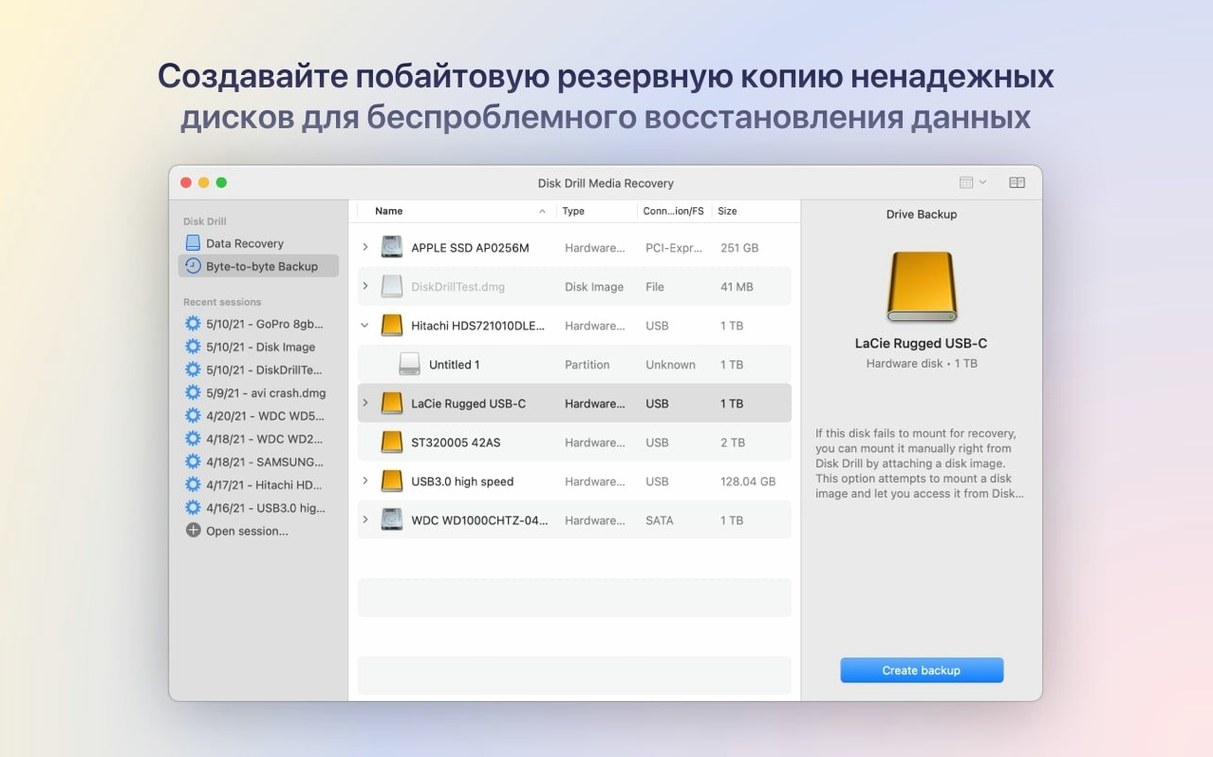
The byte-to-byte DMG backup is the clearest example. You can create a raw disk image of a failing drive, store it on a healthy external disk, then hand that .dmg to Disk Drill for scanning. But you can also hand it to other tools entirely — mount it in Finder as a read-only volume, run a different recovery app against it, or archive it for later. It's a standard format, not a proprietary container, which means your data isn't locked into Disk Drill's ecosystem.
Recovered files land wherever you point them, with their original creation and modification dates preserved. This matters for photographers and videographers who sort by date in Lightroom or Final Cut Pro. A recovery that strips metadata means hours of manual reorganization. Disk Drill keeps the timestamps intact, so your media slots back into your library as if it never left.
The app also respects macOS's permission model. When you scan a drive, Disk Drill asks for the specific access it needs through the standard Security & Privacy pane — no kexts, no kernel extensions, no System Integrity Protection compromises. On Apple Silicon Macs, this keeps the recovery process running at native speed without triggering the reduced-security boot modes that some older recovery tools still require.
For developers and IT folks who deal with certificates, the new .p8 and .pfx support means Disk Drill can recover authentication keys that get accidentally wiped during provisioning profile cleanups. Those files often live outside Time Machine's scope — tucked in hidden directories or temp folders — so having a recovery tool that specifically hunts them down fills a gap Apple's built-in backup doesn't cover. If you're searching for a disk drill activation code mac solution online, you'll find these certificate recovery features are part of what sets the full toolkit apart from slimmer utilities.
A Freelance Editor's Wednesday Morning
Maya edits video for corporate clients. Her setup is a 16-inch MacBook Pro with a 2TB internal SSD and a pair of Samsung T7 external drives — one for active projects, one for archives. On Wednesday morning, the active-project drive mounts, but the folder containing three days of timeline exports shows as empty.
She doesn't panic immediately. She opens Disk Drill, selects the T7, and starts a quick scan. Within ninety seconds, the scan results populate, and the missing folder appears — not as a folder, but as a flat list of recoverable files. The preview pane lets her scrub through a few .mov files to confirm they're the right exports. They are. She selects all of them, hits Recover, and points the destination to her internal SSD. Twenty-three minutes later, every file is back, folder structure intact, modification dates matching her export log.
While that runs, she notices the disk health monitor flagging the T7's S.M.A.R.T. reallocated sector count as "Warning." The drive isn't dead yet, but it's signaling. She launches Disk Drill's byte-to-byte backup, targets the T7, and creates a .dmg on a spare drive. That image becomes her safety net — she can scan it later if the drive degrades further, or mount it to pull individual files manually. The shoot footage she needs for next week's edit is already inside that image, safe regardless of what the physical T7 does next.
Later, she plugs in her iPhone to pull a voice memo she accidentally deleted during a client call. Disk Drill's iOS module finds it in under a minute, preview confirms it's the right recording, and she restores it directly to her Mac's Documents folder. Three recoveries, one morning, no data lost permanently. Plenty of users grab a Disk Drill crack download to jump straight into that same recovery flow, and once it's set up with full disk access in System Preferences, it runs just as smoothly.
Recovering Photos From a Formatted SD Card: Start to Finish
This is the workflow I've used more times than I'd like to admit — usually after a camera asks "Format card?" and muscle memory says yes before the brain intervenes.
Step 1: Stop using the card immediately. Remove it from the camera, flip the write-protect tab if it has one, and insert it into your Mac's card reader. Every write operation risks overwriting the very photos you want back.
Step 2: Launch Disk Drill and select the SD card from the device list. If the card doesn't appear, try a different reader or USB port — Disk Drill needs the raw block device, not just a mounted volume.
Step 3: Choose "All Recovery Methods" rather than Quick Scan. A format wipes the file table, so you need the deep scan to find files by their data signatures. Check the file type list and make sure your camera's raw format is ticked — .dng detection was specifically fixed in this version, and .rwl support is newly added for Leica shooters.
Step 4: Let the scan run. For a 64GB card over USB 3, expect roughly 15-25 minutes. The progress bar shows both elapsed time and estimated remaining time, which updates as the scan progresses. You can minimize Disk Drill and work on other things; it'll chug along in the background.
Step 5: Filter the results. Once scanning finishes, use the file type sidebar to isolate images. Disk Drill groups them by extension — .cr3, .nef, .arw, .dng — and shows previews in the main pane. Switch to thumbnail view and scan through visually. Pay attention to the "Recovery chance" indicator: green means the file structure is intact, yellow means partial damage, red means the preview may not match the actual recovered file.
Step 6: Select and recover. Tick the photos you need, or select all and sort later. Choose a destination on your Mac's internal drive — never recover files back to the same card you're scanning. Disk Drill preserves the original filenames and EXIF data, including capture dates, camera model, and lens information.
Step 7: Verify in your photo app. Import the recovered folder into Photos, Lightroom, or Capture One. Sort by date captured and check that the images slot into the correct timeline. Spot-check a few files at 100% zoom to confirm no corruption. If everything checks out, you can reformat the card and put it back in the camera.
The whole process takes under an hour for a typical card, and the only permanent damage is to your pride for formatting it in the first place. If you arrived here hunting for a disk drill warez download, know that the scanning and previewing stages work fully so you can see exactly what's recoverable before committing to anything
Disk Drill 6.3.2326 brings a handful of targeted fixes and format additions:
- Detects and recovers lost BitLocker partitions.
- Adds support for .p8 and .pfx certificate and key files.
- Adds .m4a support in the ACR module.
- Improves encrypted APFS partition handling.
- Fixes byte-to-byte DMG scanning.
- macOS 10.15.7 or later
- Apple Silicon and Intel Macs
Also on readers' docks
Sign in or create an account to leave a comment.
No comments yet. Tell me how it got on with your other devices.