
Download Dropover for macOS
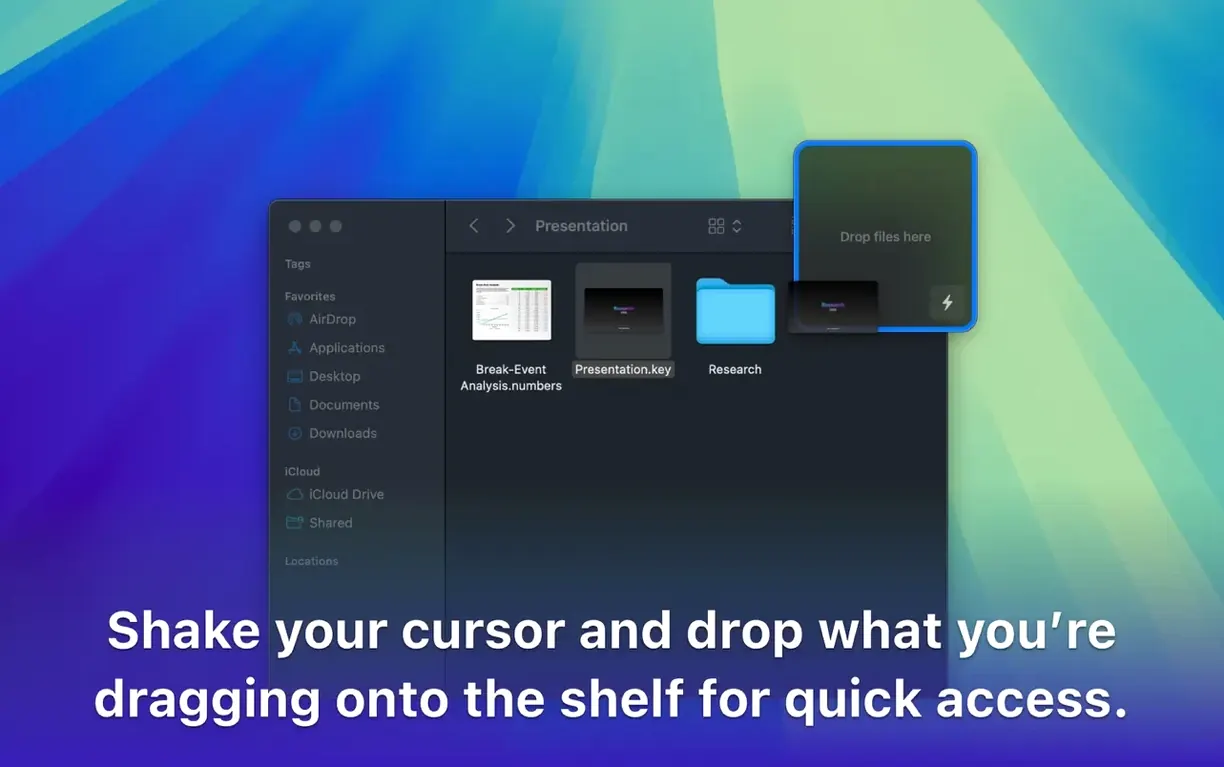
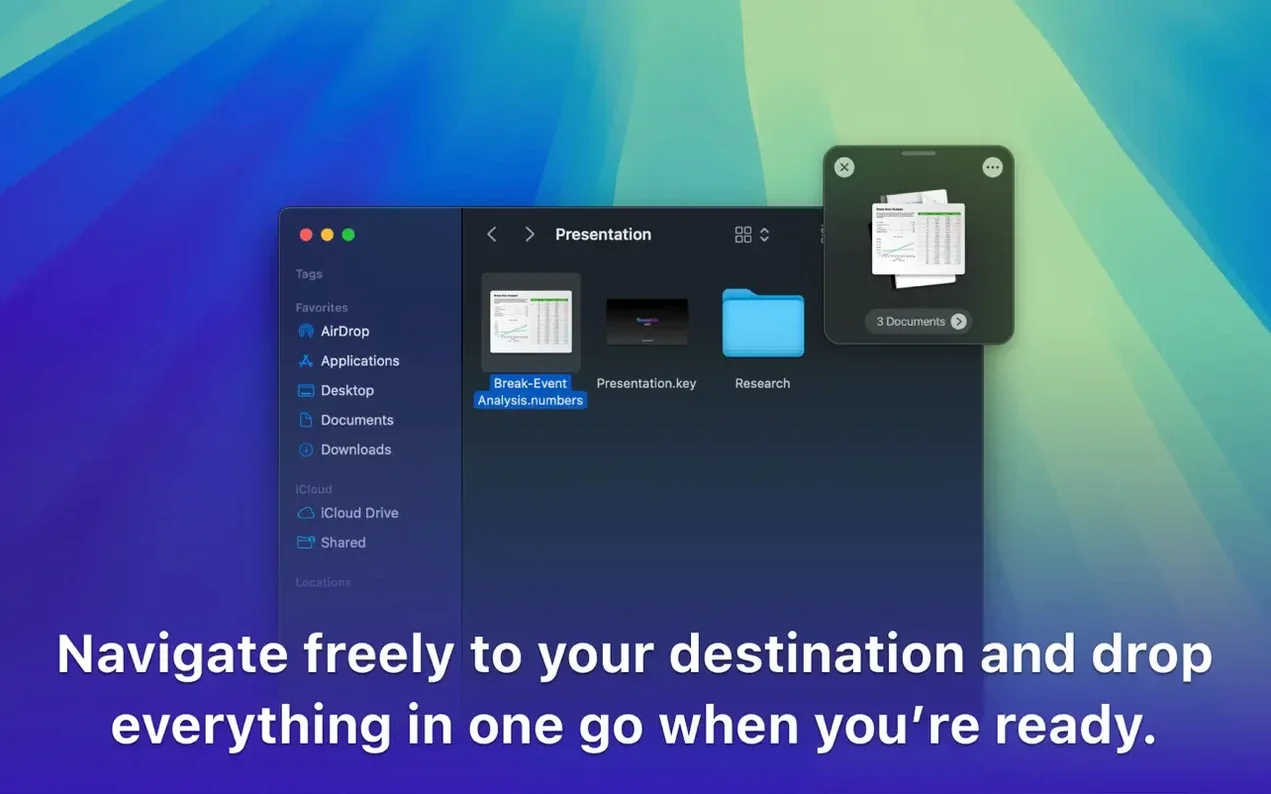
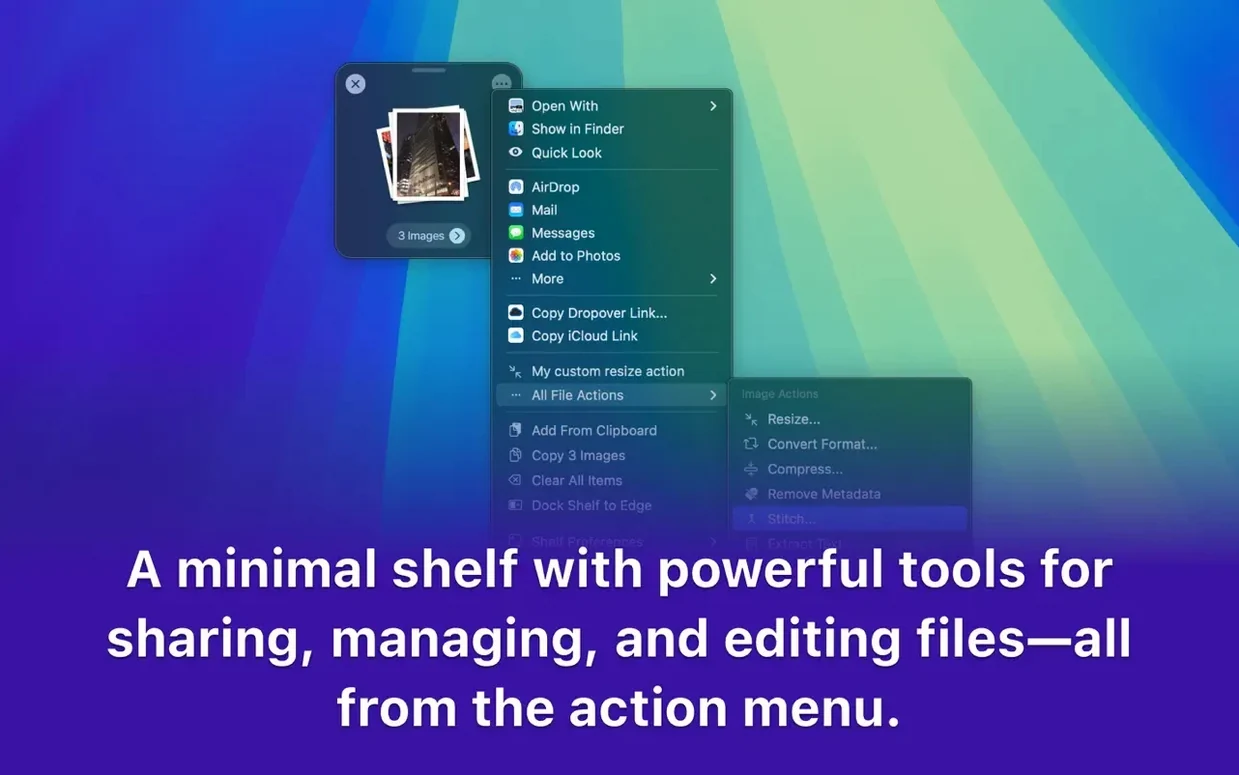
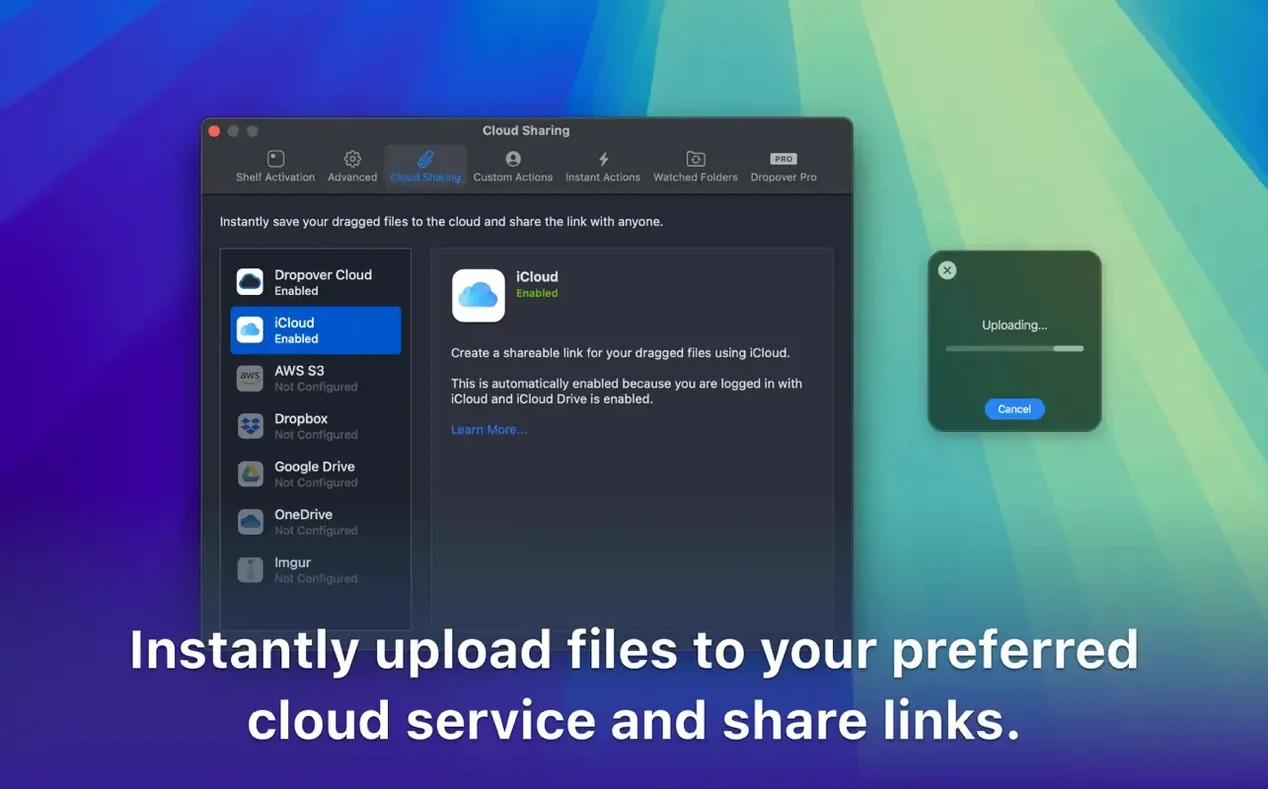
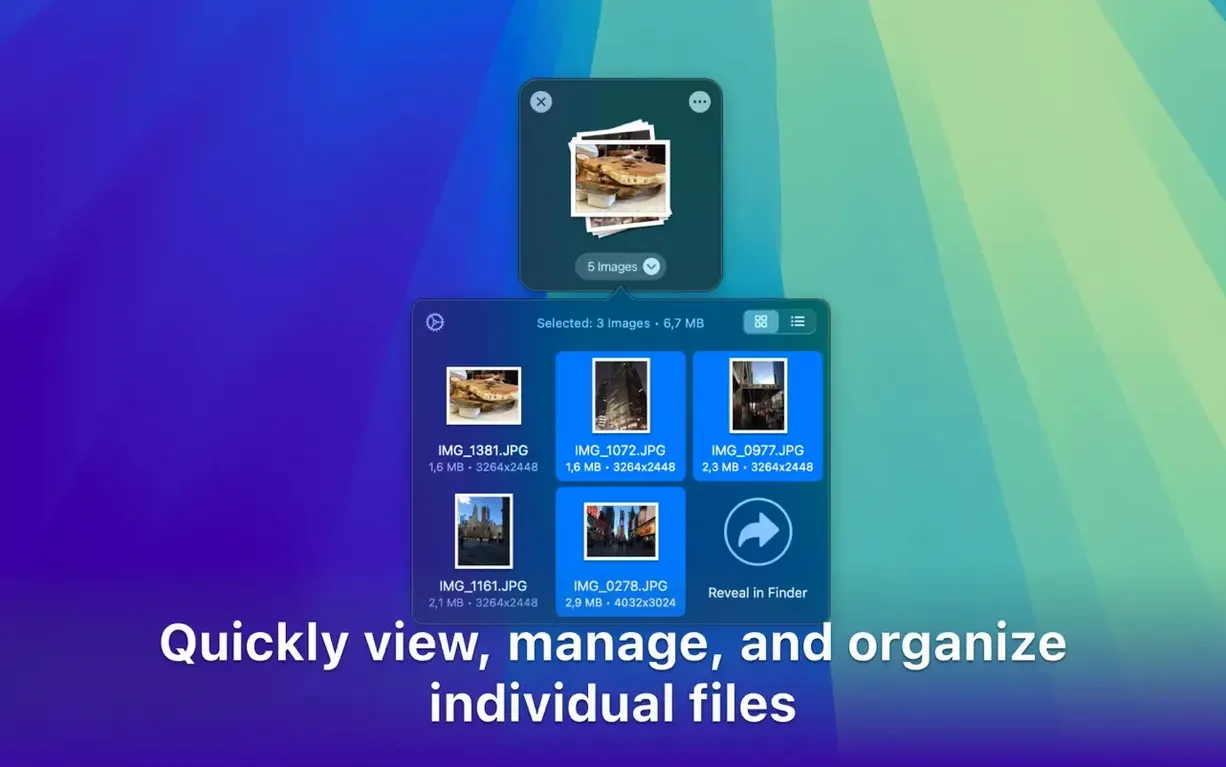
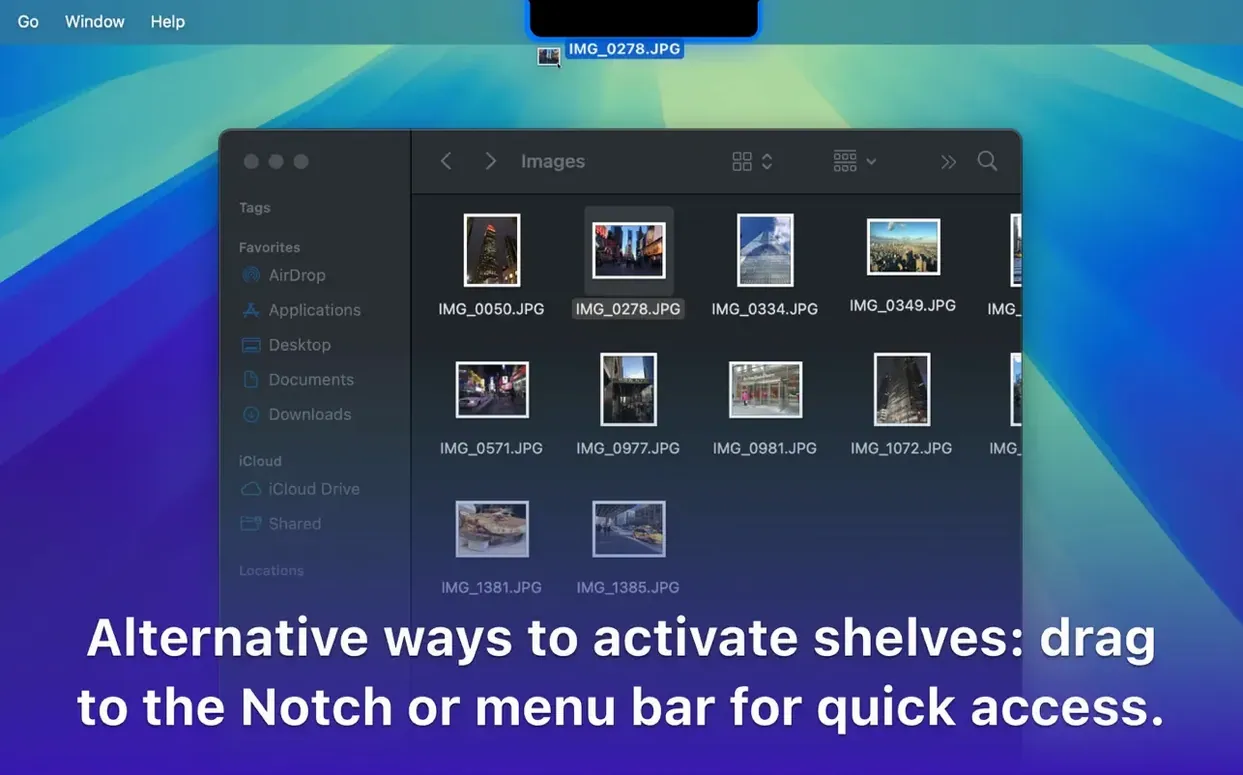
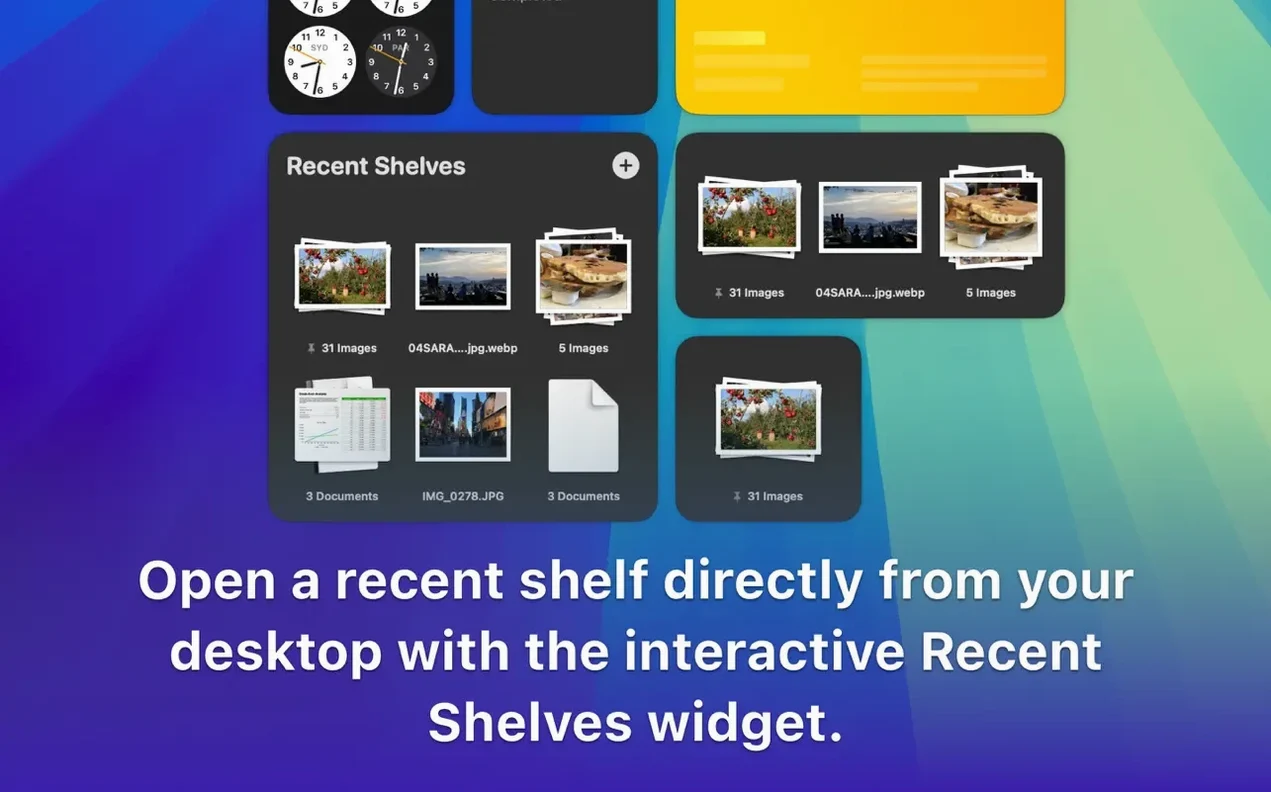
If you’ve ever used a clipboard manager, you already understand the itch Dropover scratches — just for files and snippets instead of text history. It’s a Mac utility that creates a floating shelf when you shake your cursor with a dragged item, letting you stash everything from images and folders to web links and plain text before dropping them somewhere else. No more back-and-forth window ballet.
- Spawn a temporary shelf by jiggling your cursor during any drag — files, images, links, and text clippings all land there.
- Stack up items from different folders, apps, or Spaces, then drop them all into a single destination at once.
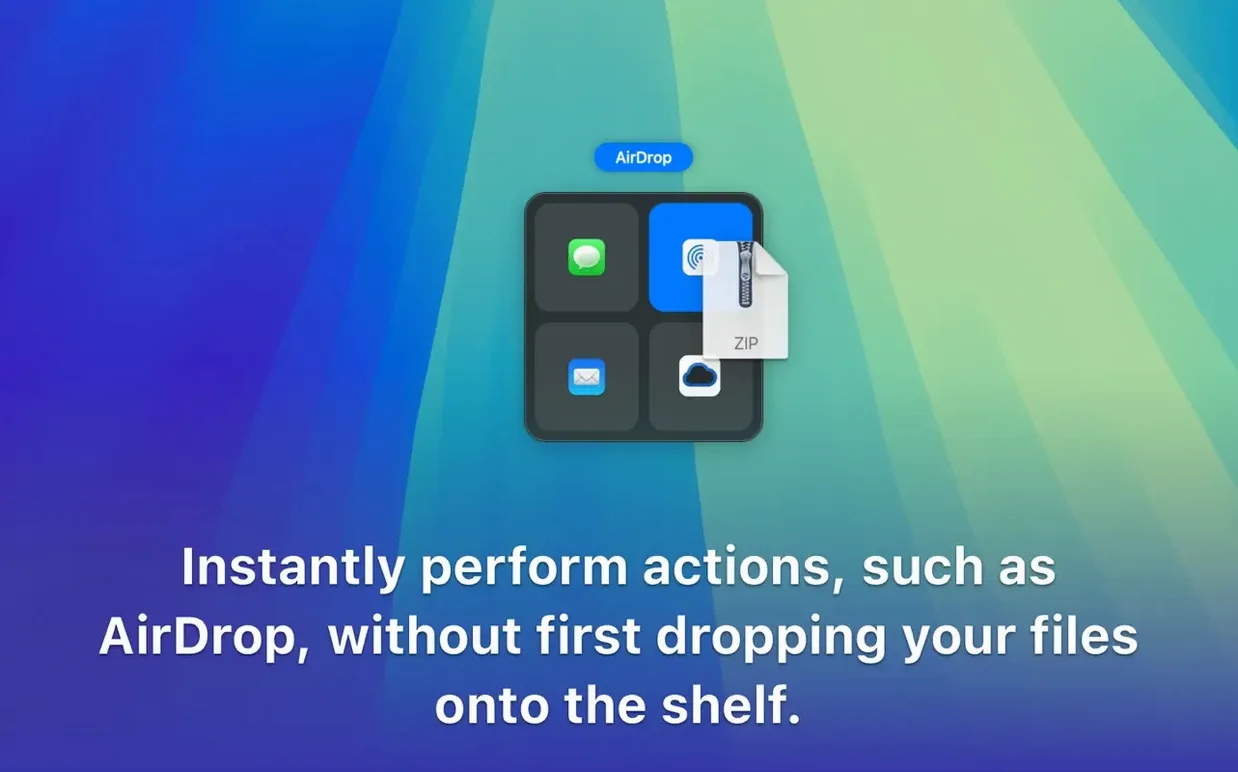
- Upload straight to Google Drive or Dropbox right from the shelf without opening a browser.
- Works with macOS Shortcuts, so you can automate whatever you’ve gathered next.
- Lightweight companion that feels native — no clunky importers or separate windows to manage.
Dropover wants macOS 12 or later and runs on both Intel and Apple Silicon Macs, so it’s compatible with pretty much anything that’s still getting Apple security updates. It won’t turn your Mac into a different machine, but it fills a gap between drag-and-drop muscle memory and the mess of juggling a dozen Finder windows. If you move bits of content around all day, it’s one of those tools that quietly becomes reflex.
Assemble Assets Across Drives Without Losing Track
Designers and video editors who constantly pull assets from scattered project folders will probably bond with Dropover fastest. Grabbing a logo from one drive, a stock photo from another, and a text snippet from a browser tab without losing anything mid-drag stops feeling like a trick after the first afternoon. Developers bouncing between code repositories, documentation links, and design mockups are another natural fit — the shelf keeps reference materials visible while Xcode or VS Code owns the screen.
Writers and researchers collecting quotes, images, and URLs across half a dozen tabs get a quieter benefit: they can stash everything on the shelf, then drop the whole batch into a notes app or a draft email. Even casual users who regularly shuffle photos into shared albums or upload batches to cloud storage will find it earns its spot in the menu bar. If your workflow rarely involves dragging more than one item at a time, the utility is still pleasant but less transformative.
Barely a Whisper of CPU, Even Mid-Shelving
Dropover runs lean enough that I stopped checking Activity Monitor after the first week. On an Apple Silicon machine it idles with barely a whisper of CPU time, and even during a busy shelving session — ten images, a couple of links, a video clip — memory usage stays under 100 MB most of the time. Intel Macs see similar restraint, though the cursor-shake detection can feel a tick less fluid on older hardware without Metal-capable graphics.
Stability over several months of daily use has been uneventful in the best way. No crashes during drags, no lost items when the Mac wakes from sleep, and no beachball moments even with large files on the shelf. The one quirk worth knowing: if you’re running multiple display setups with different scaling, the shelf occasionally appears on an unexpected screen, though repositioning it is a one-time fix.
From Finder Grabs to a Finished Blog Post Kit
Here’s how a typical chunk of work flows once Dropover is part of the routine. Say I’m putting together a blog post with screenshots, a press kit image, and a shared link.
I start in the Finder, grab the first screenshot and wiggle the cursor — the shelf materializes near my pointer, translucent and unobtrusive. I drop the file there. Switching to Safari, I drag the image from the press kit straight onto the shelf without leaving the browser. Then I highlight a URL, give it a quick shake-drag, and that joins the pile too. Three items from three different places, sitting in a neat stack while I navigate to the CMS.
With the destination ready, I pick up the entire stack from the shelf and drop it where it belongs — all three land in sequence, no Finder windows left open behind me. Before I send the article off, I tap the shelf’s share shortcut to upload the screenshots directly to a Dropbox folder for backup, then clear the shelf with a quick flick. The whole session never touches the desktop, never spawns a temporary folder I’ll forget about, and keeps me from playing window tetris between each step.
For anyone who has muttered “where did I put that file” three times before lunch, grabbing the dropover dmg is worth the few minutes it takes to install. It’s the sort of utility that rewires how you move things around macOS without ever demanding attention.
On iPad and iPhone: Dropover is a Mac-only utility. The developer hasn’t released companion apps for other Apple platforms, though shared cloud folders you populate from the shelf are accessible anywhere.
- macOS 12 (Monterey) or later
- Runs on Intel and Apple Silicon Macs
- Interface languages: English, German, Simplified Chinese, Dutch
Questions people ask
Is Dropover available for Windows or iPad?
No, Dropover is a Mac-only utility developed by Tappable Software for macOS.
Can Dropover work with cloud storage?
Yes, Dropover can upload files directly to cloud services such as Google Drive and Dropbox from the shelf.
Also on readers' docks
Sign in or create an account to leave a comment.
No comments yet. Tell me how it got on with your other devices.