Download DVDFab for macOS
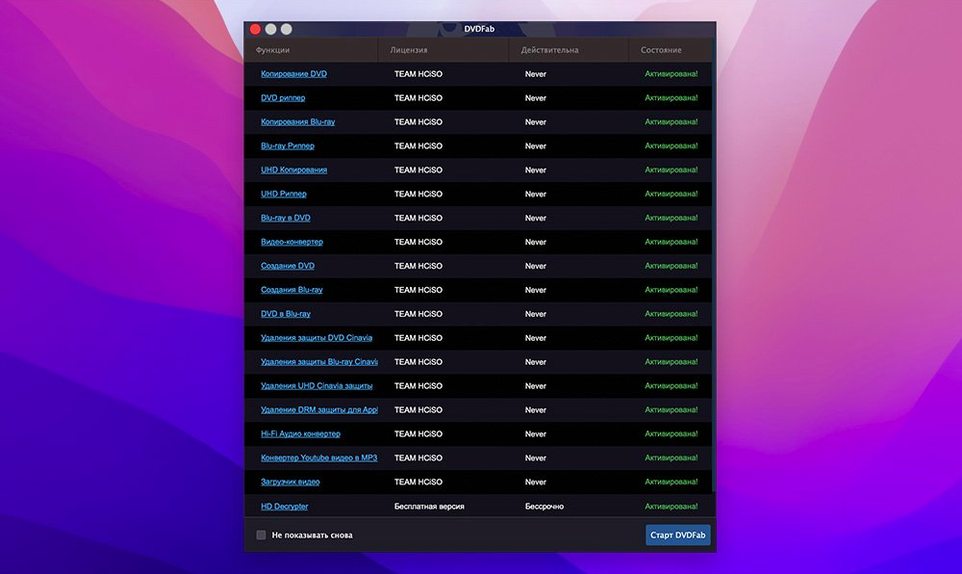
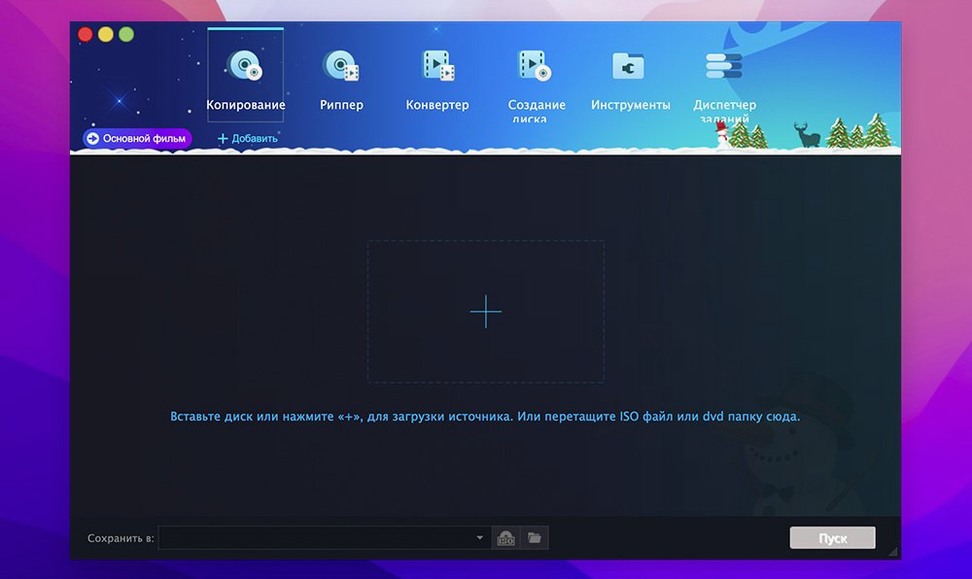
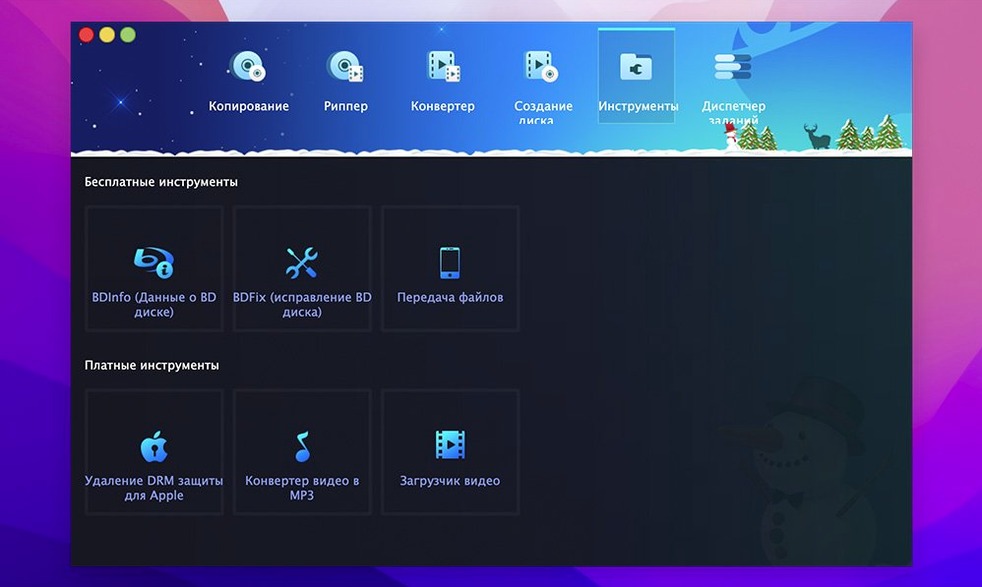
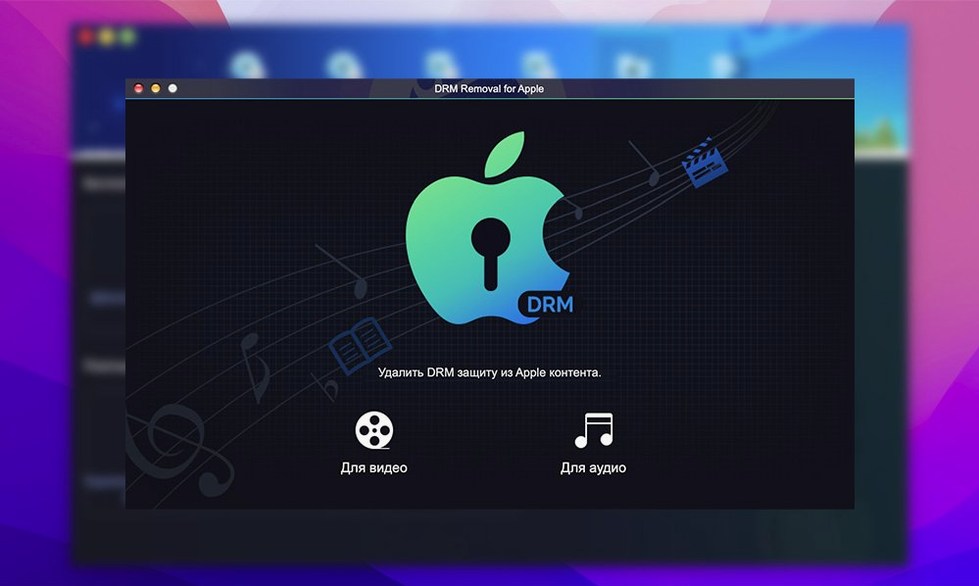
DVDFab is a complete DVD toolbox for your Mac that copies, rips, burns, and converts discs without fussing over copy protections.
Clone, Rip, or Custom-Build a Disc
Quite a lot. You can make a 1:1 clone that keeps every menu and trailer, rip just the main movie into a digital file, or even build a custom disc by cherry-picking titles and keeping the original menu. If a disc is scratched and the IFO file is unreadable, the app can still pull off the recoverable data.
Does it handle protected discs?
Yes — that is half the point. It strips away CSS, region codes, RCE, Macrovision, and UOPs so you can actually use the discs you own the way you want.
Is it ready for modern Macs?
It runs natively on both Apple Silicon and 64-bit Intel Macs and supports a ton of interface languages — over two dozen, from Arabic to Japanese. You will need macOS 10.10 or later.
When the Disc Just Spins Unrecognized
Even a seasoned disc app has its sticky moments. Here are the ones I hear about most and what actually fixes them.
The disc just spins and the app acts like nothing is there. Almost always a disc recognition hiccup. Eject the DVD, give it a gentle wipe with a microfiber cloth — smudges and fine scratches confuse the optical drive far more than you'd think — then reinsert. Still nothing? Head into DVDFab's settings and toggle the DVD reading mode between Built-in and System default. One usually snaps it back to life.
A ripped file plays fine in VLC but stutters on an iPad or TV. That is almost never the rip itself. Open the conversion profile you picked and check the frame rate setting. If the source is a PAL DVD at 25fps and your profile defaults to 30fps, you get micro-stutter. Match the source frame rate and the playback smooths out completely.
DVDFab says the destination disc isn't big enough, even though it looks fine. Dual-layer blanks vary a tiny bit in actual capacity between brands, and a full-disc copy of a DVD-9 can land a few megabytes over what the blank media reports. Use the Split method instead of Full Disc and let the app spread the content across two DVD-5s. It handles the layer-break logic cleanly and the menus stay intact on the first disc.
The app quits unexpectedly on launch after a macOS update. DVDFab leans on low-level disc access that a major macOS point release can jostle. Trashing the preferences file — located in ~/Library/Preferences/com.dvdfab.mac.plist — then relaunching resets the internal disc handler without touching any of your saved profiles or output folders.
Pipe a Rip Straight into HandBrake
DVDFab works best as the start of a chain, not the whole workshop. I rip a disc to a folder, then point HandBrake at that folder for a second-pass compression tweak when I want a smaller file for a tablet. Because DVDFab already stripped protections, HandBrake sees a clean, unprotected source and encodes without a hitch.
macOS's Quick Actions in Finder can trigger Automator scripts that watch a designated output folder. Once DVDFab finishes writing, my script renames the folder based on the disc title metadata and moves it to a Plex-monitored library. No manual tidying required.
For burning, the app talks directly to Apple's DiscRecording framework under the hood, so any external USB burner macOS recognizes — including the Apple USB SuperDrive — shows up automatically. If you use a third-party Blu-ray drive for data discs, DVDFab sees it too, though DVD burning is what most people are here for.
iCloud Drive integration is indirect but useful: set the output path to an iCloud-synced folder and ripped MP4s land on an iPhone or another Mac without AirDrop. Just mind the file sizes — a main-movie rip can clock a couple of gigabytes, so Wi-Fi speed matters more than usual.
Four Seconds Faster Disc Scanning on Apple Silicon
Version 12.0.8.2 kept the familiar eight-method copy panel but tightened the disc-opening speed noticeably on Apple Silicon. On an M1 or M2 Mac the app scans a DVD-9 and populates the title list about four seconds faster than the 12.0.7 builds — not earth-shattering, but the difference adds up when you batch through a shelf of old TV season box sets.
One quiet but welcome change: the Merge method no longer flattens chapter markers from the second source. Previously, merging two discs would lose the chapter stops from the appended title, leaving you with one long block. Now the markers carry over, so navigating a merged disc with a remote feels natural.
The 12.x branch also smoothed out a long-standing annoyance with PAL-to-NTSC conversion profiles. Older versions sometimes introduced a faint audio drift on discs longer than two hours. In 12.0.8.2 the sync holds tight across a full three-hour concert disc, which matters if you archive live performances or long documentaries.
People hunting for older builds via a dvdfab torrent or a dvdfab mac torrent often end up with 11.x versions that lack these Apple Silicon speed-ups entirely. The native ARM code path arrived in the 12.x line, so an outdated dvd fab torrent means Rosetta emulation overhead and slower disc analysis. If you grab a dvdfab mac crack, just make sure it's actually a 12.x bundle so you get the merge and sync fixes described above. A straight install of 12.0.8.2 from a dvdfab mac package avoids both the emulation penalty and the chapter-mark bug.
Set a Real Output Folder First
Right after you drag the app into Applications and launch it, do three things that pay off later.
Set a default output folder immediately. Go into Preferences and point it at a folder you actually use — not the Downloads swamp. I keep a DVDFab Rips folder in my home directory. Every rip lands there unless I override it per job, which saves me from digging through a pile of randomly named folders a week later.
Run one short test disc first. Grab a DVD with a single short title — a TV episode disc works perfectly — and run it through Main Movie mode to an MP4 profile. This confirms your drive, the app's disc access permissions, and the output format all work together before you commit to a two-hour feature. macOS will almost certainly prompt for permission to access removable volumes the first time; grant it permanently or you will hit the same dialog on every launch.
Check the conversion profile defaults. The out-of-the-box settings lean toward maximum compatibility, not maximum quality. For a modern iPad or Apple TV, bump the video bitrate up a notch in the profile editor and switch audio to pass-through AAC instead of re-encoding to a lower bitrate. The file grows a little, but on a Retina screen the difference is obvious.
If you plan to build custom discs with the Customize method, spend ten minutes learning the title preview pane. You can scrub through each title before adding it to the compilation, which avoids the classic mistake of burning a disc only to discover the third episode is the wrong file entirely.
- macOS 10.10 or later
- Apple Silicon or 64-bit Intel Mac
Questions people ask
Does it include burning tools?
Absolutely. Alongside the ripping and copying tools, the suite has full disc burning and authoring capabilities built in.
Can I pick exactly which parts of a DVD to copy?
You can. The custom mode lets you select specific titles and optionally keep the original disc menu so the result feels like a tailored version of the original.
Also on readers' docks
Sign in or create an account to leave a comment.
No comments yet. Tell me how it got on with your other devices.