Download Duplicate File Finder Pro for macOS
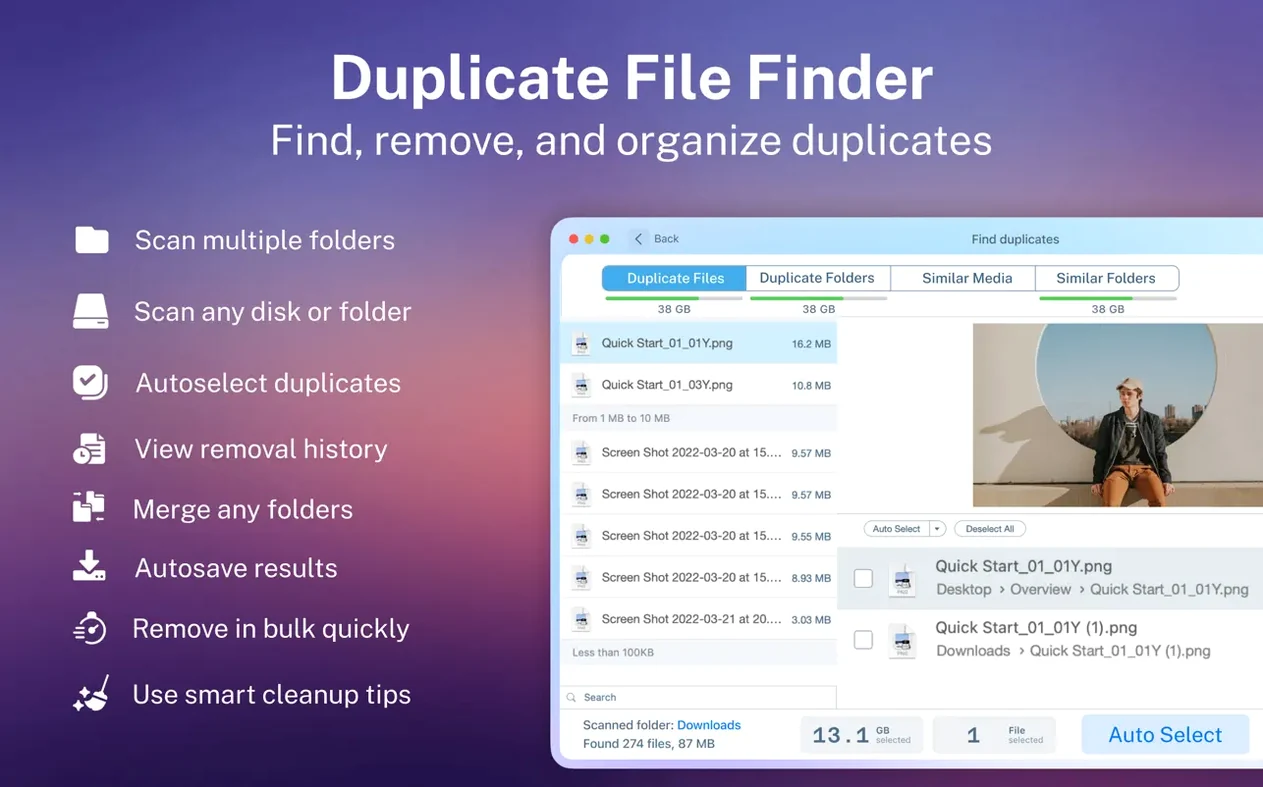
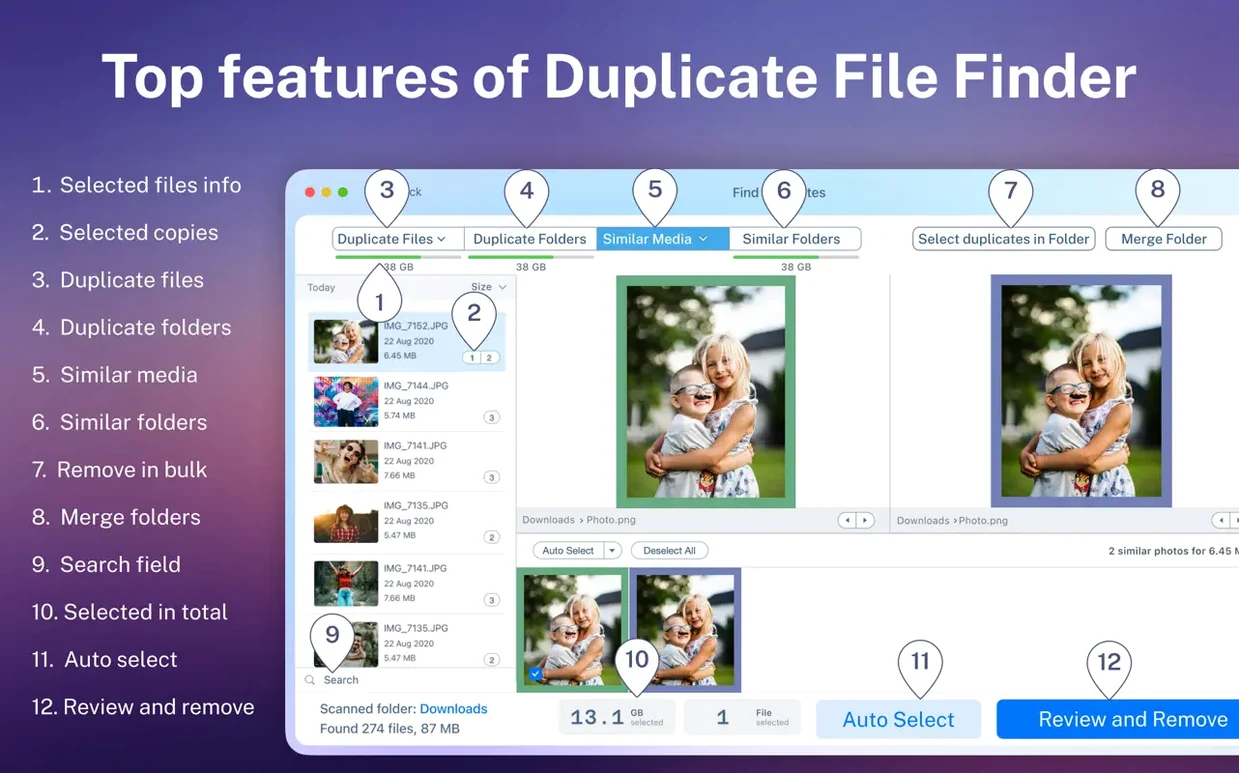
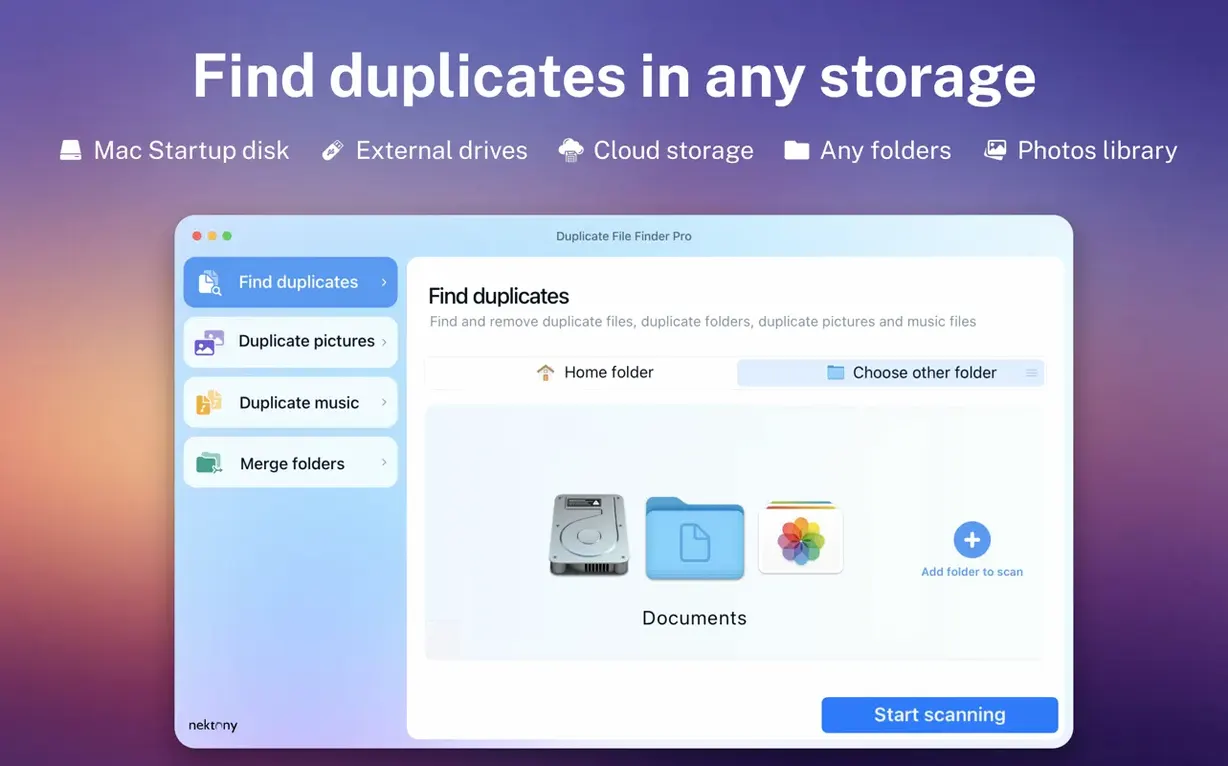
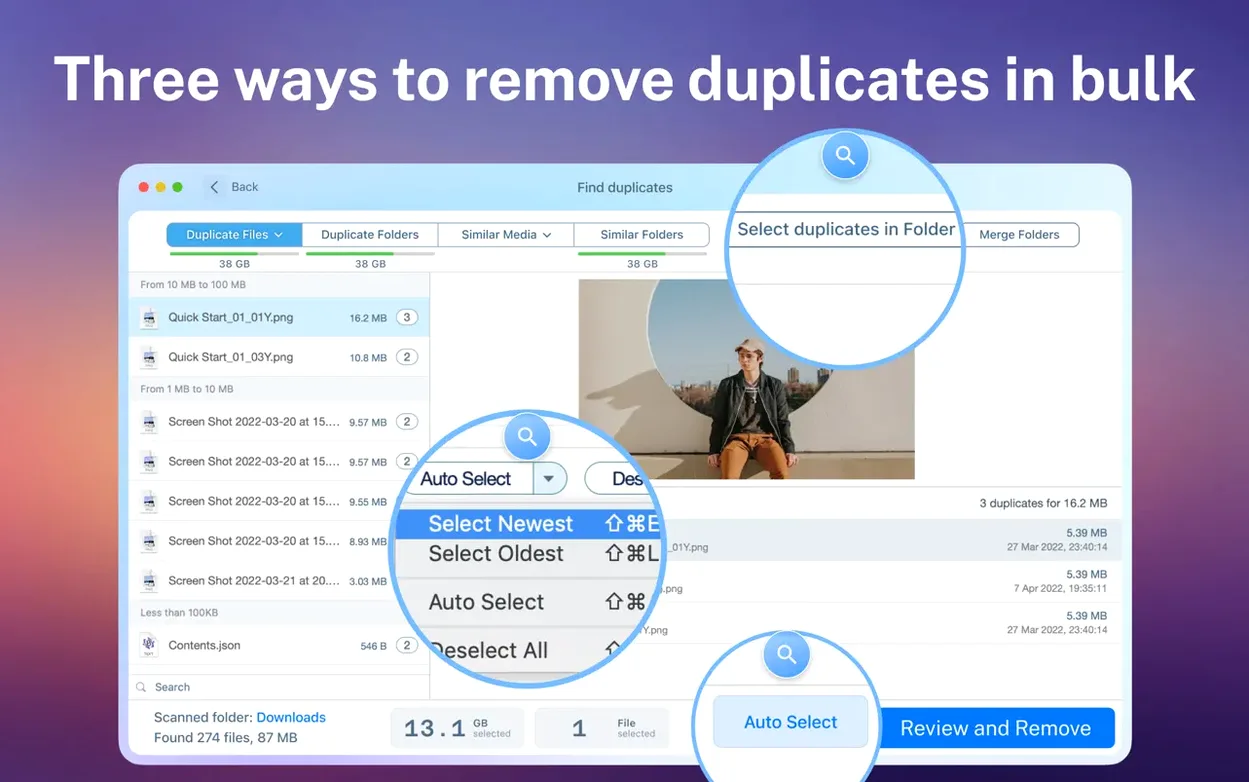
Anyone who has spent an afternoon dragging folders around in a Finder window knows how quickly duplicates pile up. Duplicate File Finder Pro picks up where manual sorting leaves off, scanning for copies by name, size, type, and count. The results land in a clear list, grouped into categories like images, video, music, archives, and documents, so you are not staring at one endless pile of files.
Version 8.5.2 keeps the core workflow familiar. You get a duplicate file list, smart selection that flags likely copies for you, and the option to preview individual files before sending anything to the Trash or removing it permanently. Hidden folders are fair game too, along with external hard drives and network folders, which makes this handy for people who store files in more than one place.
Beyond plain duplicate hunting, the app extends into folder cleanup with merge features. That is the part I appreciate most, since it tackles the mess that duplicates leave behind rather than just deleting files one by one. Apple Silicon and Intel Macs are both supported, and it runs on macOS 11.0 or later.
Handy Shortcuts Worth Knowing
There are a handful of small touches in Duplicate File Finder Pro that I did not notice on my first few passes through the interface. The scan report window, for example, is more than just a summary — you can click any category block (like Music or Documents) to jump straight into that section of the results. It saves dragging through a long sidebar when you already know you want to clean up last month's podcast exports.
A few other niceties I have leaned on:
- Right-click to open enclosing folder. In the duplicate list, a secondary click on any file lets you pop open the parent folder in a Finder window. Useful when you need to check context or rename something before committing to deletion.
- Column sorting is sticky. Click a column header — name, size, total size, type — and the sort order holds even after you switch between result groups. If you always hunt by file size first, set it once and forget it.
- Space bar preview works. The Quick Look shortcut is baked in. Highlight a file, tap the space bar, and you get the same full-size preview macOS gives you in Finder. I use this constantly for images and PDFs where the thumbnail alone is not enough.
- Smart selection respects file types. The one-button selector does not just blindly mark half the duplicates. In my experience, it leans toward keeping files in their original location over copies stashed in nested subfolders, which has saved me from accidentally deleting the version I actually use.
What a Photographer Might Actually Do
I watched a friend who shoots weddings work through a messy external drive last weekend. She had three years of RAW files spread across a main archive folder, a "lightroom exports" folder, and a backup she had dragged over from an old laptop without merging. Duplicate File Finder Pro pulled up over 900 duplicate images in under two minutes, scanning the external SSD and a network folder on her Synology at the same time.
She did not trust an automatic cleanup on the first pass — fair enough. Instead, she used the preview panel to spot-check a dozen matches, confirmed the smart selection logic was picking the copies rather than the originals, and then removed about 40 GB of redundant RAWs before lunch. What she liked most was that the scan categories let her ignore the video and document groups entirely; she was only there for the images, and the interface let her stay in that lane without extra clicking.
Cleaning Up a Scattered Documents Folder
Here is a workflow I have settled into when a Documents folder gets out of hand — the kind where you have dragged in old backups, exports, and a few "final final v2" versions of the same spreadsheet.
- Point the scan at the Documents folder and any external drives you use for archiving. I also check "Scan hidden folders" because macOS loves to stash duplicate
.plistfiles and old app data in places you would never look manually. - Wait for the visual report to load, then click the Documents category. This immediately filters out images and music, so you are only looking at PDFs, text files, spreadsheets, and whatever else lands in that bucket.
- Sort by Total Size descending. The largest duplicates float to the top. These are usually the ones worth dealing with first — old disk images, video attachments from email, project archives you copied and forgot about.
- Preview a few files to confirm what is what, then apply smart selection. I usually glance at the folder path column to make sure the copies in the "Old Mac Backup" folder are the ones flagged, not the current versions.
- Move to Trash first, do not permanently delete yet. This gives you a day or two to realize if you removed something you still needed. The restore feature in the app can pull files back from the Trash if you catch the mistake quickly.
- Run a merge on any similar folders. After the duplicates are gone, I switch to the similar folders scan. If I find two folders that are near-identical — say, "Project_Archive" and "Project_Archive_old" — the merge tool consolidates them and leaves one clean folder behind.
This whole process, on a 200 GB Documents folder with an external drive attached, takes me about ten minutes of actual interaction. The scanning does the heavy lifting, and I can keep working in other apps while it churns through the file list.
This one fits best for anyone who wants a second pair of eyes on a cluttered drive before doing the cleanup themselves.
Version 9.2.1 is a maintenance release with the developer's latest fixes and stability improvements.
- macOS 10.13 or later
- Apple Silicon & Intel 64-bit
Questions people ask
Can Duplicate File Finder Pro scan hidden folders?
Yes, it can find duplicates in hidden folders, as well as on external hard drives and network folders.
Also on readers' docks
Sign in or create an account to leave a comment.
No comments yet. Tell me how it got on with your other devices.