Download CrossOver for macOS
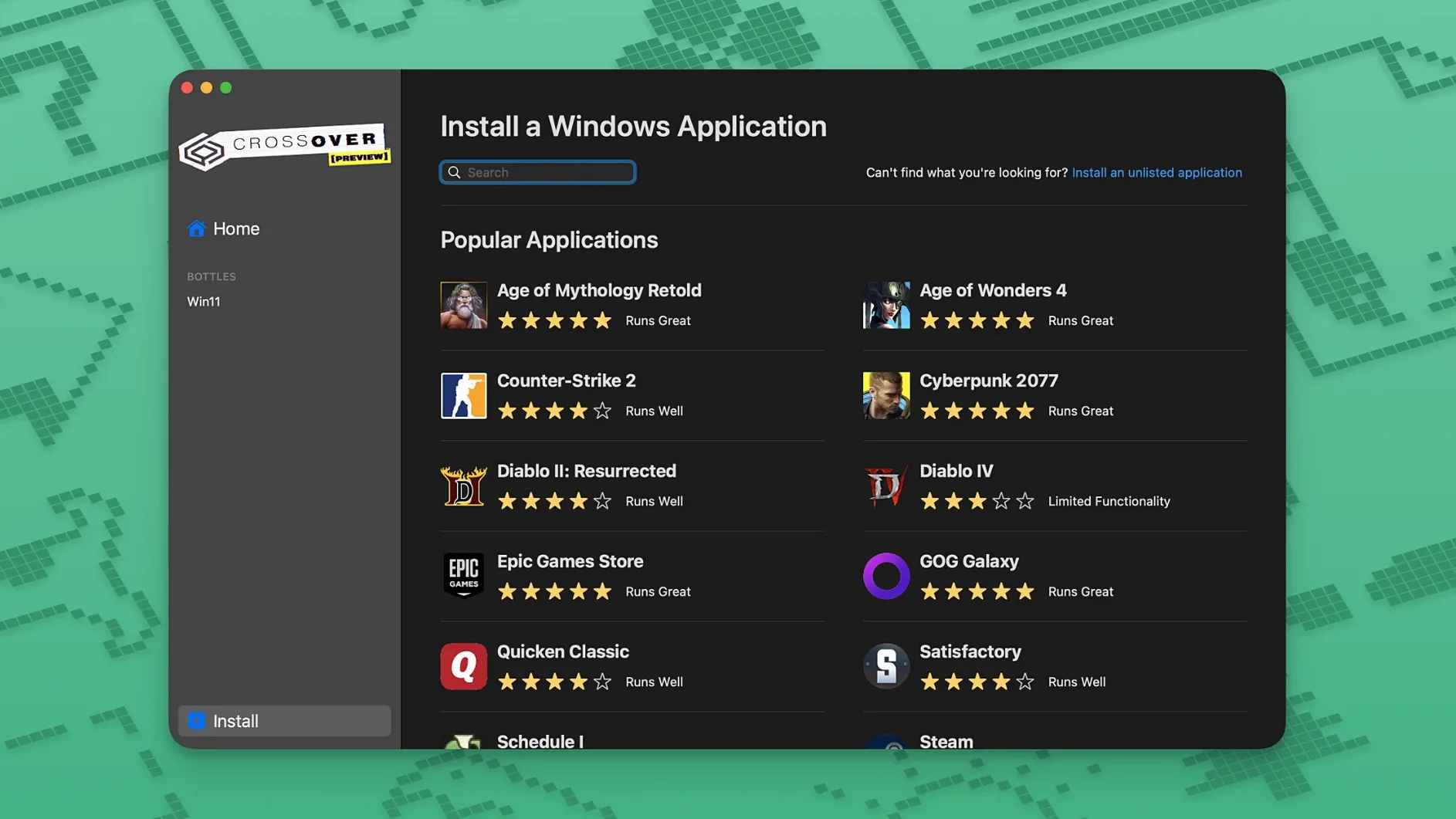
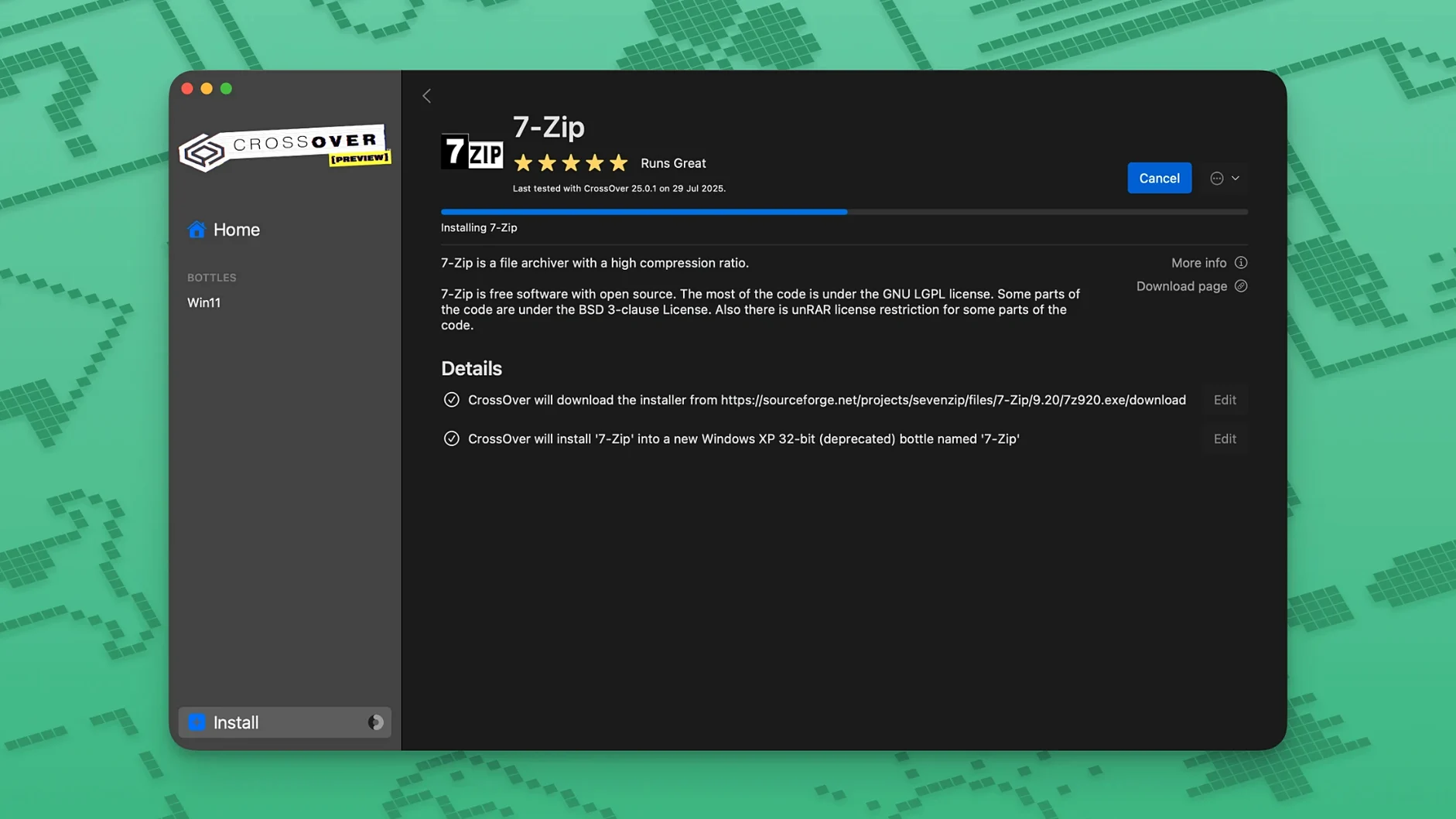
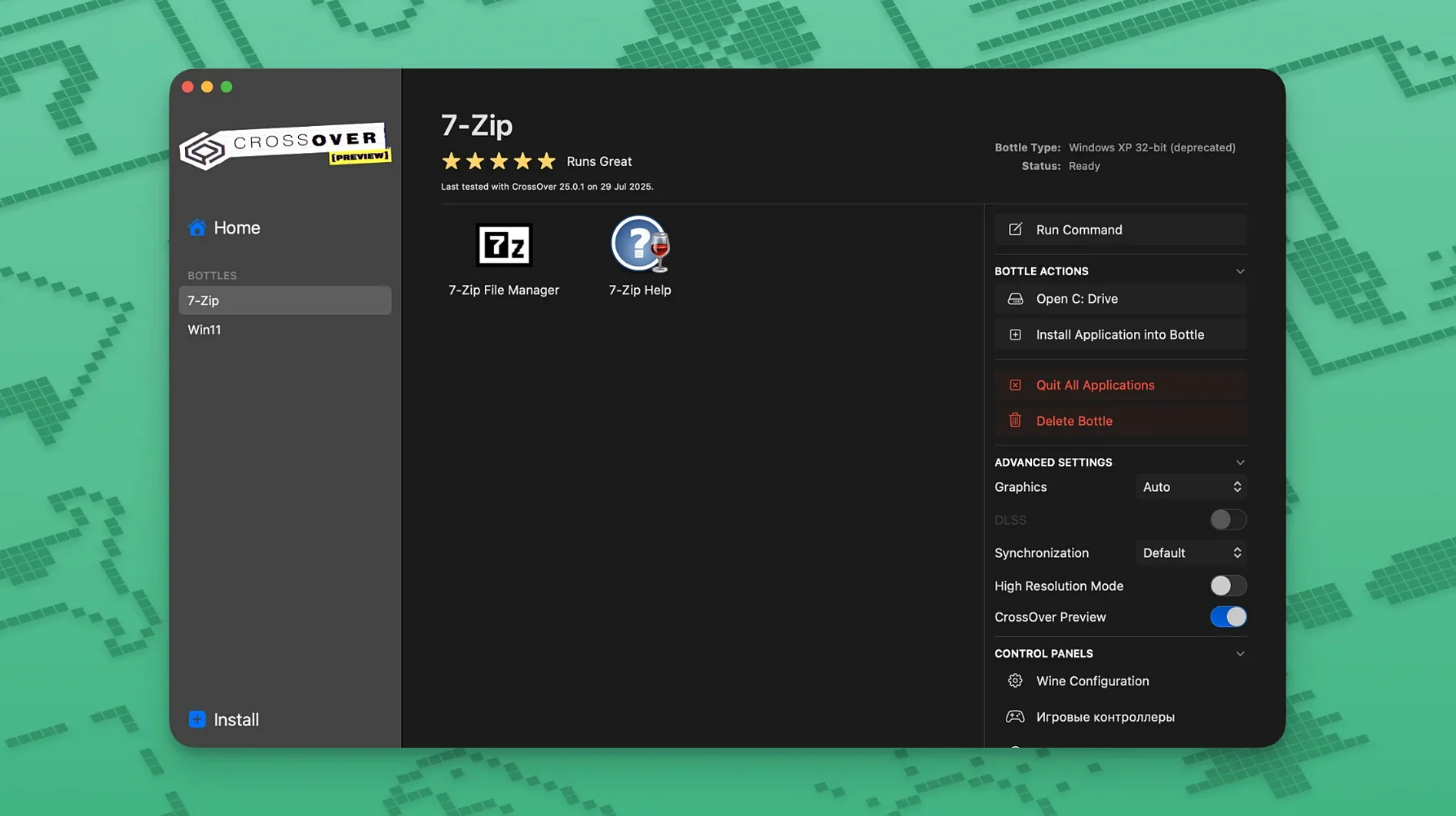
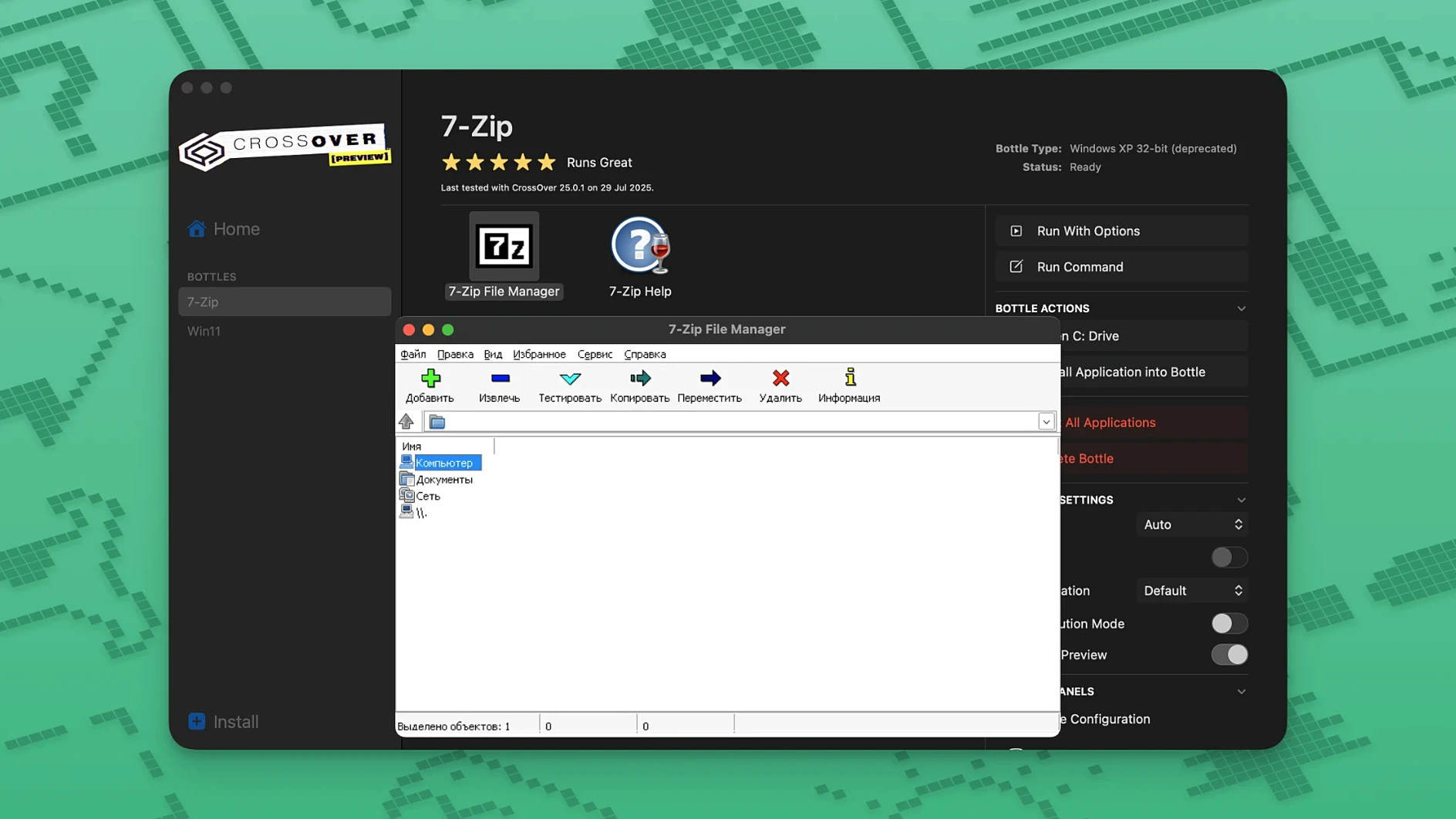
CrossOver is a tool that lets you open some Windows applications right on your macOS desktop, no full Windows license or virtual machine required.
It works by translating the instructions a Windows program sends into something macOS can understand on the fly. You don't see that translation happening — you just see your program in its own window, often running alongside your Mac apps as if it belongs there. Each Windows application gets tucked into its own self-contained environment, called a bottle, which keeps its files and settings separate and tidy.
This isn't a solution for every piece of Windows software ever made, but it covers a lot of ground. People turn to CrossOver for productivity tools, niche utility programs, and a surprisingly long list of games. Some applications will need their original installer to get going inside a bottle, and not everything will run perfectly, but what clicks tends to feel surprisingly native.
Launching a Windows-Only Note-Taking App, Step by Step
Let me walk you through what actually happens when you sit down to use CrossOver for something real — say, launching a Windows-only note-taking app you've relied on for years. You double-click the CrossOver icon in your Applications folder, and the main window slides open. It's not flashy. You see your list of bottles down the left side, each named after whatever you installed inside it. I keep mine labeled plainly: "Work Tools," "Games," "Old Utilities."
You click on a bottle, and the right panel shows the programs living inside it. Big, clickable icons, just like Launchpad. Double-click the one you want, and after a beat, a familiar Windows-style window appears on your Mac desktop. The menu bar at the top of the screen still belongs to macOS, but the application window behaves like its Windows self — menus inside the window, its own font rendering, its own ideas about how scrollbars should look.
You work. You type, you click, you save files. CrossOver quietly maps your Mac's home folder so the app can see your Documents and Desktop. When you're done, you close the window. The bottle stays dormant until next time, no shutdown procedure, no virtual machine to pause. The whole session feels less like "running Windows software" and more like the app just happens to have a slightly different accent.
If something goes wrong — a font looks jagged or a menu flickers — you can right-click the bottle, hop into its settings, and tweak things like the Windows version it reports or whether it uses a virtual desktop. Most days you won't touch any of that. You'll just open and work.
Diablo IV Launch Fix and Two Other Targeted Patches
Version 26.3.0 landed with three targeted fixes that, if you were affected, made a night-and-day difference. The first addresses Diablo IV not launching after a game update. Blizzard's patches had a habit of breaking the delicate translation layer that CrossOver relies on, and this release stitches that back together. If you'd been staring at a non-responsive launcher after a patch day, 26.3.0 gets you back into Sanctuary without extra tinkering.
The second fix tackles the Epic Games Launcher. A recent update from Epic caused downloads on Mac to stall or fail outright inside CrossOver bottles. The 26.3.0 release restores that functionality, so grabbing titles from your Epic library works again without hunting for workarounds.
The third fix smooths out GOG Galaxy, which stopped loading properly after its own client update. With 26.3.0, the Galaxy client initializes as expected, pulling in your library and cloud saves. Taken together, these three fixes reflect what CrossOver updates typically do: they don't add splashy new features. They chase compatibility. A game launcher breaks, a patch lands, and your Windows-on-Mac routine stays intact.
Apps Rated Platinum to Garbage in the Compatibility Database
Will this run everything? No, and anyone promising that is overselling. CrossOver runs a curated subset of Windows software. The CodeWeavers compatibility database lists thousands of titles, rated from "platinum" to "garbage." Platinum and gold-rated apps usually install and run without drama. Silver means some features break. Bronze means you'll wrestle with it. But the list is large, and it includes plenty of productivity mainstays and recent game releases.
Do I need to own Windows? You don't. CrossOver supplies its own reimplementation of the Windows environment. No license key, no ISO file, no dual-boot partition. That's the whole point. You're not running Windows; you're translating Windows calls into something macOS can execute directly.
What about performance? Since there's no virtual machine and no emulation of an entire operating system, the overhead is often lower than running a full VM. Games and graphics-heavy apps can feel quite snappy on compatible hardware, though results vary by title. The translation layer adds some cost, but you're not losing a slice of your RAM and CPU cores to a guest OS.
Can I access my Mac files from inside a Windows app? Yes. CrossOver maps your Mac's folders into the bottle, so the Windows program sees your home directory. Saving a document from a Windows word processor drops it right into your Mac's Documents folder. It's one of those quiet design choices that makes the whole setup feel less isolated.
Is this the same thing as Wine? CrossOver is built on Wine, but it's far more polished. Wine is an engine; CrossOver is a car with a dashboard, automatic bottle configuration, pre-tested installation recipes, and a support team. You can absolutely get things running with plain Wine and enough patience, but CrossOver wraps the whole experience in something you don't need to compile or configure from a terminal.
Why Parallels Runs a Full Copy of Windows While CrossOver Does Not
If you're looking at CrossOver, you've probably also glanced at Parallels Desktop. Parallels runs a full copy of Windows inside a virtual machine. That means near-perfect compatibility — if it runs on Windows, it almost certainly runs in Parallels — but you pay for that with system resources. Your Mac splits its RAM and CPU between two operating systems, and you need a Windows license. For an app you use all day, every day, that trade-off often makes sense. For launching one or two programs occasionally, CrossOver's lighter footprint wins out.
VMware Fusion sits in a similar space to Parallels, with its own virtualization approach and its own resource demands. Again, full Windows compatibility, full Windows overhead. Both Fusion and Parallels excel when you need to live inside a Windows environment. CrossOver takes the opposite approach: it tries to make individual Windows programs behave like Mac citizens, one bottle at a time. No start menu, no taskbar, no entire second desktop to manage.
Then there's Boot Camp on Intel Macs, which boots your machine natively into Windows. Maximum performance, total compatibility, but you're rebooting every time you switch contexts. CrossOver avoids the reboot and the partition. For quick tasks — checking a Windows-only database front-end, running a small utility, playing a game for an hour — staying inside macOS is the convenience you actually feel day to day.
A Workflow: Getting a Windows-Only Game Running from Start to Finish
Let's say you've downloaded a Windows game installer — maybe an older RPG that never got a Mac port. You've heard it runs well under CrossOver, and you're ready to try. Here's the flow.
First, open CrossOver and click the "Install a Windows Application" button. A search field appears. You type the game's name. CrossOver checks its compatibility database and, if there's a known recipe, auto-fills the bottle configuration. In this case, it suggests a Windows 10 64-bit bottle with a few specific library overrides it knows the game needs. You trust the recipe and move on.
CrossOver asks for the installer file. You point it at the downloaded executable. The bottle spins up — a quick process, just a few seconds — and the Windows installer launches inside a macOS window. You click through the usual installer steps: agree to the terms, pick an install location inside the bottle's virtual C drive, wait for the progress bar to finish. CrossOver watches and registers the new program in its database.
When the installer closes, CrossOver presents a fresh icon in your bottle. You double-click it. The game launches. If it works on the first try — and with a rated title it often does — you're playing within ten minutes of starting. The window behaves like any Mac game window: you can full-screen it, command-tab away, adjust the volume from your keyboard.
If the game stutters or shows graphical glitches, you right-click the bottle, open the Wine Configuration panel, and experiment. Sometimes switching the reported Windows version from 10 to 7 clears up an old game's rendering quirks. Sometimes enabling a specific DLL override — CrossOver lists the common ones — fixes missing audio. The community forums and compatibility database entries usually point you straight to the right setting. You tweak, relaunch, and nine times out of ten the game settles into a smooth groove. From there on, it's just a double-click away, living in your dock like any other Mac app.
Version 26.3.0 brings a handful of targeted fixes for gamers:
- Diablo IV launches correctly again after a recent game update.
- Epic Games Launcher downloads are working once more on Mac following an update that broke them.
- The GOG Galaxy client loads properly after its own update stopped it in its tracks.
- macOS 10.15 Catalina or newer
- Intel-based Mac
Questions people ask
Do I need a Windows license to use CrossOver?
No. CrossOver translates Windows commands on its own, so you never need to buy or install a copy of Windows.
What is a 'bottle' in CrossOver?
A bottle is a self-contained, Windows-like environment where a single application lives, keeping its files and settings separate from your Mac system and other bottles.
Can CrossOver run every Windows program on macOS?
It cannot. Compatibility varies, and while many productivity apps, utilities, and games work well, some programs may need their own installer or might not run at all.
Also on readers' docks

Sign in or create an account to leave a comment.
No comments yet. Tell me how it got on with your other devices.