Download Compressor for macOS
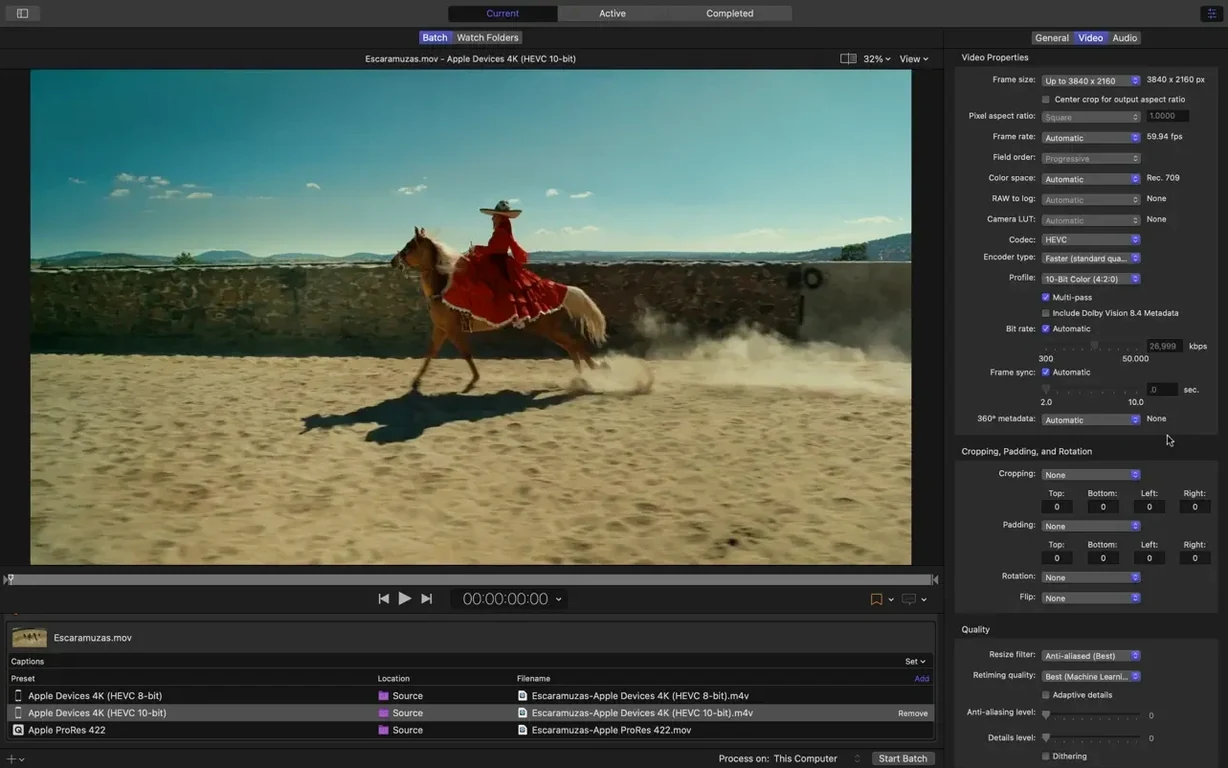
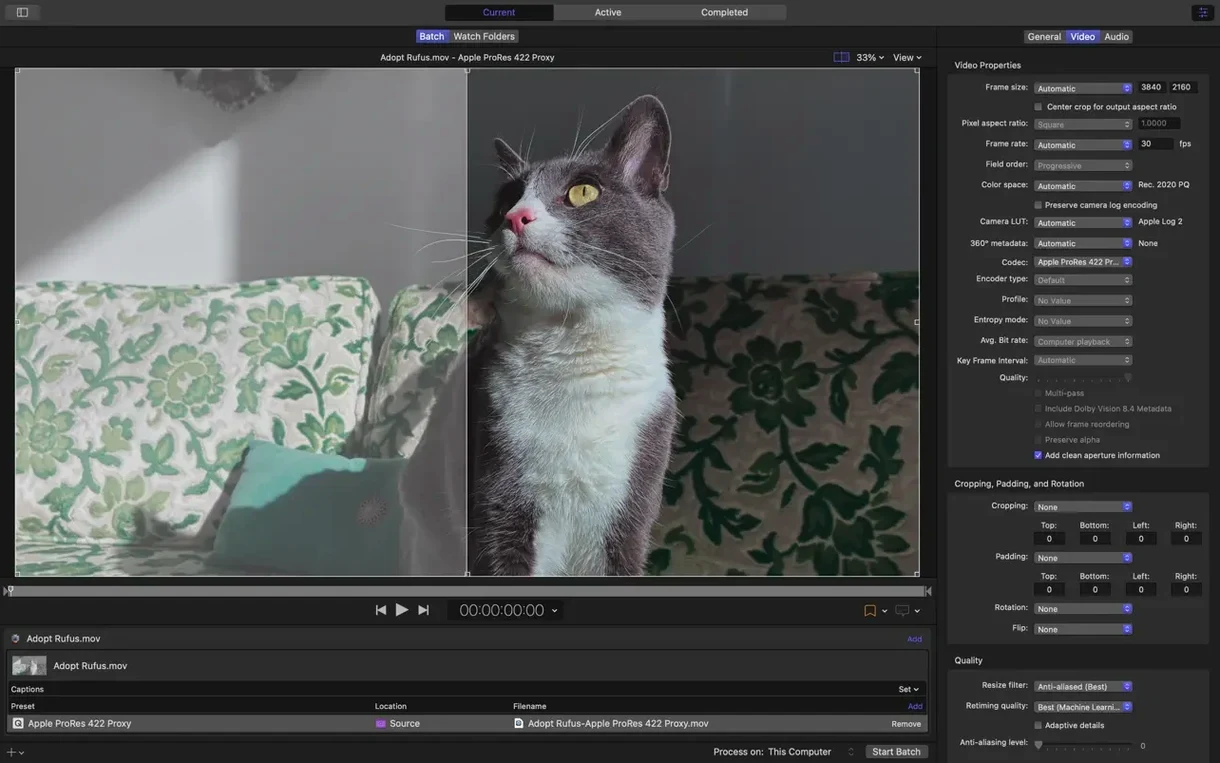
Compressor is Apple's dedicated media transcoding app that turns your source files into polished deliverables for practically any screen or format.
FCP‑friendly, but stands alone with drag‑in batch workflows
It's built to pair beautifully with Final Cut Pro for direct export and custom encoding settings, but it absolutely stands on its own. You can drag in files from Motion or any other source and build a custom batch workflow without touching a timeline.
What kinds of files can I actually make with it?
The app covers a huge spread: standard device outputs alongside professional formats like 360° video, HDR, HEVC, and MXF. You also get fine-grained control over things like 5.1 AAC audio and HEVC data rate limits on Apple silicon.
Post‑encode hands‑off automation: email, move, or run scripts
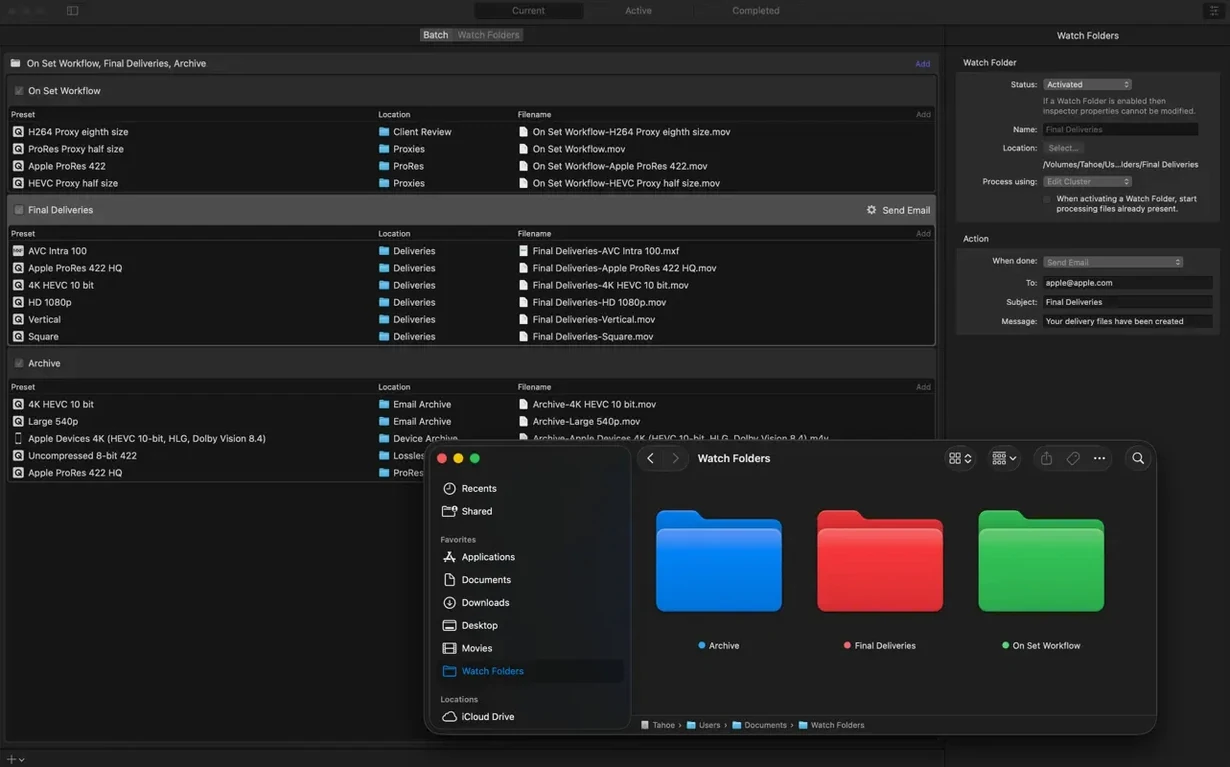
You can set up automatic post-encode actions so the file doesn't just sit there. Let it fire off an email, copy or move the finished video, or even run a custom script — all hands-off once you've set it.
HandBrake contrast and where Compressor fits in the Mac landscape
If you've shopped around the Mac transcoding landscape, you've probably bumped into a few other names. Compressor holds its own, but the differences are worth understanding before you commit a big batch to any one tool.
Take HandBrake — it's a capable open-source encoder that plenty of people swear by. Where HandBrake shines is sheer format breadth and a no-cost entry. Where Compressor pulls ahead is the integration story. HandBrake doesn't talk to Final Cut Pro, doesn't offer distributed encoding across multiple Macs, and won't chain post-encode actions like emailing a client the moment a render finishes. Compressor also exposes the same rendering engine that Final Cut Pro and Motion use, so what you see in your timeline is what you get in the transcode — colorimetry, scaling, and frame cadence stay consistent in a way a third-party encoder can't guarantee.
Then there's Adobe Media Encoder. On paper they look similar: both batch-process media, both talk to their sibling timeline apps, both handle a wide codec list. In daily use, Media Encoder feels more tied to the Adobe subscription ecosystem. Compressor, on the other hand, integrates at the OS level with hardware encoders for H.264 and HEVC, especially on Apple silicon machines, and it can spread work across every CPU core on your Mac without extra configuration. Media Encoder also lacks the immersive metadata viewer and the tight 360° metadata handling that Compressor now offers. If your pipeline runs through After Effects and Premiere, Media Encoder makes sense. If Final Cut Pro and Motion are home base, Compressor is the obvious fit.
ffWorks (a Mac front-end for ffmpeg) deserves a mention too. It gives you terrifyingly granular control over encoder flags, and some pros love that. But you're essentially building command lines with a GUI wrapper. Compressor's side panel and inspector give you that same depth — advanced audio properties, video filters, frame resizing — without pulling you out of a visual, Apple-native design language. And ffWorks can't touch Compressor's distributed encoding or post-encode scripting.
Drag Motion projects straight in — no round‑trip export
Compressor doesn't live in a bubble. Drag a Motion project straight into the batch window and it picks up the project's render settings without a round-trip export. From Final Cut Pro, you can send a timeline directly using the Share menu, or build a Compressor preset that appears right inside Final Cut's export dialog — editors on our team set those up once and never open Compressor manually again.
Beyond Apple's pro apps, Compressor plays well with macOS itself. The built-in hardware encoders for H.264 and HEVC mean the system isn't burning CPU cycles unnecessarily on an Apple silicon Mac — the Media Engine blocks handle the heavy lifting, and you feel that in cooler temperatures and quieter fans. You can also point post-encode actions at any AppleScript or Automator workflow, which opens up connections to things like Hazel for file organization, Transmit for automatic uploads, or even a shell script that sends a Slack notification. It's the kind of quiet automation that removes friction from repetitive delivery tasks.
On the Finder side, Compressor respects macOS tagging and Spotlight metadata, so encoded files surface in searches just as cleanly as their source media. And because the app uses the same rendering engine as Final Cut Pro and Motion, round-tripping color grades or motion graphics between apps keeps everything frame-accurate — no gamma shifts, no aspect ratio surprises.
Instant launches and steady UI through hour‑long HDR batches
After weeks of regular batch encodes — everything from short social clips to hour-long HDR exports — Compressor 5.3 feels like a utility that's settled into itself. Launches are nearly instant on an Apple silicon Mac, and the interface stays responsive even with a queue of forty or fifty jobs stacked up. I've left it running overnight on distributed encoding setups and came back to completed batches with no memory leaks or hung processes.
RAM usage hovers modestly unless you're transcoding multiple 8K streams simultaneously, and even then it releases memory cleanly after each job. The real star is how it leans on hardware encoders — watching an HEVC 10-bit transcode fly through with barely a blip on the CPU graph is genuinely satisfying. On Intel Macs, the app still spreads work across multiple cores efficiently, though you'll notice the fans kick in sooner compared to Apple silicon.
The one area where patience is required is initial file analysis for immersive media. The new metadata viewer (more on that below) reads through stereoscopic sources carefully, and that pre-scan adds a few seconds before encoding begins. Once it's going, throughput is competitive with anything else on the platform.
Inspect immersive metadata before committing to a long encode
Version 5.3 brought a handful of changes that quietly reshape certain workflows without overhauling the app's personality:
- Immersive metadata viewer — Before you commit to a long encode, you can now inspect the metadata of an immersive source right inside Compressor. This saves the headache of discovering misconfigured stereoscopic flags after the render finishes.
- 180° Apple Projected Media Profile output — Direct support for this output format means fewer steps for creators delivering to platforms that expect Apple's specific 180° projection layout.
- Anaglyph preview option — If you're working with stereoscopic video, the anaglyph preview lets you check depth alignment on a standard display without needing a headset or a dedicated 3D monitor. Practical for quick spot-checks during setup.
- 5.1 AAC in Apple Device export settings — A welcome addition for anyone delivering surround mixes to Apple devices. Previously you had to step outside the Apple Device preset group to get multichannel AAC.
- HEVC data rate limits on Apple silicon — This one matters for streaming deliverables. You can now cap HEVC bitrates in hardware-accelerated encodes, keeping files under strict platform limits without switching to a software encoder.
- Immersive sources without WAV files — Earlier versions required separate WAV files for immersive audio. Now you can transcode sources with embedded audio straight to Apple Immersive outputs, cutting out a tedious file-management step.
None of these changes rewrite the app's purpose, but collectively they smooth over friction points that used to require workarounds. The immersive metadata viewer alone has already saved me from a couple of late-night re-renders, and the anaglyph preview is the kind of small, thoughtful addition that makes the tool feel more complete.
Version 5.3 sharpens the app's immersive and spatial toolkit:
- An immersive metadata viewer lets you inspect clips before encoding.
- New support for 180° Apple Projected Media Profile output.
- An anaglyph preview option for stereoscopic video.
- A 5.1 AAC option added to Apple Device export settings.
- HEVC data rate limits now supported on Apple silicon devices.
- You can transcode immersive sources without WAV files to Apple Immersive outputs.
- macOS 15.6 or later
- 8 GB memory
- 1.2 GB available disk space
- Apple silicon or 64-bit Intel Mac
Questions people ask
Does it use all the cores on my Mac?
Yes, Compressor distributes the transcoding workload across multiple CPU cores to speed things up, so a beefier Mac genuinely gets the job done faster.
Will it run on my Intel Mac?
It runs on both Apple silicon and 64-bit Intel Macs, but you'll need macOS 15.6 or later, 8 GB of memory, and about 1.2 GB of free disk space.
Can I preview spatial or stereoscopic video before encoding?
The latest version adds an immersive metadata viewer, plus an anaglyph preview option so you can check stereoscopic 3D footage right in the app.
Also on readers' docks
Sign in or create an account to leave a comment.
No comments yet. Tell me how it got on with your other devices.