Download Color Folder Pro for macOS
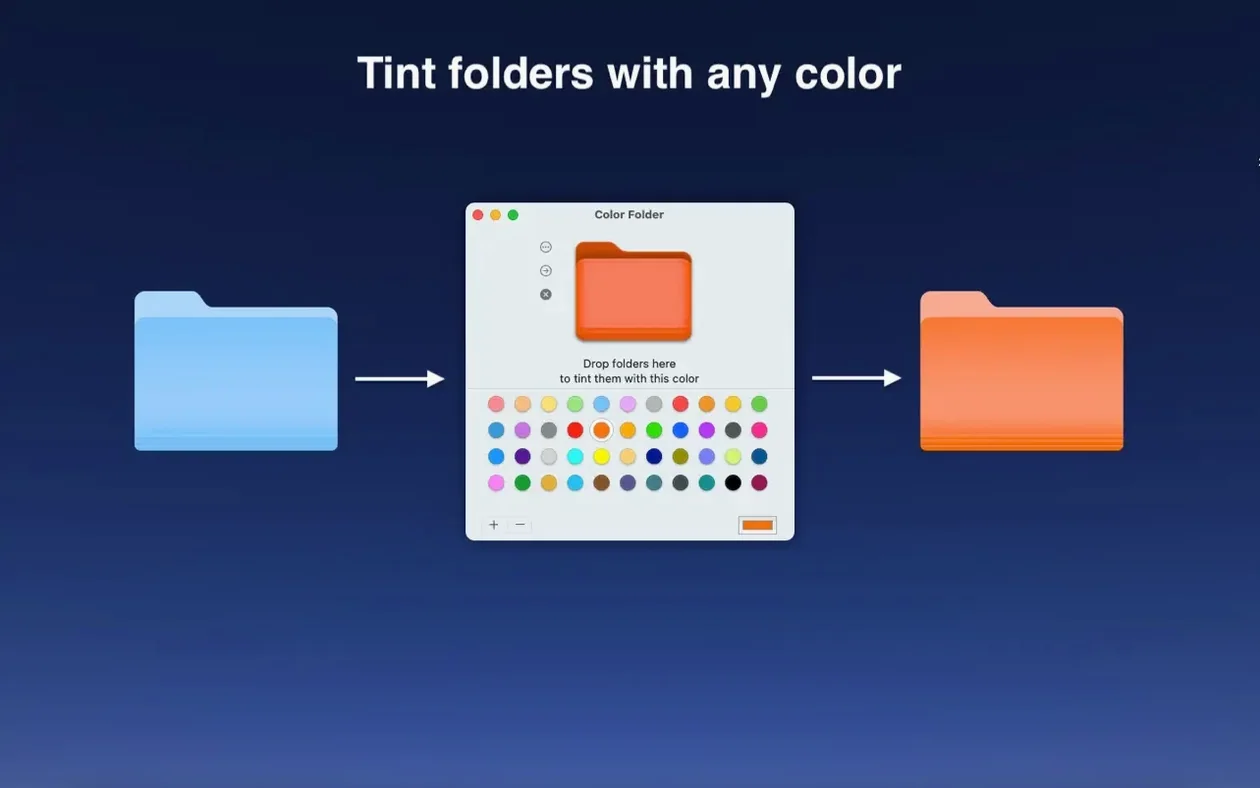
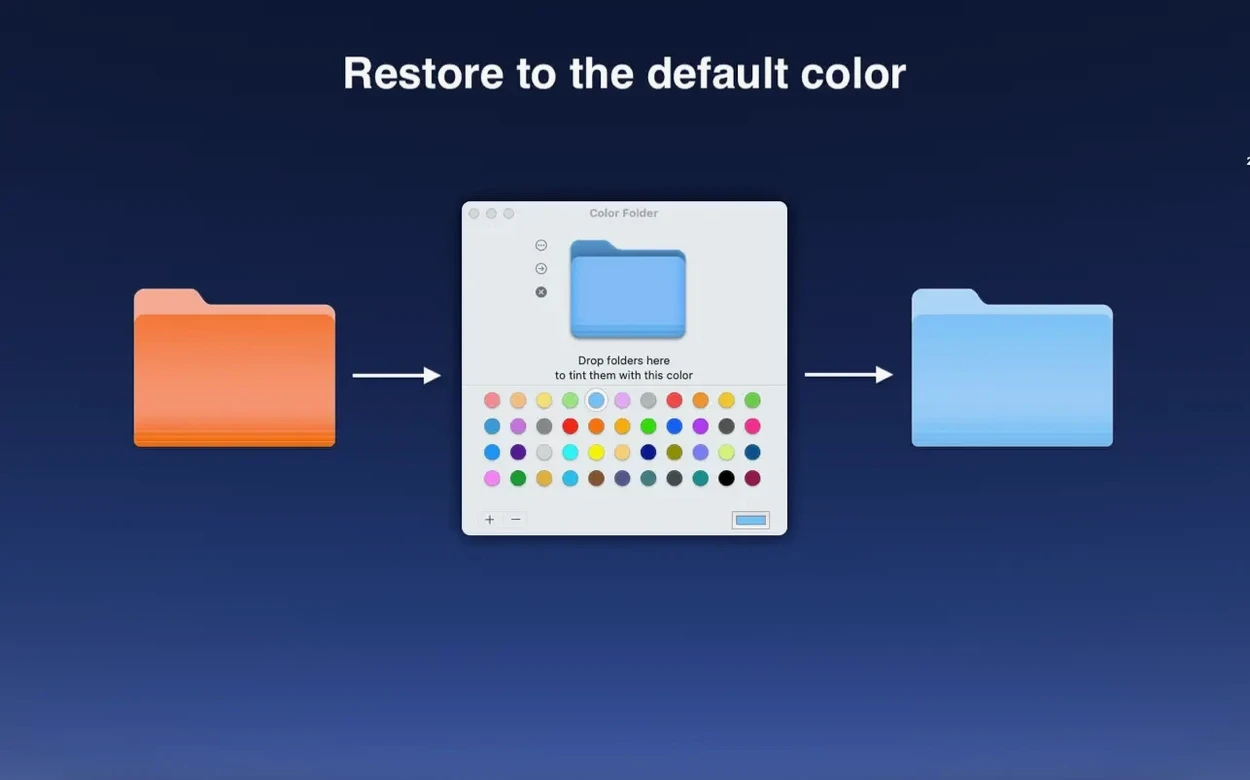
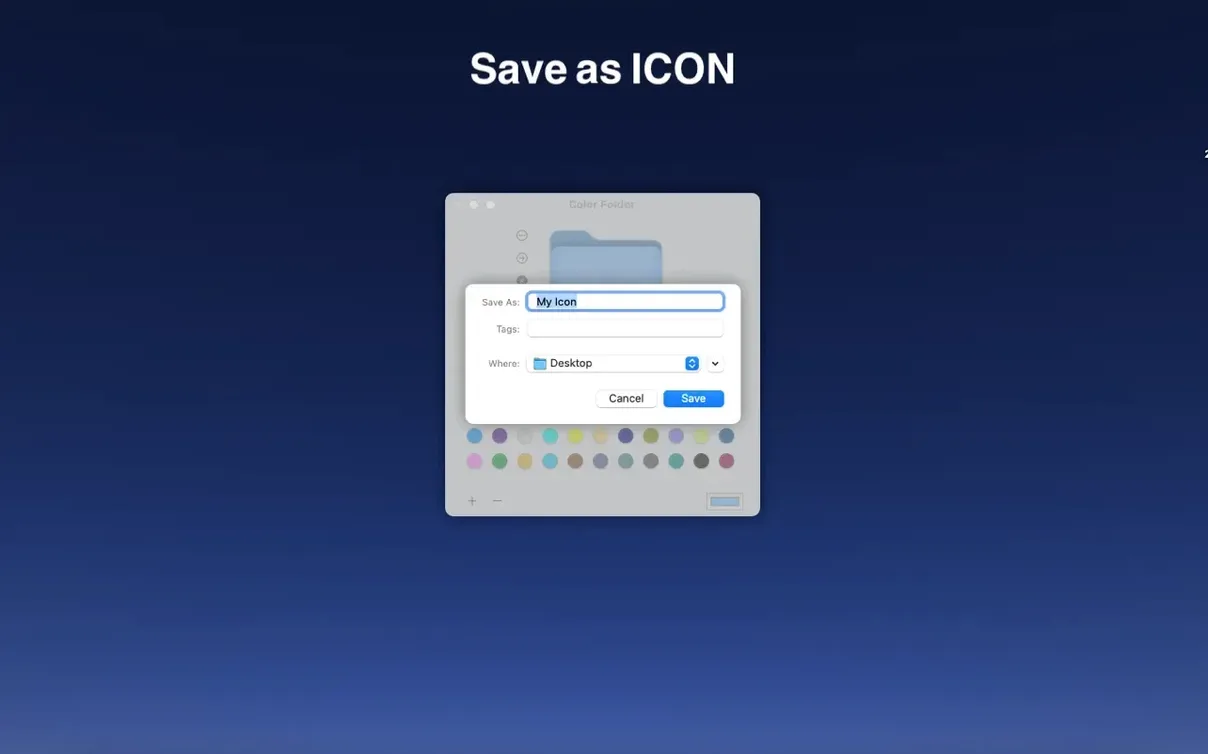
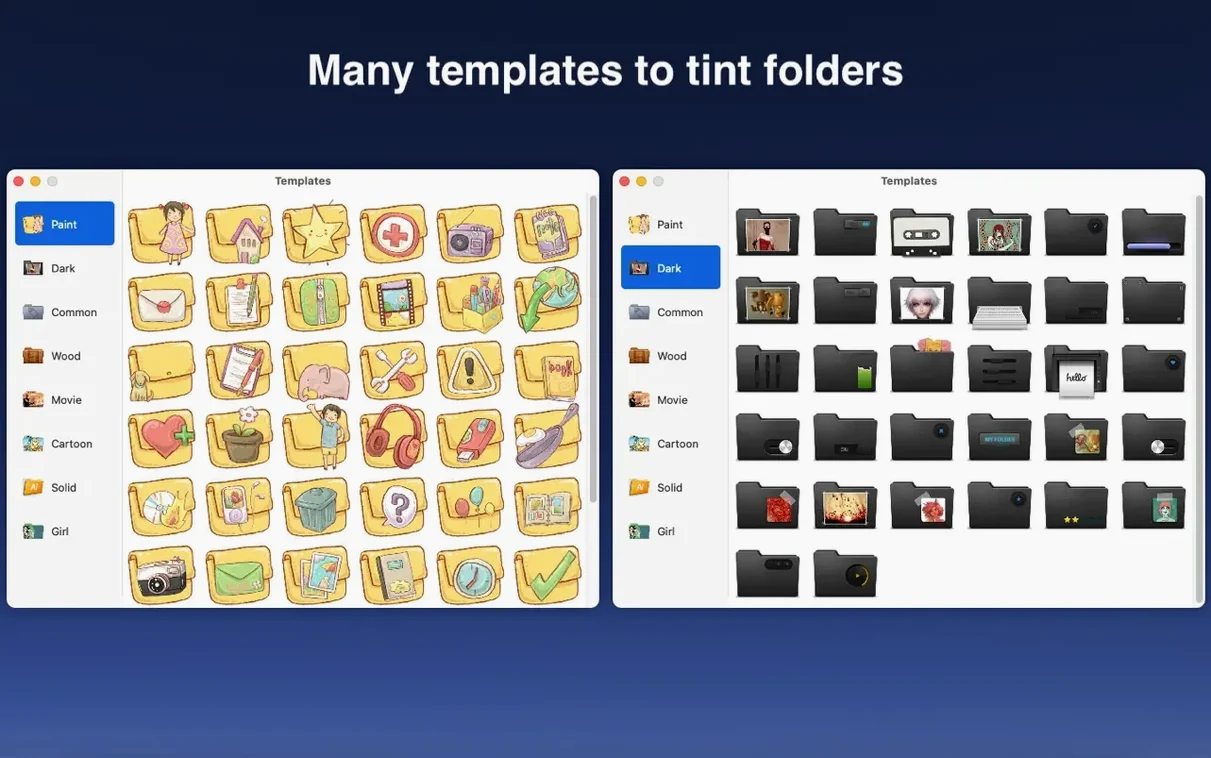
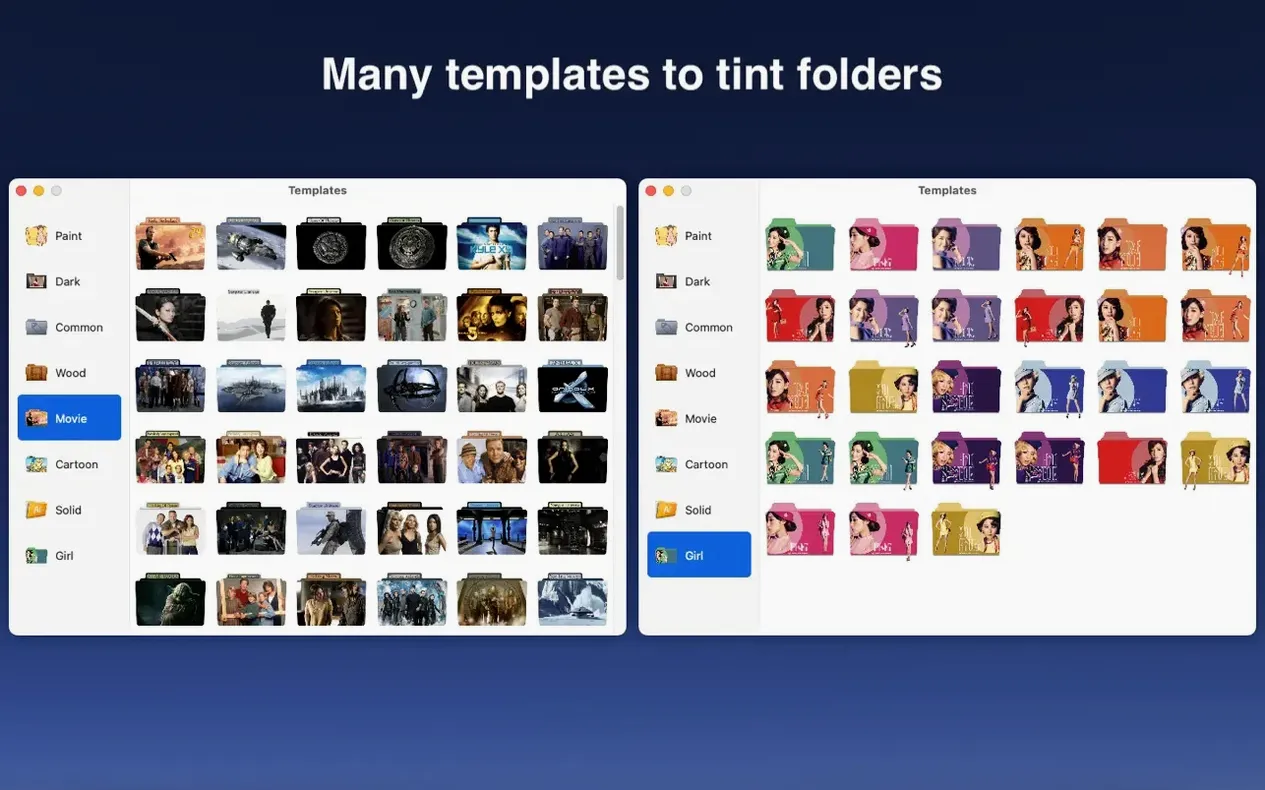
Color Folder Pro gives your Mac's Finder a splash of personality by swapping out the standard blue folder for something distinctly yours. It skips complicated editors and gets straight to the point: pick an icon, apply it, and move on.
- Bulk icon changes — Select a whole group of folders and change every icon at once, saving you from tedious one-by-one editing.
- 700+ built-in templates — A generous library of ready-made designs means you'll rarely need to hunt down icons elsewhere.
- Instant application — The app writes new icons fast, so your folders look different the moment you confirm the change.
- Universal binary — Runs natively on both Intel and Apple Silicon Macs without Rosetta translation.
It's a focused little tool that doesn't try to be a full graphics suite. If you've got a messy project directory or just want your home folder to stand out, Color Folder Pro handles the heavy lifting in a couple of clicks.
Newcomers sometimes expect the icon to stick after applying it once, only to find the old folder staring back at them later. That usually happens when the folder moves to a different location or gets copied. Color Folder Pro writes the icon directly onto the folder's metadata, but if you zip the folder and unzip it somewhere else, the custom icon can vanish. The fix is simple: re-apply it from the app after you've settled the folder into its permanent home. For shared network drives, custom icons won't travel over SMB connections — that's a macOS limitation, not a bug in the tool.
Another head-scratcher crops up when someone drags a PNG or JPG onto a folder and nothing changes. The app reads images you drop in, but it expects you to use its interface to confirm the switch. Hitting Apply is the step that gets skipped — people assume the preview means the icon is already live. A quick glance at the folder in Finder tells you the truth: if it still shows the standard blue, you haven't saved the change yet.
Gatekeeper can trip up first-time users too. Since the app isn't notarized by Apple, launching it cold throws a security warning. The friendly installer script handles the Terminal command for you, but a few folks panic at the sight of a command-line window. Let it run, press Enter when prompted, and the app opens normally from then on.
Testing a single folder before bulk changes
Jumping straight into bulk mode without testing a single folder first is the classic rookie move. You select twenty folders, pick a template, apply — and realize the color blends horribly with your desktop wallpaper. Try one folder, see how it looks in both light and dark Finder views, then scale up. The undo button exists, but re-applying icons to twenty folders eats time you could have saved.
Another habit I've seen: treating the 700 templates like a final destination. They're a starting point. Drag an image onto the app's canvas, tweak the tint, and you get something that feels genuinely yours. People who stick strictly to the built-in library miss half the fun. A photo you snapped, a logo you like, even a screenshot cropped to a square — all fair game.
Some beginners also ignore the color picker entirely, gravitating toward complex template designs when a single hue shift would do the job faster. A muted orange folder for invoices, a soft green for personal projects — sometimes restraint beats decoration.
Faster launch on Apple Silicon
While release notes for 5.5 stayed under wraps, the build itself reflects steady refinement rather than a headline-grabbing overhaul. Users who've been with the app through recent iterations will notice launch times feel snappier on Apple Silicon Macs, and the template browser scrolls without the micro-stutter that plagued earlier releases on M1 machines. Bulk icon application also handles larger batches more gracefully — dropping forty folders onto the queue no longer makes the interface freeze for a beat.
Under the hood, the developers kept pace with macOS updates, preserving compatibility back to 10.13 while ensuring the app doesn't break on Ventura or Sonoma. That broad support matters if you keep an older Mac around for file management tasks. The bilingual interface — English and Simplified Chinese — stayed clean and uncluttered across the update, with no awkward machine-translation artifacts creeping into the menus.
- macOS 10.13 or later
- Apple Silicon or Intel 64-bit processor
Also on readers' docks
Sign in or create an account to leave a comment.
No comments yet. Tell me how it got on with your other devices.