Download DaisyDisk for macOS
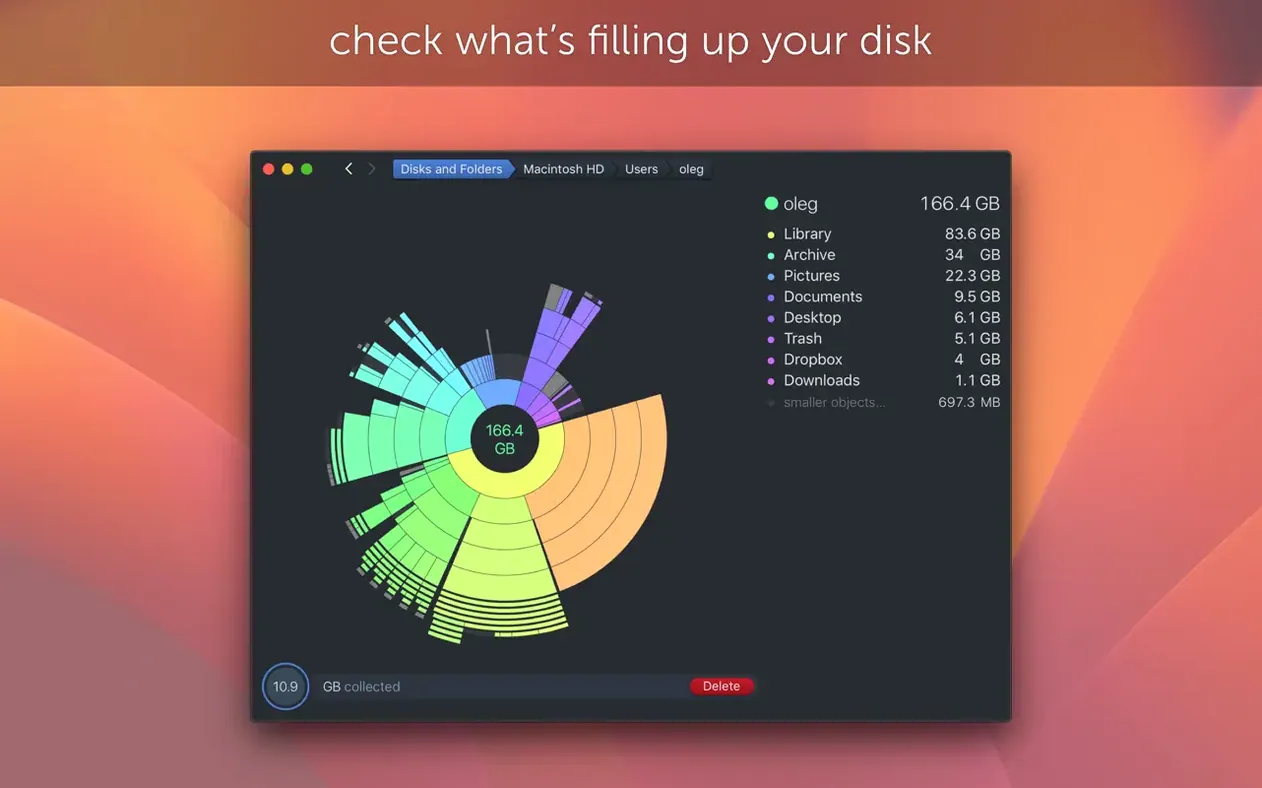
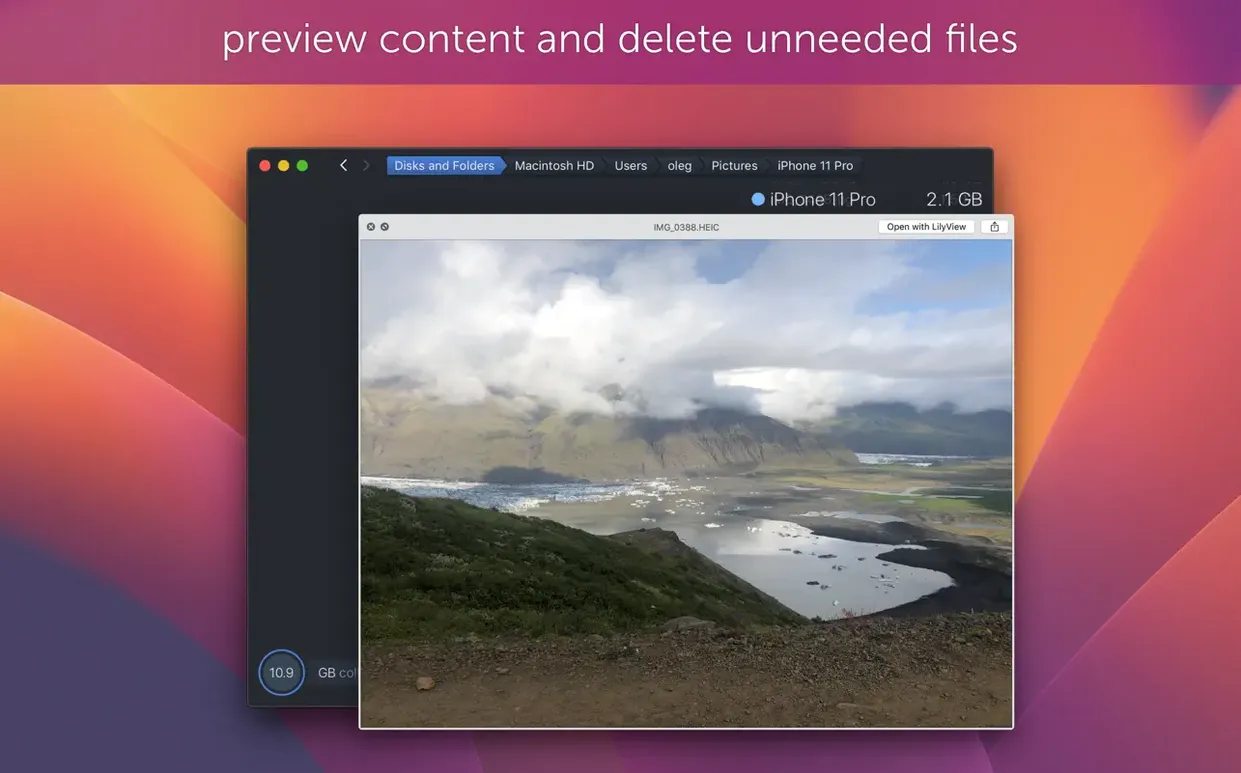
I had a vague feeling my MacBook’s drive was fuller than it should be, but Finder’s storage bar wasn’t telling me much. So I fired up DaisyDisk, pointed it at my main volume, and let it build its interactive map.
The cleanup, step by step
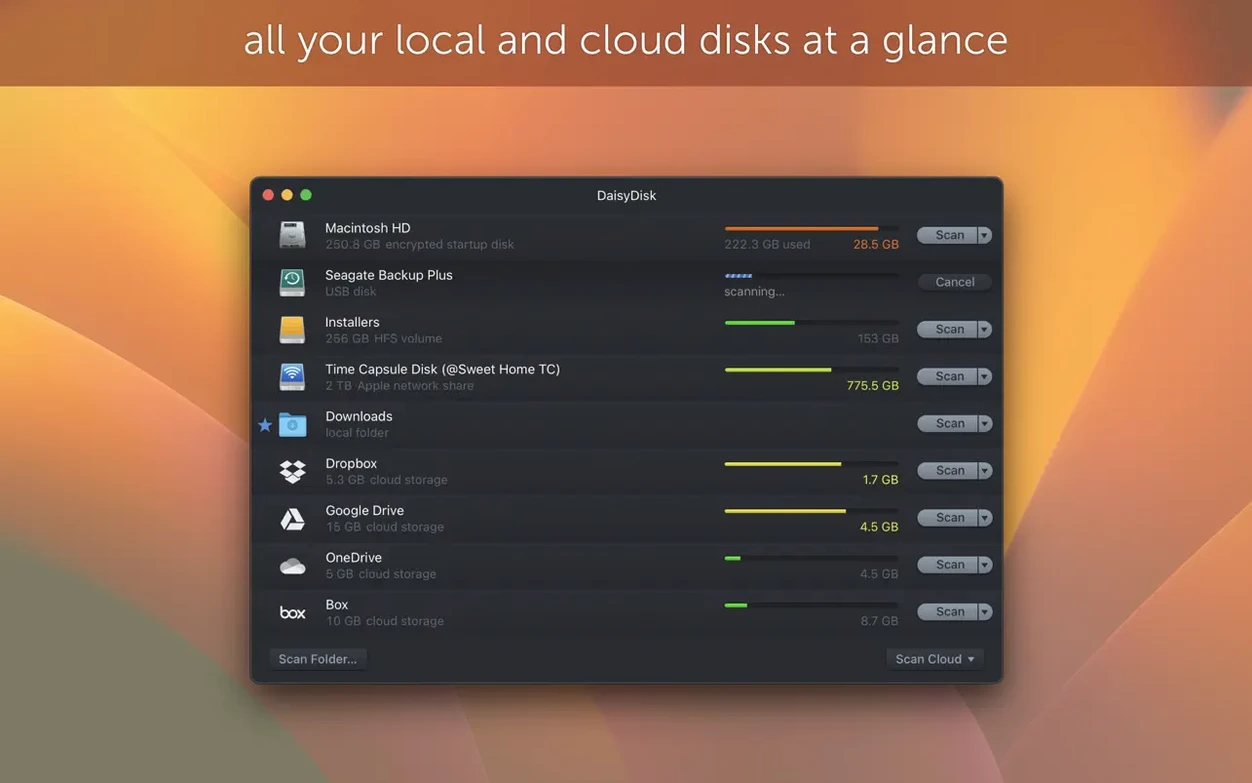
- Pick a disk. DaisyDisk shows every mounted volume. I selected Macintosh HD and hit Scan. The wheel spun for maybe twenty seconds while it mapped every folder.
- Read the sunburst. The finished map looks like a segmented ring. Large blocks jump out immediately — an old Steam library I’d forgotten about, a bloated iOS backup from three phones ago.
- Hover and zoom. Hovering any segment shows the folder name and size. Clicking dives deeper into that branch. I followed a fat purple wedge straight into ~/Library/Caches where a video editor had left 18 GB of render files.
- Reveal and remove. Right-click any segment to show it in Finder. I dragged a couple of .dmg archives straight to the Trash, then rescanned to check the dent I’d made.
- Scan external drives too. I plugged in a backup SSD and scanned it the same way. DaisyDisk counts APFS clones only once now, so the reported space actually reflects real usage rather than duplicate overhead.
The whole thing took under five minutes and cleared over 40 GB. The map makes it almost impossible to miss the biggest space hogs — you don’t need to dig through nested folders manually. Version 4.34’s APFS clone awareness means the numbers on modern macOS installs are finally trustworthy, and the real-time disk display keeps the sidebar useful even between scans. Anyone staring at a “Your disk is almost full” warning will appreciate how quickly DaisyDisk turns confusion into an actionable hit list.
Who clicks with DaisyDisk right away
Not everyone needs a sunburst map to manage storage. But a few kinds of Mac user will wonder how they ever lived without it.
Video editors and motion designers get the most immediate payoff. Render caches, proxy files, and auto-saves pile up in hidden Library folders that Finder never surfaces. DaisyDisk makes those stashes visible in seconds, and the drag-to-trash workflow means cleanup doesn't interrupt a project. One editor I know scans her scratch disk every Friday and typically frees 60–80 GB without touching a single project file.
Developers with Docker and Xcode are another natural fit. Simulator images, old iOS support files, Homebrew caches, and abandoned node_modules folders scatter across the drive. The visual map groups them into obvious clusters, so you can decide whether that 12 GB Xcode cache is worth keeping without hunting through a dozen directories.
Mac users with 256 GB or smaller internal drives live with a constant low-grade storage negotiation. For them, DaisyDisk isn't an occasional audit — it's a weekly habit. The parallel scanning feature means they can check the internal drive and a cleanup SSD simultaneously, comparing what's safe to offload.
People who only browse the web and use iCloud for everything won't feel the same pull. But if you keep large media libraries, virtual machines, or multiple Adobe apps around, the map pays for itself in saved detective work.
Treemap rectangles vs. the sunburst you already know
Three other disk analyzers come up regularly in conversation, and each has a different personality.
DaisyDisk vs. GrandPerspective. GrandPerspective is free, open-source, and uses a treemap instead of a sunburst. It shows every file as a tiny rectangle, which is great for spotting thousands of small duplicates but can feel overwhelming when you just want the five biggest folders. DaisyDisk sacrifices that granular view for speed and polish — the interface is clearer, the scan is faster, and the Quick Look integration means you can preview a file without leaving the map. If you like tinkering with visualizations, GrandPerspective has its charm. If you want the quickest path from "disk full" to "problem solved," DaisyDisk wins.
DaisyDisk vs. CleanMyMac X. CleanMyMac X bundles disk analysis with system junk removal, malware scanning, and maintenance scripts. It's a Swiss Army knife where DaisyDisk is a specialized lens. The tradeoff is precision: CleanMyMac suggests categories of files to delete, but you're trusting its judgment about what's safe. DaisyDisk shows you exactly what's taking space and lets you decide. I've seen CleanMyMac's "System Junk" estimate differ from DaisyDisk's actual measurement of those same folders by several gigabytes.
DaisyDisk vs. OmniDiskSweeper. OmniDiskSweeper is closer in spirit — a focused disk analyzer with a column view. It lists folders by size in a traditional browser, which some people find more readable than a radial map. The difference is that OmniDiskSweeper hasn't been updated in years, lacks APFS clone awareness, and feels creaky on modern macOS. DaisyDisk 4.34's clone accounting alone makes it the more accurate tool on any Mac running APFS.
A Sunday morning cleanup session
Here's how a typical DaisyDisk session unfolds when I sit down with coffee and a nearly-full drive.
I open the app and see three drives in the sidebar: Macintosh HD, a Time Machine backup, and a Samsung T7 I use for photo archives. The internal drive shows 38 GB free, which is getting uncomfortable. I click it and DaisyDisk starts scanning. The progress ring fills counterclockwise — it's oddly satisfying to watch — and after eighteen seconds the sunburst appears.
Three segments dominate the map. A deep blue wedge on the left is my Photos library at 87 GB. Expected, and I'm not touching that. A green chunk at the top right is my Music folder — also expected. But the orange wedge at bottom left is unfamiliar: 54 GB under ~/Library/Application Support. I click to zoom in.
The map redraws instantly, and now I see the culprit. Adobe Lightroom's preview cache is 22 GB. A folder called com.apple.MediaLibrary holds another 16 GB of what turns out to be old iMovie render files from a project I finished in March. I right-click the iMovie folder, choose "Show in Finder," and drag it to the Trash. A quick tap of Spacebar on the Lightroom cache confirms it's all previews from last year's archives, so that goes too. Thirty-eight gigabytes gone in under a minute.
I notice a tiny sliver near the center labeled .MobileBackups — local Time Machine snapshots that macOS creates on laptops. It's only 4 GB, but knowing it's there means I won't panic when that space disappears after a reboot. The real-time disk info panel on the left now shows 76 GB free, and the bar has shifted from red to a comfortable yellow. I close the lid and finish my coffee.
The latest update tightens up space accounting for modern Macs. Here’s what changed:
- Added full support for APFS clones — only the first occurrence of a cloned file counts toward used space.
- Fixed a bug that could throw off calculations in certain nested folder structures.
- macOS 10.13 or later
- Supports both Apple Silicon and 64-bit Intel Macs
- Retina display ready
Also on readers' docks
Sign in or create an account to leave a comment.
No comments yet. Tell me how it got on with your other devices.