







Download DataSpell for macOS
2026.1.3 is the version number to look for, and it lands with a notable sunset date of September 1, 2026. That makes DataSpell a snapshot worth understanding right now — a dedicated data IDE that doesn't try to be everything, but does try to sit sensibly alongside the tools you already open every day on your Mac.
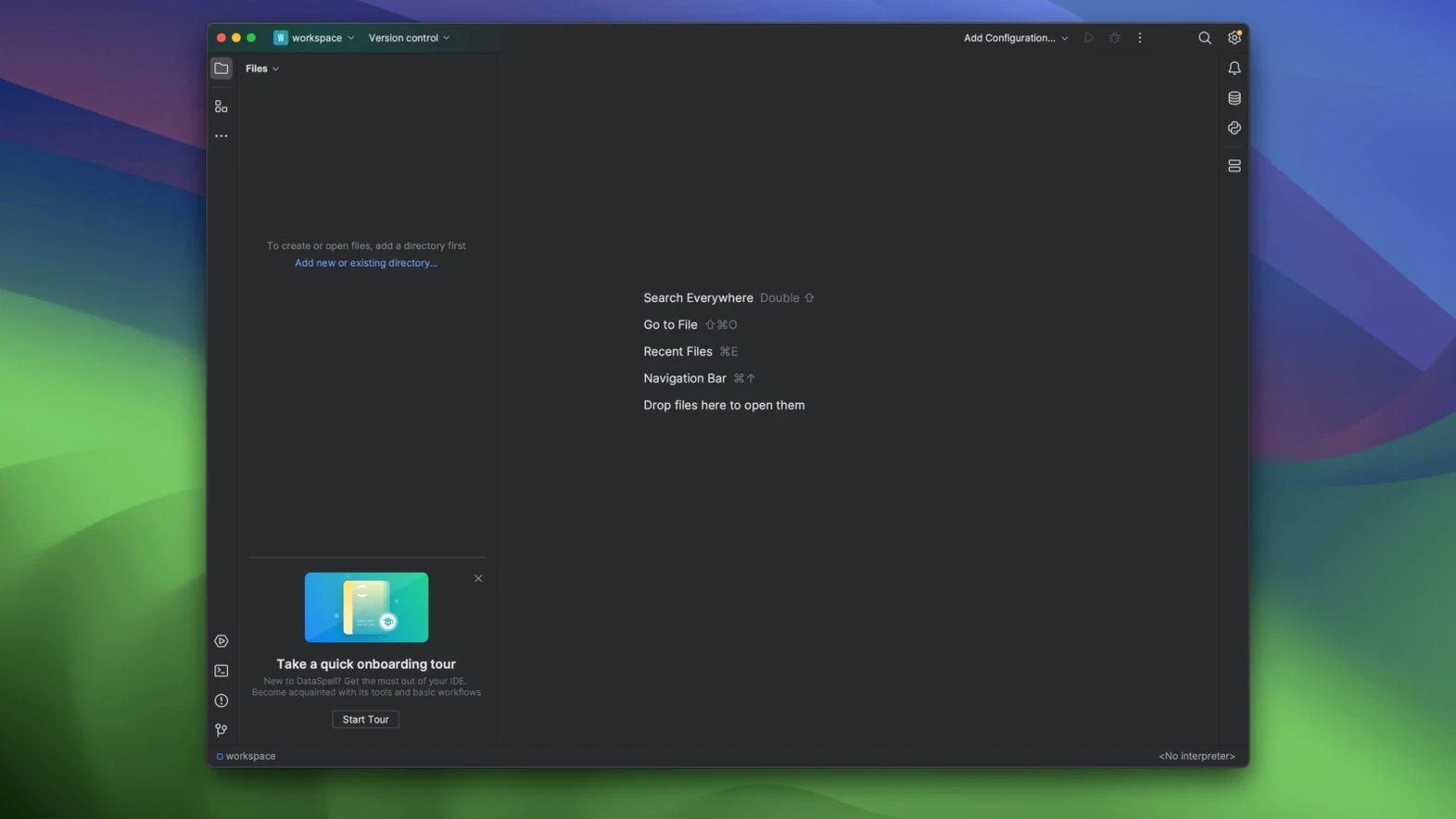
Inside, you get a smart Python editor, interactive notebooks, and a REPL console, plus Conda support and built-in dataset viewing. It's the kind of environment where you can pull up a CSV, inspect it visually, and prototype a plot without jumping between Finder, a terminal, and a separate graphing library. For anyone who already uses PyCharm for general development, DataSpell feels like the cousin that actually lives in your data folder.
What makes it fit a Mac workflow is how it handles the adjacent pieces. You can keep your existing text editor for quick scripts, your database GUI for querying, and still have DataSpell open as the middle ground where exploration happens. The notebook export to PDF — new in this release — means sharing results doesn't require a whole ecosystem to view them. AI agent support has also arrived, though it's the notebook and editor polish that most users will feel day to day.
A real workflow: messy CSV to shareable notebook
Say you've just pulled a CSV from a client's analytics export — columns with odd spacing, dates formatted three different ways, and a handful of nulls scattered through the revenue column. Open DataSpell, create a new notebook in a Conda environment with pandas already installed, and start with a cell that loads the file. The dataset viewer pops up inside the IDE without a single matplotlib call, and you can already spot the nulls highlighted in the table.
From here the flow stays linear. A second cell cleans the date column with pd.to_datetime, a third groups revenue by month, and a fourth renders the line chart inline. Because the editor and notebook share one window, you're not switching apps when you realize the grouping logic needs a quick helper function — just scroll up, add a code cell, and keep going. When the chart looks right, export the whole notebook as a PDF straight from the File menu. The client gets a tidy summary, and you never opened Numbers or a separate Markdown editor.
Ignoring the editor pane and treating it like JupyterLab
One habit I see often: treating DataSpell like a JupyterLab clone and ignoring the editor pane altogether. The notebook view is the obvious starting point, but the smart editor on the left does real lifting — refactoring, finding usages, and catching type mismatches that notebook cells quietly swallow. Beginners who stay entirely in notebook mode miss the linting that would have flagged a misspelled column name before runtime.
Another common stumble is environment confusion. DataSpell shows you Conda environments per project, but it's easy to install a package in the terminal outside the IDE and wonder why the notebook cell can't import it. Checking which kernel is attached to the notebook (the dropdown in the top-right corner of the notebook panel) saves a lot of head-scratching. And on Macs with Apple Silicon, selecting an ARM-native Conda environment from the start avoids the subtle slowdown that comes from Rosetta-translated Python wheels.
Bundled DataFrame viewer versus hunting for extensions in VS Code
VS Code with the Python extension. VS Code is lighter and more general-purpose, and its notebook support has improved a lot. But DataSpell bundles dataset exploration and Conda management without hunting through extensions. In VS Code, viewing a DataFrame nicely usually means installing a separate add-on; here it's part of the furniture. The trade-off is VS Code's broader language support — if your day involves Go or Rust alongside Python, DataSpell won't cover that.
JupyterLab (desktop). JupyterLab focuses on notebooks and the surrounding file browser. DataSpell wraps that same notebook engine inside a full IDE, so you get code completion, version control integration, and the database tools plugin in one place. JupyterLab wins on simplicity and zero setup, but the moment refactoring or SQL queries enter the picture, DataSpell pulls ahead. Users who only ever write notebook cells may not feel the difference; anyone who debugs Python scripts in the same project almost certainly will.
PyCharm Professional. There's overlap in the Python editing, since both share JetBrains' code intelligence. PyCharm Professional can open notebooks too, but the experience is bolted on rather than central. DataSpell puts the notebook and dataset viewer at front and center, while PyCharm leads with project files and run configurations. If your day starts with a CSV or a SQL table rather than a main.py, DataSpell matches that rhythm better.
The 2026.1 release expands the AI ecosystem inside DataSpell with AI agents support, adds long-requested PDF export for notebooks, and brings productivity tweaks across the editor.
- macOS 11 or later
- Intel or Apple Silicon Mac
- Interface language: English
Questions people ask
Does DataSpell run on Apple Silicon Macs?
Yes, it supports both Intel and Apple Silicon Macs and requires macOS 11 or later.
What's included in the 2026.1 release?
The 2026.1 version adds AI agents support, PDF export for notebooks, and several editor-level improvements.
Also on readers' docks
Sign in or create an account to leave a comment.
No comments yet. Tell me how it got on with your other devices.
More in Mac Apps
See all Updated DataGrip
2026.2.6 Mac Apps
1 GB
Updated DataGrip
2026.2.6 Mac Apps
1 GB
 Updated Dash
8.2.0 Mac Apps
21 MB
Updated Dash
8.2.0 Mac Apps
21 MB
 DaVinci Resolve Studio
21.1.1 Mac Apps
7.9 GB
DaVinci Resolve Studio
21.1.1 Mac Apps
7.9 GB
 DaisyDisk
4.34.2 admin Mac Apps
9 MB
DaisyDisk
4.34.2 admin Mac Apps
9 MB
 dBpoweramp Music Converter
2026.09.13 Mac Apps
31 MB
dBpoweramp Music Converter
2026.09.13 Mac Apps
31 MB
 Deep Glow
1.6 Mac Apps
3 MB
Deep Glow
1.6 Mac Apps
3 MB
 Cursor Pro
2.4 Mac Apps
30 MB
Cursor Pro
2.4 Mac Apps
30 MB
 Depth Scanner
1.15.6 Mac Apps
2 MB
Depth Scanner
1.15.6 Mac Apps
2 MB