Download dBpoweramp Music Converter for macOS
Version 2026.09.13 tidies up a couple of rough edges that Mac users noticed—an Intel-component warning on the latest macOS is gone, and the Enter key inside Edit Tags now behaves when the autocomplete list is visible. Resampling also got a quiet polish. Nothing flashy, just the kind of fit-and-finish update that keeps dBpoweramp feeling native on a Mac.
One batch, three formats, zero fuss
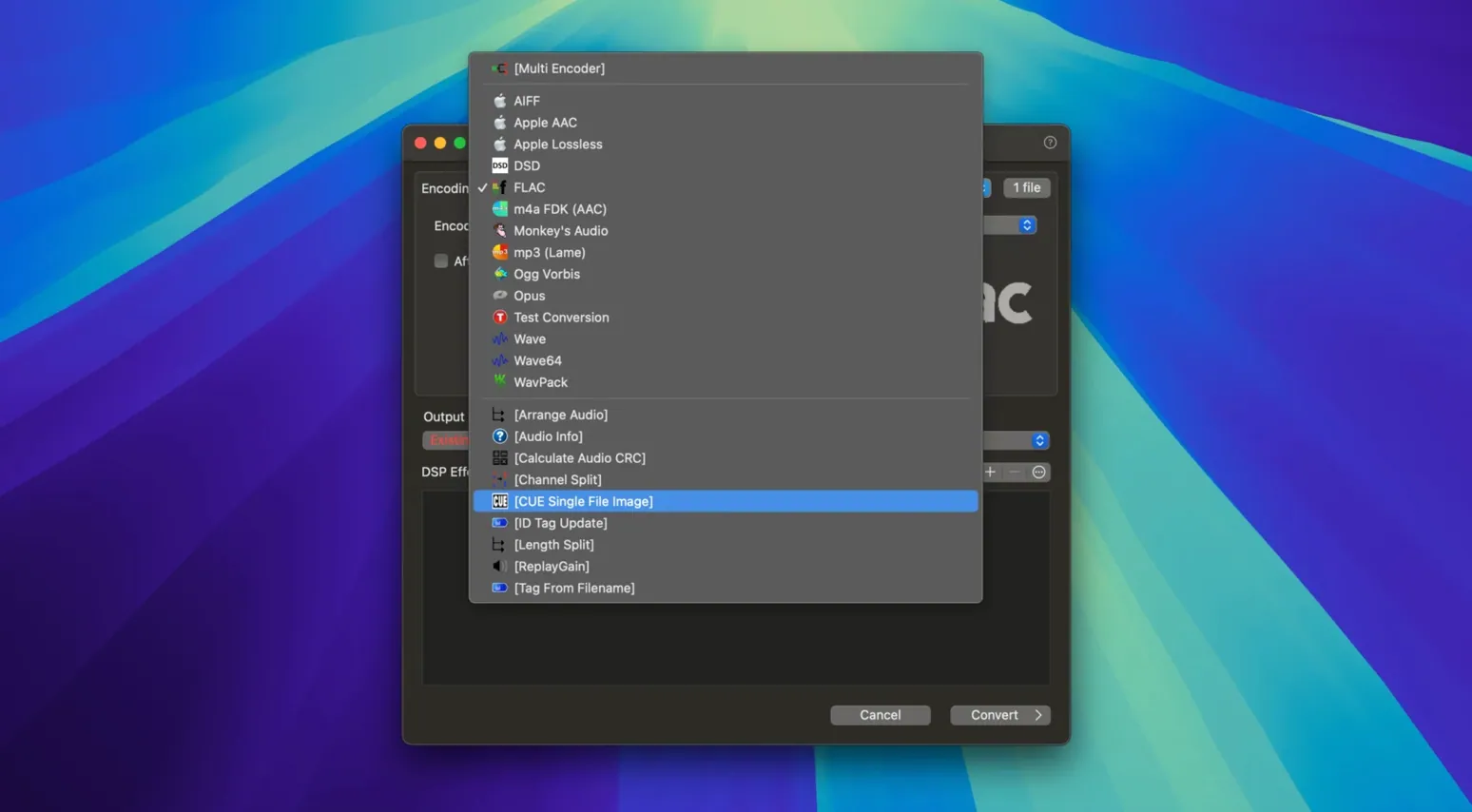
Say you’ve got a folder of high-res FLAC files from a live recording, but you need MP3 copies for your phone and Apple Lossless versions for the home library. Select the whole lot in Finder, right-click, and choose Convert with dBpoweramp. Pick MP3 (LAME) for the first pass, set a target bitrate, and let it chew through the tracks. When it finishes, hit the same files again and queue up Apple Lossless. Because the converter works in batches and keeps folder structures intact, you end up with mirrored sets without dragging anything into a separate window. Ticking on a DSP like volume normalization during the second pass saves you a trip to another tool later.
Where the Finder integration shines
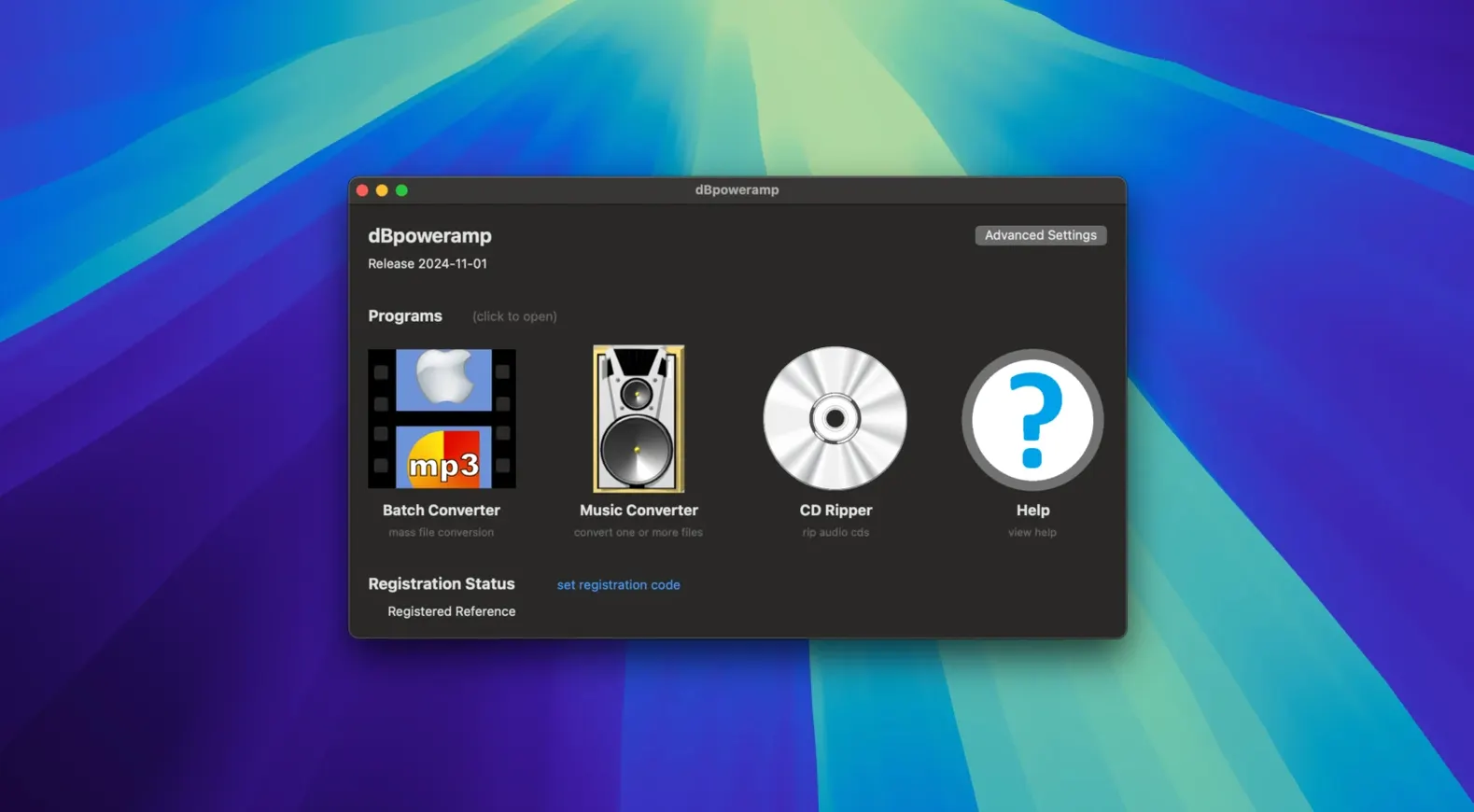
Not having to open the main app for quick jobs is what makes dBpoweramp stick. You stay in your working folder, convert a handful of AIFF stems to WAV, and carry on. The converter still gives you full control when you want it—sample rate changes, bit-depth dithering, and codec-specific tweaks are all a couple of clicks away. And yes, the CD Ripper is bundled in, so if a band hands you a disc after a gig, you can pull it straight into your library without reaching for a separate tool. On a Mac, that Finder-level shortcut turns an audio Swiss Army knife into something that genuinely fits a keyboard-and-mouse workflow.
Bypassing the notarization security block on first launch
First launch on a newer Mac sometimes throws a security prompt because the app isn't notarized the way Apple prefers. Head into System Settings → Privacy & Security, scroll to the bottom, and click "Open Anyway." Do it once and macOS remembers.
Another common stumble: the Finder shortcut "Convert with dBpoweramp" doesn't appear after installing. It's not broken—macOS sometimes needs a nudge. Open the dBpoweramp Music Converter app fully once from the Applications folder, then right-click any audio file. The option should be there. If it still isn't, logging out and back in forces Finder to refresh its service menu.
When converting between lossless formats like FLAC to Apple Lossless, tags occasionally misbehave with classical music or compilations. The "Album Artist" field sometimes gets dropped. A quick fix: open the ID Tag Editor before converting, map the Album Artist field explicitly under the manipulation tab, and tick "Force no compilation" for albums that aren't various-artist collections. Takes ten seconds and saves a tagging headache later.
Bit-depth and sample-rate changes trip up newcomers too. If your target format has a hard limit—say, CD-quality WAV at 16-bit/44.1 kHz—and you feed it 24-bit/96 kHz FLACs, the converter will follow what you tell it. Set the DSP resampler before you queue files, not after. The app won't second-guess you, and a 24-bit file converted to 16-bit without dither can sound harsh on quiet passages. Add the Bit Depth DSP and choose triangular dither; your ears will thank you.
Sending converted files straight into Apple Music or Swinsian
Batch Converter output folders can point straight into an Apple Music "Automatically Add to Music" folder. Drop your converted files there and they land in your library without dragging. Likewise, if you use an app like Swinsian or Vox, pointing the output to a watched folder means new conversions appear immediately in those players.
The converter plays nicely with Automator too. Build a Folder Action that watches a "To Convert" folder, runs a dBpoweramp preset via the command-line helper, and moves the results elsewhere. Not something you'd build on a Tuesday afternoon, but audio engineers who process daily submissions lean on it hard.
On the tagging side, the ID Tag Editor reads and writes metadata that Apple Music, Plex, and Roon all understand. If you're one of those people who obsesses over consistent genre spelling, fix it once in dBpoweramp and every other app picks it up. Artwork embedding is reliable—high-res JPEGs stay embedded when converting to FLAC or M4A, where some lightweight converters strip them silently.
A real working session, step by step
Yesterday I pulled a dozen WAV stems off a friend's USB drive. 24-bit, 96 kHz, no tags except file names. I wanted tagged FLACs for the archive and MP3s for a quick listen on the iPad. Here's how it went.
I right-clicked the folder in Finder, chose Convert with dBpoweramp, and set the output to FLAC. Before hitting Convert, I opened the DSP tab and added the Resample DSP—down to 48 kHz, since these were just multitrack stems and 96 kHz was overkill for what they'd be used for. I also added Volume Normalize at -18 LUFS so all tracks sat at roughly the same level. Five seconds of setup, then I let it run. Twelve tracks took under a minute on an M-series Mac.
Next came tagging. I opened the ID Tag Editor from the dBpoweramp folder, loaded all twelve FLACs, and batch-set the artist, album, and year fields. The editor's autocomplete on the Artist field pulled from what I'd typed before, so "The" auto-filled to "The Midnight Wrens" without fuss. That Enter-key fix from version 2026.09.13 actually mattered here—no more accidentally closing the dialog mid-edit.
For the MP3 pass, I selected the freshly tagged FLACs, hit Convert again, chose MP3 (LAME) at VBR V2, and pointed the output to a "For iPad" folder I sync via Finder. Total time from USB stick to finished, tagged library copies in two formats: about four minutes of clicking and waiting. The batch converter kept the folder structure, so the stems stayed organized in both formats.
That's where dBpoweramp for Mac earns its keep. Not in doing one thing dramatically faster, but in letting you chain three or four jobs without ever leaving Finder or remembering which app handles which part.
Here’s what changed in version 2026.09.13:
- Resampling got under-the-hood improvements for smoother conversion results.
- Fixed an issue where the Enter key closed the Edit Tags dialog while autocomplete suggestions were visible.
- Resolved a warning about an Intel-only component appearing on the latest macOS releases.
- macOS 11 or later
- Apple Silicon and Intel Macs are both supported
Questions people ask
Can dBpoweramp convert a whole folder of audio files at once on Mac?
Absolutely. Select multiple files or an entire folder in Finder, use the Convert with dBpoweramp command, and the app processes everything in one batch while preserving your folder layout.
Does the Mac version include a CD ripper?
Yes, CD Ripper comes with dBpoweramp Music Converter on macOS. You can pop in a disc and extract tracks directly to formats like FLAC, MP3, or Apple Lossless.
Also on readers' docks
Sign in or create an account to leave a comment.
No comments yet. Tell me how it got on with your other devices.