Download DxO PhotoLab for macOS
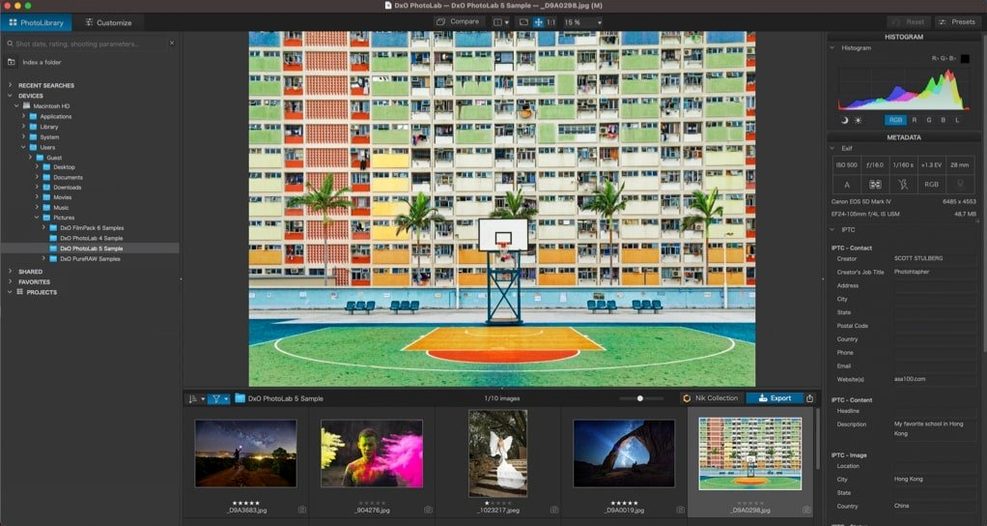
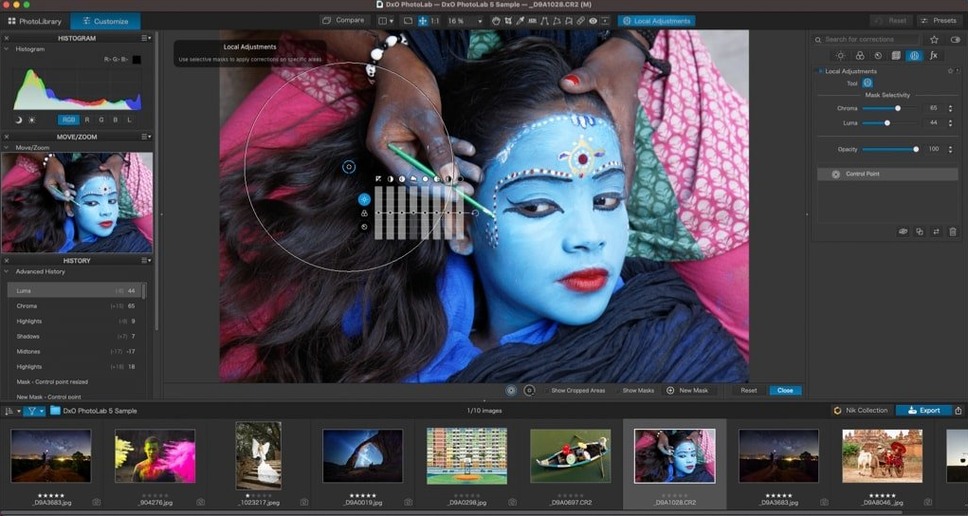
Photographers who live in the RAW format—whether they're shooting a wedding, a landscape at dawn, or just chasing a toddler around the living room—tend to settle into a specific editing rhythm. DxO PhotoLab 9 is built around that rhythm, turning what could be a long technical slog into a few deliberate steps. It's DxO Labs' flagship RAW editor, and it shows.
1. Import and let the lens corrections do the heavy lifting
Drop in a batch of images from any of the 600-plus supported cameras and PhotoLab reads the metadata instantly. It applies DxO's lab-measured lens sharpness profiles on import, so you start from a corrected baseline—not a flat, soft RAW file. Apple ProRAW and HEIC files from an iPhone slip right in alongside shots from a full-frame body.
2. Pull detail out of noise with DeepPRIME XD3
Push the ISO too high? Here's where the workflow gets serious. DeepPRIME XD3 handles demosaicing and noise reduction in one pass, for both Bayer and X-Trans sensors. The result is cleaner edges and preserved texture without that waxy, over-processed look. DxO PRIME is still there for older files, but XD3 is the star for really difficult frames.
3. Balance the light without halos
DxO Smart Lighting sorts out uneven exposures—lifting shadows and reigning in highlights in a way that feels more optical than digital. Then DxO ClearView cuts through haze and flat contrast as if you'd wiped the lens clean. It's a one-two punch that keeps an image looking natural, not cranked.
It's a tool for shooters who want the raw data they captured to sing, not just survive the edit. Formerly known as DxO Optics Pro, this version runs natively on Apple Silicon and Intel Macs under macOS 14.7.
Skipping the auto lens correction prompt
DxO PhotoLab isn't Lightroom, and treating it like a clone causes frustration. The biggest mix-up is ignoring DxO Modules. Some folks skip the automatic lens profile prompt on import, then wonder why distortion and vignetting look untouched. Let the module load—it's the whole reason your lens behaves like it should.
Another early stumble: editing before noise reduction. DeepPRIME XD3 needs the raw sensor data intact, so crank exposure and contrast after you've applied noise reduction, not before. Working in the wrong order can smear fine detail you thought you'd rescued.
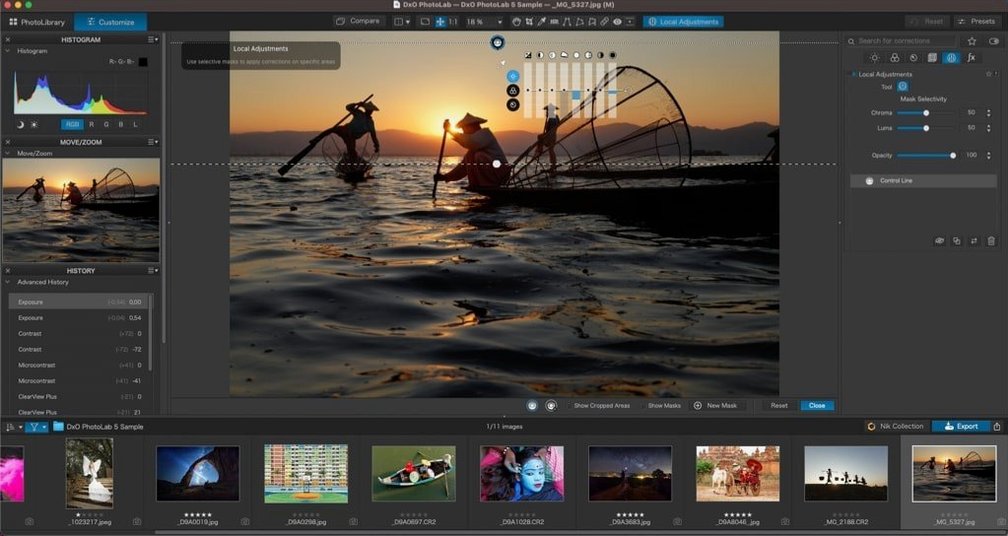
Local adjustments trip people up too. U Point control points are dead simple once you grasp them—click a spot, adjust the radius, tweak the sliders—but beginners often spread points everywhere instead of letting one well-placed point do the work. Fewer points, bigger radius. And the AI Masks for skies or people are genuinely smart, but they're not magic; a backlit subject against a bright window still needs manual refinement.
DeepPRIME XD3 batch exports hit hardest
On an M-series chip, PhotoLab feels snappy without being featherlight. Launching the app and loading a folder of 45-megapixel RAWs takes a couple of seconds—not instant, but never sluggish. The real weight comes when you batch-process with DeepPRIME XD3. Exporting fifty high-res files will pin the GPU and spin the fans, and you'll notice the machine working. That's expected. It's chewing through serious math.
RAM usage hovers around 2 to 4 GB during normal editing, then climbs sharply during export. I've seen it touch 12 GB on large batches and settle back down afterward—no memory leaks worth worrying about. Stability is solid. In weeks of daily use I've had one crash, and it happened while rapidly switching between virtual copies of a panorama stitch. The autosave had my back.
If you're on an Intel Mac, expect longer export times and a warmer chassis. Still perfectly usable, just more patient. PhotoLab leans on the GPU for DeepPRIME, so an older machine with integrated graphics will feel the strain.
Snags that pop up (and how to sort them)
A few quirks surface often enough to mention. First, custom workspaces don't always stick between sessions. Rearranging the panels to suit your screen, only to find them reset the next day, grates. The fix is quick: save your workspace manually from the Window menu and it'll hold.
Second, the loupe tool sometimes lags when zooming to 100% on huge files stored on a slow external drive. Moving the working folder to internal storage—or at least a fast SSD—clears it right up. It's a disk speed thing, not a software bug.
Third, copying local adjustments between images occasionally drags along a mask you didn't intend. Double-check the AI Mask Subject Type in the sync settings before pasting; deselecting "Masks" in the copy dialog keeps things cleaner. And if an image suddenly looks blotchy after applying ClearView at 100%, dial it back to 60–70%. Full strength is aggressive on already-contrasty scenes.
Finally, anyone searching for #photolab tips or stumbling across dxo labs discussions will find plenty of threads about module download hiccups. If a module won't fetch automatically, head to the DxO site, grab the module installer manually, and point PhotoLab at it. Solves the problem in under a minute.
- macOS 14.7 or later
- Apple Silicon or Intel processor
Questions people ask
Does DxO PhotoLab support Fujifilm X-Trans RAW files?
Yes, DeepPRIME XD3 includes dedicated processing for X-Trans sensors alongside standard Bayer sensors.
What's the difference between DeepPRIME and DeepPRIME XD3?
DeepPRIME XD3 is the latest engine that combines demosaicing and noise reduction, delivering more detail recovery than the original DeepPRIME, especially at high ISOs.
Also on readers' docks
Sign in or create an account to leave a comment.
No comments yet. Tell me how it got on with your other devices.