Download DriveDx for macOS
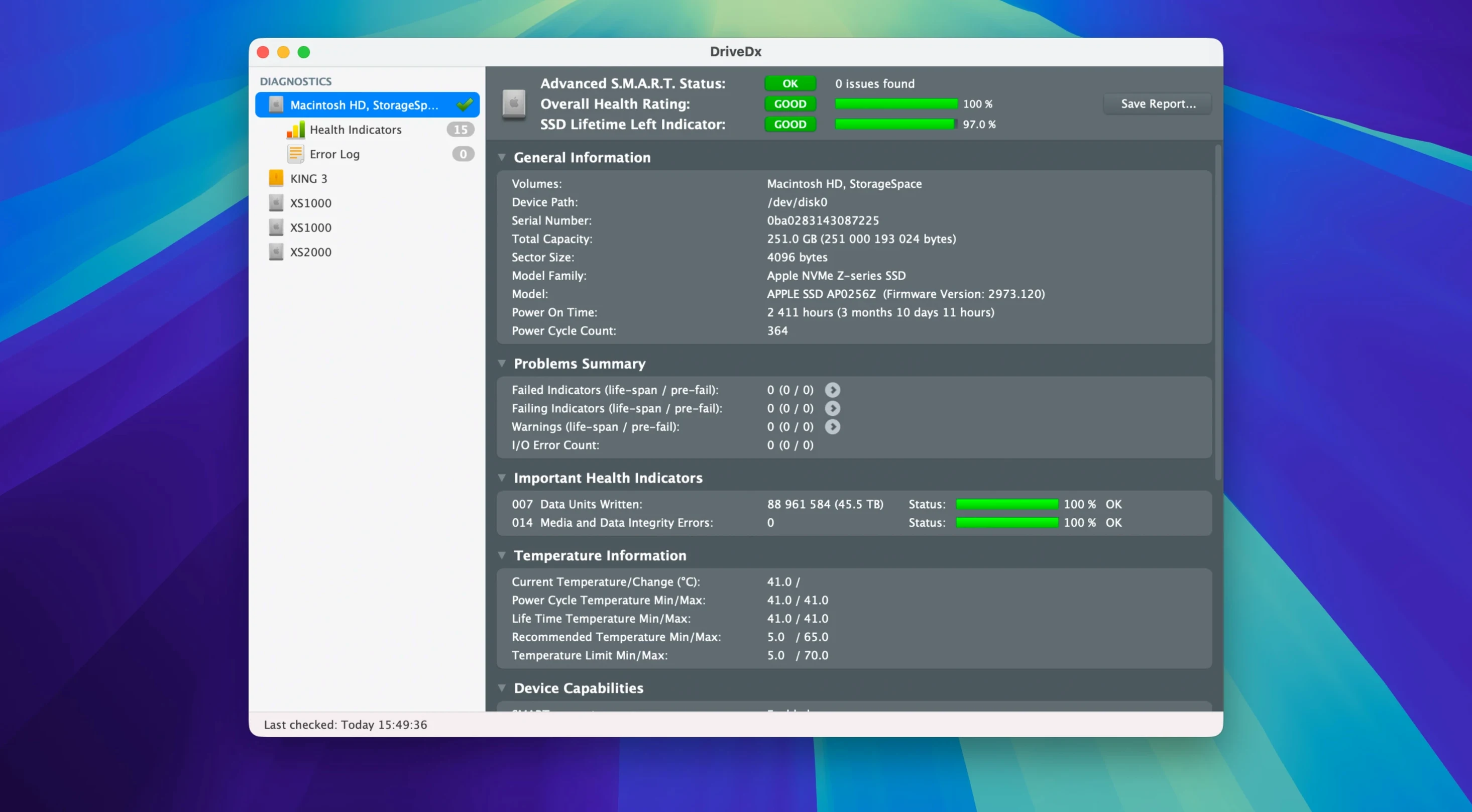
Drives fail. Sometimes they whisper with a weird click, sometimes they give no warning at all — until a beach ball freezes your screen and a file won't open. The built-in S.M.A.R.T. checks in Disk Utility are fine for a quick glance, but they don't watch your drives day to day. DriveDx fills that gap. It keeps an eye on the health indicators that actually predict trouble, not just the ones that say "OK" after the damage is done.
- Runs quietly in the background, polling your drives on a schedule you set
- Spots warning and failing states early, often before macOS itself flags anything
- Offers short and full self-tests you can trigger right from the app
- Pushes a notification the moment a health metric dips, so you can back up immediately
- Understands both HDDs and SSDs, with algorithms tuned for each
- Fits into a dock or menu bar, staying out of the way until it has something to say
Version 1.12.1 is a maintenance update that sharpens the diagnostic heuristics and drops the Rosetta 2 requirement from the driver installer — a welcome touch for anyone running Apple Silicon. The app works all the way back to Mavericks, so older Macs get the same watchful eye. If you already have a backup routine and a system monitor, DriveDx slots in as the dedicated drive sentry: it doesn't nag, it doesn't clutter your menubar with graphs you'll never read, and it tells you what you actually need to know before you lose something important.
How DriveDx Fits Into a Real Mac Workflow
DriveDx doesn't try to be everything. It specializes, and because of that it plays nicely with the rest of macOS instead of fighting for attention. I keep it running alongside my usual tools — a clipboard manager, a backup scheduler, a menubar weather thing I probably don't need — and it never gets in the way. When I plug in an external SSD for a photo import, DriveDx notices within seconds and updates its readings. No dialog box, no permission prompt. It just quietly adds the drive to its watchlist and goes back to monitoring.
The smartest pairing is with Time Machine or whatever backup system you use. DriveDx gives you the early warning; your backup gives you the safety net. I've set mine to poll every hour and fire a notification if any attribute crosses into "warning" territory. That way I'm not staring at health percentages — I'm just working, trusting that if something starts to degrade I'll hear about it before I'm staring at a dead drive wondering what I lost. The app also writes its status to a log file, which means tools like launchd scripts or system monitoring dashboards can pick up the data if you're the type who likes everything in one pane of glass.
Integration with macOS notifications is straightforward and native. DriveDx uses the standard Notification Center, so alerts respect your Focus modes and Do Not Disturb settings. If you use Automator or Shortcuts, you can build a simple workflow that watches the DriveDx log and triggers a custom action — maybe firing off an rsync job or sending you an email — when a specific drive dips below a health threshold. It's not a built‑in feature, but the pieces are there for anyone who likes to tinker.
Compared to Other Drive Health Tools
Smart Utility from Volitans Software takes a simpler approach. It reads S.M.A.R.T. data and presents it cleanly, but it's more of a point‑in‑time checker than a background sentinel. You open it, you look, you close it. DriveDx, by contrast, is designed to live in the background and surface problems as they develop. Smart Utility's interface is arguably more approachable for a one‑time check, but it doesn't have the same depth of predictive heuristics or the ability to track trends over weeks and months.
Drive Genius is the heavyweight in this space, and it brings a whole suite of utilities: defragmentation, repartitioning, secure erase, and malware scanning alongside its health checks. It's a full‑on drive toolkit. DriveDx doesn't try to compete on breadth. It does one thing — diagnostic monitoring — and it does it with less overhead and a much smaller footprint. If you need to repartition a drive on the fly, DriveDx won't help you. If you want a focused health monitor that won't ask you to install kernel extensions for features you'll never use, it's the lighter, quieter choice.
One thing I appreciate: DriveDx's SSD‑specific metrics, like wear leveling and lifetime writes, are presented more clearly here than in either Smart Utility or the basic health view in Drive Genius. For a MacBook with a soldered‑down SSD, that information matters. You can't swap the drive, so knowing exactly how much life it has left changes how you plan upgrades and backups.
Switch to a Shorter Polling Interval for Earlier Warnings
The defaults are sensible, but a few tweaks make DriveDx feel like it was set up just for your machine. Here's where I'd start:
- Polling interval. The default hourly check is fine for most people, but if you're running a production machine or a server that can't afford downtime, bump it to every 30 minutes. The CPU hit is negligible, and you'll catch transient I/O errors sooner.
- Health threshold notifications. By default the app notifies you when a drive drops below 100%. I prefer to set mine to alert only when it falls under 90% — otherwise every slight fluctuation on an aging drive turns into noise. You'll find this under Preferences > Notifications.
- Temperature warnings. SSDs throttle under heat, and HDDs wear faster. DriveDx can warn you when a drive exceeds a temperature you set. The default is off; turn it on and pick a sensible ceiling for each drive type. For an external mechanical drive in a warm room, I set mine to 45°C.
- Menu bar icon. Off by default. If you want at‑a‑glance status without opening the app, enable it and set it to show the overall health percentage. A quick glance tells you everything is fine without pulling up a window.
- Diagnostic logs. DriveDx can keep a running log of all S.M.A.R.T. attribute changes. Turn this on if you ever want to look back and see exactly when a drive started developing bad sectors — it's invaluable for troubleshooting, and the log file stays small.
A Half‑Second Pause in File Copies That Exposed a Failing Drive
Last Tuesday morning, I sat down with coffee and noticed my Mac felt a little sluggish during file copies. Nothing dramatic — just a half‑second pause here and there. I didn't think much of it until I glanced at the DriveDx menu bar icon and saw my external backup drive had dropped to 78% health overnight.
I clicked the icon to open the main window. The drive in question — a two‑year‑old 4TB desktop HDD — was showing a warning state. I scrolled through the attributes and spotted the culprit: "Reallocated Sector Count" had jumped from zero to twelve in the last twenty‑four hours. Below it, "Current Pending Sector Count" was sitting at three. That's the kind of detail Disk Utility never shows you. DriveDx had flagged the drive as "Failing" in its internal classification, not just "Warning," because the heuristic algorithm weighed the sudden spike as a strong predictor of imminent failure.
I immediately launched a full self‑test from within the app — it's a button right in the drive detail panel. While that ran, I opened my backup software and kicked off a manual full backup to a separate drive, just in case. The self‑test took about two hours (it's a big spinning disk), and when it finished, DriveDx confirmed the reallocated sectors were still climbing. The drive wasn't dead yet, but it was dying.
Because I'd set the polling interval to 30 minutes a few weeks earlier, I caught the problem before macOS even registered the drive as unmountable. I swapped the drive that afternoon, restored from the fresh backup, and lost nothing. The whole workflow — notice the alert, interpret the attribute, run the test, verify, and act — took less than three hours. Without DriveDx, I probably would have kept using that drive until a Finder error popped up mid‑copy, and by then the scramble would have been real.
That's the rhythm of using it: you don't open DriveDx every day. You set it up once, let it watch, and when it taps you on the shoulder, you listen. The session that matters isn't the one where everything is green — it's the one where a number turns orange and
Version 1.12.1 is a maintenance release that tightens up diagnostics and modernizes a few under-the-hood pieces:
- Drive diagnostic algorithms and heuristics were improved
- The driver installer no longer requires Rosetta 2
- Ready for macOS Sonoma
- Better support for Patriot P200 SSDs
- macOS 10.9 Mavericks or later
- Intel or Apple Silicon Mac
Questions people ask
Does DriveDx work with external USB and Thunderbolt drives?
Yes, it monitors internal and external drives over common interfaces on Mac, including USB and Thunderbolt enclosures that report S.M.A.R.T. data.
How is DriveDx different from the S.M.A.R.T. check in Disk Utility?
DriveDx continuously tracks multiple health indicators and can alert you about warning or failing states, while Disk Utility only shows a basic pass/fail status when you manually check it.
Also on readers' docks
Sign in or create an account to leave a comment.
No comments yet. Tell me how it got on with your other devices.