








Download Wirecast Pro for macOS
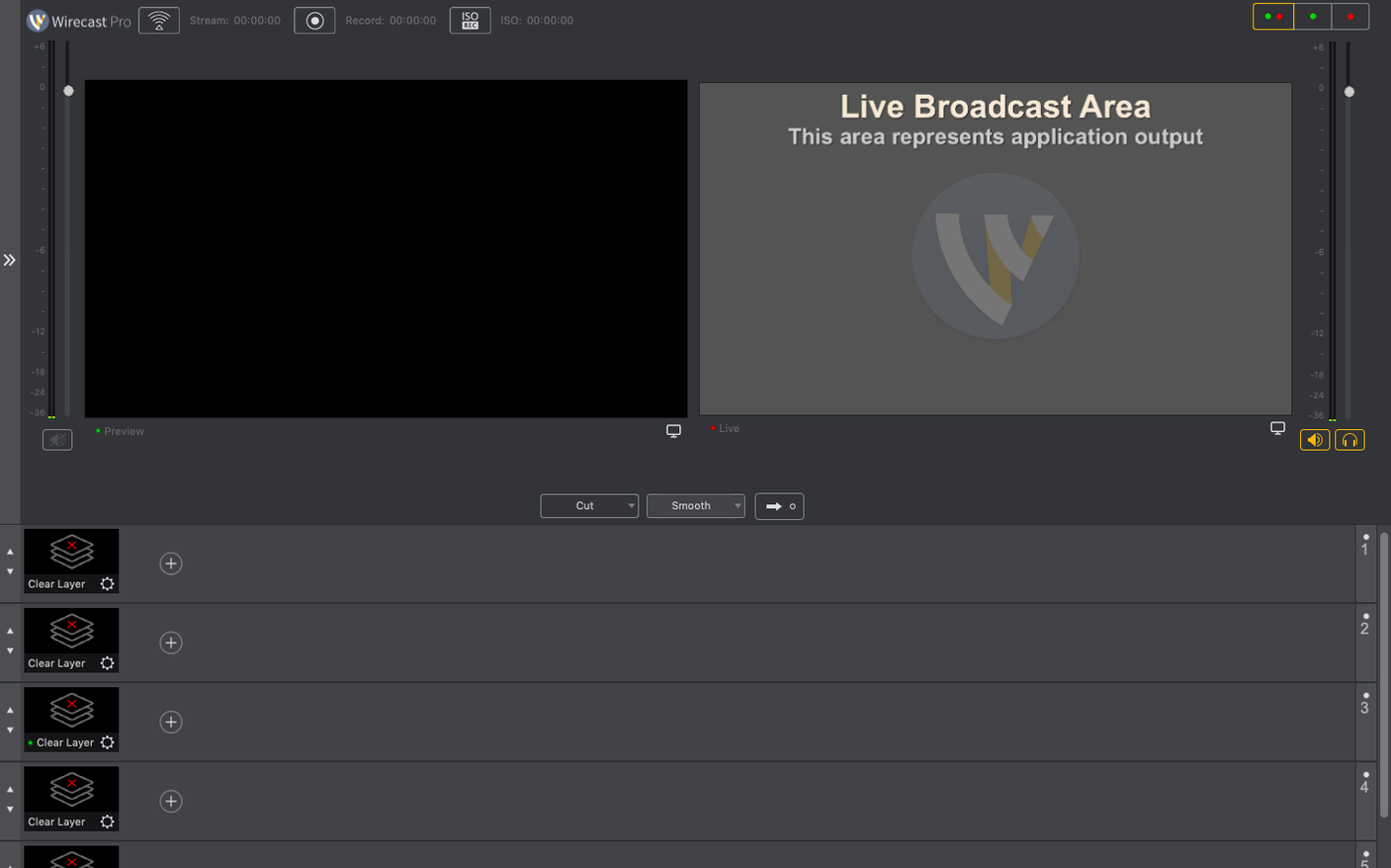
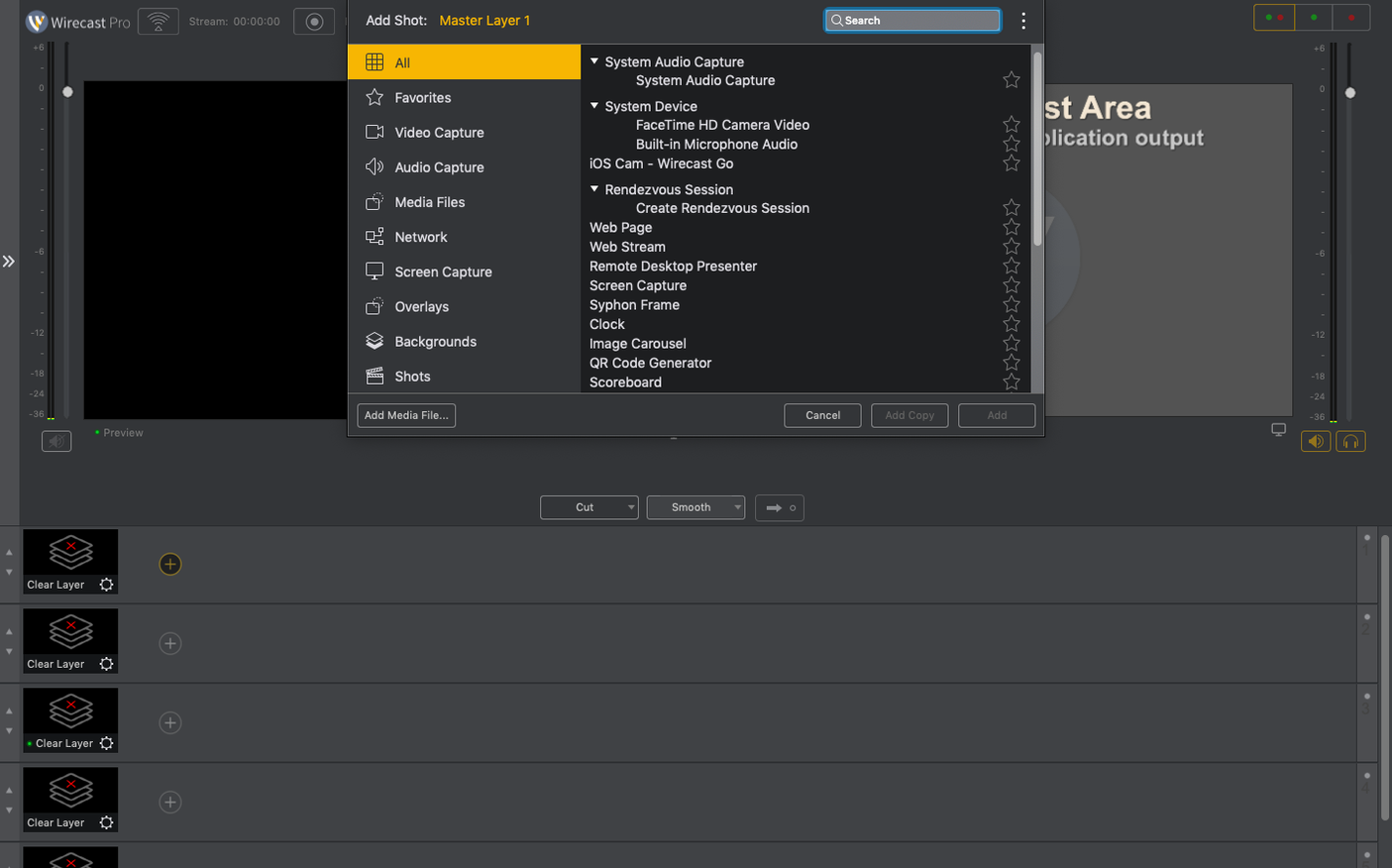
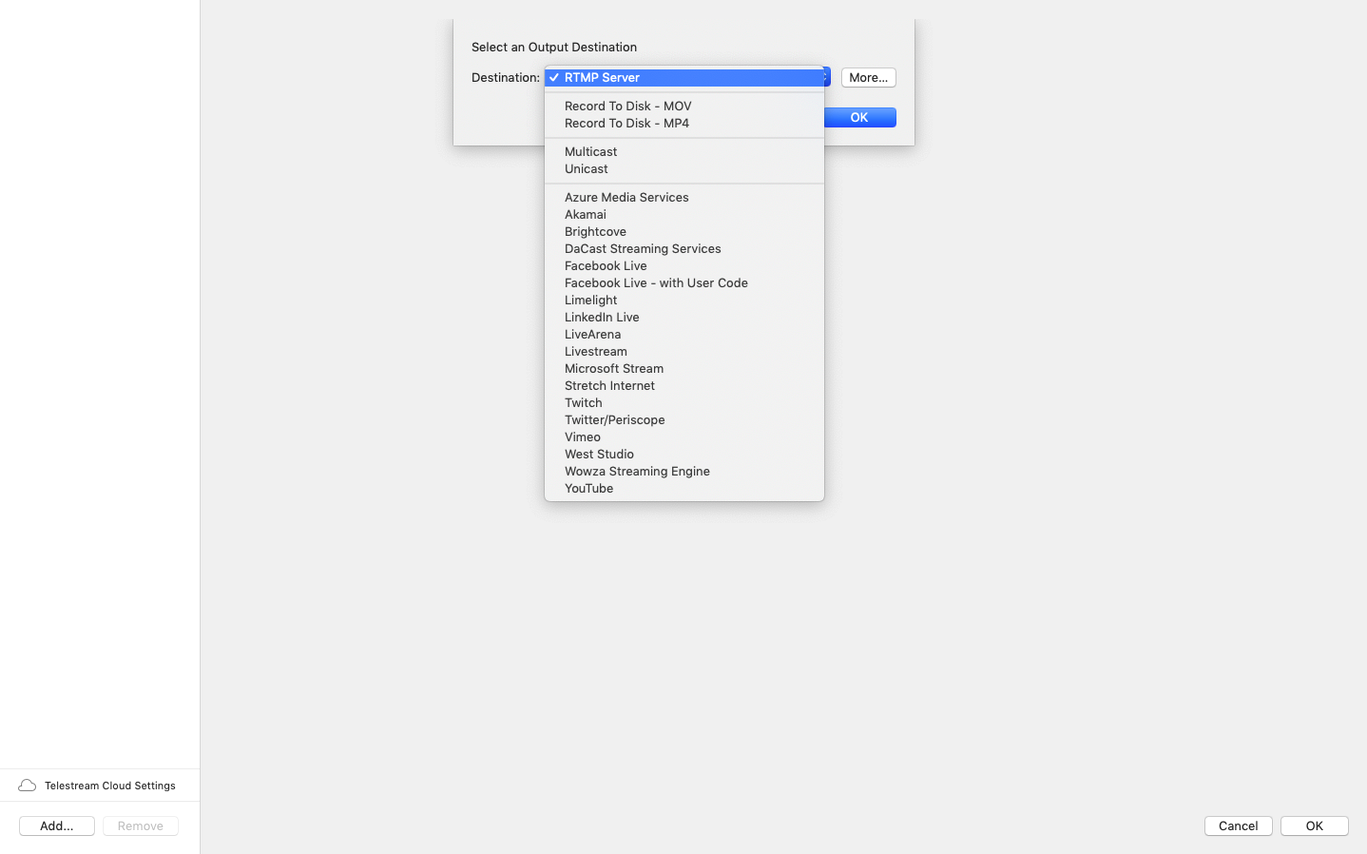
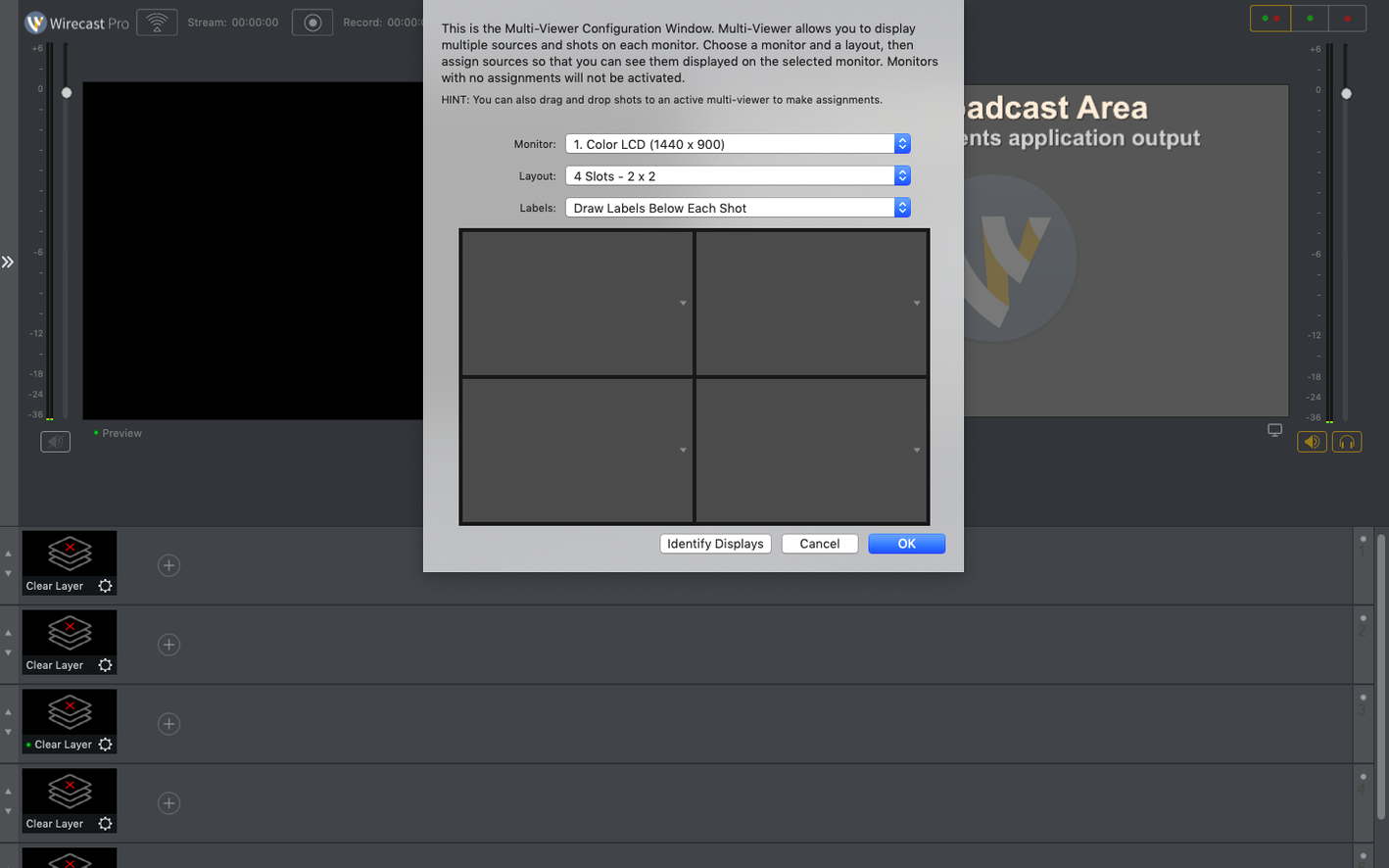
Thirty built-in title and caption styles. That’s your starting point before you even touch a custom graphic. Wirecast Pro by Telestream doesn’t just push a feed out—it gives you a full broadcast control room that feels at home next to Final Cut Pro or OBS on your Mac.
The NDI Hub That Layers Graphics Live
Think of Wirecast as the hub. It pulls in NDI feeds from cameras, screen captures from your Mac, and guest callers from remote sources, then layers on live graphics. Tweak a lower-third text on the fly mid-stream—no stopping the broadcast. The virtual camera feed drops right into Zoom or Teams as a polished source, and a recent fix means it stays solid even when corporate IT policies block the virtual mic driver.
Edit Live Titles Without Stopping Your Stream
Placing a logo on your outgoing signal is straightforward, but the real time-saver is how quickly you can edit titles while live. For anyone juggling multiple NDI sources, version 16.5.4 adds a discontinuous-frame flag that helps keep things in sync, plus better detection for PTZ cameras. It runs natively on both Apple Silicon and Intel Macs—just launch it and go.
Swap Auto Encoder for a Custom Live Preset
Out of the box, Wirecast leans toward safe defaults—reasonable, but not tailored to how you actually work. A few tweaks right after install make everything smoother.
- Live presets over auto. The automatic encoder selection picks a sensible baseline, but switching to a manual preset for your platform (YouTube Live, Twitch, a custom RTMP server) stops Wirecast from second-guessing your bitrate mid-stream. Set this once per show profile and save it.
- Audio delay sync. Wireless mics and NDI sources often drift by a few frames. Head into the audio mixer, click the gear icon on your main mic channel, and add a tiny delay—start with 40ms and nudge from there. Your lips and voice will thank you.
- GPU rendering on Apple Silicon. Wirecast runs natively, but the renderer doesn't always default to Metal. In Preferences > Advanced, confirm the output renderer is set to Apple Metal. On Intel Macs with a dedicated GPU, pick the discrete card explicitly—the integrated one bogs down with multiple NDI layers.
- Record-to-disk path. The default capture folder can bury your ISO recordings deep in the Movies directory. Point it at a folder you actually use, preferably on a fast external drive if you're recording high-bitrate program feeds alongside isolated sources.
Your First Days: Practical Moves That Pay Off
Don't try to build a full show on day one. Instead, spend an hour training your muscle memory on three things that repeat in every production.
Build one reusable shot template. Drag in a camera source, slap a lower-third title on it, add a subtle logo overlay, and save the whole layer stack as a Shot. Name it something obvious like "Interview – Cam A with lower third." Next time, you drop one Shot instead of rebuilding three layers. This alone cuts prep time in half once you have a dozen templates stacked in the Shot bin.
Practice live title edits under fake pressure. Open a text overlay, start a local recording, and change the speaker’s name and title five times in ten seconds using the built-in title editor. You’ll fumble the first few tries—everyone does—but doing it blind builds the reflex so you don't freeze when the guest's name changes mid-broadcast.
Map your most-used transitions to the keyboard. The default cut and fade shortcuts are fine, but Wirecast lets you assign Stinger transitions or custom wipes to function keys. Put your three workhorse moves on F1–F3 and you'll stop mousing over to the transition panel entirely.
Also worth doing early: run a thirty-minute test stream to a private channel. Watch the VOD afterward with an eye on audio sync, dropped frames, and title legibility. One real-world test reveals more than reading every preference panel twice.
Built for Teams That Think in Video Layers
Wirecast clicks hardest for people already thinking in layers. If your brain naturally stacks graphics over camera feeds and queues multiple sources, the interface feels like an extension, not a hurdle.
House-of-worship streaming teams run into this sweet spot often. They juggle PTZ cameras, sermon slides, song lyrics, and a confidence monitor feed—all live, with volunteers switching. Wirecast's sports score templates double nicely for hymn numbers or scripture references, and the NDI PTZ fix in 16.5.4 means cameras actually show up without a detective hunt.
Conference and hybrid-event producers benefit from the virtual camera output. Feed Wirecast's polished program mix into Zoom as your webcam source, and suddenly your remote panelists see branded lower-thirds and logo bugs instead of a grainy laptop camera. The recent fix for virtual mic driver blocks by corporate IT makes this viable even on locked-down machines.
Solo creators doing interview shows will lean on the remote guest feature hard. Bringing callers in as independent sources—not just a screen share of a Zoom window—gives you per-guest audio control and the ability to cut between host and guest with proper transitions. That's the difference between a show that looks produced and one that looks like a meeting recording.
Easy-To-Miss Details That Speed You Up
After a few streams, the muscle memory settles in and you stop hunting for features. These are the ones that hide just beneath the surface.
- Double-click a source in the preview to rename it live. Sounds tiny, but when you have four "Camera" sources and two "Screen Capture" entries, naming them "Stage Left PTZ" and "Podium Cam" on the fly during setup saves brainpower during the show.
- Hold Option while dragging a transition. It reverses the wipe direction. Not documented everywhere, but indispensable if you use directional moves to signal segment changes.
- The Shot bin has folders. Organize templates by show type—"Podcast," "Live Event," "Solo Stream"—and collapse what you don't need. Fewer visual distractions mean faster switching.
- Right-click any audio source for a solo button. Great for checking a mic before going live without messing with your main mix levels.
- NDI sources remember their last-used resolution. If a PTZ camera keeps defaulting to a lower bandwidth, select it, set the resolution explicitly in the source properties, and Wirecast sticks with it next time you launch. The 16.5.4 detection fix helps cameras show up; this trick keeps them looking sharp once they do.
A lot of people hunt for a wirecast torrent or a wirecast mac torrent hoping to test drive these features without commitment. Once the PTZ and NDI pipeline clicks into place—especially with the virtual camera staying reliable on locked-down machines—it's the kind of tool that quietly becomes the center of a Mac-based streaming setup.
- macOS 11 (Big Sur) or later
- Runs natively on both Apple Silicon and Intel 64-bit Macs
Questions people ask
Does Wirecast Pro work with my existing NDI cameras?
Yes, and version 16.5.4 specifically improves detection of certain PTZ NDI cameras on macOS, along with adding a flag for discontinuous frames.
Can I use Wirecast as a source in other Mac apps?
Absolutely—its virtual camera output works with apps like Zoom, and this release fixes a conflict when corporate IT policies block the virtual microphone driver.
Also on readers' docks
Sign in or create an account to leave a comment.
No comments yet. Tell me how it got on with your other devices.
More in Mac Apps
See all Wipr
2.38 Mac Apps
7 MB
Wipr
2.38 Mac Apps
7 MB
 WinZip Mac Pro
12.0.7282 Mac Apps
36 MB
WinZip Mac Pro
12.0.7282 Mac Apps
36 MB
 Wondershare Filmora
14.8.17 Mac Apps
924 MB
Wondershare Filmora
14.8.17 Mac Apps
924 MB
 Winclone Pro
10.5 Mac Apps
21 MB
Winclone Pro
10.5 Mac Apps
21 MB
 Wondershare Recoverit
14.0.20.6 Mac Apps
212 MB
Wondershare Recoverit
14.0.20.6 Mac Apps
212 MB
 Wondershare UniConverter
15.7.3.564 Mac Apps
324 MB
Wondershare UniConverter
15.7.3.564 Mac Apps
324 MB
 WidgetWall
3.15.2 Mac Apps
396 MB
WidgetWall
3.15.2 Mac Apps
396 MB
 WALTR PRO
4.0.122 Mac Apps
29 MB
WALTR PRO
4.0.122 Mac Apps
29 MB