








Download Winclone Pro for macOS
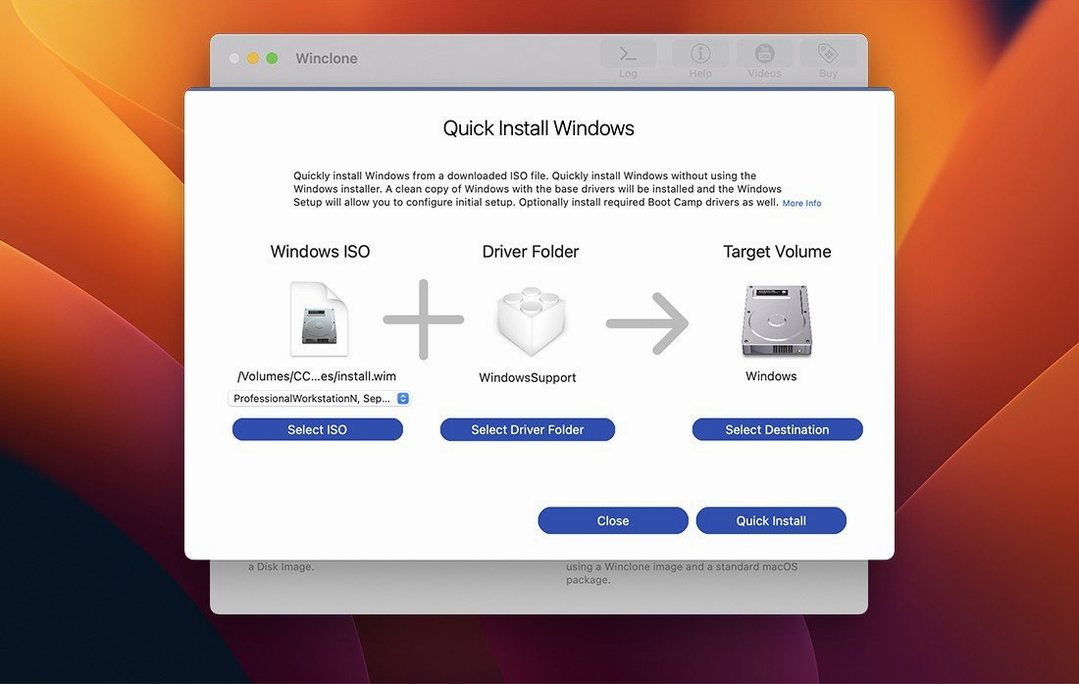
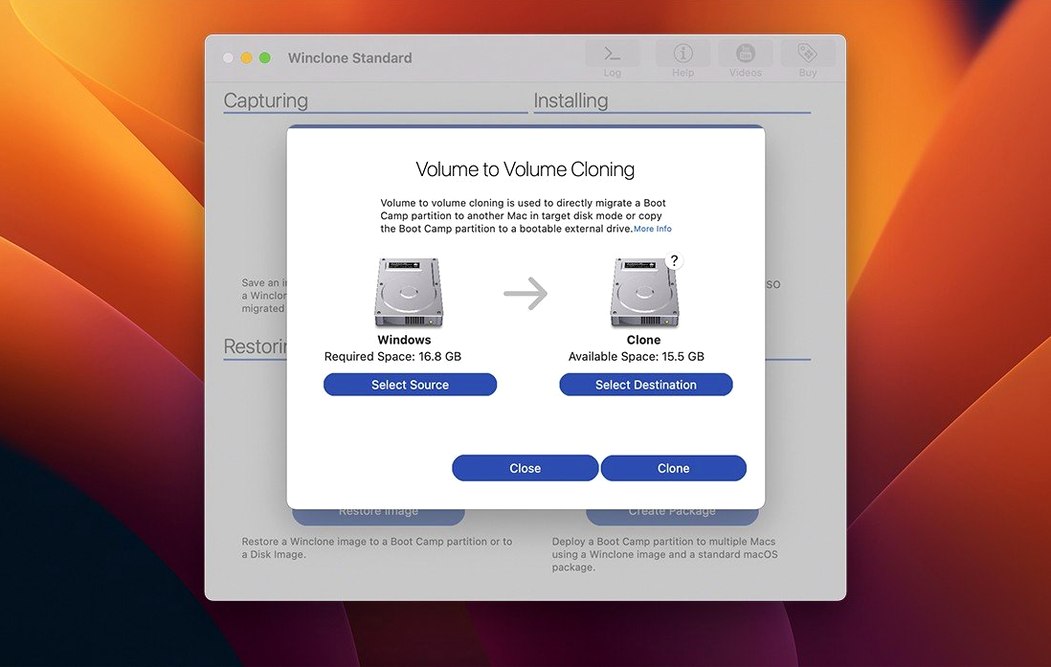
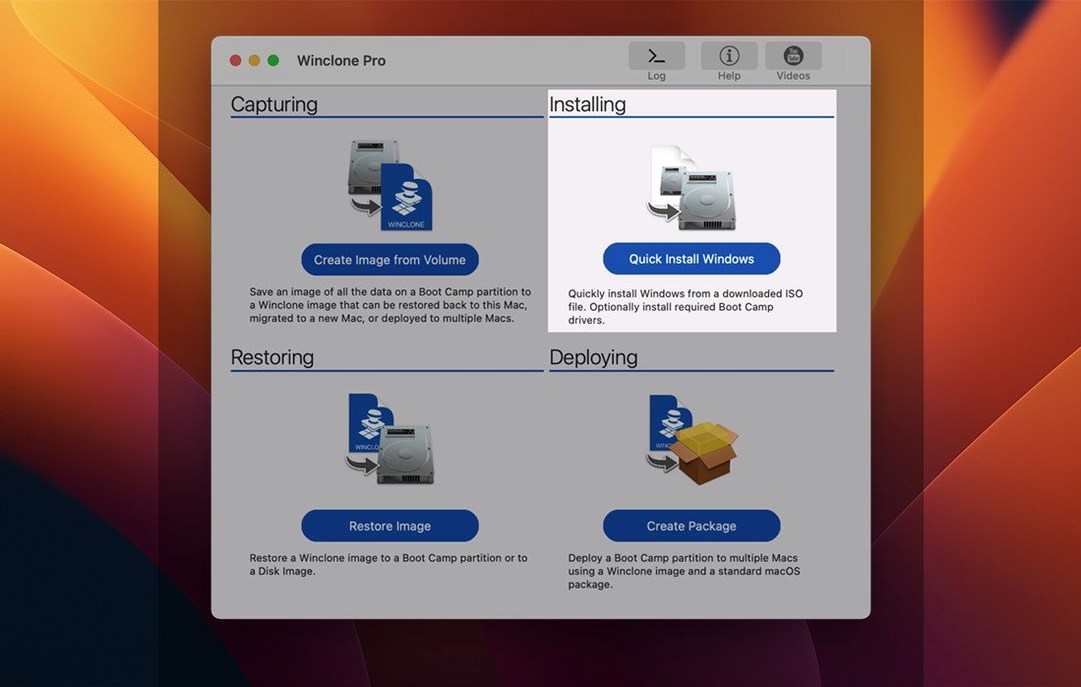
Think of it as the missing piece between macOS and your Boot Camp partition. Where Disk Utility handles your Mac volumes, Winclone Pro deals exclusively with the Windows side of your Intel Mac, giving you real control over that installation.
Clone for a bulletproof backup
Create a complete, bootable image of your entire Boot Camp partition and stash it on an external drive or network location. Incremental snapshots mean you're not re-cloning hundreds of gigabytes every time—just the changes since your last backup.
Migrate Windows to a new drive
Moving to a bigger internal SSD? Winclone handles direct disk-to-disk migration, shifting your Windows install and all its data to a fresh volume without reinstalling everything from scratch.
Package it for quick deployment
Build a single package installer that carves out a new Boot Camp partition and restores your Winclone image into it in one go. It even flags inconsistent GPT and MBR boot records so you catch problems before they brick a setup.
How it handles in daily use
I've watched Winclone Pro chew through a 120 GB Boot Camp clone in under twelve minutes over Thunderbolt, and incremental runs barely touched three minutes. That's not marketing fluff—it's the kind of speed that makes you actually keep a backup habit instead of putting it off.
Memory use stays modest. Activity Monitor typically shows it hovering around 180–250 MB during active cloning, and it releases that promptly once the job finishes. CPU load depends on whether you're compressing the image, but even on an older Intel MacBook Pro I didn't see sustained spikes above 60%. The progress bar is honest, too—no hanging at 99% for ten minutes while you wonder if the whole thing froze.
Stability is where Winclone earns its keep for admins. I've run back-to-back clones on three different Intel machines in a single afternoon without a crash. The app logs GPT and MBR mismatches clearly, and the sound notification at the end of a job means you're not babysitting the screen. That small quality-of-life detail matters more than you'd think when you're juggling multiple deployments.
Your Mac volumes stay completely untouched
Does it mess with my macOS side? No. Winclone only touches the Boot Camp partition. Your Mac volumes sit completely untouched. That said, the installer does ask you to disable SIP beforehand—more on that below—so it's not a zero-footprint setup.
Will my Windows license survive the clone? Usually yes, if it's tied to the same hardware. Moving to a different Mac will trigger reactivation, same as any Windows migration. Winclone doesn't strip or alter licensing data; it just copies the bits faithfully.
Can I restore to a smaller drive? Only if the file system's actual data fits. Winclone can shrink the Boot Camp file system during cloning, but it won't magically compress a 200 GB partition onto a 128 GB volume if you've used more than that. Check your disk usage in Windows first.
Skipping SIP leads to cryptic failures
The biggest one is skipping the SIP step. Intel Macs with System Integrity Protection enabled will block the low-level disk operations Winclone needs. You'll get a cryptic failure or the app simply won't see your Boot Camp volume. Disable SIP from Recovery Mode before installing, then re-enable it afterward if your workflow allows.
Another common stumble: trying to clone a Boot Camp partition that's currently mounted read-write in macOS. Unmount it first, or let Winclone handle that—don't have Finder poking around the Windows volume mid-clone.
People also assume incremental images are magical. They're not differential across unrelated clones. If you rename the base image file or move it, Winclone won't know where the parent is, and the next "incremental" becomes a full clone. Keep your image library tidy.
Fix an undetected partition with GPT/MBR repair
Winclone doesn't detect the Boot Camp partition. This usually means SIP is still on, or the partition table has inconsistencies. Run the built-in GPT/MBR check—it's in the tools menu—and follow the repair prompts. If that doesn't help, boot into Windows once and shut down cleanly, then try again from macOS.
Restore fails with a "volume in use" error. Something's holding a handle to the target drive. Quit any apps that might be scanning volumes—including antivirus, disk utilities, or even Finder windows pointed at external drives. A quick logout and login often clears stubborn locks.
The cloned Windows won't boot. Check whether you picked legacy boot or EFI boot in the restore options. Windows 7-era installs often need legacy mode; Windows 10 and 11 expect EFI on most Macs. Winclone 10.5 includes toggles for both, so match the mode to what your original installation used.
Package deployment stalls halfway. Network storage can introduce latency that looks like a hang. If you're pulling an image from a NAS, try copying it locally first. Also make sure the target Mac has enough free space for the expanded partition, not just the compressed image size.
Version 10.5 brings updated OS requirements and verified compatibility with macOS Tahoe.
- macOS 10.15 or later
- Intel-based Mac
Also on readers' docks
Sign in or create an account to leave a comment.
No comments yet. Tell me how it got on with your other devices.
More in Mac Apps
See all WidgetWall
3.15.2 Mac Apps
396 MB
WidgetWall
3.15.2 Mac Apps
396 MB
 WinZip Mac Pro
12.0.7282 Mac Apps
36 MB
WinZip Mac Pro
12.0.7282 Mac Apps
36 MB
 Wipr
2.38 Mac Apps
7 MB
Wipr
2.38 Mac Apps
7 MB
 Updated Wirecast Pro
16.5.5 Mac Apps
820 MB
Updated Wirecast Pro
16.5.5 Mac Apps
820 MB
 Wondershare Filmora
14.8.17 Mac Apps
924 MB
Wondershare Filmora
14.8.17 Mac Apps
924 MB
 Wondershare Recoverit
14.0.20.6 Mac Apps
212 MB
Wondershare Recoverit
14.0.20.6 Mac Apps
212 MB
 Wondershare UniConverter
15.7.3.564 Mac Apps
324 MB
Wondershare UniConverter
15.7.3.564 Mac Apps
324 MB
 WALTR PRO
4.0.122 Mac Apps
29 MB
WALTR PRO
4.0.122 Mac Apps
29 MB