







Download WidgetWall for macOS
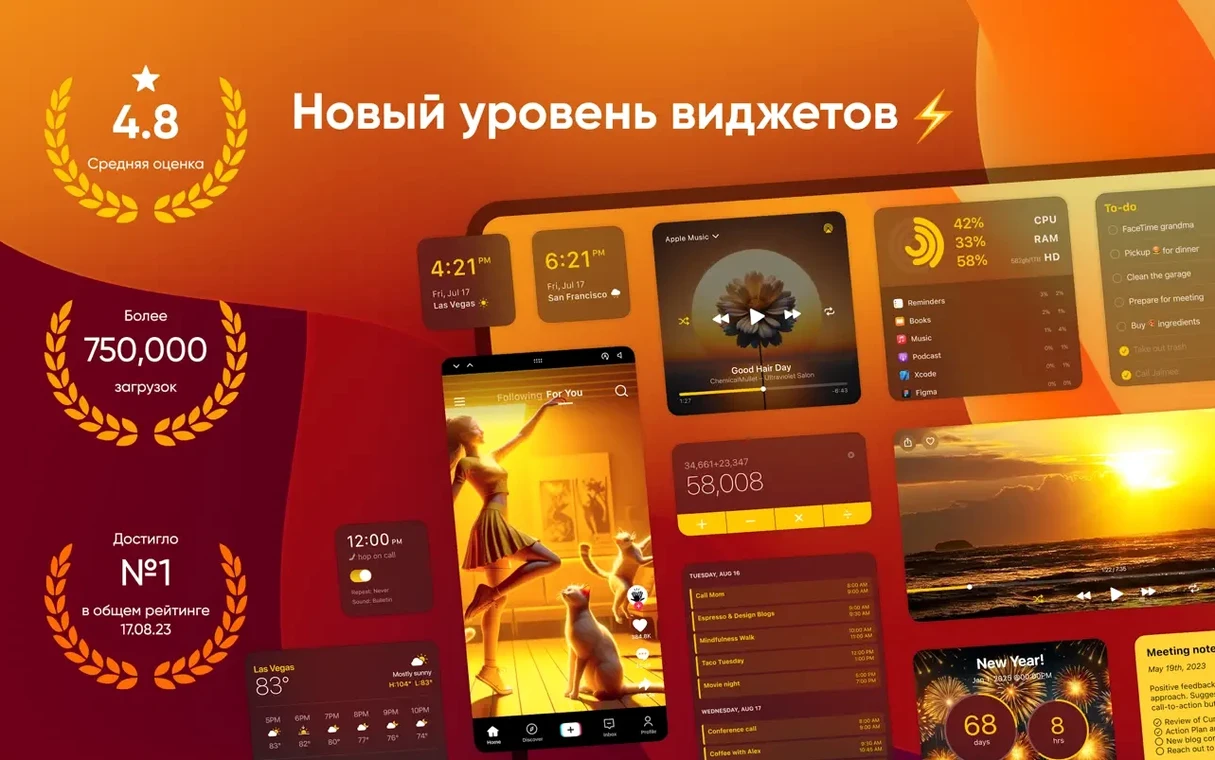
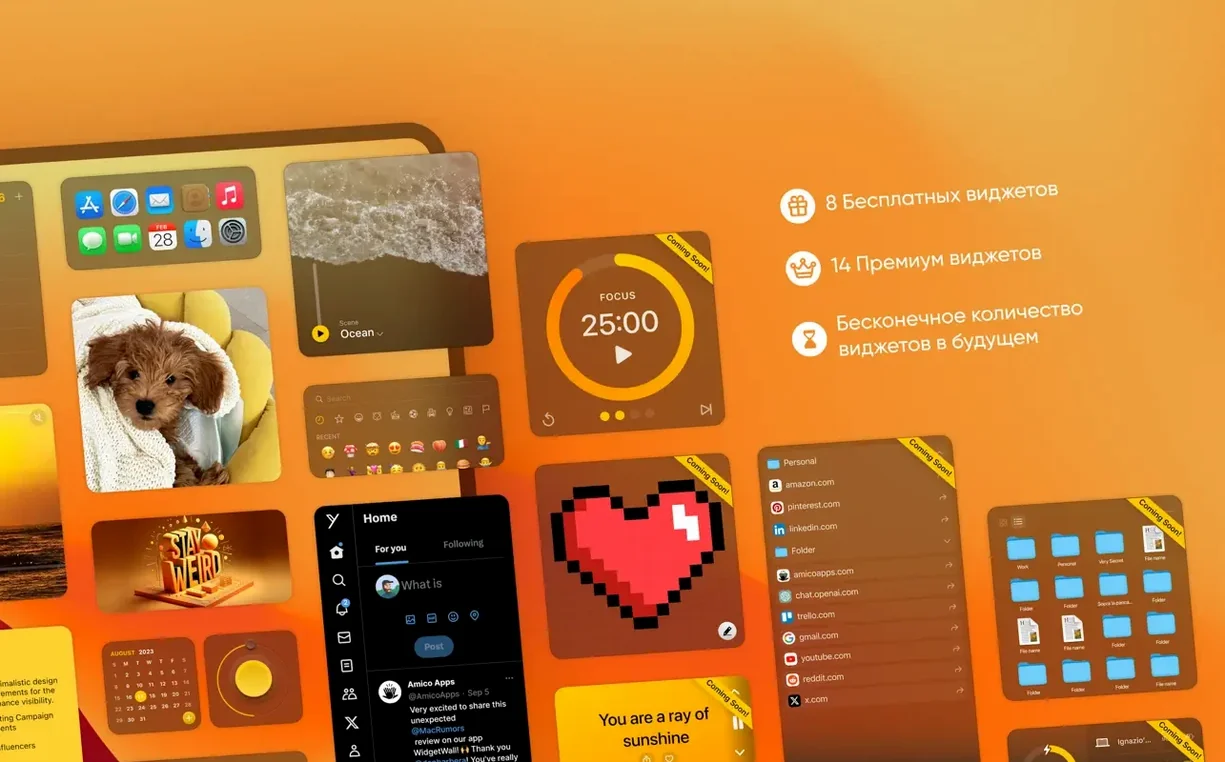
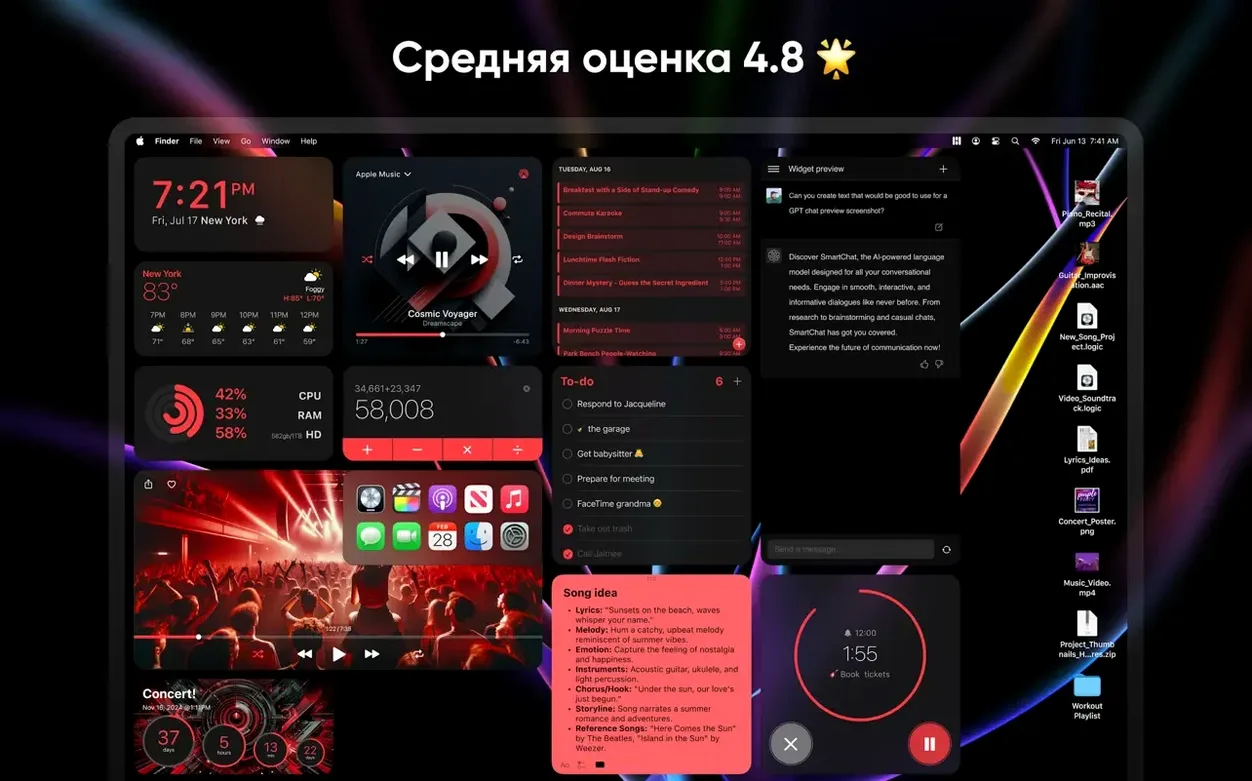
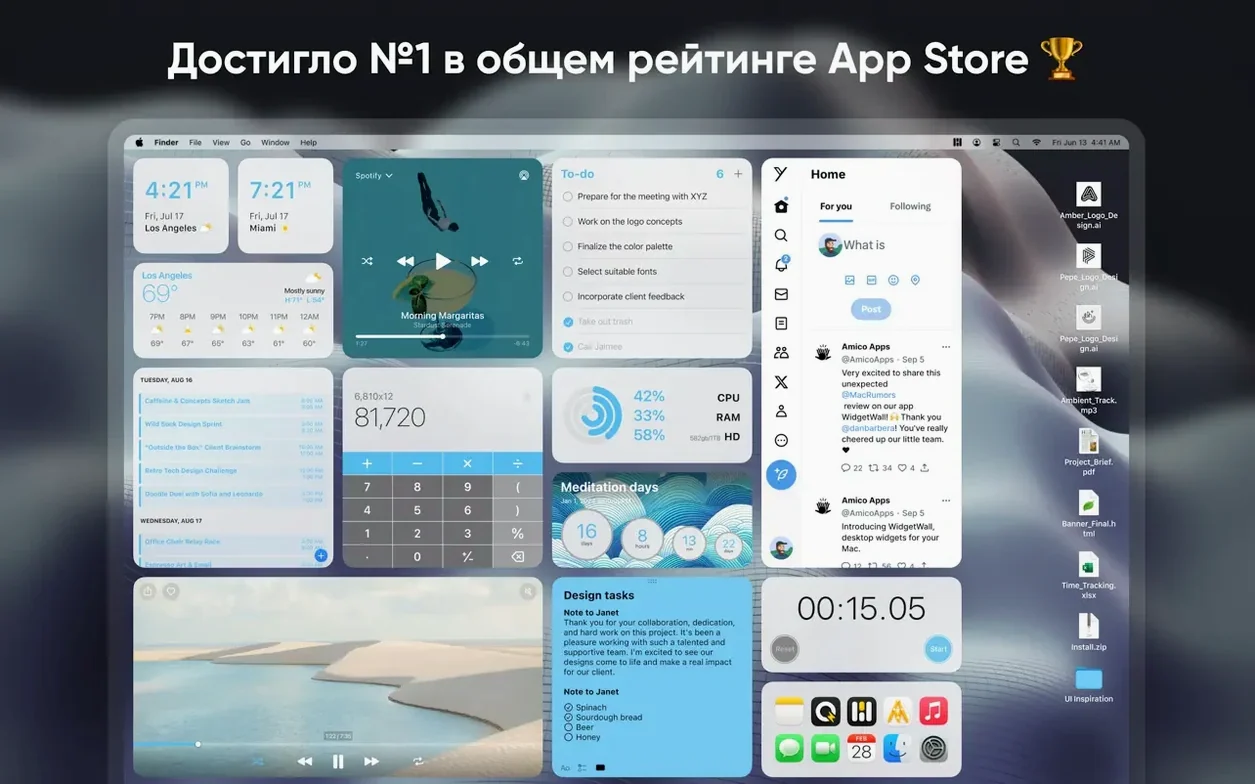
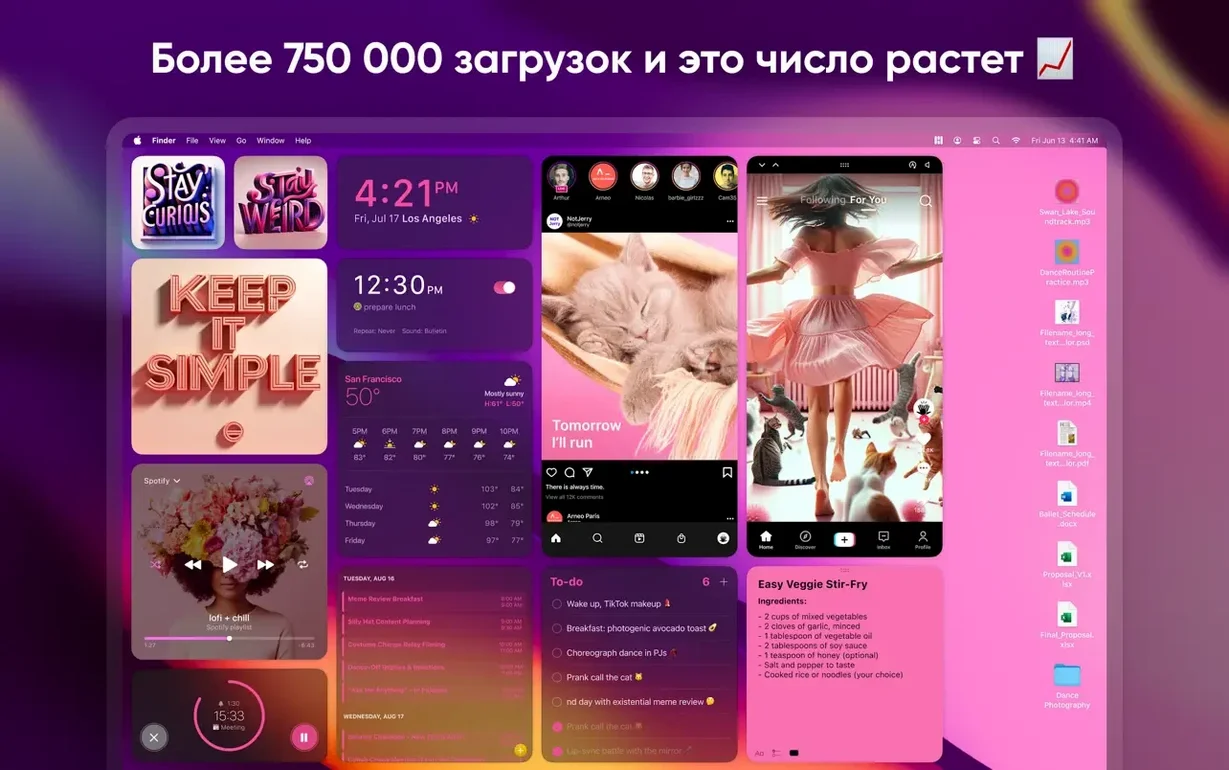
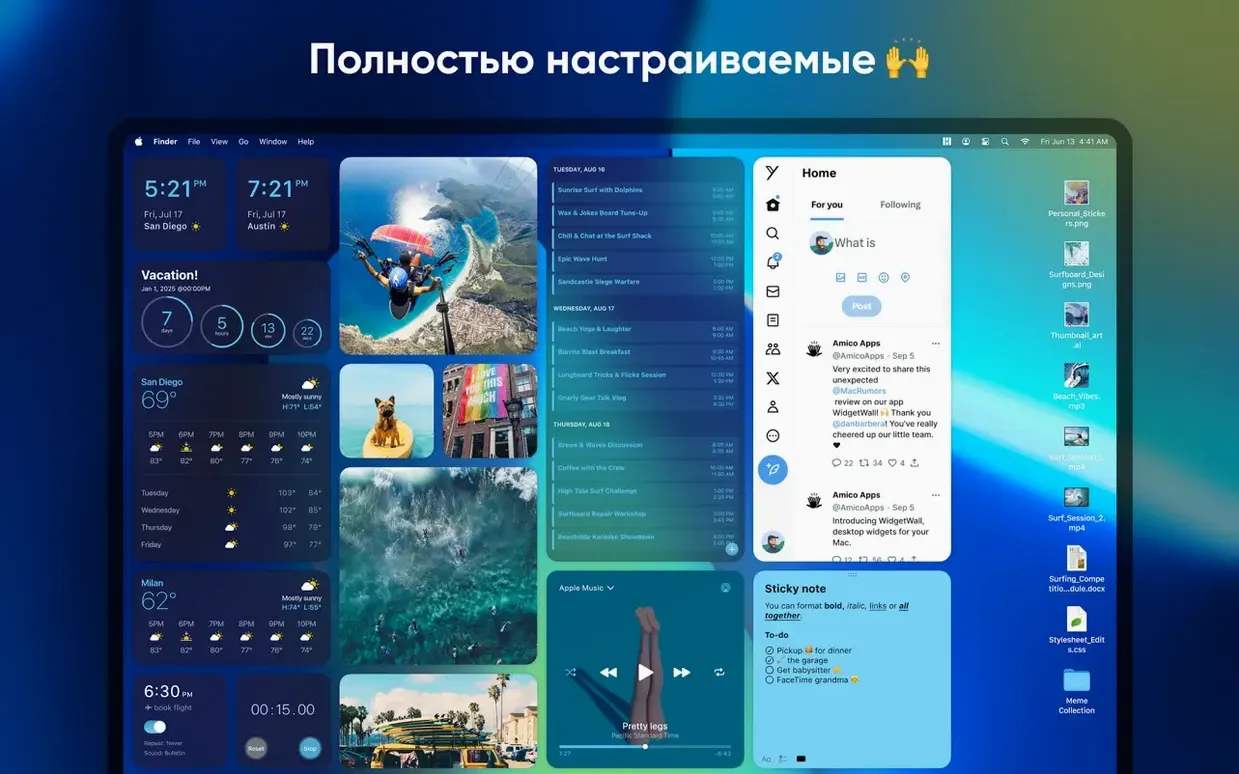
Anyone who has used Dashboard back in the day knows the appeal of glanceable tools that stay out of your way. WidgetWall takes that idea and pushes it much further. After a quick setup it installs a handful of widgets automatically, and from there you can build out a desktop that fits how you work.
The widget list is where things get interesting for power users. Alongside the usual Clock and Weather, you get a full Pomodoro Timer, Alarm, Countdown and Countup timers, plus App Shortcuts, a Stats widget, Music, Calendar, Reminders, and a Calculator that feels genuinely useful on a desktop. There is even a White Noise widget for focus sessions.
Performance is a legitimate question with this many widgets running, and WidgetWall handles it well on both Apple Silicon and Intel 64-bit Macs. The app requires macOS 12 or later, so older setups are covered. Amico Apps LLC has clearly thought about keeping things responsive rather than just piling on features.
Which Mac users click with WidgetWall best
WidgetWall clicks hardest with a few distinct groups. Freelancers and remote workers who bounce between Pomodoro sessions, quick calculations, and calendar checks get a lot of mileage out of having timers, a Calculator, and a Calendar widget sitting right on the desktop instead of buried in the Dock or menu bar. No tabbing around — just glance, click, and back to work.
Students lean on the Countdown Timer during exam prep and the Notes widget for quick reminders about assignment deadlines. The Weather widget is surprisingly handy when you are deciding whether to bike to campus or catch a ride. Creatives who want a desktop that feels personal enjoy the Photos and Emoji Browser widgets, and the Music widget keeps playback controls visible without opening a full app window.
If you are the type who loves customizing every corner of macOS, WidgetWall gives you more knobs to turn than the built-in widget system. The small, medium, and large sizing for every widget means you can build a layout that feels yours, not a default.
8:45 a.m. desktop: calendar, timer, weather in one glance
Imagine you sit down with coffee at 8:45. Your desktop has a medium Calendar widget showing a 10 a.m. client call, a small Pomodoro Timer ready to kick off a 25-minute focus block, and a Weather widget confirming you do not need to rush out before rain hits. You tap the Pomodoro Timer, start drafting a proposal, and when the five-minute break chime sounds you glance at the Reminders widget — oh right, invoice that freelance project before lunch. You knock it out in the break.
That rhythm — work, glance, adjust — is where WidgetWall shines. It is not about filling the screen with toys. It is about putting small decision-making tools where your eyes already land.
Widget shows stale data? Check WidgetWall in Privacy & Security
One issue people hit early: a widget stops responding or shows stale data. Usually this is a permissions hiccup. Open System Settings > Privacy & Security and check that WidgetWall has access to the service behind that widget — Calendars, Reminders, or Photos, for example. Toggling the permission off and on again often wakes things up.
Another snag is desktop clutter. It is tempting to add every widget at once, but too many overlapping widgets turn helpful into distracting. Start with three or four in the corners of your desktop and add more only when a genuine need pops up. The small size variant saves space without losing function, especially for the Clock and Weather widgets.
Finally, if a widget seems missing after a widgetwall download and install, check the WidgetWall menu bar icon. Some widgets — like the Emoji Browser and TikTok — are tucked under a secondary list rather than placed on the desktop automatically. Click the icon, browse the full catalog, and drag what you need onto the desktop.
If you want more than a pretty clock on your desktop, this is one of the more substantial widget options out there right now.
- macOS 12 or later
- Supports Apple Silicon and Intel 64-bit Macs
- Interface languages: Russian, English, Spanish, Traditional Chinese, French
Questions people ask
Which macOS versions does WidgetWall support?
WidgetWall requires macOS 12 or later and runs on both Apple Silicon and Intel 64-bit Macs.
What widgets does WidgetWall include?
It includes Confetti, Clock, Calculator, Photos, Stopwatch, Timer, App Shortcuts, Video, White Noise, Pomodoro Timer, Alarm, Countdown Timer, Countup Timer, Emoji Browser, TikTok, Weather, Stats, Music, Calendar, Reminders, Notes, and Browser widgets.
Who develops WidgetWall?
WidgetWall is developed by Amico Apps LLC, and the app installs several widgets automatically after setup.
Also on readers' docks
Sign in or create an account to leave a comment.
No comments yet. Tell me how it got on with your other devices.
More in Mac Apps
See all Winclone Pro
10.5 Mac Apps
21 MB
Winclone Pro
10.5 Mac Apps
21 MB
 WinZip Mac Pro
12.0.7282 Mac Apps
36 MB
WinZip Mac Pro
12.0.7282 Mac Apps
36 MB
 Wipr
2.38 Mac Apps
7 MB
Wipr
2.38 Mac Apps
7 MB
 Updated Wirecast Pro
16.5.5 Mac Apps
820 MB
Updated Wirecast Pro
16.5.5 Mac Apps
820 MB
 WALTR PRO
4.0.122 Mac Apps
29 MB
WALTR PRO
4.0.122 Mac Apps
29 MB
 Wondershare Filmora
14.8.17 Mac Apps
924 MB
Wondershare Filmora
14.8.17 Mac Apps
924 MB
 Wondershare Recoverit
14.0.20.6 Mac Apps
212 MB
Wondershare Recoverit
14.0.20.6 Mac Apps
212 MB
 Wondershare UniConverter
15.7.3.564 Mac Apps
324 MB
Wondershare UniConverter
15.7.3.564 Mac Apps
324 MB