







Download Zipic for macOS
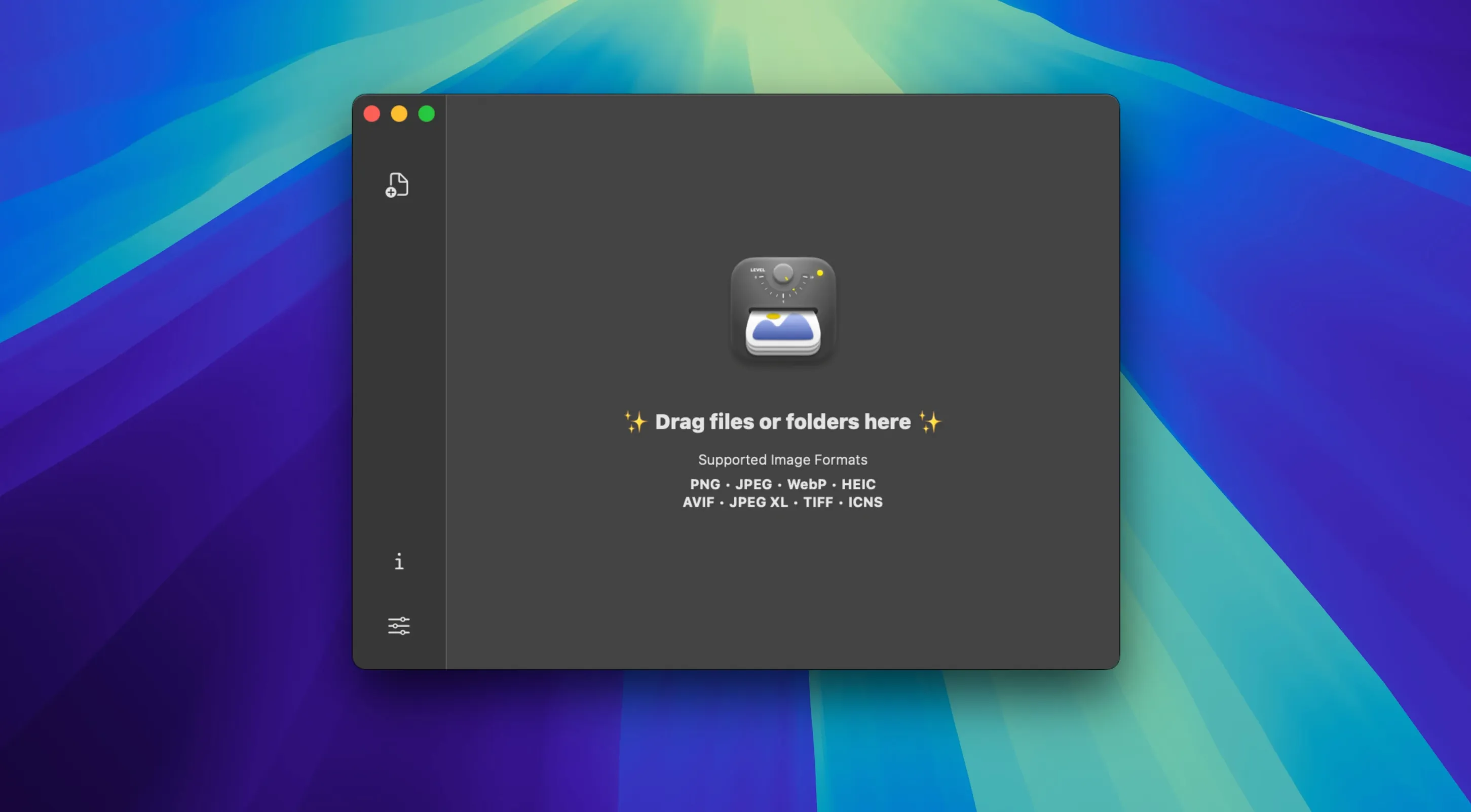
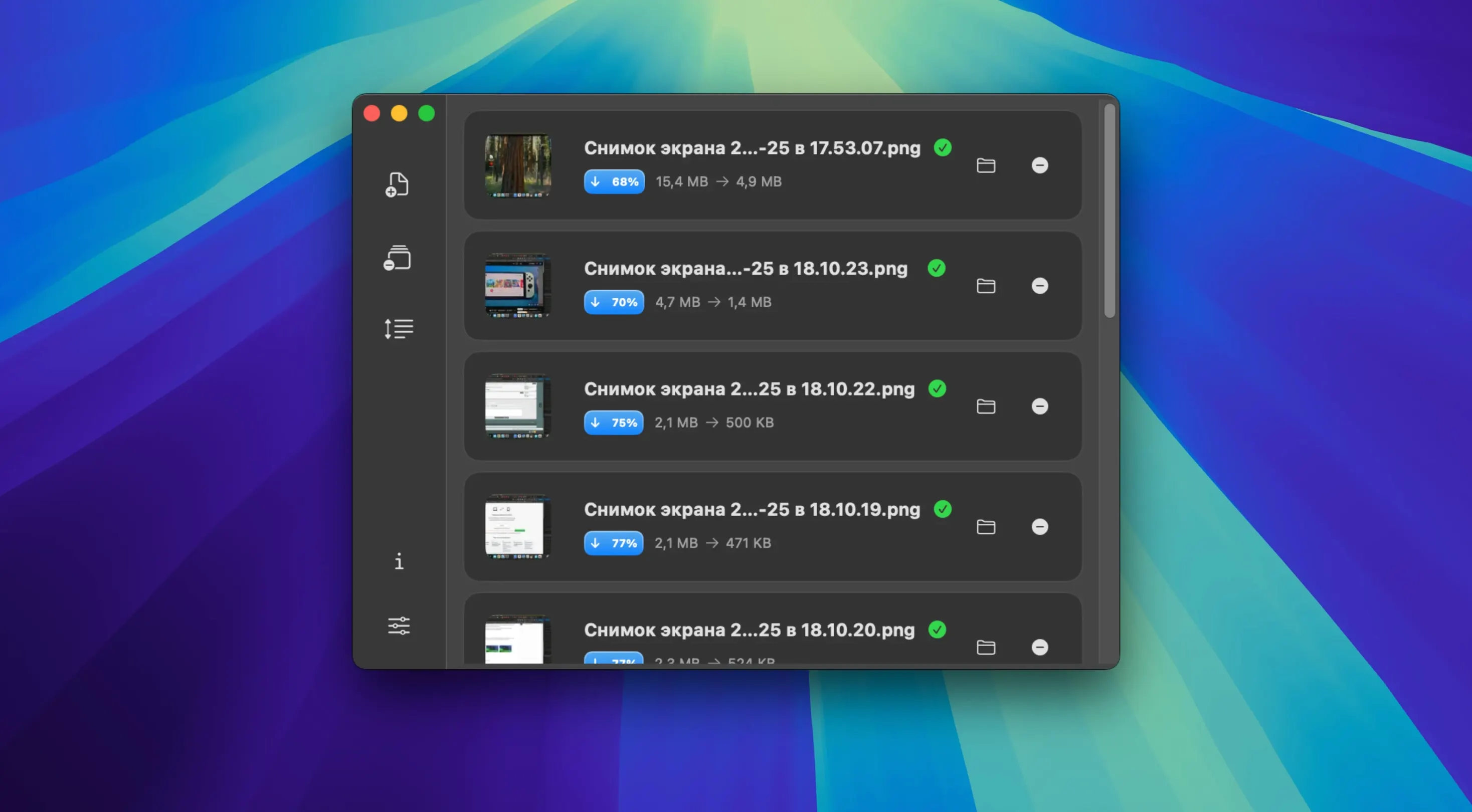
You've just exported a folder of photos for a client and realize the files are three times larger than the upload limit. That's the moment Zipic earns its place in the Dock.
Does Zipic replace my existing image editor?
Not really. It sits beside tools like Preview or Pixelmator Pro, handling the repetitive shrinking and converting those apps make you do one file at a time. Drag a folder in, and Zipic works through the whole batch with the same settings.
Compress, resize, and convert in one pass
Two main things: compression to reduce file size, and resizing to change pixel dimensions. It can also convert between formats, so a folder of PNGs can become smaller JPEGs without a separate export step.
Native Apple Silicon processing stays local
Zipic runs natively on both Apple Silicon and Intel 64-bit Macs, needs macOS 13 Ventura or later, and follows the system theme. Processing stays on your Mac, so large batches don't depend on upload speed.
Is there any automation for repeat tasks?
Yes. You can point Zipic at selected folders and let it watch them. Drop new images in, and the app applies your compression or resizing rules on its own.
How Zipic stacks up against similar Mac compressors
If you've hunted around for a Zipic torrent macOS download, you've probably come across a handful of other compression tools that promise the same batch convenience. Here's how three popular alternatives feel in day-to-day use.
- ImageOptim goes deep on lossless reduction, stripping metadata and trying every compression trick available. Fantastic for web graphics, but it won't resize dimensions or convert between formats mid-batch. Zipic covers that conversion-and-resize combo in one drag, which cuts out a separate step I used to do in Preview.
- Squash has a gorgeous interface and excellent format coverage, yet the batch workflow feels more linear — you load images, tweak each format preset, then export. Zipic's watched-folder automation means you don't have to open the app at all once it's configured, which I've come to rely on for repeat client exports.
- Permute handles images alongside video and audio, so it's the broader utility. But its image-specific controls are shallower. If you only need compression and resizing, Zipic's tighter focus gives you Quick Actions and Shortcuts integration that Permute doesn't match.
First days: a setup rhythm that pays off
After you drag the app into Applications and launch it, spend twenty minutes building a routine. The payoff is real when you're under a deadline and don't want to touch sliders.
- Pick two presets and name them clearly. I keep one for “web-ready JPEG” (quality 80%, max width 1600px) and another for “thumbnail PNG” with tighter compression. Having named presets means you drag, pick from a short list, and walk away.
- Set up a watched folder for screenshots. Point Zipic at your macOS screenshot folder once. From then on, every capture gets compressed automatically before you attach it to an email or drop it in a doc — no extra clicks.
- Wire up the Finder Quick Action. Right-click any image or group of images in Finder, scroll to Quick Actions, and you'll see Zipic's options. It's the fastest path for one-off batches you don't want to collect in a folder first.
- Try the Raycast hook. If Raycast is already in your workflow, Zipic's integration lets you trigger compression from the command bar. Useful when your hands are on the keyboard and the Finder feels miles away.
- macOS 13 Ventura or later
- Apple Silicon or Intel 64-bit Mac
- Interface languages: English, Traditional Chinese, Simplified Chinese
Questions people ask
Can Zipic batch-process images?
Yes. You can drag and drop entire folders of images, and Zipic compresses, resizes, or converts them in one go.
Also on readers' docks
Sign in or create an account to leave a comment.
No comments yet. Tell me how it got on with your other devices.
More in Mac Apps
See all YTD Video Downloader PRO
7.8.0 Mac Apps
93 MB
YTD Video Downloader PRO
7.8.0 Mac Apps
93 MB
 YT Saver
10.15.0 Mac Apps
115 MB
YT Saver
10.15.0 Mac Apps
115 MB
 Wondershare UniConverter
15.7.3.564 Mac Apps
324 MB
Wondershare UniConverter
15.7.3.564 Mac Apps
324 MB
 Wondershare Recoverit
14.0.20.6 Mac Apps
212 MB
Wondershare Recoverit
14.0.20.6 Mac Apps
212 MB
 Wondershare Filmora
14.8.17 Mac Apps
924 MB
Wondershare Filmora
14.8.17 Mac Apps
924 MB
 Updated Wirecast Pro
16.5.5 Mac Apps
820 MB
Updated Wirecast Pro
16.5.5 Mac Apps
820 MB
 Wipr
2.38 Mac Apps
7 MB
Wipr
2.38 Mac Apps
7 MB
 WinZip Mac Pro
12.0.7282 Mac Apps
36 MB
WinZip Mac Pro
12.0.7282 Mac Apps
36 MB