Download Typora for macOS
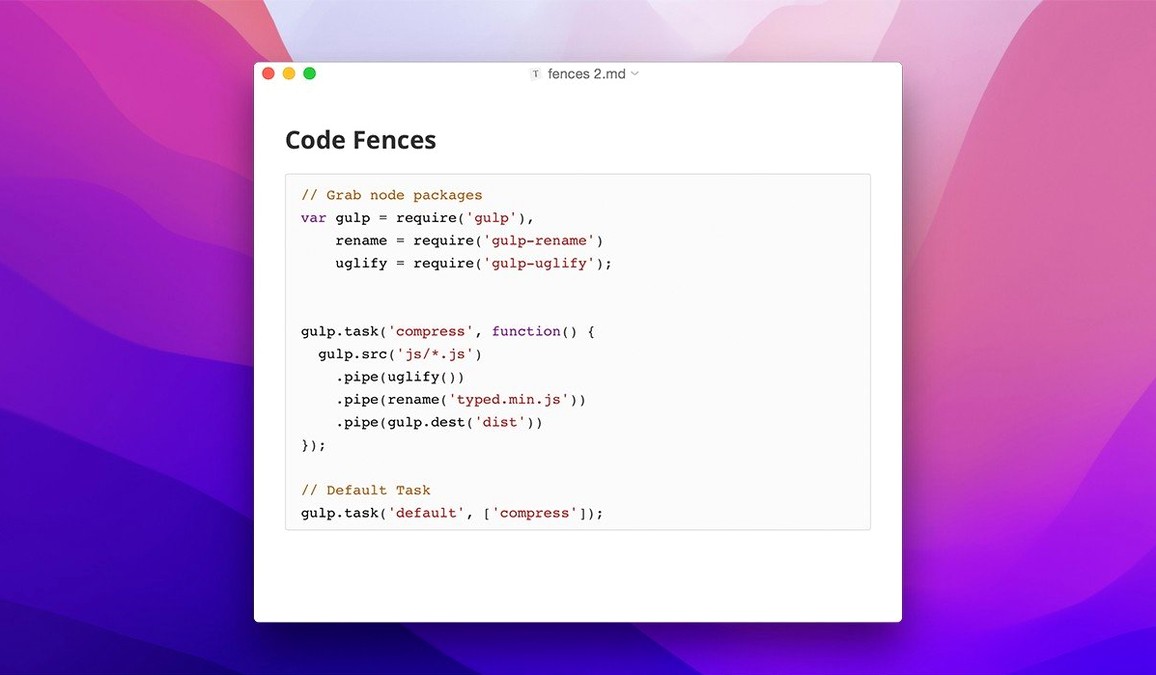
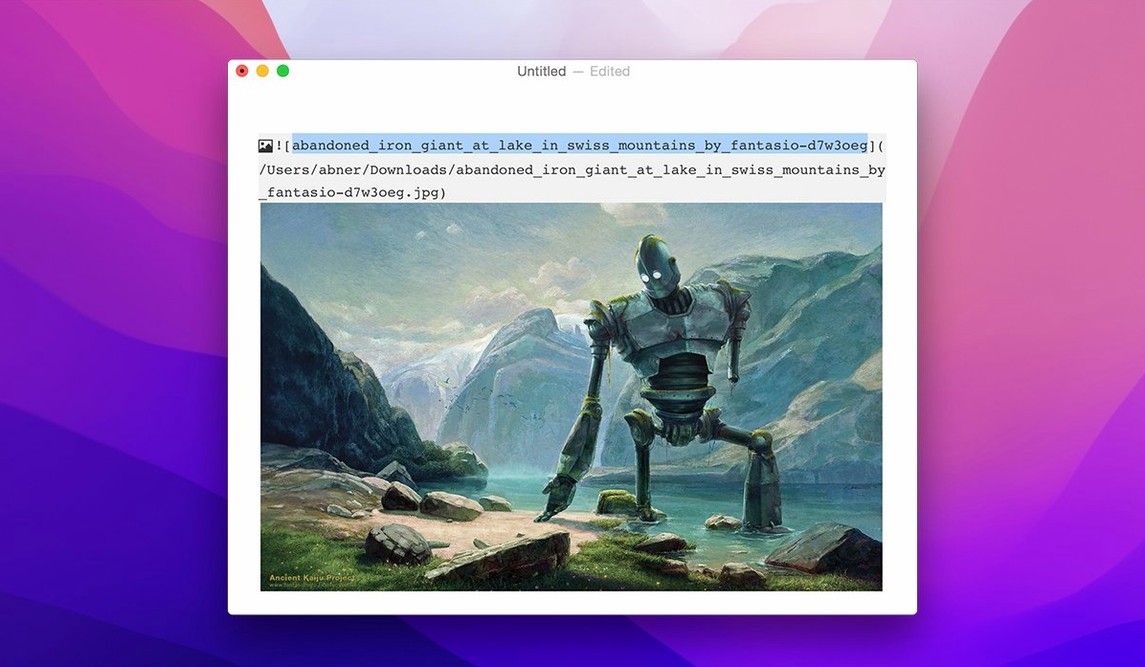
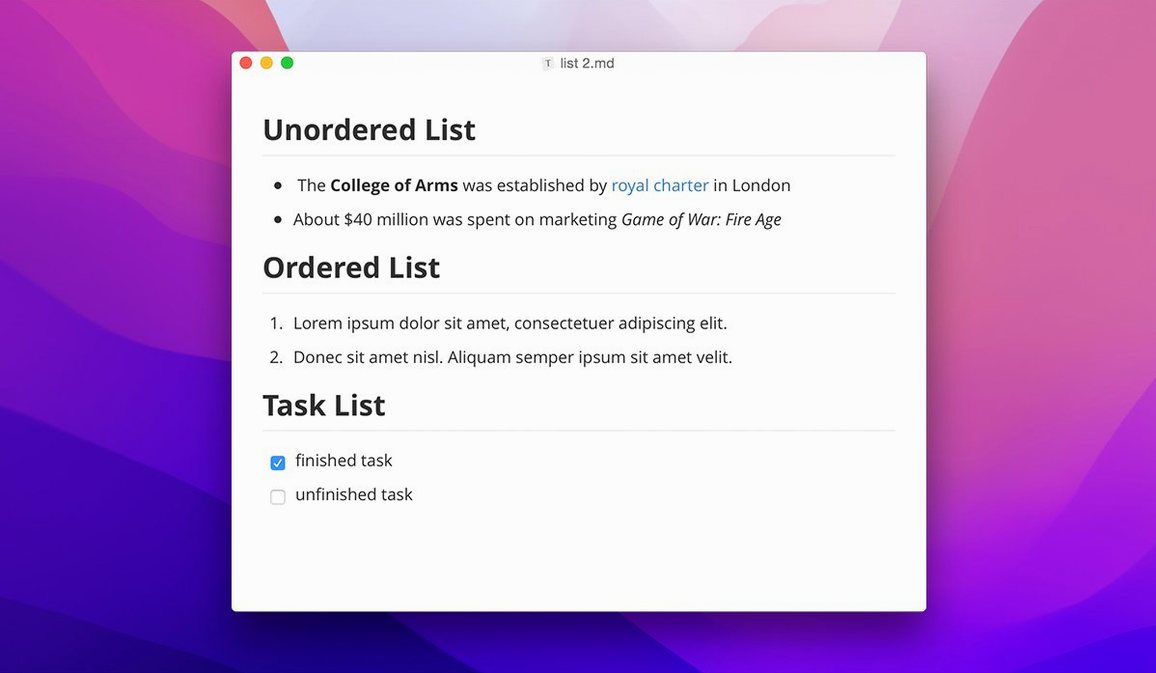
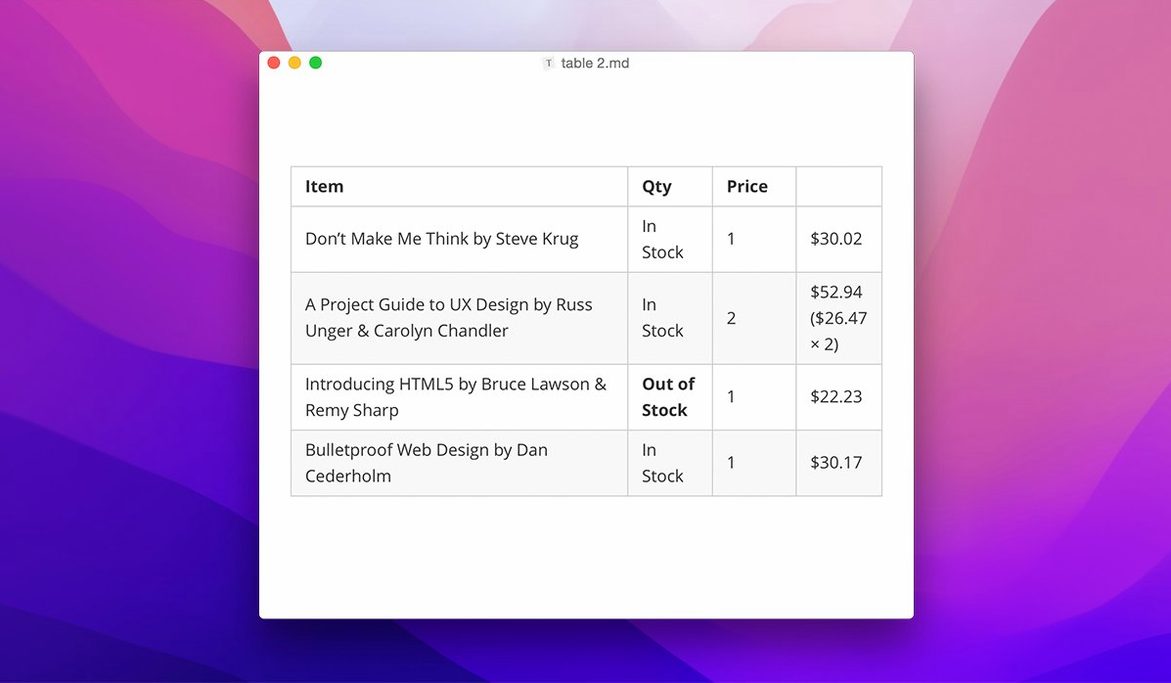
Over 30 interface languages ship in a single download, but what really grabs you on first launch is what's missing: no preview toggles, no mode switcher, no source syntax cluttering the paragraph you're trying to read. Typora for Mac hides the markup until your cursor touches it, then renders it inline as styled text — headings look like headings, bold looks bold, and that's the whole pitch.
The first five things worth tweaking after you drag it to Applications:
- Pick a theme that fits your lighting. Typora ships with several, but custom CSS themes are fair game — drop one in and the whole document shifts tone without touching your words.
- Enable the floating editor toolbar. Added in 1.14, it sits unobtrusively near your selection and saves hunting through menus for a quick link or table insert.
- Show hidden files in the sidebar. Also new in 1.14, this turns the file tree into a proper working directory when your project folder has dotfiles or config you actually need to open.
- Let non-Markdown files appear too. The same preferences pane can surface plain-text notes, CSV exports, or readme drafts that aren't .md yet — handy when you're cleaning up a messy folder.
- Navigate the tree with the keyboard. Arrow-key through files without reaching for the mouse; a small 1.14 addition that makes the sidebar feel native to the rest of the app.
Who clicks with Typora fastest
Writers who live in plain text but need a clean reading surface tend to stick around after the first hour. If you draft blog posts, documentation, or long-form notes where the formatting needs to be obvious at a glance, the live-preview approach cuts out the mental ping-pong between source and output. You see the shaped paragraph straight away, and that alone keeps momentum up.
Researchers and students get a lot from the inline math support — LaTeX blocks render right inside the line, so equations aren't abstract strings until export. Editors who juggle multiple drafts benefit from the lightweight table editor and the auto-generated table of contents, especially when a document grows past a few hundred words and scrolling becomes the enemy. Even readers who never write a heading themselves appreciate Typora as a Markdown viewer: drag a .md file in, and it's immediately legible without code fences screaming for attention.
Sidebar only shows one root folder at a time
Some folders refuse to show up in the sidebar, even after ticking "show hidden files." The catch is that Typora treats the sidebar as a single root directory at a time — open a parent folder, not a subfolder, if you expect the whole tree. Once you do, hidden dotfiles and non-Markdown items appear as promised.
Export hiccups with pandoc usually trace back to the 1.14.10 fix. Before that update, sending a document through pandoc from source mode could stall out or produce blank output. If something still feels off, toggle to preview mode briefly before exporting — that sidesteps the edge case the patch addressed. Another common snag: custom CSS themes that look perfect in one lighting shift awkwardly under Dark Mode. Typora's theme folder accepts a separate dark variant; naming it consistently and dropping it alongside your main theme resolves the mismatch without editing a line of CSS.
Large documents with dozens of code blocks can feel sluggish during live scrolling. Switching the renderer to "unstyled" temporarily while you navigate, then back to your preferred theme once you've landed where you need to edit, keeps things snappy without sacrificing the WYSIWYG feel.
Right-click heading blank space to collapse
- Right-click the blank space around a heading to collapse everything underneath it. It's a folding trick that works without mousing to a tiny triangle icon, and it's been there since 1.14's context-menu overhaul.
- Triple-click a line in a table to select the whole row, then copy it as a Markdown pipe-table straight to your clipboard. Pasting it into another document preserves the structure, not just the text.
- Hold Option while dragging an image file from the Finder into the editor, and Typora inserts a relative path instead of copying the asset to the default image folder. That's the difference between a portable project folder and a mess of duplicates.
- The welcome panel — the one 1.14.10 fixed for clipping — doubles as a recent-files launcher. If you ever close it by habit, hit
Cmd+Shift+Wto bring it back without reopening the app. - Keyboard file-tree navigation goes deeper than arrows. Start typing a filename while the tree is focused, and Typora jumps to the first match — no search bar required.
Once those are set, the editor stays out of your way. You type, it formats, and the only switching you do is between ideas.
- macOS 10.13.6 or later
- Apple Silicon or Intel 64-bit
Questions people ask
Which macOS versions does the current Typora release support?
The official support site lists macOS 10.13.6 and later as compatible with the latest version.
What languages can I switch Typora to?
Typora offers over 30 interface languages, including Russian, Japanese, Arabic, German, Spanish, Simplified Chinese, French, and many others.
Also on readers' docks
Sign in or create an account to leave a comment.
No comments yet. Tell me how it got on with your other devices.