Download Things for macOS
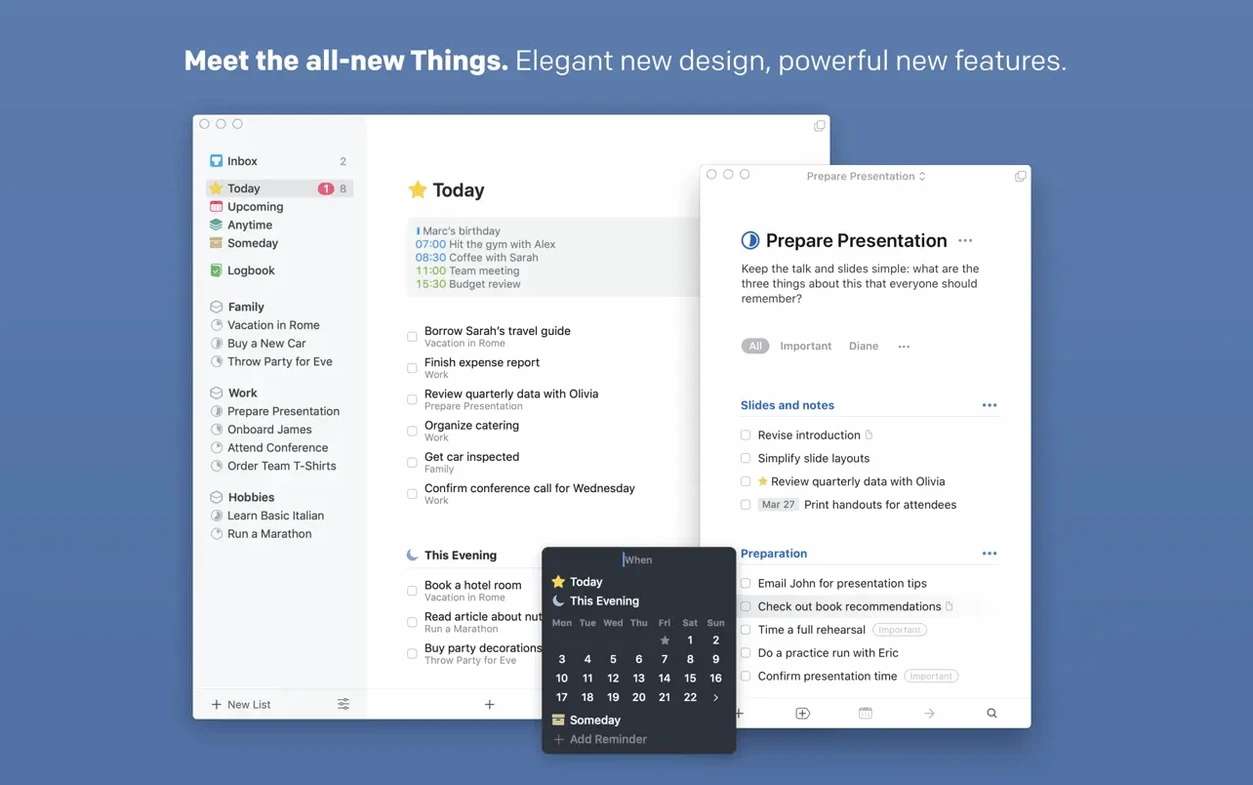
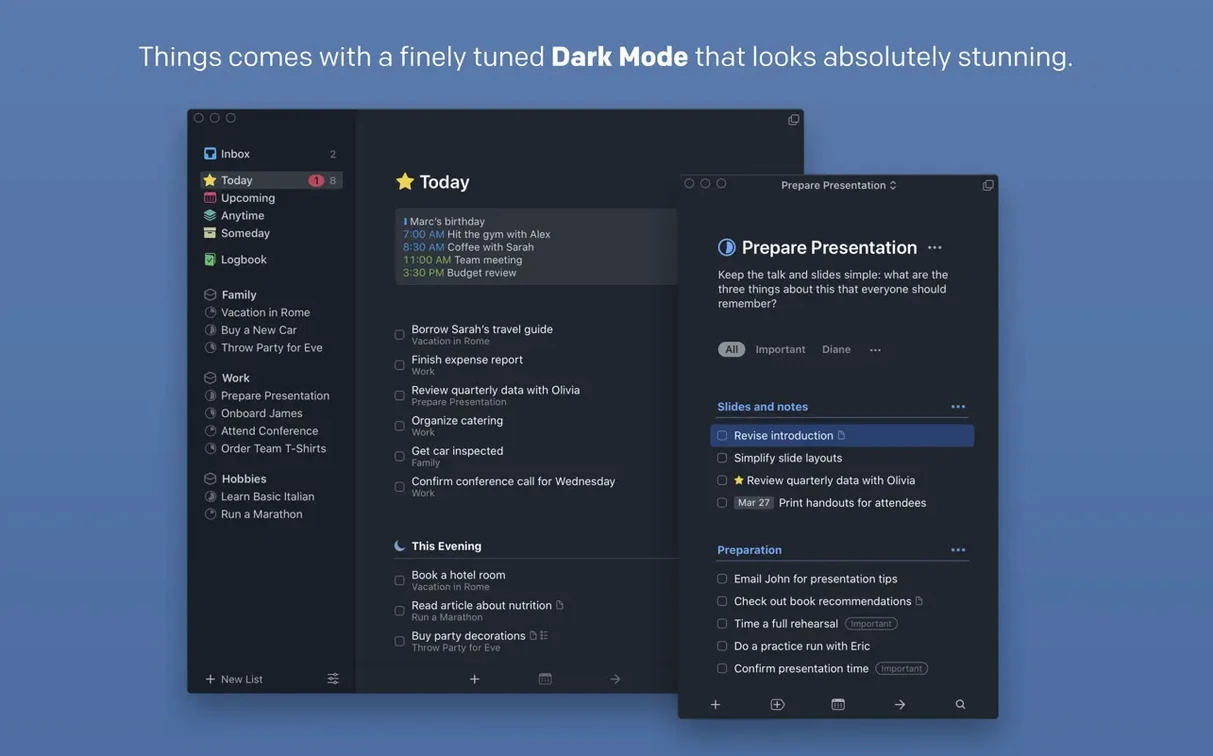
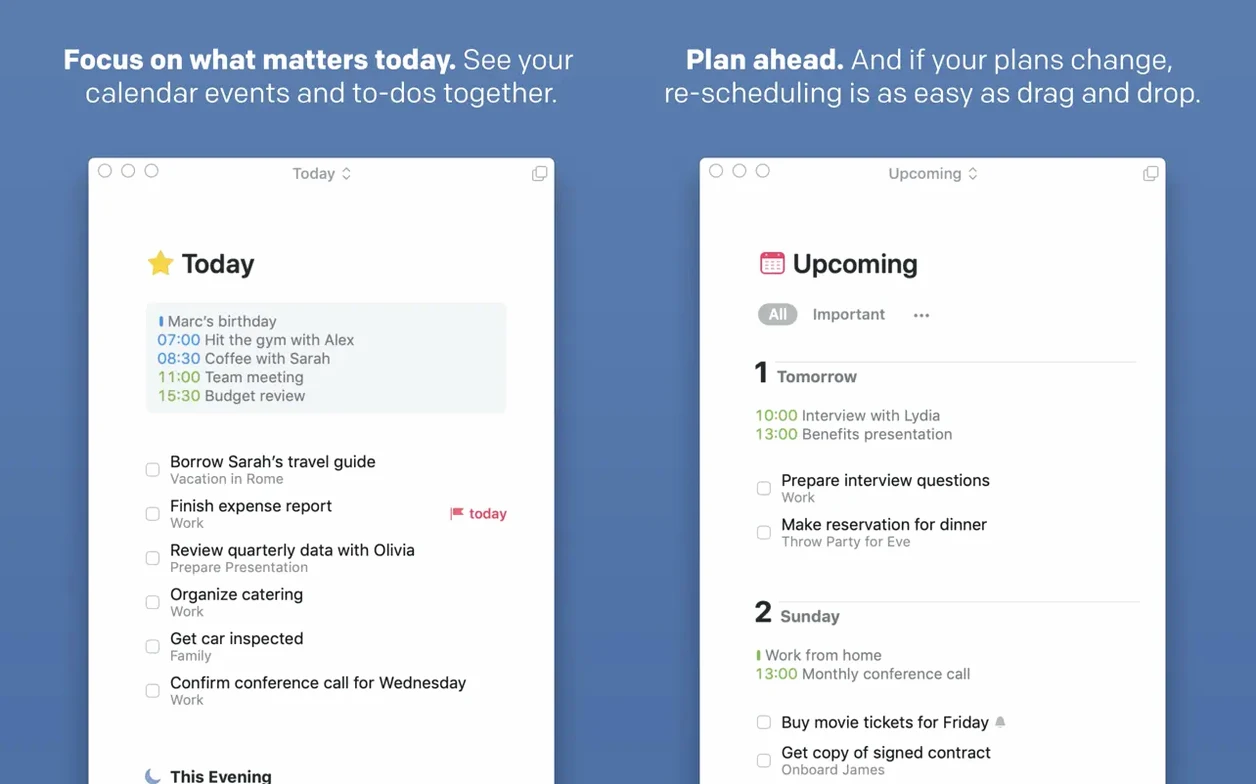
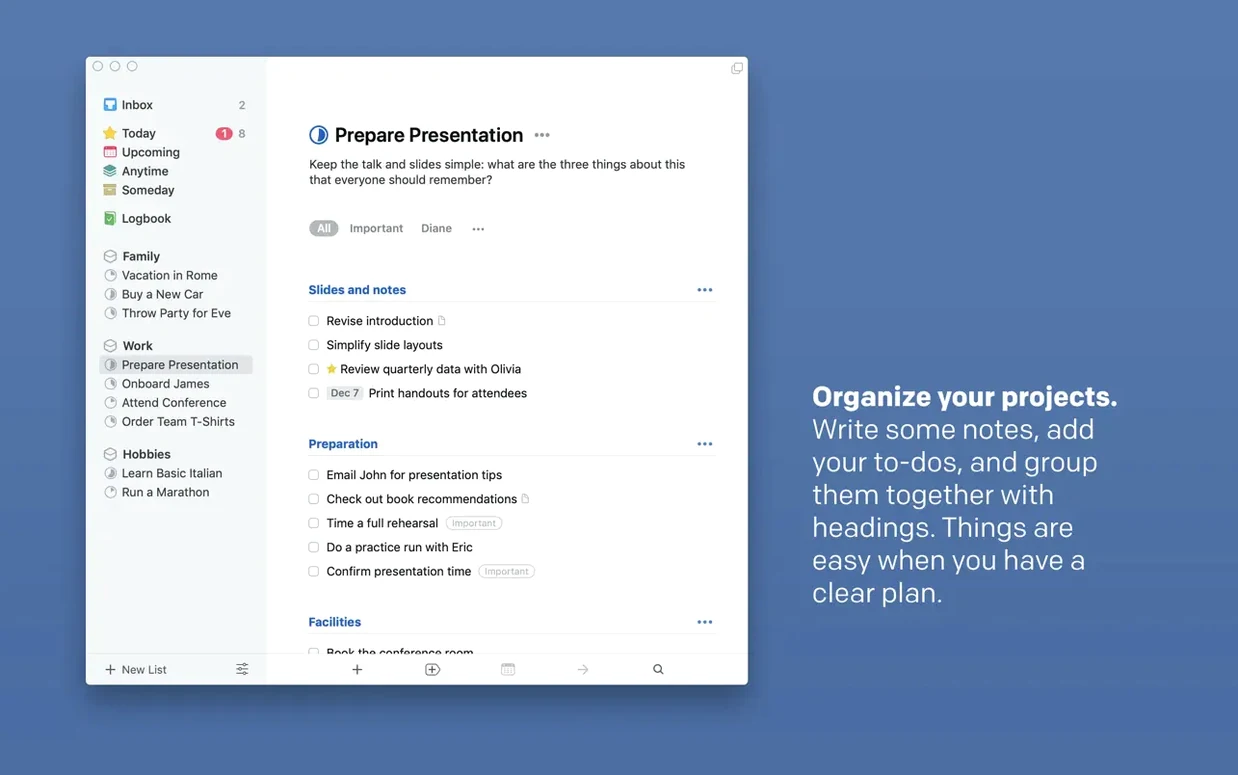
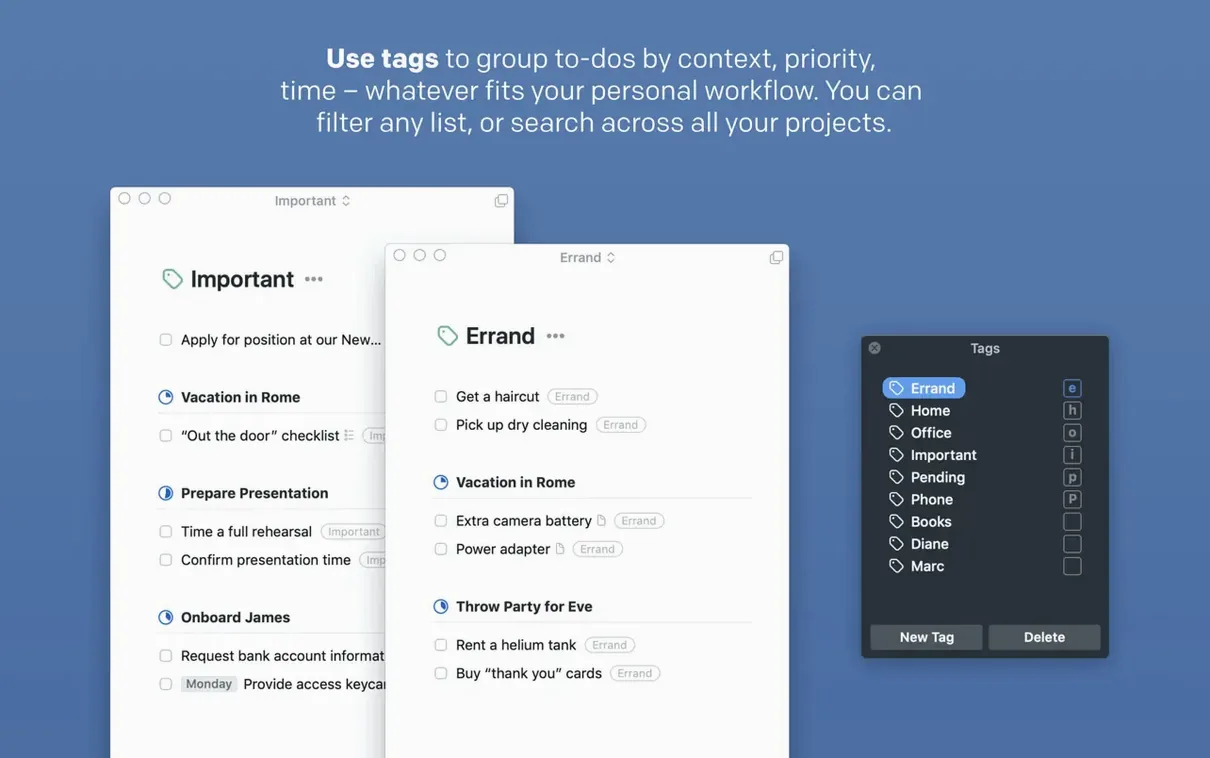
Most task managers buckle under the weight of a complex life. You end up spending more time organizing than doing. Things takes the opposite approach: it hides serious power behind a calm surface, waiting for you to grow into it. Once you do, the friction disappears.
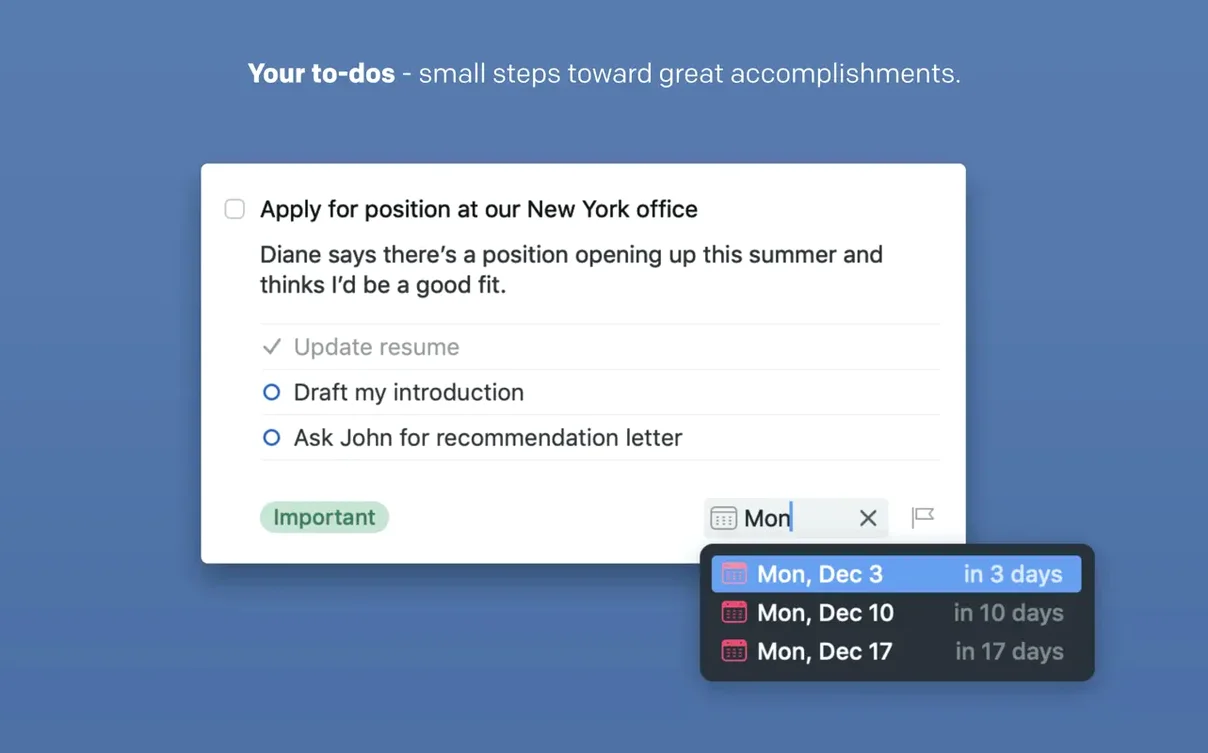
- Capture from anywhere with Quick Entry. Hit a global keyboard shortcut and a small window drops down over whatever you’re doing. Type a task, set a deadline, tag it, and file it into a project without ever opening the main app. It’s the single habit that keeps thoughts from slipping away.
- Structure work with deadlines and reminders. A task can carry its own deadline plus a separate reminder ping ahead of time. Combine that with subtasks and notes, and you can store everything a task needs—checklists, reference links, a quick voice note via Siri—right where you’ll act on it.
- Let Share actions feed your inbox. Send a Safari link, a Mail message, or a Finder file directly into Things. It lands in the Inbox, ready to be triaged later. No copy-pasting, no context switching.
- Find anything with Spotlight. The 3.24 update wired Things fully into macOS search. Start typing a project name or a buried task and it surfaces instantly, even if the app is closed. On OS 27, Siri AI can also add and find tasks conversationally, which feels surprisingly natural after a day or two.
Where Things really earns its spot is in the quiet moments. A glance at the Notification Center widget shows you what’s due next, while the new extra-tall widget gives a fuller picture of your day. It all syncs through Things Cloud, so your iPhone and iPad stay in lockstep without you thinking about it. For anyone who’s outgrown simple lists but doesn’t want a project management beast, this hits the mark.
Drag a Task to the Sidebar to Schedule It Instantly
Some of the best touches in Things are the ones you don’t stumble into until months later. Dragging a task directly onto the Today heading in the sidebar schedules it for today without opening a single menu. Holding the Option key while clicking a checkbox marks a repeating task complete only for this instance, skipping the next occurrence. If you’ve ever wanted to reschedule something mid-morning, Control-clicking a task and picking a new date from the pop-up calendar is faster than opening the inspector.
The Magic Plus button deserves more love than it gets. Hover over any heading in a project and a small + appears—click it to add a task right there, no dragging needed. Combine that with the Jump command (⌘J) and you can bounce between projects and areas without touching the mouse. On the widget front, the new extra-tall option introduced in 3.24 isn’t just decorative; it shows enough tasks that you can genuinely plan your morning without opening the app.
First Days: Setting Yourself Up Right
When you first sit down with Things, resist the urge to recreate your entire life in one go. The app rewards a gentler ramp-up. Spend the first hour building out three or four Areas that match the broad buckets of your life—Work, Home, Health, Side Projects—then drop a handful of real tasks into each one. The structure will feel thin at first, and that’s exactly the point.
On day two, practice the Quick Entry shortcut until it becomes muscle memory. Assign a comfortable key combo in Settings (I use ⌃⌥Space) and capture every stray thought for twenty-four hours without editing or organizing. Let the Inbox fill up. On day three, sit down and triage that pile: drag items into projects, assign deadlines to the urgent ones, and tag anything that needs a specific context—like errand or phone call. By the end of the week, the habit loop of capture-triage-do will start to feel natural.
One practical tip: set your Evening Review reminder early. Things can nudge you each night to scan tomorrow’s list, and those five minutes replace the morning scramble with something calmer. Also, if you’re coming from a simpler app, resist creating a dozen tags on day one. Start with three—energy level, location, and required tool—and add more only when you genuinely hit a filtering need.
A Tuesday Morning, Step by Step
The alarm goes off and you swipe to the extra-tall widget on your Mac’s Notification Center. Five tasks sit under Today: two from the office redesign project, a dentist reminder, a follow-up email, and a grocery run tagged errand. You tap the widget, and Things opens to the Today list exactly as you left it.
Before coffee, you hit ⌃⌥Space and the Quick Entry window drops down. A thought from last night’s reading surfaces—you type “Look up the author’s earlier book,” tag it reading, and file it into the Personal area. Twenty seconds, done. The thought won’t haunt you at noon.
By nine, you’re working through the office redesign tasks. The first one—“Draft floor plan options”—has a deadline of Friday and a reminder set for this morning. You open the task, scan the notes where you’d pasted reference links yesterday, and start sketching. An hour in, you check off the first subtask, add a new one with the floating + button, and keep moving. A Slack message interrupts with a new request; you highlight the text, hit the Share button, and it lands in your Inbox for later. No tabs open, no context lost.
Around two, you type “floor plan” into Spotlight. Things serves up the task instantly, even though you’d closed the app after lunch. You check the deadline, adjust a subtask, and close it again. By evening, the Review prompt appears. You scan tomorrow’s list, drag one low-priority item to Upcoming, and close the lid knowing exactly where Wednesday starts.
The latest Things 3 update brings a fresh batch of fixes that keep your daily lists moving without a hitch.
- macOS 10.15 (Catalina) or later
- Apple Silicon or Intel 64-bit processor
Also on readers' docks
Sign in or create an account to leave a comment.
No comments yet. Tell me how it got on with your other devices.