




Download Gestimer for macOS
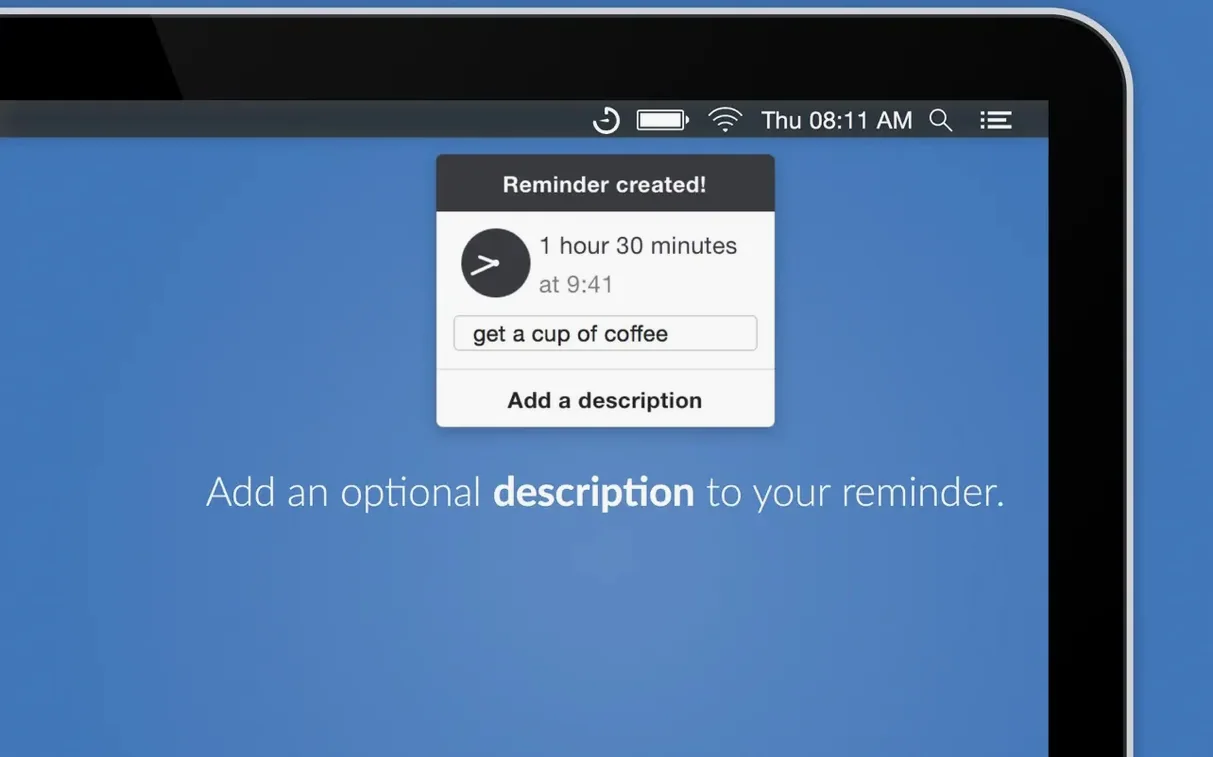
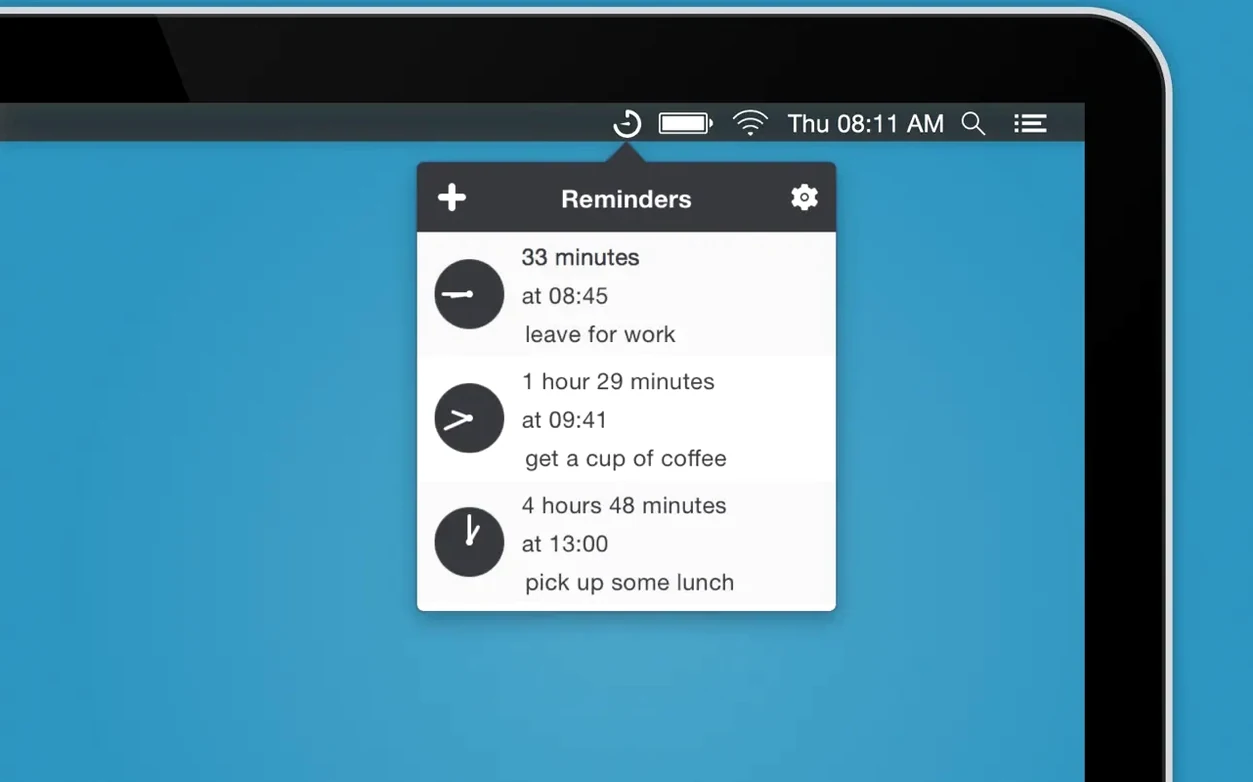
Gestimer turns that same spot into a lightweight reminder center for the little tasks you'd rather not open a full app to track. If you're considering the Gestimer Mac torrent, here's what people tend to ask first.
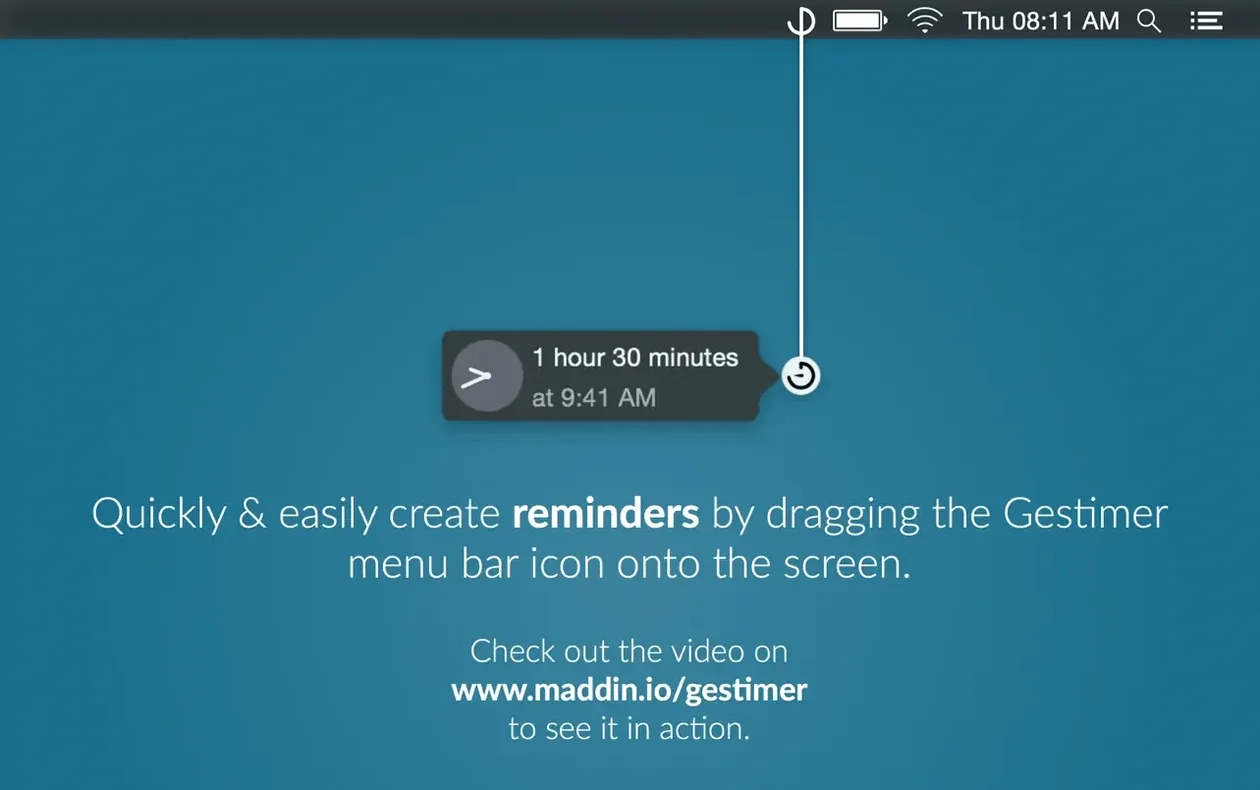
- How do I set a reminder? You drag the Gestimer icon onto the screen — the farther you drag, the longer the timer. Type a quick title and you're done.
- Can I see my next reminder without clicking? Yes. Gestimer shows a live countdown right in the menu bar.
- Does it work with Apple's own Reminders? It syncs with Apple Reminders, so your existing lists aren't stranded.
- Which Macs does it run on? The current version (1.2.8) supports both 64‑bit Intel and Apple Silicon Macs, going back to OS X 10.10.
- Is this the same as Gestimer 2? No — Gestimer 2 is a separate, newer app. This is the original (Legacy) release, still solid for quick timers.
- What languages are available? It includes English, Spanish, French, German, Japanese, Chinese (Simplified and Traditional), Korean, and several others.
If you work on a Mac and find yourself wishing for a faster way to set a 5‑minute reminder without leaving what you're doing, Gestimer fits that gap neatly.
How Gestimer Fits With Other Apps and macOS Features
Gestimer doesn't try to replace your full calendar or task manager. Instead, it sits quietly in the menu bar and plays nice with what's already there. The sync with Apple Reminders is the big one — any timer you set in Gestimer can show up in the system Reminders app, which means your phone or iPad picks it up too if you use iCloud. That's handy for things like "water the plants" or "call the dentist back."
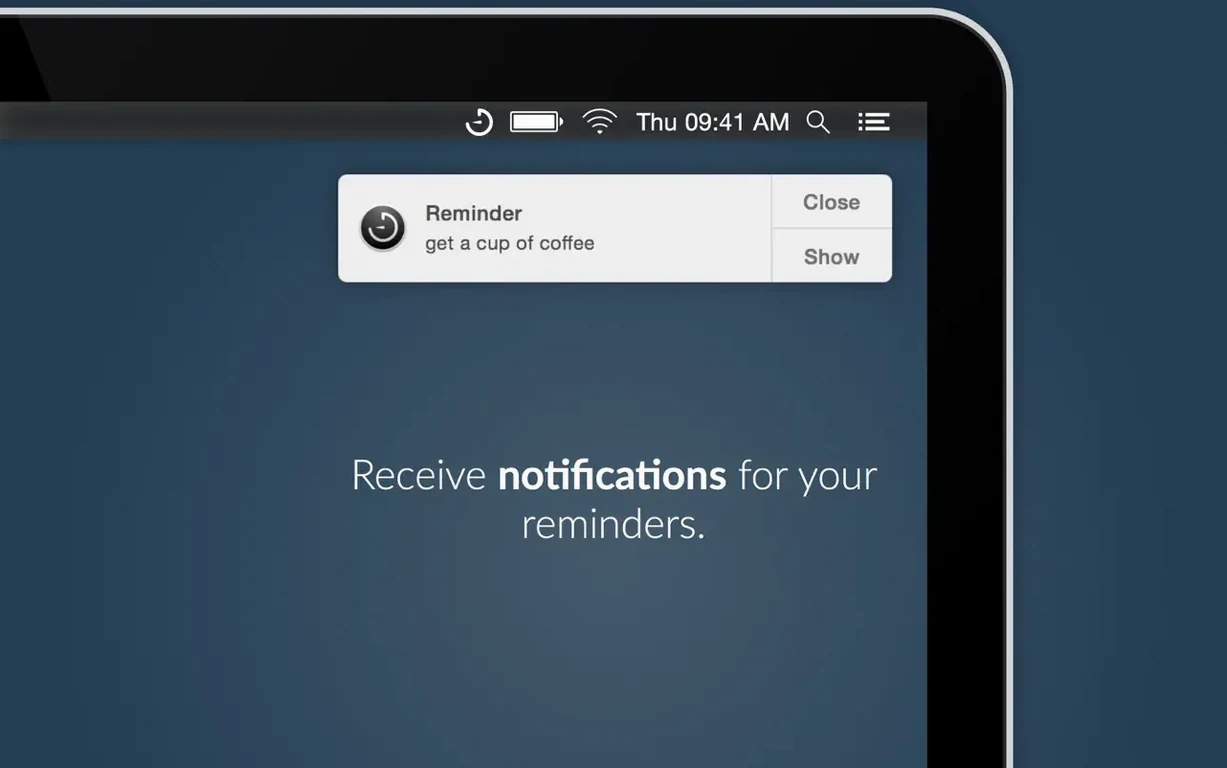
Beyond that, the app respects macOS's native notification system. No custom toast popups or weird sound files. When a timer finishes, you get a standard macOS notification that looks and behaves like any other. You can postpone it right from the notification itself, just like you would with a calendar alert. It also plays well with Focus Mode — if you've got Do Not Disturb turned on, Gestimer's notifications queue up silently until you're ready.
One less obvious fit: Gestimer works alongside Alfred or Raycast if you use those. Since it lives in the menu bar, you can trigger it with a keyboard shortcut mapped through those launchers to bring up the timer window. Not an official feature, but a nice combo for power users who prefer keyboard-driven workflows.
Click the Gestimer Icon for a 12-Minute Reminder
Say you're deep in a design project. Instead of switching to your phone or digging through calendar menus, you click the Gestimer icon in the menu bar. The icon pops out slightly — that's your cue to start dragging.
A small window appears: "Export check." You type that, hit Enter, and the menu bar now shows a live countdown ticking down. You go back to your work.
Twenty minutes later, your phone buzzes. You'd set a separate 20-minute timer for stretching — Gestimer synced it through Apple Reminders, so your iPhone reminded you even though you weren't at your desk. You stretch for two minutes, then tap "Postpone 5 minutes" on the phone notification to give yourself a buffer before the next task.
Back at the Mac, the export timer finishes. A standard macOS notification slides in. You check the export, it's good, and you dismiss the timer from the notification. The menu bar countdown disappears. No app windows to close, no checkboxes to clear. Gestimer just fades back into the menu bar, ready for the next thing.
Enable Countdown in Menu Bar First
Gestimer's defaults work fine, but a few tweaks make the biggest difference in daily use. Here's what to adjust right after installing:
- Enable countdown in menu bar. It's on by default in some versions, but check. Without it, you lose the main reason to use Gestimer over a phone timer. You want to see "25m" or "3m" at a glance without clicking anything.
- Sync with Apple Reminders. This is a toggle in the preferences. Turn it on if you want timers to appear across devices. It also means any reminder you create in the Apple app shows up in Gestimer's list — two-way sync.
- Set a default postpone duration. The app lets you choose how long a postponement lasts (usually 5 or 10 minutes). Pick the one that matches your workflow. Too short and you're constantly dismissing; too long and you forget what the reminder was for.
- Choose a sound (or none). Gestimer supports the system notification sound, but you can also set it to a gentle chime or silence. If you work in an open office, a visual-only notification might be better.
- Adjust drag sensitivity. If you find the timer increments too jumpy or not responsive enough, the sensitivity slider in preferences lets you fine-tune how much distance equals how much time.
Those four or five changes take about sixty seconds total and make Gestimer feel like it was built for your specific rhythm rather than a generic one.
- macOS 10.10 or later
- 64-bit Intel or Apple Silicon Mac
Questions people ask
Can I use Gestimer with Apple Reminders?
Yes, Gestimer syncs with Apple Reminders, so reminders you create appear in your existing Reminders lists.
Does Gestimer work on Apple Silicon Macs?
It does. Version 1.2.8 supports both 64-bit Intel and Apple Silicon Macs, and it runs on macOS 10.10 or later.
Also on readers' docks
Sign in or create an account to leave a comment.
No comments yet. Tell me how it got on with your other devices.