









Download Plasticity for macOS
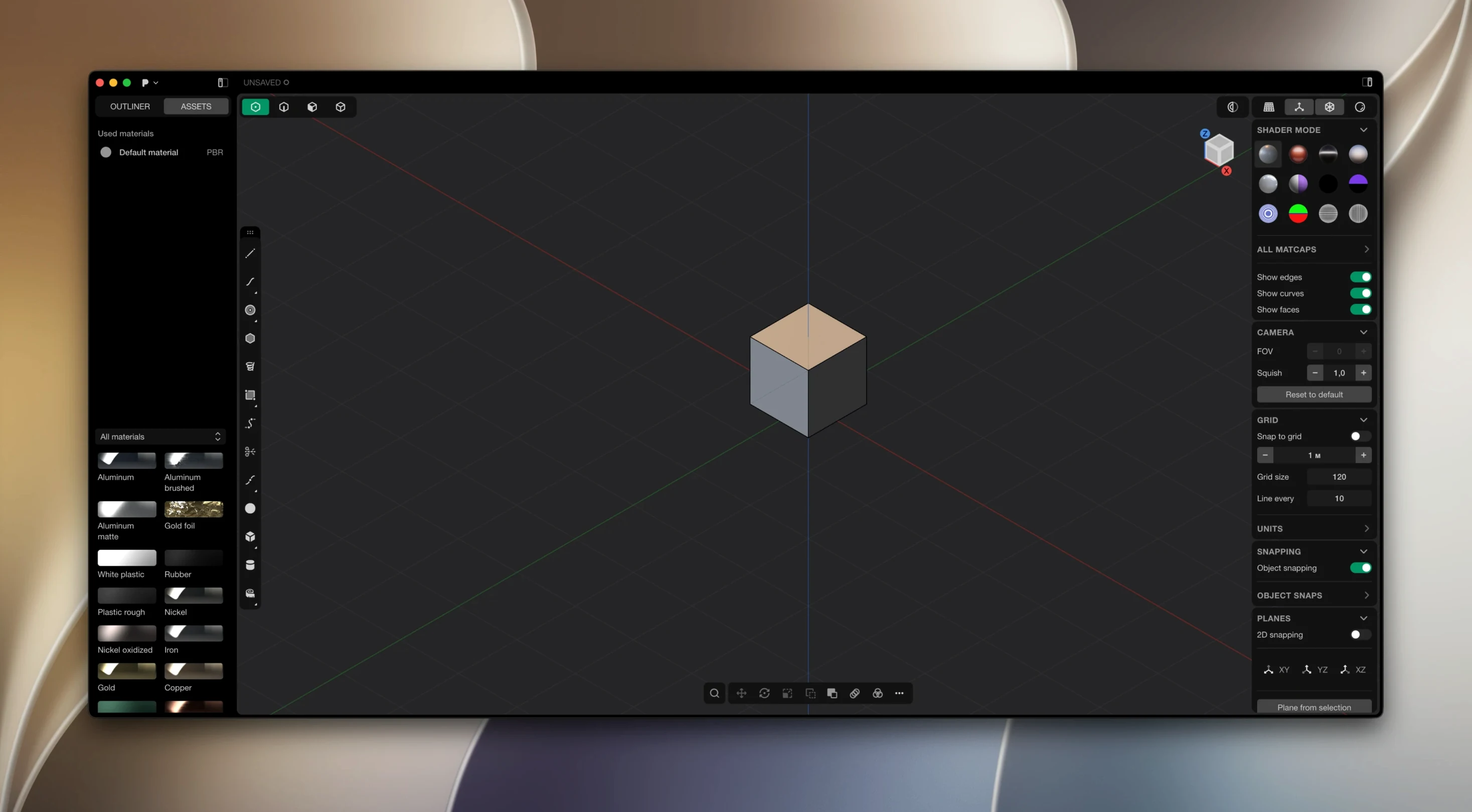
Plasticity is a 3D CAD-style modeler built around direct editing of solids and surfaces, free from the constraints of a history-based timeline.
| Detail | What to Know |
|---|---|
| macOS required | macOS 10.14 or later |
| Architecture | Runs natively on Apple Silicon |
| Interface languages | English, German, Spanish, Italian, Russian, Japanese, Traditional & Simplified Chinese |
So long as your machine runs 10.14 or newer and packs an Apple Silicon chip, you're all set. Once inside, you get boolean operations that produce watertight results and XNURBS surface blending, which gives you G2-continuous surfaces that feel smooth rather than patchy. The Studio edition goes further with PolySplines conversion, expanded CAD translation, and a recent addition for exporting hidden-line SVGs from 3D views. It's the kind of tool that makes sense when you want to pull and push geometry directly, without a history stack second-guessing every move.
Ignoring the Spacebar Command Palette
Coming from polygon modelers or history-based CAD tools, people trip over the same handful of things in Plasticity. The biggest one is ignoring the command palette. Plasticity puts an enormous amount of power behind the spacebar — type a few letters and you jump straight to the tool you need — but new users keep clicking through menus like they're in a different decade. Learn the palette early and you cut modeling time in half.
Another classic stumble: trusting the default fillet radius without checking scale. Plasticity works in real-world units, and if you've modeled a 2mm-thick bracket, a 5mm default fillet will eat your entire edge. Dial it back to something sensible before you commit. Related to that, beginners often apply fillets before boolean operations, then wonder why their union fails. Do the booleans first, get the watertight result, then fillet the edges — the Parasolid kernel handles it cleanly when the order is right.
Also watch for over-modeling with surfaces when a solid would do. Plasticity's direct editing shines brightest when you sketch a profile, extrude, and start cutting. New users sometimes build everything from individual surface patches — XNURBS blending included — when a simple solid boolean would've given the same shape in three clicks. Surfaces are there for the tricky organic transitions; for everything else, solids keep things fast and watertight.
Model a Real Object with Known Dimensions
Start by building something you already know the dimensions of. A desk clamp, a phone stand, the bracket holding up your shelf — real objects force you to work with constraints and live dimensions right away. Plasticity shows dimension values inline, and dragging them updates the geometry instantly. Within an hour you'll internalize how far you can push a shape before a fillet breaks.
Get comfortable with duplicate-and-variant workflows. Since there's no history tree, the fastest way to experiment is to duplicate a solid, modify the copy, and compare the two side by side in the viewport. If the variant works, delete the original; if not, you lost nothing. It feels wasteful at first, but direct editing rewards this kind of fearless branching.
On day two or three, export test files to your target software — whether that's Blender, Unreal Engine, or a slicer for 3D printing. Plasticity's boolean watertightness looks perfect on screen, but nothing confirms your workflow like a clean mesh import or a successful print. Spotting issues early saves you from rebuilding a model you've grown attached to.
Switch Orbit Style to Match Your Muscle Memory
- Navigation style: Plasticity defaults to a CAD-style orbit, but if you're coming from Blender or Maya, switch to the turntable or trackball option under Preferences > Navigation. Your muscle memory will thank you.
- Grid and snapping: The default grid spacing might not match your typical project scale. Set it to something useful — 1mm for small product design, 10mm for furniture — and enable snap-to-grid if you want dimensional precision without constantly typing numbers.
- Keyboard shortcuts for booleans: The default chorded shortcuts for union, subtract, and intersect are fine, but binding each to a single key (like U, S, I) makes boolean-heavy workflows significantly faster. The shortcut editor is straightforward and worth ten minutes of setup.
- Display quality for XNURBS surfaces: Out of the box, surface display can look faceted on curved blends. Bump the viewport tessellation a notch in display preferences — it won't affect export quality, but it makes judging G2 continuity much easier while you work.
- Autosave interval: Direct editing means no undo-forever safety net. Set autosave to every five or ten minutes and keep incremental saves before major boolean operations. Disk space is cheap; re-modeling a filleted assembly at 2 a.m. isn't.
- macOS 10.14 or later
- Apple Silicon
- Plasticity 26.1.3 fix
Also on readers' docks
Sign in or create an account to leave a comment.
No comments yet. Tell me how it got on with your other devices.
More in CAD & 3D
See all Pixologic Zbrush
2026.2.1 CAD & 3D
3.1 GB
Pixologic Zbrush
2026.2.1 CAD & 3D
3.1 GB
 Rhino
8.30.26103.11002 CAD & 3D
760 MB
Rhino
8.30.26103.11002 CAD & 3D
760 MB
 Session Pomodoro Focus Timer
2.13.48 CAD & 3D
50 MB
Session Pomodoro Focus Timer
2.13.48 CAD & 3D
50 MB
 Updated SketchUp Pro
27.0.267 CAD & 3D
1.6 GB
Updated SketchUp Pro
27.0.267 CAD & 3D
1.6 GB
 Sweet Home
7.5.7 CAD & 3D
356 MB
Sweet Home
7.5.7 CAD & 3D
356 MB
 Maya
2027.2 CAD & 3D
5.3 GB
Maya
2027.2 CAD & 3D
5.3 GB
 MAXON Cinema
2024.2.0 CAD & 3D
721 MB
MAXON Cinema
2024.2.0 CAD & 3D
721 MB
 Marvelous Designer
v2024.2.139 CAD & 3D
1.7 GB
Marvelous Designer
v2024.2.139 CAD & 3D
1.7 GB