Download Studio One for macOS
When a mix feels sluggish and the tempo map refuses to cooperate, the tools you reach for either help — or get in the way. Studio One has always chased the second kind of friction, and version 7 sharpens that instinct without rewriting the playbook.
What's genuinely new in version 7?
AI-powered offline Stem Separation lets you pull apart a finished stereo file into drums, bass, vocals and other elements right on the timeline. Advanced tempo detection now handles material that used to trip up automatic analysis, and you get unlimited Launcher Scenes and Playlists for live performance and arrangement experiments.
Does it change how I install and update?
Yes — version 7 installs as a fresh application alongside your existing Studio One setup. It won't overwrite anything, so you can keep your old projects exactly where they are while you test the new features.
Drag-and-Drop Core and Missing ReWire
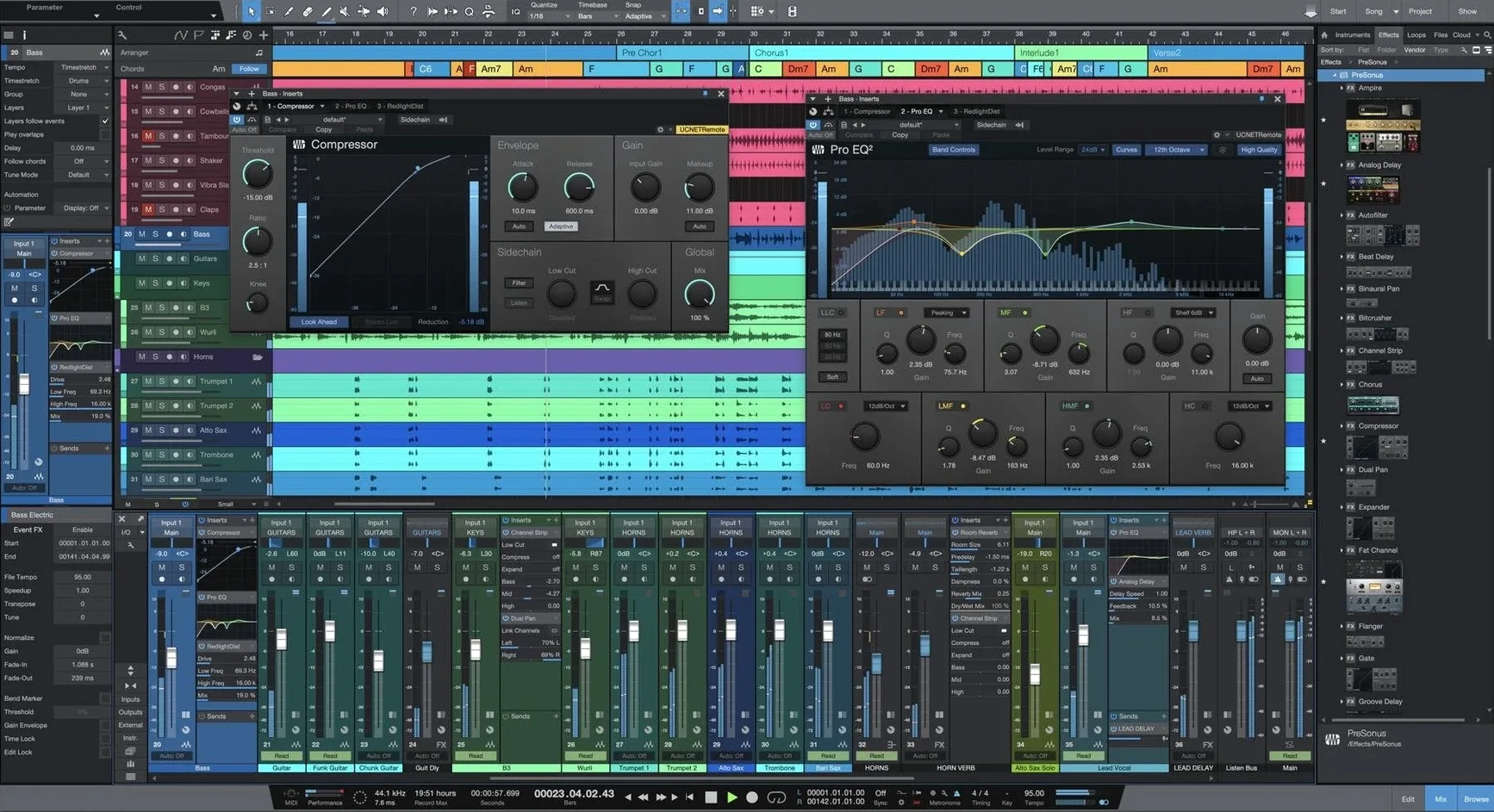
The drag-and-drop workflow remains central, the interface is still deeply customizable, and the Project page continues to handle mastering and compilation duties. ReWire support is still absent, just as it was in version 6.
macOS 12.4 Floor for Apple Silicon and Intel
You'll need macOS 12.4 or later on an Apple Silicon or Intel 64-bit Mac. That's a reasonable floor for a major release that keeps both architectures in play.
Who clicks with Studio One fastest
Not every producer needs the same thing from a DAW, and Studio One 7 has a clear personality that suits some workflows better than others. Songwriters who build tracks instrument by instrument tend to fall into a rhythm almost immediately — the Scratch Pad and arranger track make trying out a double chorus or a stripped-down bridge feel like sketching on paper rather than committing to spreadsheet-level edits. You drag a section, you hear the change, you decide.
Mix engineers coming from console-style backgrounds often gravitate toward the Project page. It treats a full album or EP as a single cohesive thing, not a folder of disconnected session files. If you think in terms of track sequencing, consistent loudness and crossfades between songs, that page alone can keep you from hopping between three different utilities. Mastering someone else's stems? The new Stem Separation can pull apart a reference track so you can study what the low end is actually doing without guessing through a spectrum analyzer.
Live performers who use backing tracks and triggered loops get a real upgrade with the unlimited Launcher Scenes. Previous limits meant you had to make hard choices about song sections; now you can map out an entire setlist as a grid of cells and follow the room's energy instead of a rigid timeline. Electronic producers who work heavily with tempo-synced samples also benefit — the Advanced tempo detection handles the kind of rhythmic material that used to leave you manually drawing warp markers for twenty minutes.
If you spend most of your time recording live drums or multi-mic ensembles, the smooth comping and slip-editing tools feel like they were designed by someone who actually does that work. The take management doesn't bury you in lanes you didn't ask for, and dragging between takes keeps the musical intent visible instead of reducing everything to a grid.
Rough edges people bump into
No piece of software installs into a perfectly clean system, and Studio One 7 has a few predictable friction points. The most common one right now is plugin scanning after first launch. If you have a large collection of third-party Audio Units or VST3 plugins, that initial scan can stall or crash. The fix is usually straightforward: hold the Shift key while launching the app to start in safe mode, then let it scan in smaller batches by disabling folders temporarily in the plugin manager.
Another snag crops up with older audio interfaces whose drivers haven't seen an update in a few macOS cycles. If Studio One refuses to see your inputs or outputs, check that you've granted microphone access in System Settings > Privacy & Security — macOS sometimes resets these permissions after major DAW updates, and the app won't always prompt you again.
People migrating from version 5 often ask about ReWire, and the answer hasn't changed: it's gone since version 6, and version 7 continues without it. If your workflow depended on ReWire to sync another application, you'll need to route audio through a different method or use the built-in instruments instead. Some users also hit confusion with the separate installation — version 7 sits next to your older Studio One, and your recent file list inside the app won't show projects you last opened in version 6 until you manually navigate to them once.
On Apple Silicon machines, a handful of older Intel-only plugins still need the Rosetta 2 translation layer. If a plugin window stays blank or crashes when you open it, try launching Studio One using Rosetta once (Get Info on the app icon and check the box) to confirm whether the plugin itself is the culprit.
Point the App at Your Sample Libraries First
The moment after activation is the right time to point the app at your sample libraries and plugin folders. Skip the temptation to open an old project immediately. Instead, create a blank song from the Smart Template picker — the Record and Mix template gives you a clean set of buses and a basic effects chain without any clutter. Play a few notes on a virtual instrument just to confirm your audio buffer is set correctly; the default 256 samples works for most interfaces, but drop it to 128 or 64 if you're monitoring through the DAW and the delay feels spongy.
Drag a finished stereo track onto a new audio channel and right-click it to try the Stem Separation. Even if you don't plan to use separated stems in a project right now, watching how the algorithm handles different genres teaches you where it shines and where it gets fuzzy. Acoustic guitar and vocal splits are surprisingly clean; dense synth pads with heavy reverb can leave artifacts you'll want to know about before a client session.
Take ten minutes to organize the browser. The default view shows everything, which gets noisy fast. Fold the sections you rarely touch — you can always unfold them later — and drag your most-used sample folders into the Favorites area. If you collaborate with other Studio One users, export your custom browser layout once it feels comfortable; the file lives in your user library and travels easily.
Set Block Size Low for Tracking, Higher for Mixing
- Audio device block size — Set it low for tracking (64 or 128 samples), higher for mixing (512 or 1024). The per-interface option in Preferences > Audio Setup lets you save different values for different hardware.
- Dropout protection — Under the Processing tab, switch this to "Maximum" only when you're mixing huge sessions. For recording, set it to "Minimum" or you'll curse the latency.
- Plug-in nap mode — Enabled by default, it puts idle plugins to sleep and saves CPU. Leave it on unless a specific plugin misbehaves; some older meters and analyzers glitch when they wake up.
- Color scheme — Options > Colors lets you dim the arrange window background separately from the mixer. A slightly darker arrange area reduces eye strain during long editing sessions without making the mixer illegible.
- Loop recording behavior — Under Options > Advanced > Recording, you can switch between creating takes layers or separate track versions. Choose before you start tracking vocals.
- Auto-save interval — The default is every 5 minutes. Bump it to 3 if you're working on a laptop that might lose power, and point the backup folder somewhere you can find it.
A producer's first evening with it
Lena makes instrumental hip-hop and lo-fi beats, mostly sample-based with some live guitar and bass parts she records at home. Her previous DAW handled recording fine but turned arranging into a chore — every time she wanted to try a different song structure, she had to duplicate the whole project or undo half an hour of work.
She installs Studio One 7 in the afternoon, points it at her sample collection, and loads a lo-fi piano loop she'd been sitting on for weeks. Within twenty minutes she has drums from Impact XT, a bassline from a dragged-in one-shot pitched across the keyboard, and the piano loop stretched to match her 78 BPM tempo using the new detection — no manual warping required.
The Scratch Pad is where things click. She copies her chorus and verse sections onto the Scratch Pad, mutes the bass for the first half of the verse, and drops a new guitar take on top. The original arrangement stays untouched while she listens to both versions back to back. She keeps the edit and drags it to the main timeline like moving a sticky note.
By evening she has two versions of the beat and a rough mix with the stock EQ and compressor on most channels. She hasn't opened a manual once — the drag-and-drop logic she'd heard about turned out to be the real thing, not marketing talk. The song isn't finished, but the arrangement is, and that's the part that used to take her three times as long.
Version 7.0.0 ships with three headlining additions:
- Unlimited Launcher Scenes and Playlists for non-linear arrangement and performance.
- AI-powered offline Stem Separation that pulls apart mixed audio into component parts.
- Advanced tempo detection for material with tricky timing.
- macOS 12.4 or later
- Apple Silicon or Intel 64-bit Mac
Questions people ask
Can I keep Studio One 6 installed after upgrading?
Absolutely. Version 7 installs as a separate application and doesn't touch your existing Studio One installation, so both can live side by side.
Does Studio One 7 support ReWire?
No, ReWire support ended with version 5. Neither Studio One 6 nor version 7 includes it.
Also on readers' docks
Sign in or create an account to leave a comment.
No comments yet. Tell me how it got on with your other devices.