Download SoundSource for macOS
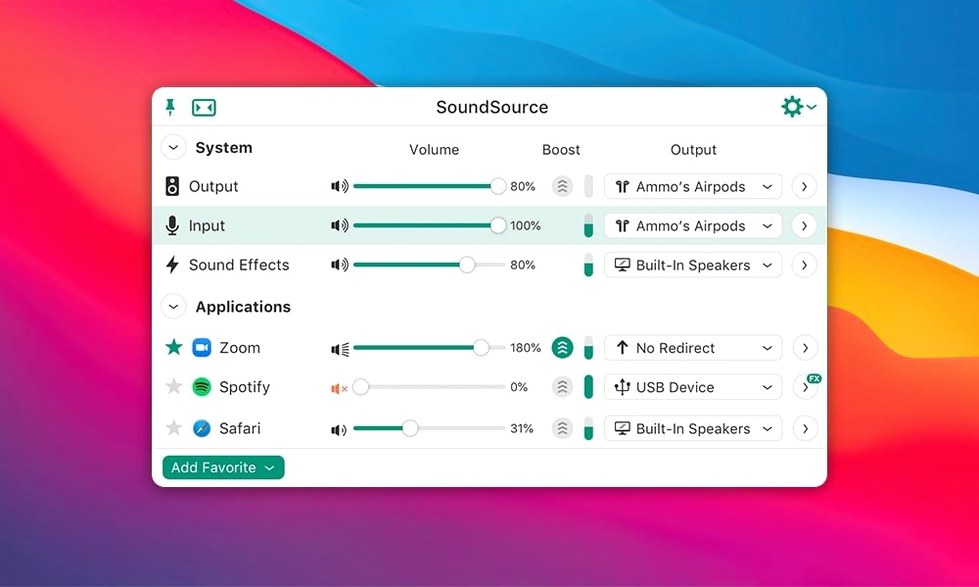
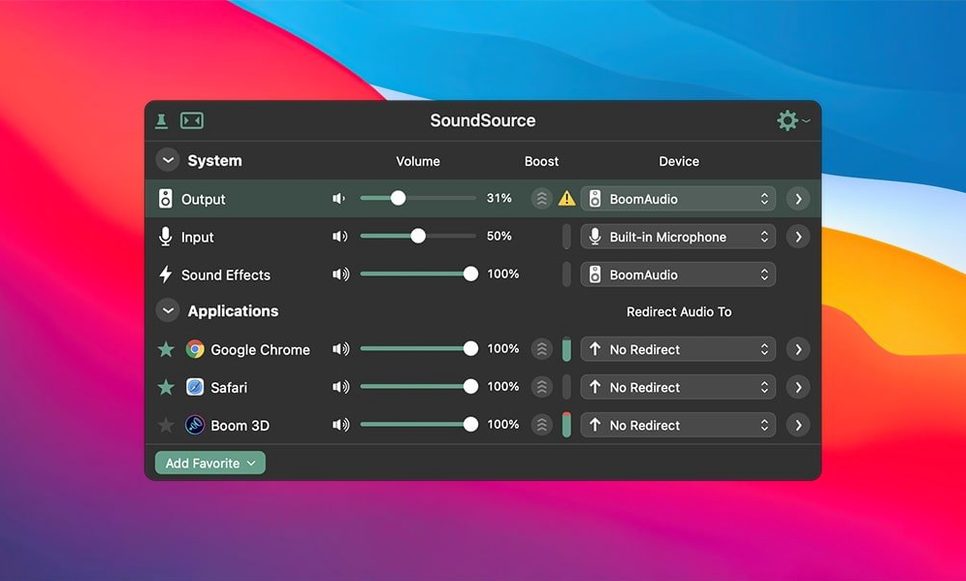
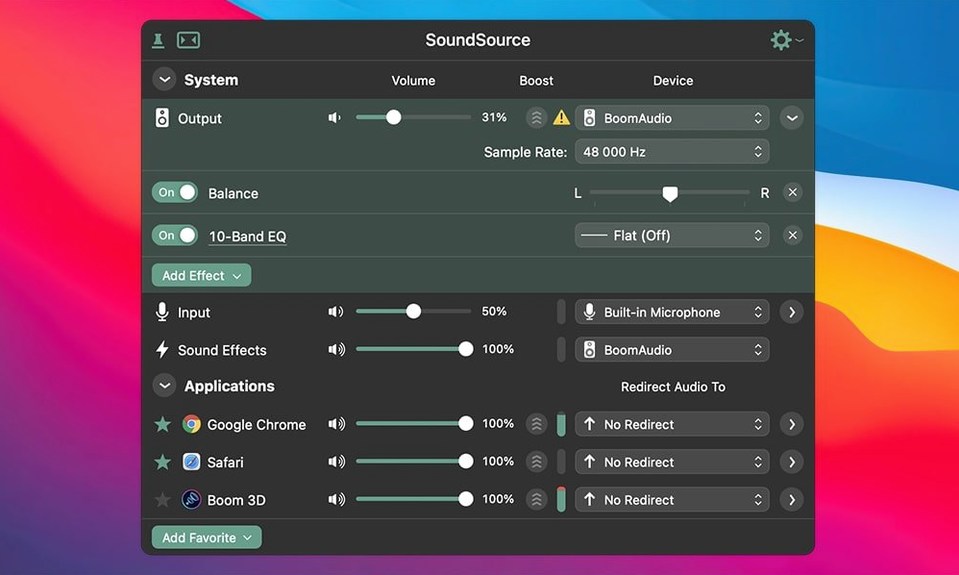
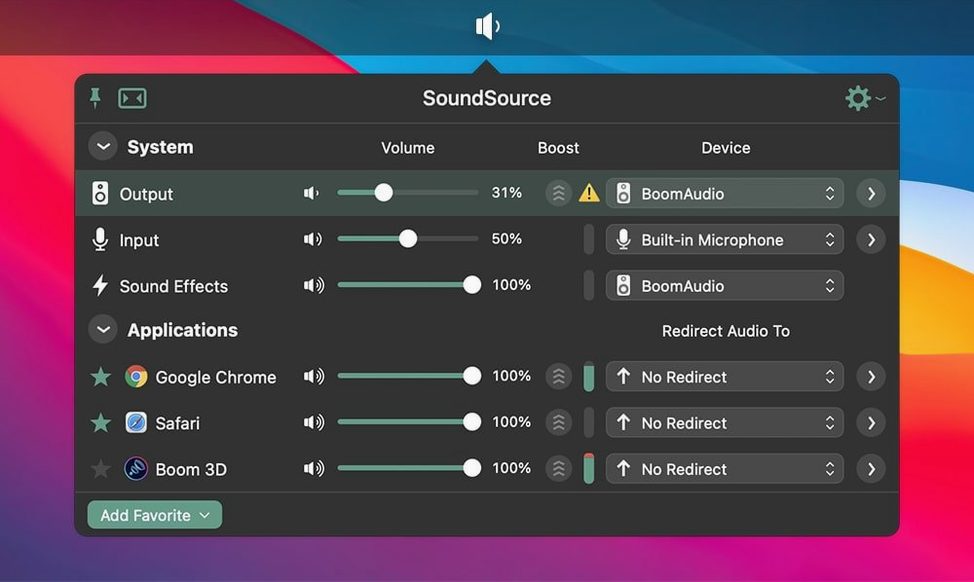
Right in the menu bar, the per-app volume sliders still feel like the feature that should have been built into macOS from day one. SoundSource 6.1.4 keeps that core identity intact while quietly tidying up a few things under the hood. The big draw remains what it's always been: fast, visual control over where sound goes and how loud it gets, broken down app by app rather than one master knob for the whole system.
| Key Detail | Info |
|---|---|
| Current Version | 6.1.4 |
| Developer | Rogue Amoeba |
| macOS Requirement | macOS 15 or later |
This point release doesn't overhaul the interface or introduce flashy new toggles. Instead, it pulls the ARK plugin up to version 13.5.4 and squashes a couple of Bluetooth gremlins that crept up on macOS 27. If you'd been dealing with stuttering output or a crash when switching to wireless headphones, that friction is gone now. What stayed the same is the stuff that made SoundSource click in the first place: the ability to route audio to multiple outputs at once using Output Groups, apply effects to individual apps, and tweak input devices without digging through System Settings. For anyone already on macOS 15 who wants fine-grained sound control that lives an arm's reach away in the menu bar, the 6.1.4 update keeps everything running like it should.
Treating It as Just a Volume Mixer
Most people install SoundSource and immediately treat it as a fancier volume mixer. Fair enough — that's the obvious surface. But a few habits tend to trip up newcomers during that first week, and they're worth flagging before you build muscle memory around the wrong approach.
Dragging the master slider when one app is too quiet. You've got Safari humming at a comfortable level, then Music kicks in and sounds faint. The instinct is to crank the system output. Don't. That throws everything else out of whack. Instead, open SoundSource's menu bar panel, find Music in the per-app list, and bump its individual slider. The master stays where it was, and the other dozen apps don't suddenly blast you later.
Forgetting about the Super Volume knob. Some audio sources — quiet YouTube videos, poorly recorded podcasts — just don't get loud enough even at max. Right-click the volume slider in SoundSource and you'll spot a Super Volume option that pushes gain beyond the hardware ceiling. Beginners either miss it entirely or leave it cranked for everything, which introduces distortion on sources that never needed the boost. Use it surgically, not globally.
Applying effects to the wrong target. SoundSource lets you drop EQ and audio effects onto individual apps or the system output. A common slip is slapping a bass boost onto the system output intending to fatten up Spotify, then wondering why notification pings sound like distant thunder. Check whether you've highlighted the app name or the output device before you tweak.
Not naming Output Groups. You create a group that routes audio to your desk speakers and the living room AirPlay receiver simultaneously, then three days later you're staring at "Output Group 1" and "Output Group 2" with no memory of which is which. Right-click the group and give it a real name the moment you create it.
Defaults That Pay Back in Minutes
SoundSource works fine out of the box, but a handful of defaults benefit from a minute of attention. These aren't buried preferences — they're right in the app's own settings panel, and each one pays back the effort within a day.
- Launch at login. Off by default, and that's a mistake for anyone who relies on per-app volume control. Turn it on. You want SoundSource running before the first notification sound fires.
- Menu bar icon behavior. The default icon shows a generic speaker. In preferences you can switch it to display the current output device name or a compact volume readout. If you regularly hop between headphones and speakers, the device-name option saves a click every time you need to confirm what's active.
- Keyboard shortcut for the main window. Unassigned by default. Set a global hotkey — something muscle-memorizable like
Control-Option-S— and you'll stop mousing up to the menu bar every time an app needs a nudge. - Headphone EQ auto-detection. SoundSource can apply Rogue Amoeba's built-in headphone calibration curves automatically when it recognizes a supported pair. The checkbox lives under the Effects tab. If you use wired headphones that are in the supported list — and the list is longer than most people expect — flip it on and forget it exists.
Overlapping Utilities, Different Niches
SoundSource doesn't live in a vacuum. A few other utilities overlap with parts of its feature set, though each carves out a different niche once you look past the marketing bullet points.
SoundSource vs. Background Music
Background Music is open-source, lightweight, and focused almost entirely on per-app volume control. It does that one job competently, and it asks for nothing in return. Where it falls behind is everything around that job: no effects per app, no output routing to multiple devices, no menu bar switching of input sources, and definitely no Headphone EQ profiles. Background Music also tends to break on major macOS updates until the community patches it, whereas Rogue Amoeba's track record on day-one compatibility is noticeably stronger. If you literally only need app-by-app sliders, Background Music works. If you want the rest of the audio chain — input switching, effects, AirPlay grouping — SoundSource covers ground that Background Music never attempts.
SoundSource vs. Audio Hijack
This one's trickier because both come from the same developer. Audio Hijack is a full session-based audio recorder and processor: you build signal chains, record from multiple sources simultaneously, and apply complex effects pipelines. SoundSource is the everyday companion that lives in the menu bar and adjusts what you're hearing right now. They complement each other more than they compete. Someone who only needs real-time control without recording sessions will find Audio Hijack overbuilt. Someone who needs to capture a multi-source podcast interview will find SoundSource under-equipped. Plenty of users run both, but for living-room-volume-levels and quick output swaps, SoundSource is the one you'll actually open five times a day.
SoundSource vs. eqMac
eqMac pitches itself as a system-wide equalizer with a polished interface. It does system EQ well, and the free tier handles basic frequency adjustments. The differences stack up fast: eqMac lacks per-app effects, has no concept of Output Groups, and doesn't touch input device management. Its paid tier adds a few extra bands and presets but never reaches the per-application granularity that defines SoundSource. If your entire audio wishlist is "make my speakers sound warmer with a single curve," eqMac fits. If you need Safari quiet while Music stays loud and you want to switch mics without opening System Settings, SoundSource is the broader tool.
One Output Group Before Anything Else
The first 48 hours with SoundSource shape how naturally it fits into your workflow. A few small habits make the difference between it feeling like an extra step and feeling like an extension of macOS.
Set up one Output Group on day one. Even if it's just "Headphones + Living Room AirPlay" for a scenario that happens twice a week. Creating the group teaches you the routing model faster than reading about it, and once it's saved, switching to it takes a single click from the menu bar.
Mute, don't turn down. SoundSource's per-app list has a mute toggle — a little speaker icon next to each app. When an app is behaving (looking at you, browser tabs with auto-play ads), hit mute rather than dragging the slider to zero. Mute is a binary off switch you can undo cleanly; a slider dragged to zero leaves you guessing where the previous level was when you want it back.
Check the "Hidden Sources" section. By default, SoundSource shows only apps actively producing audio. In preferences you can reveal background processes and system services that macOS treats as audio sources. Most of the time you'll ignore them, but on the one day when a mysterious system beep won't stop, knowing that section exists saves a headache.
Save a configuration for your most common setup. Under the File menu sits the option to save your entire audio state — output device, input device, per-app volumes, active effects — as a named configuration. Record one for "Work" (headphones, mic selected, Slack quieted) and one for "Evening" (speakers, no mic, Music louder). Switching between them is faster than adjusting six things individually every morning and night.
SoundSource 6.1.5 is a straightforward stability update that squashes a few bugs and sharpens the recent release.
- macOS 15 or later
- Apple Silicon or Intel 64-bit Mac
Questions people ask
What got fixed in SoundSource 6.1.4?
The update fixed Bluetooth output device performance issues and a related crash on macOS 27, and it updated the ARK plugin to version 13.5.4.
Does SoundSource 6 let me control volume per app?
Yes, per-app audio control is a core feature, letting you adjust volume and apply effects to individual applications independently.
Also on readers' docks
Sign in or create an account to leave a comment.
No comments yet. Tell me how it got on with your other devices.