









Download ViWizard Spotify Music Converter for macOS
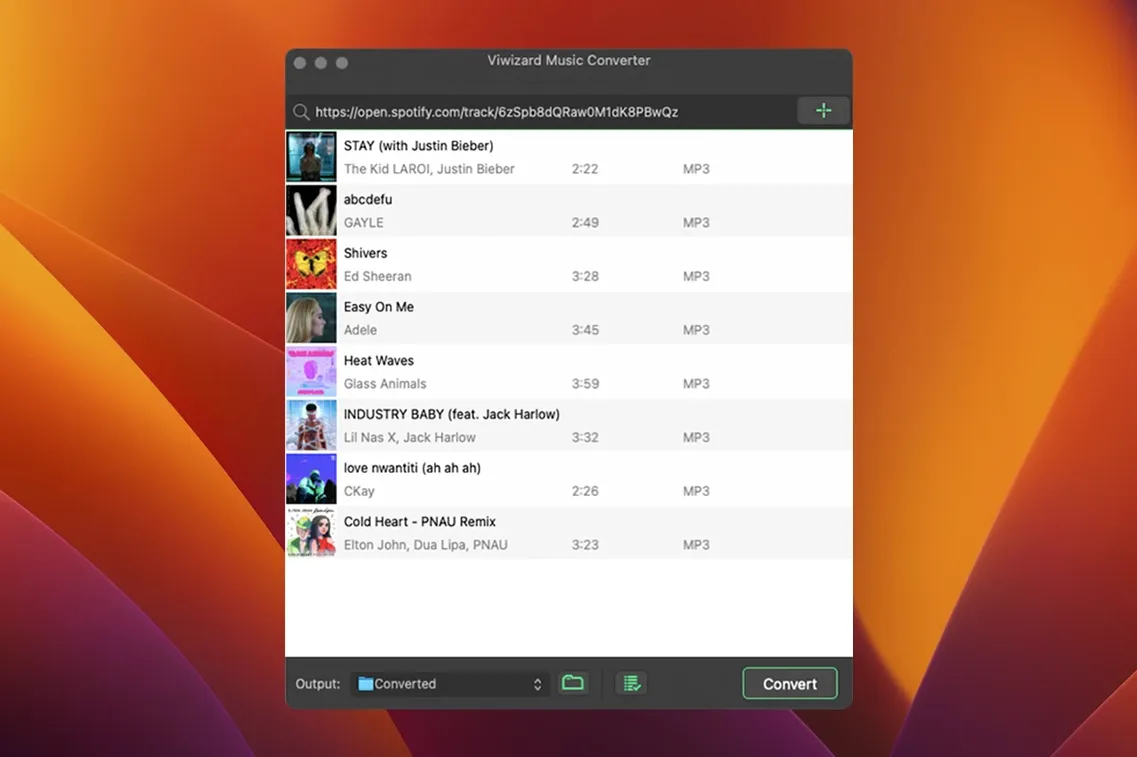
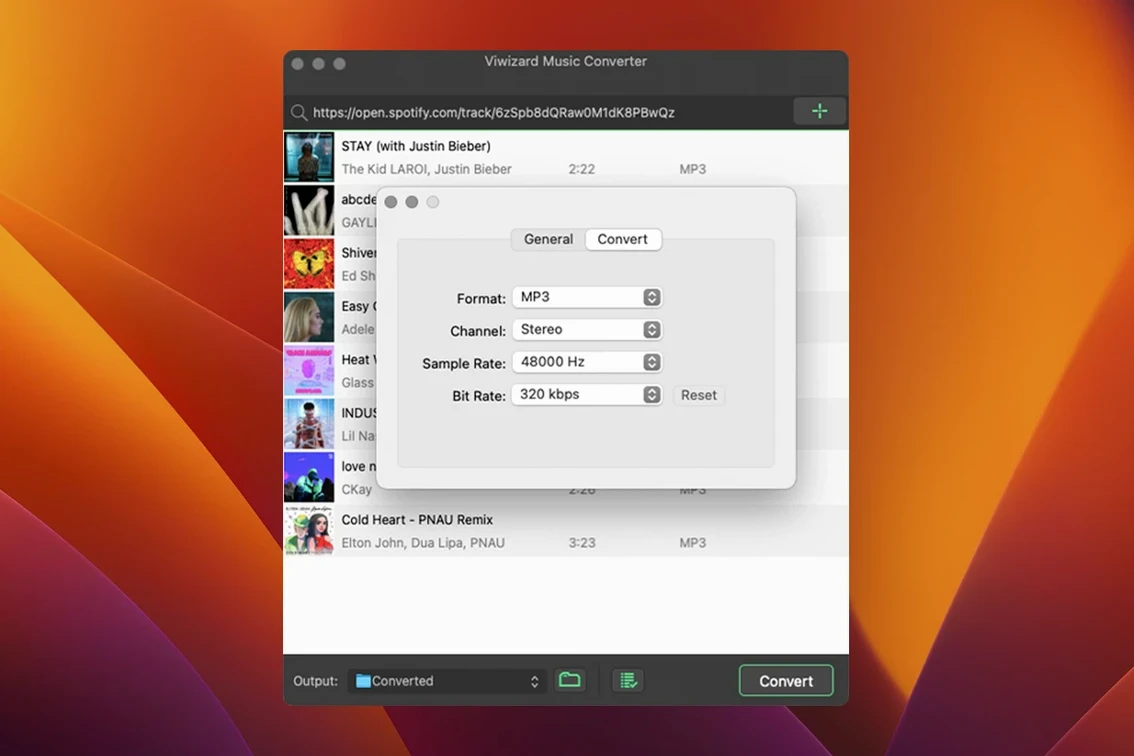
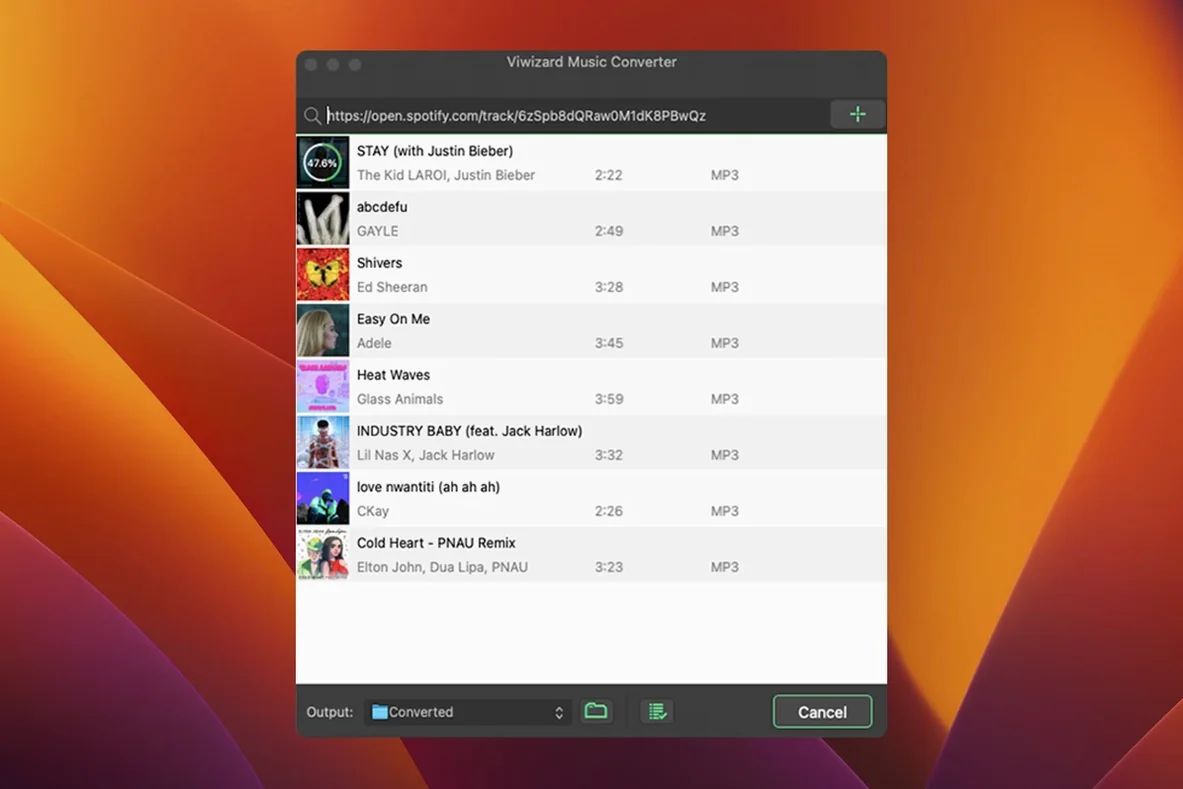
The Output Format panel is where you realize this app isn't messing about. ViWizard Spotify Music Converter hooks into Spotify’s Web Player to pull your saved music—whole playlists, albums, podcasts, even audiobooks—and batch-converts them into open audio formats while you get on with other things. You set the channel, bitrate, and sample rate, so the files land exactly how your non-streaming gear likes them.
Because it leans on the Web Player rather than the desktop client, it sidesteps a lot of the cat-and-mouse nonsense that trips up similar tools. The interface keeps things flat: paste a link, pick a format, and let the queue run. On an Intel Mac running OS X 10.10 or later, it just chugs along.
What trips people up before installing isn't the conversion engine—it's the Gatekeeper hurdle on macOS. Once you've mounted the disk image and nudged past the security prompt, dragging the app into Applications feels pleasantly old-school. No package installer, no background daemons.
This isn't a streaming replacement; it's for people who need their Spotify library living as actual files on a Plex server, an old iPod, or a DJ set-up that doesn't speak Wi-Fi.
Runs Its Own Web Player, Not Your Desktop App
Does it actually run inside Spotify, or is it a separate thing? The second one—ViWizard doesn't touch your desktop Spotify app at all. It spins up its own instance of the Spotify Web Player inside the converter window, which means your regular listening isn't interrupted and the two don't fight over playback. You log in once, the web player loads, and off you go. The conversion happens faster than real-time playback too, so a three-minute track wraps up well before you'd finish listening to it.
What about sound quality—does it re-compress from a lossy stream and make everything sound like a 2005 ringtone? That's the sensible worry, and the answer depends on your settings. Spotify's web player streams at 256 kbps AAC for Premium accounts, so you're starting from a decent place. If you convert to FLAC or WAV, you're not gaining quality that wasn't there, but you are preventing further degradation when you edit or archive. Set MP3 output to 320 kbps and you'll be hard-pressed to tell the difference from the source in a blind test. The converter isn't decoding a lossless master, but it's not adding a second layer of audible mush either—it's a clean pass-through of whatever Spotify delivers.
Will it handle my embarrassingly large playlist with 1,400 tracks without falling over? Yep, and without you babysitting it. Batch conversion queues everything in one go, and the auto-sort feature can funnel output into folders by artist or album so you don't end up with a single directory of chaos. Leave it running overnight on a big library and wake up to neatly organized files.
Switch Default MP3 Bitrate to 320kbps
The defaults are sensible but conservative. Before your first real conversion, open Preferences and poke at a few things. The Output Format panel lets you pick MP3, AAC, WAV, FLAC, M4A, or M4B—and for most people archiving a Spotify library, 320 kbps MP3 hits the sweet spot between file size and fidelity. If you're feeding a Plex server or doing light audio work, FLAC gives you a lossless container without ballooning file sizes the way WAV does.
Under the Output Settings tab, switch "Save to" from the default folder to somewhere you'll actually remember. Then turn on Organize output files by and pick Artist or Album. This one toggle saves more headaches than any other setting—without it, converted tracks pile up in a flat list and you'll spend an afternoon renaming things. The converter pulls metadata straight from Spotify, so artist, album, track number, and artwork all tag correctly, but only if you let it structure the folders.
Sample rate and channel options live under the same panel. For spoken-word content like podcasts and audiobooks, dropping to 44.1 kHz mono at a lower bitrate keeps files lean without hurting intelligibility. The M4B format specifically supports bookmarking, which makes it the right pick for audiobooks you plan to resume later on an old iPod or a non-streaming media player.
Bypass the 'Damaged App' Gatekeeper Block
The Gatekeeper tango trips up the most people. After you mount the disk image, macOS will block the app with a "damaged or can't be verified" message. That's not a problem with the file—it's Apple's notarization wall. The workaround is straightforward: open Terminal, type xattr -cr followed by a space, drag the ViWizard app icon into the Terminal window to fill in the path, and press Enter. After that, it launches without complaint. Doing this once is all it takes; subsequent launches behave normally.
If the web player sits there with a blank screen or refuses to load your library, the culprit is usually an ad-blocker or privacy extension mucking with Spotify's domain. Disable anything that intercepts spotify.com or pause your system-wide content blocker while ViWizard runs. A second common cause: Spotify's regional login quirks. Logging out of the web player inside ViWizard and back in almost always fixes a stuck loading screen. If you're on a network with aggressive DNS filtering—some office or school setups—Spotify's web player endpoints might be partially blocked, and ViWizard needs them fully reachable.
Output files coming out silent or truncated usually trace back to the conversion getting interrupted. The web player needs to stream the entire track before ViWizard can write the file, and skipping ahead in the queue manually confuses it. Let each track finish its progress bar in the converter window. If you've hit a batch where the first few tracks converted fine but later ones didn't, check that your Mac didn't sleep mid-queue—the web player doesn't always resume cleanly after wake. Pop into System Preferences and set Energy Saver to prevent sleep while the converter runs.
Occasionally someone searching for a viwizard spotify music converter setup will run into a version mismatch between the converter and Spotify's web player interface. When Spotify pushes a UI change to the web player, the converter sometimes needs an update to match. If buttons aren't responding or playback won't start, checking you're on the current build (2.17.0 as of this writing) usually sorts it out. The web player itself doesn't need a separate install—it's all bundled inside the app.
One last thing: if you've gone down the rabbit hole of looking up a viwizard torrent or a viwizard spotify music converter mac torrent and ended up with a build that behaves oddly, the giveaway is usually metadata not tagging or the web player failing to authenticate. A clean copy with the Gatekeeper step done properly should tag every track and log into Spotify without gymnastics. If the metadata is coming through blank on a working install, hop into Preferences and confirm the output format supports tagging—WAV doesn't carry metadata the way MP3 or FLAC does, which catches people off guard.
- OS X 10.10 or later
- Intel x86 64-bit processor
Questions people ask
Does it convert podcasts and audiobooks from Spotify?
Yes, ViWizard Spotify Music Converter handles songs, playlists, albums, artists, podcasts, and audiobooks from Spotify's Web Player.
Can I change the audio quality of the converted files?
Absolutely. You can adjust the output channel, bitrate, and sample rate before starting a batch conversion.
Will it run on an older Intel Mac?
It is built for x86 64-bit Macs and works on OS X 10.10 and later, so most older Intel machines are covered.
Also on readers' docks
Sign in or create an account to leave a comment.
No comments yet. Tell me how it got on with your other devices.
More in Mac Apps
See all VMware Fusion Pro
26H1 Mac Apps
479 MB
VMware Fusion Pro
26H1 Mac Apps
479 MB
 VideoProc Converter
6.6 Mac Apps
86 MB
VideoProc Converter
6.6 Mac Apps
86 MB
 Updated VideoProc Converter AI
8.13 Mac Apps
254 MB
Updated VideoProc Converter AI
8.13 Mac Apps
254 MB
 VideoByte BD-DVD Ripper
2.1.6 Mac Apps
124 MB
VideoByte BD-DVD Ripper
2.1.6 Mac Apps
124 MB
 WALTR PRO
4.0.122 Mac Apps
29 MB
WALTR PRO
4.0.122 Mac Apps
29 MB
 Updated Vibe Island
1.0.53 Mac Apps
18 MB
Updated Vibe Island
1.0.53 Mac Apps
18 MB
 Viaduct
1.3.0 Mac Apps
49 MB
Viaduct
1.3.0 Mac Apps
49 MB
 Vector Magic
1.20 Mac Apps
17 MB
Vector Magic
1.20 Mac Apps
17 MB