









Download VideoProc Converter AI for macOS
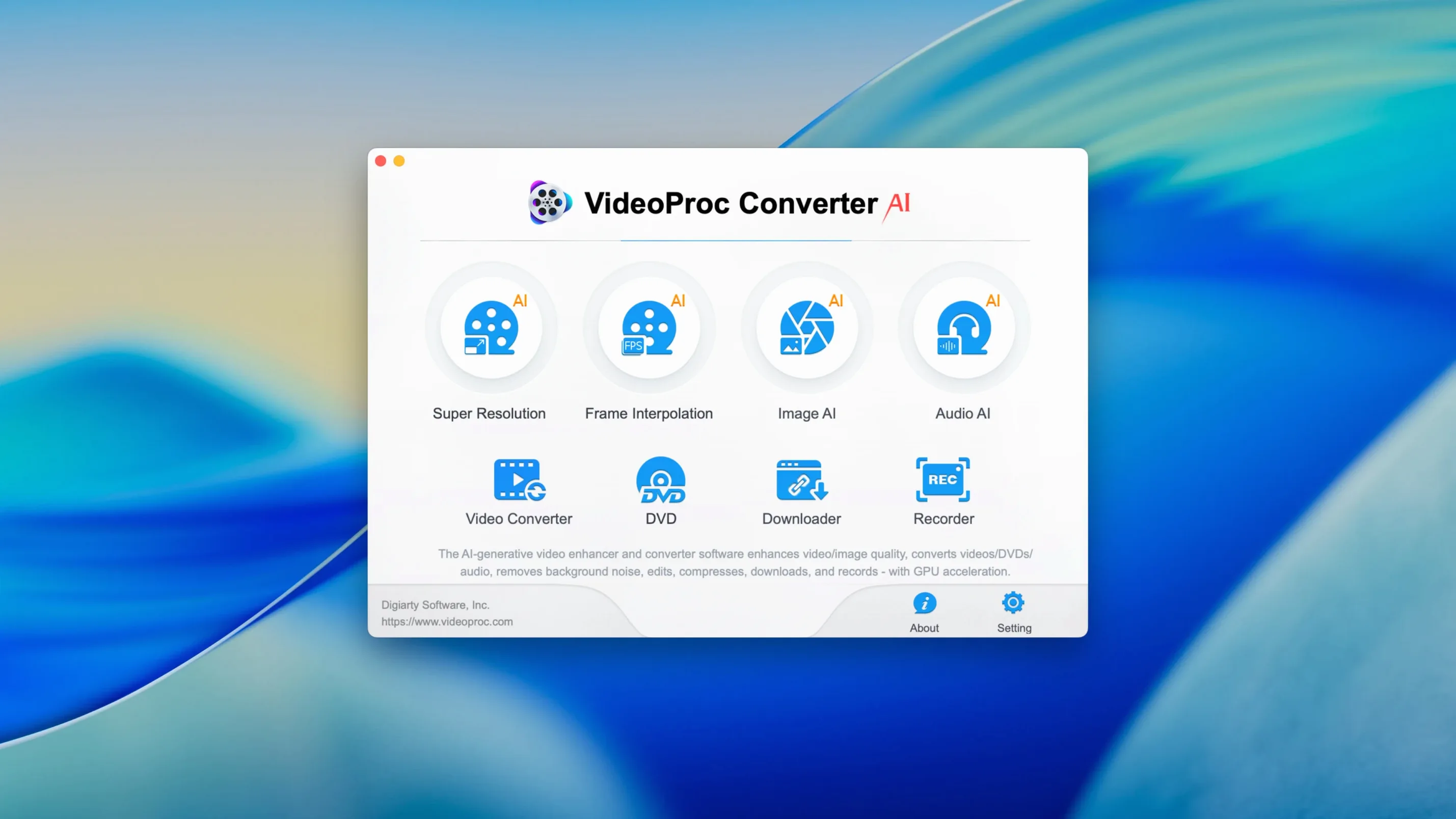
Version 8.12 has arrived with a lighter installer, quicker downloader performance, and ready-made profiles for the latest iPhones. With support up to macOS 27, it's clearly built for the long haul.
Convert a file for any device
Drop in a clip, pick an iPad, GoPro, or Apple TV preset, and let it sort the rest. The app handles the codec shuffle so your video plays where you want it without a fuss.
Give old footage a cleanup
The AI denoising tool targets grain and blocky artifacts in a single pass. It's a quick way to rescue shaky phone clips or aged camcorder transfers before sharing them online.
Grab a video from the web
The built-in downloader pulls clips and audio from YouTube, TikTok, Vimeo, and Facebook. It's a handy catch-all when you want to save a tutorial or a soundtrack for offline use.
Test the Water with a Familiar Five-Minute Clip
Once the app is sitting in your Applications folder, resist the urge to throw a 45-minute project at it straight away. I learned this the hard way — start with a single five-minute clip you already know well. Something you've watched on a few different screens. Run it through a couple of device presets and compare the outputs side by side on the devices you actually use. That ten-minute experiment teaches you more about the compression sweet spots than any spec sheet.
Next, pin down where your media lives. If your downloads, source footage, and exports are scattered across three drives, you'll spend half your time navigating open dialogs. Create a simple folder structure — Source, Processed, Exports — and point the app at the same place every session. It sounds obvious, but skipping this is why people grumble about "lost" files on day three.
One more thing worth doing early: open the hardware acceleration pane and confirm Metal or Apple Silicon encoding is actually active for your machine. The checkbox can be easy to overlook, and it's the difference between a 4K export that finishes while you make coffee and one that ties up your Mac all afternoon.
Cross-Device Workflow Binder for Mixed Camera Setups
People who work across multiple devices or platforms tend to get the most mileage here. If your week involves pulling a clip from a Sony camera, converting it for an iPhone, compressing a version for a client preview, and then extracting just the audio track — that's four steps that would otherwise mean four separate utilities. Having them under one roof cuts the mental overhead significantly.
Creators who regularly grab reference material from YouTube or TikTok also settle in quickly. The downloader isn't an afterthought bolted onto a converter; it's treated as a first-class feature, and the version 8.12 downloader improvements make batch grabbing a playlist noticeably smoother than in earlier builds. If you're the type who keeps a library of stock clips or music snippets for later use, you'll appreciate how the downloader and converter share the same queue system.
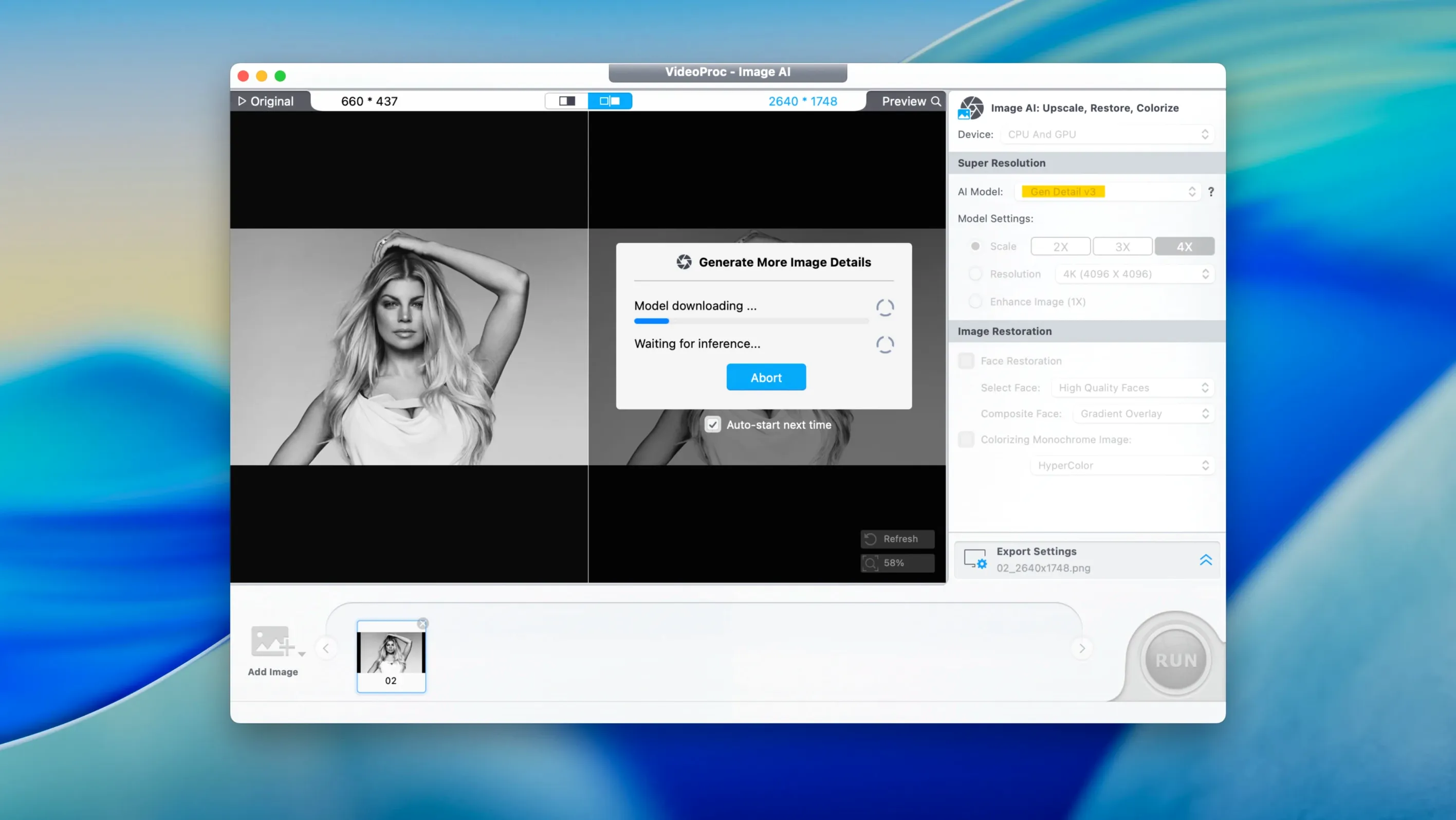
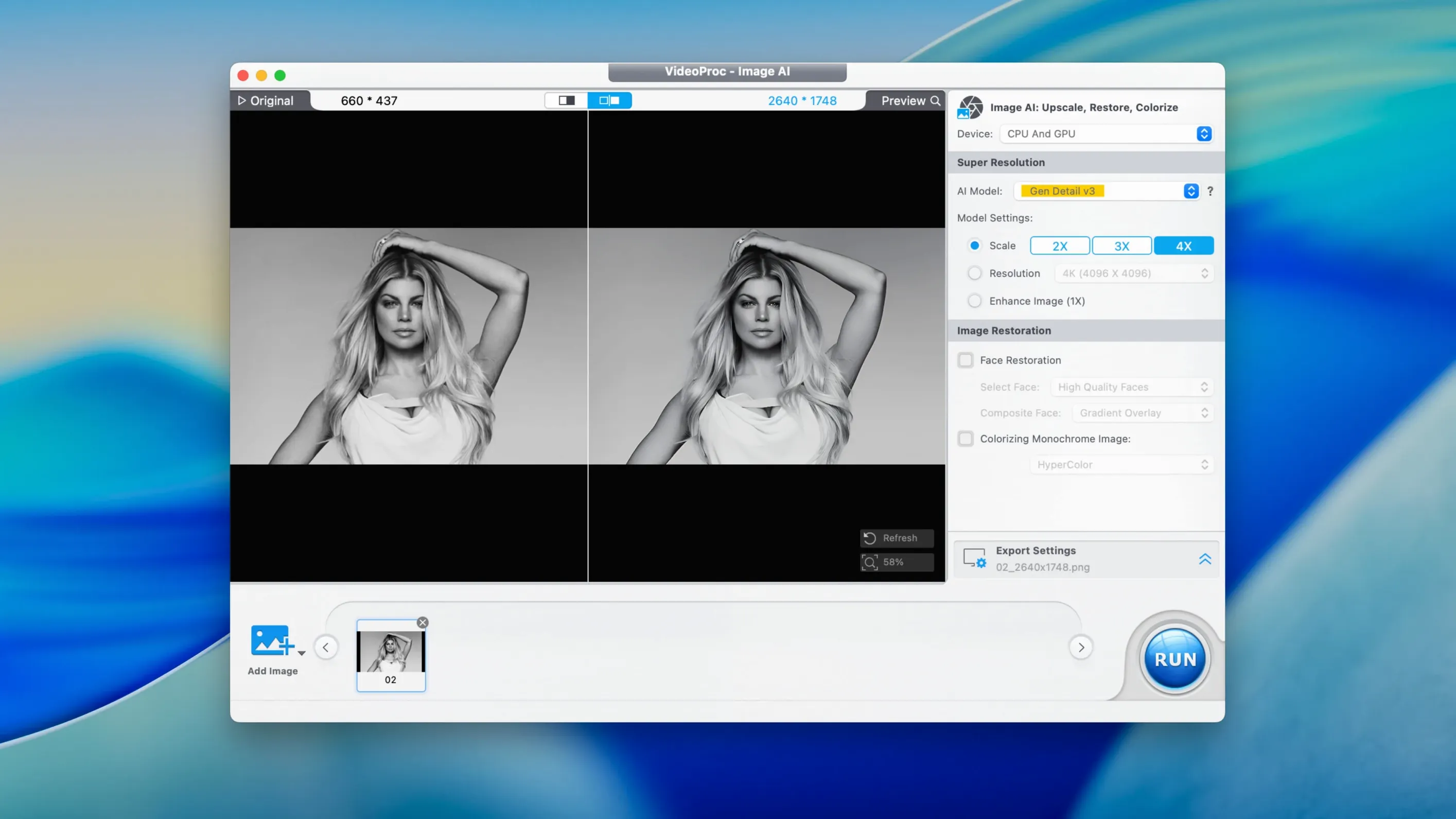
On the other end of the spectrum, I've seen complete beginners do well with this app when their only goal is fixing old family videos. The AI upscaling and stabilization don't ask for technical input — just load a DV tape transfer or a shaky VHS capture and pick an output size. The app makes its own decisions about what needs cleaning, and for many people that's exactly the right level of involvement.
Upscaling Turns Grain into Ugly Artifacts
The most common slip-up is treating every output preset as equally good for every source. An 8K AI upscale sounds impressive, but on a grainy, low-bitrate clip it can amplify compression artifacts into something worse than the original. Match the output ambition to the source quality — 4K is often the smarter ceiling for older material.
Another frequent stumble: forgetting to check the audio track before a long conversion. It's easy to accidentally export a video with the wrong language stream selected or, worse, no audio at all because the source had an unusual codec layout. A thirty-second test export saves a lot of re-queuing later.
People also tend to ignore the merge and trim tools until they've already queued up a dozen clips separately. If your end goal is a single file, use the timeline to combine and trim first, then convert once. Running twelve individual conversions only to stitch them together afterward is the kind of inefficiency that makes a fast machine feel slow.
Finally, don't sleep on the compression presets for social platforms. The Instagram, YouTube, and TikTok profiles aren't just generic "medium quality" toggles — they're tuned to each platform's current encoding recommendations, and using them can prevent the re-compression artifacts that happen when a site re-encodes an already poorly compressed upload.
- macOS 10.15 or later
- Apple Silicon and Intel 64-bit
Also on readers' docks
Sign in or create an account to leave a comment.
No comments yet. Tell me how it got on with your other devices.
More in Mac Apps
See all VideoByte BD-DVD Ripper
2.1.6 Mac Apps
124 MB
VideoByte BD-DVD Ripper
2.1.6 Mac Apps
124 MB
 VideoProc Converter
6.6 Mac Apps
86 MB
VideoProc Converter
6.6 Mac Apps
86 MB
 ViWizard Spotify Music Converter
2.17.0 Mac Apps
7 MB
ViWizard Spotify Music Converter
2.17.0 Mac Apps
7 MB
 VMware Fusion Pro
26H1 Mac Apps
479 MB
VMware Fusion Pro
26H1 Mac Apps
479 MB
 Updated Vibe Island
1.0.53 Mac Apps
18 MB
Updated Vibe Island
1.0.53 Mac Apps
18 MB
 Viaduct
1.3.0 Mac Apps
49 MB
Viaduct
1.3.0 Mac Apps
49 MB
 WALTR PRO
4.0.122 Mac Apps
29 MB
WALTR PRO
4.0.122 Mac Apps
29 MB
 Vector Magic
1.20 Mac Apps
17 MB
Vector Magic
1.20 Mac Apps
17 MB