









Download Viaduct for macOS
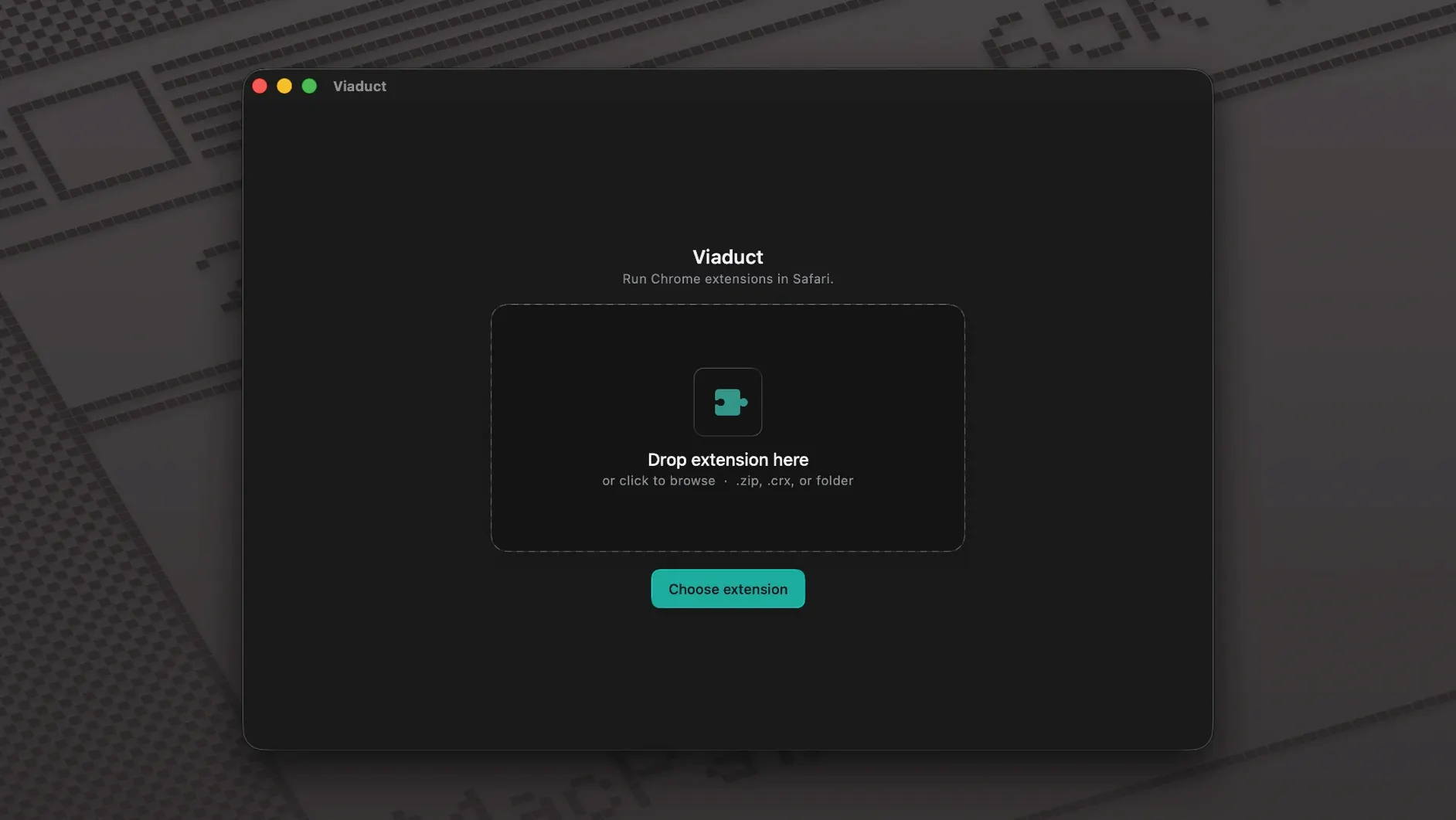
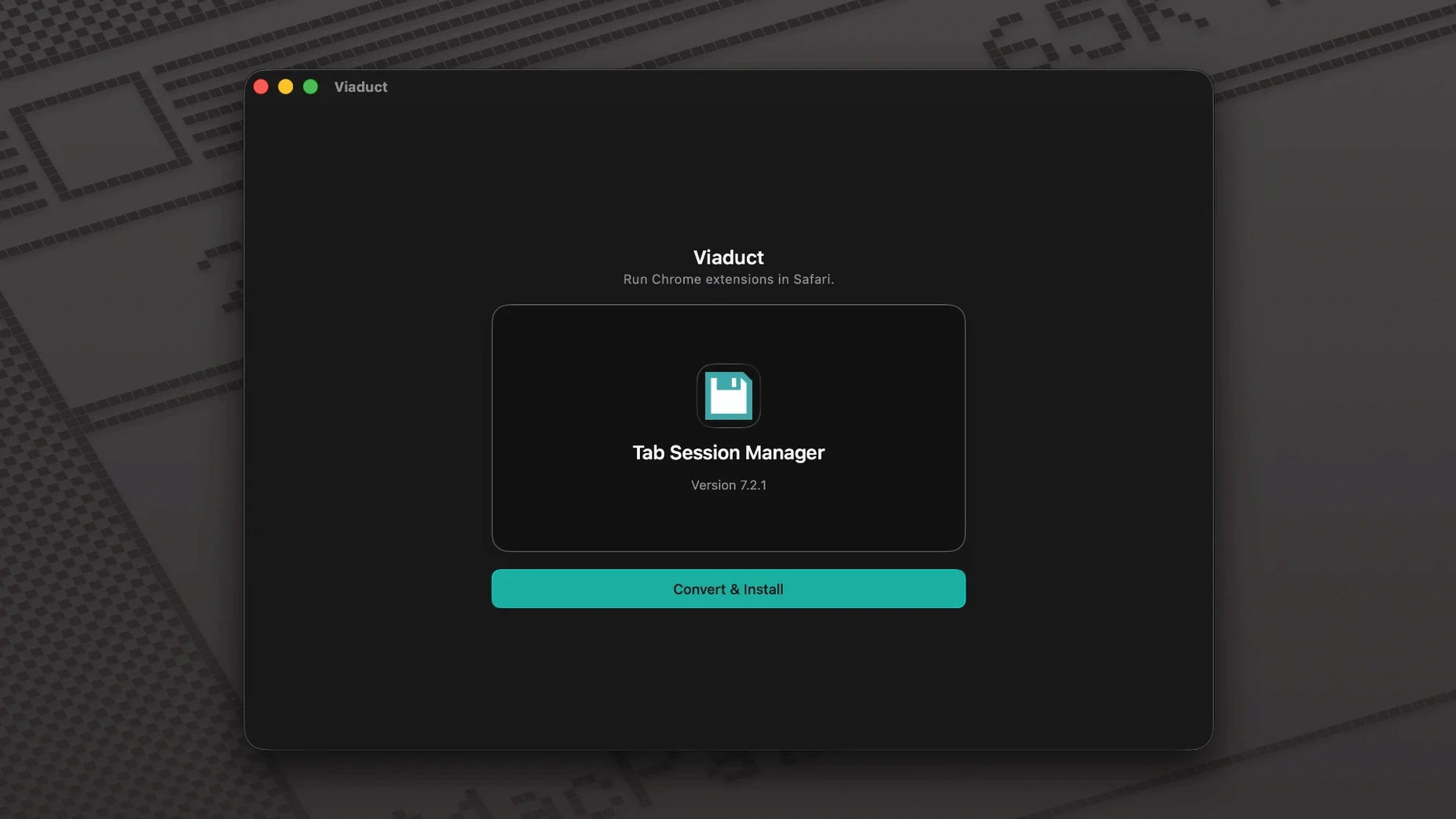
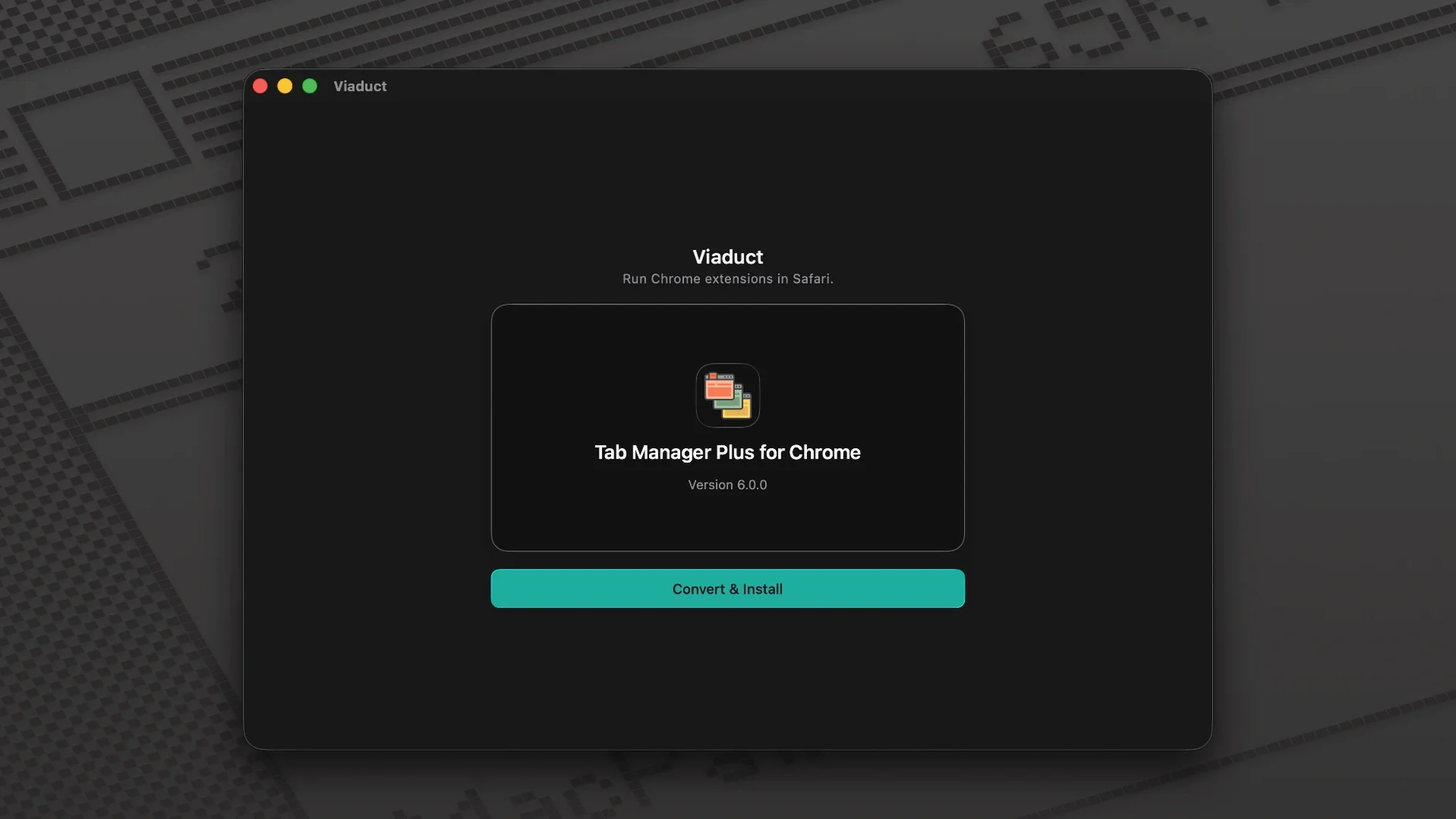
Over 100,000 Chrome extensions exist that never made the jump to Safari. Viaduct bridges that gap by converting one into the other in seconds.
Drag and drop — pull a downloaded Chrome extension folder right onto Viaduct’s window, or paste a Chrome Web Store link; it accepts both without fuss.
Automatic signing — every extension gets signed before installation, so Safari recognizes it as a native citizen straight away.
One-click install — no manual copying into obscure Library folders; Viaduct places the finished extension where Safari expects it and activates it immediately.
Open-source engine — the conversion logic lives out in the open, meaning anyone curious about how extensions get reshaped can peek under the hood.
A quality-of-life scenario
Picture a front-end developer who lives in Safari for its battery-sipping ways on an M-series MacBook, but whose debugging toolkit—React DevTools, a Redux inspector, and a tiny CSS utility—only runs officially in Chrome. Before Friday’s deploy, a layout regression crops up. Instead of firing up a separate browser, she drags her three essential Chrome extensions through Viaduct in under a minute. All three land in Safari’s toolbar, signed and working. She debugs the grid issue, commits the fix, and never left the browser where her bookmarks, Keychain passwords and reading list live.
Settings worth flipping first
The first thing I reach for after converting a handful of extensions is Safari’s per-site permissions panel. Viaduct signs everything properly, but Safari still respects your privacy defaults—each converted extension starts with access set to None. Head into Safari > Settings > Extensions, tick the checkbox for your new arrival, then click Edit Websites to grant access only to the domains where it’s genuinely needed.
Another worthwhile stop: Safari > Settings > Advanced, where “Show Develop menu in menu bar” unlocks a quick toggle for disabling extensions per-page. Handy when a converted extension behaves unexpectedly on a single site without requiring you to remove it entirely.
If Viaduct itself feels chatty with notifications, you can manage those under System Settings > Notifications > Viaduct. I keep signing-reminder alerts on because they’ve saved me from broken extensions twice now, but the install-success banner can go without guilt.
From Chrome stash to Viaduct pipeline
Viaduct doesn’t try to be a platform—it’s more of a pipeline tool, and that’s where it slots neatly alongside existing habits. My own pattern: I stash promising Chrome extensions in a ~/Downloads/Extensions folder, drop them onto Viaduct, and let the signed Safari copies accumulate in Safari’s preferences. Combined with Shortcuts, you can even build a quick automation that watches a folder for new .crx or unpacked extension directories and hands them off to Viaduct for batch conversion—saving a few clicks on days when you’re experimenting with half a dozen obscure utilities.
The open-source engine also plays nicely with Xcode-adjacent workflows. If you maintain a fork of the conversion logic, running it locally while Viaduct handles signing and installation gives you a fast feedback loop for testing how a Chrome extension’s manifest translates into Safari’s format. Developers who distribute extensions themselves occasionally use this pairing to ship a Safari variant without maintaining a separate codebase.
On the everyday side, Viaduct complements iCloud Keychain and Handoff beautifully. Once an extension lives inside Safari on your Mac, it travels with your browsing session across iPhone and iPad—assuming the developer built a mobile companion—keeping your cross-device experience consistent without any extra steps.
- macOS 13 or later
- Apple Silicon and Intel Macs
Also on readers' docks
Sign in or create an account to leave a comment.
No comments yet. Tell me how it got on with your other devices.
More in Mac Apps
See all Updated Vibe Island
1.0.53 Mac Apps
18 MB
Updated Vibe Island
1.0.53 Mac Apps
18 MB
 Vector Magic
1.20 Mac Apps
17 MB
Vector Magic
1.20 Mac Apps
17 MB
 VideoByte BD-DVD Ripper
2.1.6 Mac Apps
124 MB
VideoByte BD-DVD Ripper
2.1.6 Mac Apps
124 MB
 Updated VideoProc Converter AI
8.13 Mac Apps
254 MB
Updated VideoProc Converter AI
8.13 Mac Apps
254 MB
 VideoProc Converter
6.6 Mac Apps
86 MB
VideoProc Converter
6.6 Mac Apps
86 MB
 ViWizard Spotify Music Converter
2.17.0 Mac Apps
7 MB
ViWizard Spotify Music Converter
2.17.0 Mac Apps
7 MB
 VMware Fusion Pro
26H1 Mac Apps
479 MB
VMware Fusion Pro
26H1 Mac Apps
479 MB
 Unite Pro
1.8 Mac Apps
27 MB
Unite Pro
1.8 Mac Apps
27 MB