









Download VideoProc Converter for macOS
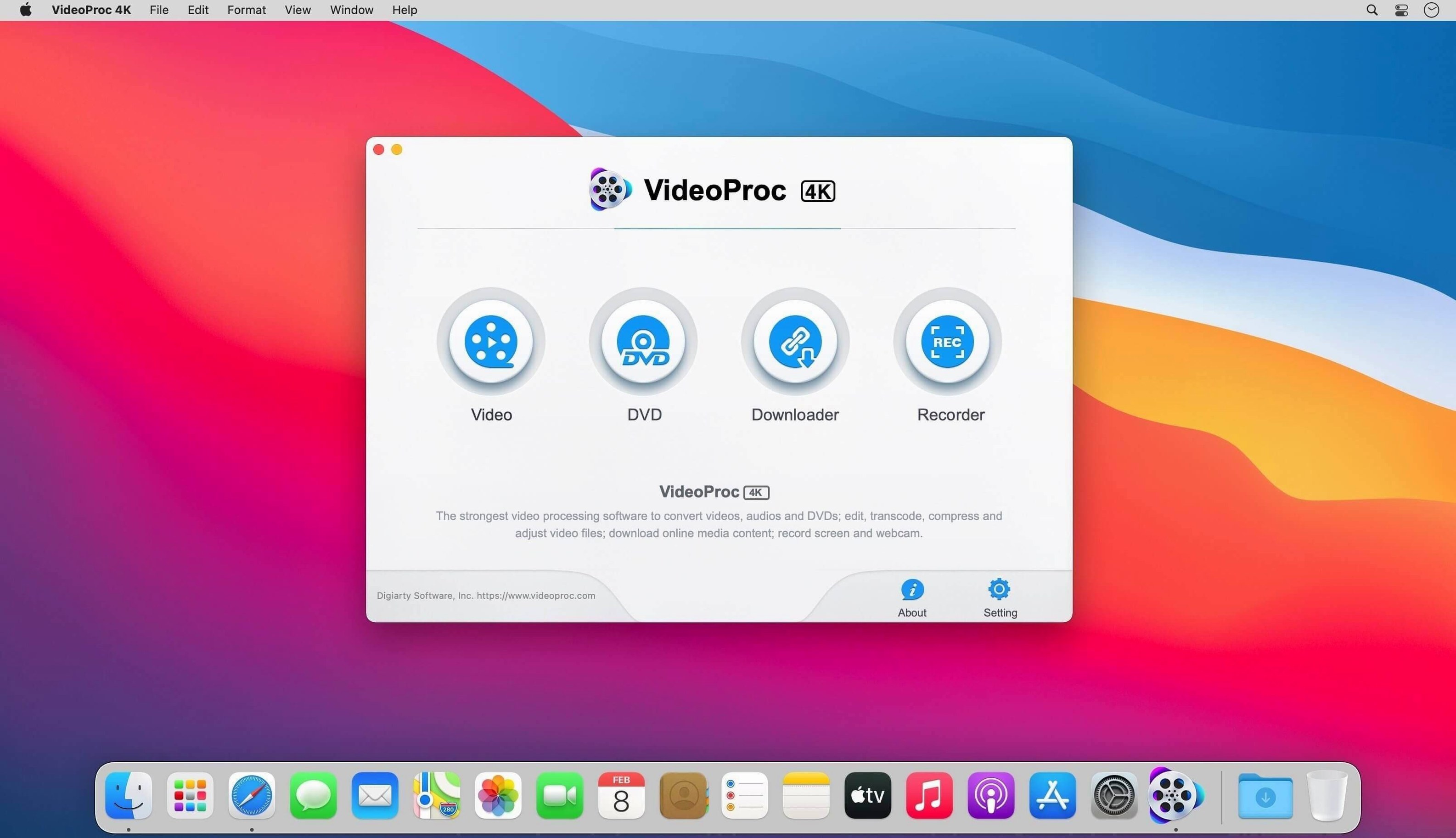
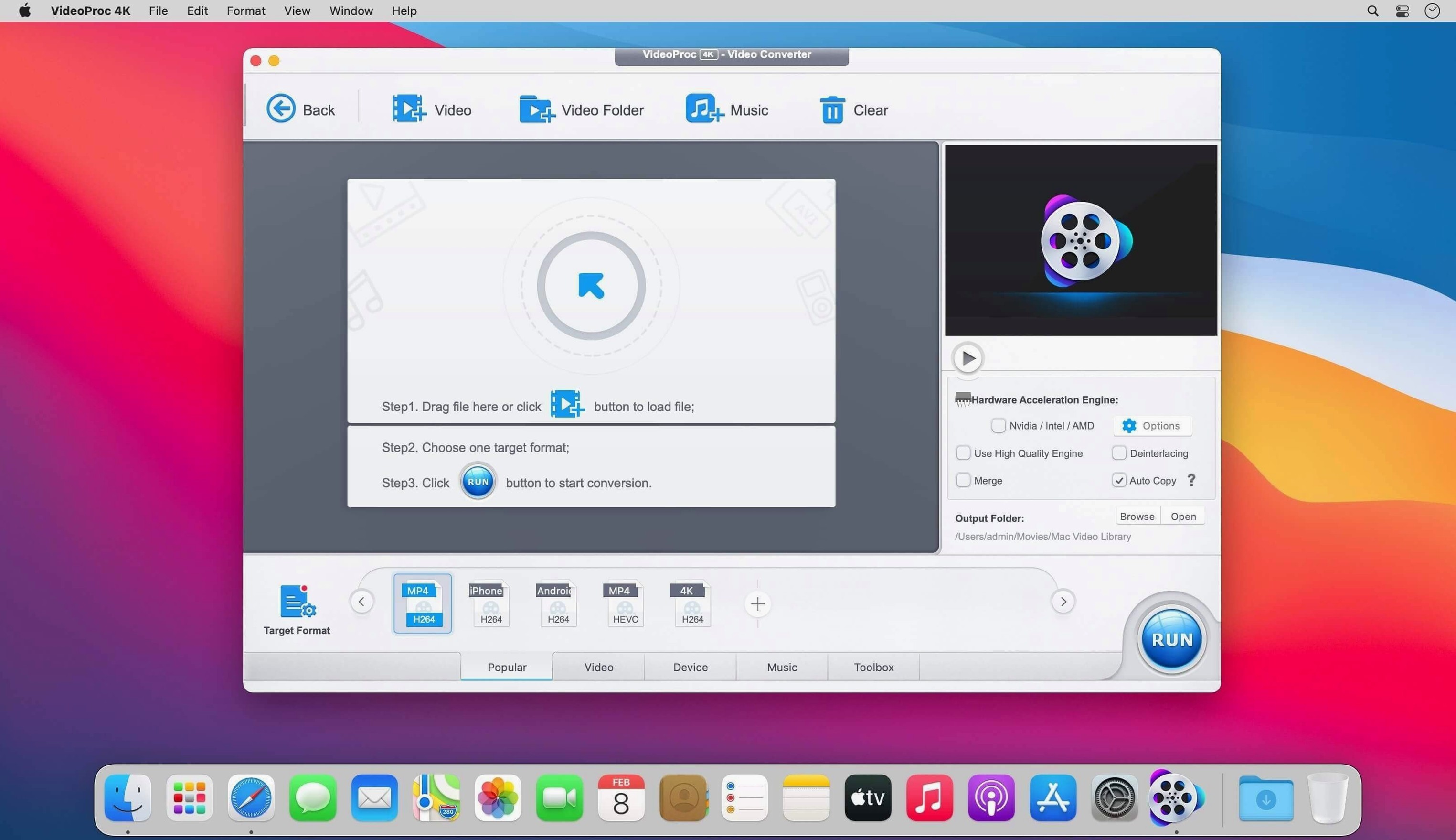
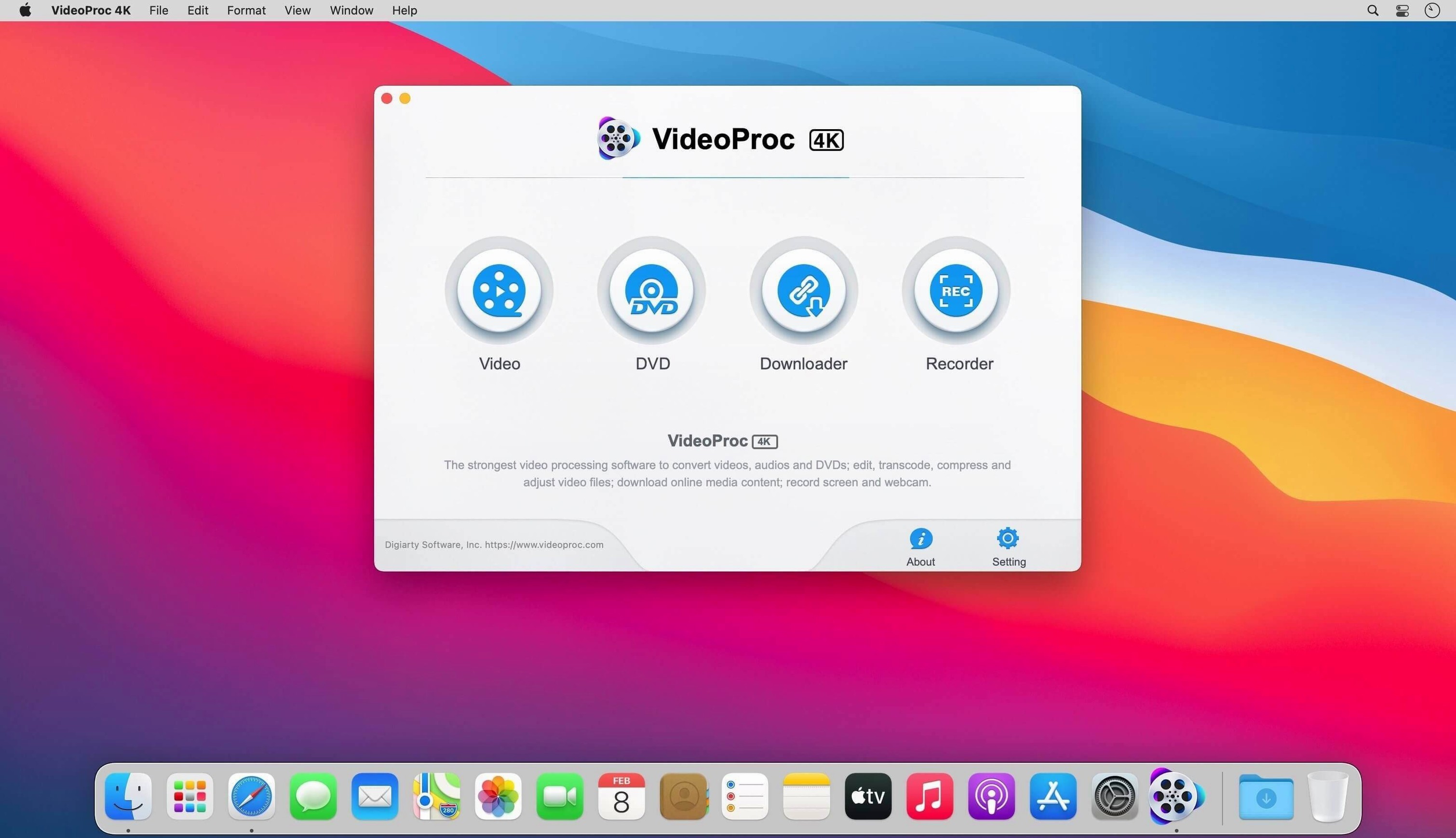
If you’ve ever relied on HandBrake for no-nonsense transcoding, think of VideoProc Converter as its more versatile cousin—one that also edits, compresses, downloads, and records. It takes that same “get the job done” energy and spreads it across a wider set of everyday video tasks, all while leaning on your Mac’s hardware to keep things moving.
GPU-boosted conversion and batch downloads
- Hardware-accelerated conversion and editing. The app taps into Intel, AMD, and Apple Silicon GPUs so encoding and effects don’t grind everything to a halt.
- Batch downloading video and audio. Grab UHD, HD, and playlists in one go—useful for catching up on a series or pulling down a music set.
- Trimming, cutting, and compressing. Quick edits and file-size shrinking happen in the same window, no round‑tripping between separate tools.
Drops 32-bit Macs and older OS limits
- The Intel build is 64-bit, so really old 32-bit Macs won’t run it.
- AI‑powered features ask for macOS 10.15 or later, though the base app works back to 10.10.
From hike footage to clean timeline files
Picture a Tuesday evening. You came home with a card full of 4K footage from a weekend hike — a mix of iPhone clips, drone aerials, and a few GoPro shots that need straightening. You mount the disk image, run the Gatekeeper-friendly install, and within a minute VideoProc Converter is sitting in your Applications folder.
You launch it and drag the whole folder of clips onto the main window. The app scans them quickly and lists everything in a tidy queue. First decision: the drone footage is 60 fps but you want it at 24 for a cinematic feel, so you tick those files, pick an output preset — H.265 in an MP4 container — and notice the GPU acceleration badge lights up. That means the encode will fly.
Next, two iPhone clips have too much wandering at the start. You click the scissor icon on each, set in and out points, and trim without leaving the queue. One GoPro file is tilted; you hop into the rotate-and-crop panel, straighten the horizon, and apply the fix. All edits stack as pending operations — nothing touches the originals yet.
You remember a royalty-free track you spotted on a video platform earlier. Switch to the Download tab, paste the playlist URL, choose audio-only extraction, and the app grabs the tracks while your conversion queue sits waiting. Back in the Video tab, you hit “Run” and watch the progress bar chew through the batch. The whole job — trims, rotation, frame-rate changes, and a dozen transcodes — finishes in under fifteen minutes on an M1 MacBook Air, thanks to that hardware acceleration.
One last thing: the downloaded audio needs normalizing. You pull the file into the editor, bump the gain, and export it as AAC. Everything lands in a neatly named output folder, ready for the timeline.
Change the output folder before your first export
Out of the box, VideoProc Converter makes a few assumptions you might want to override. These tweaks save time and prevent “wait, where did that file go?” moments.
- Output folder. The default dumps everything into a “VideoProc” folder inside Movies. If you prefer a project-based structure on an external drive, set that path in Preferences before your first batch.
- Hardware acceleration engine. On Apple Silicon Macs the app picks the right engine automatically, but Intel users should check the setting manually — toggle between Intel Quick Sync, AMD, or NVIDIA depending on what’s in your machine. A mismatch won’t break anything, but it’ll be slower.
- Auto-copy for same-format clips. Turn this on if you trim a lot of footage that already matches your target codec. It bypasses re-encoding entirely for cuts that don’t need it, which is a huge time-saver on long recordings.
- Default audio language and subtitle handling. If you download from video platforms regularly, set your preferred audio language and decide whether you want subtitles burned in, soft-subbed, or skipped. Doing it once in Settings beats adjusting per-download every time.
Remux instead of re-encoding simple trims
Most of these come from treating VideoProc Converter like a simple transcoder and ignoring the editing and batch features sitting in plain sight. Here’s what trips people up.
- Re-encoding when a remux would do. If you’re just trimming fat from a clip and the codec already matches what you want, use the “Copy” option in the video codec dropdown. Beginners often pick H.264 again and waste time re-encoding an already H.264 file, losing quality in the process.
- Ignoring the merge function. Dragging in ten clips and converting them individually, then stitching them together later in another app, takes twice as long. The “Merge” checkbox combines selected files into one output right in the queue — tick it before you hit Run.
- Forgetting to check frame-rate settings on mixed batches. A folder with 30 fps, 24 fps, and 60 fps sources can end up with stuttery output if the app applies a blanket conversion. Set the frame rate per-file or group similar clips before converting.
- Downloading entire playlists in 4K on a capped connection. The downloader defaults to the highest available resolution. On a data budget, dial it down to 1080p in the download panel — the option is easy to miss when you’re in a hurry.
- Overlooking the “Keep original” toggle on edits. The app protects your source files by default, but if you uncheck it to save space, you’re working destructively. Leave it on until you’re certain the export is correct.
A prep tool that feeds clean footage to your NLE
VideoProc Converter doesn’t try to replace a full nonlinear editor like DaVinci Resolve or Final Cut Pro. Instead, it lives one step earlier in the chain — a preparation tool that hands off clean, uniform footage to the timeline. I often use it to ingest a card, transcode everything to ProRes 422, apply basic rotation and trim, and then drag the results straight into Final Cut. No transcoding on import, no background tasks eating CPU while I’m trying to edit.
The downloader integrates with macOS’s built-in media access in a quiet way. Downloaded audio lands in the Music app with a couple of extra clicks if you point the output folder at “Automatically Add to Music.” Video playlists dropped into the TV app work the same way, keeping things watchable across devices via iCloud sync — no extra step beyond choosing the right destination.
QuickTime Player and Preview handle spot-checks of the exports, and because VideoProc Converter writes standard MP4 and MOV containers, everything opens without a hiccup. The app also plays nicely with Finder tags: I tag source folders as “raw” and output folders as “transcoded” so Spotlight searches stay meaningful weeks later.
On the automation side, there’s no official Shortcuts integration, but the app accepts drag-and-drop from Finder and clipboard URLs in the download tab, which means you can chain it with folder actions or simple AppleScript wrappers if you’re comfortable scripting. Even without that, right-click “Open With” on a video file sends it straight into the converter, so it nests inside the everyday macOS workflow without feeling bolted on.
- macOS: 10.10 or later
- Architecture: Intel (64-bit)
Questions people ask
Does VideoProc Converter run natively on Apple Silicon Macs?
Yes, the Mac version is optimized for Apple Silicon and runs natively on M1, M2, M3, and M4 chips.
Also on readers' docks
Sign in or create an account to leave a comment.
No comments yet. Tell me how it got on with your other devices.
More in Mac Apps
See all Updated VideoProc Converter AI
8.13 Mac Apps
254 MB
Updated VideoProc Converter AI
8.13 Mac Apps
254 MB
 ViWizard Spotify Music Converter
2.17.0 Mac Apps
7 MB
ViWizard Spotify Music Converter
2.17.0 Mac Apps
7 MB
 VMware Fusion Pro
26H1 Mac Apps
479 MB
VMware Fusion Pro
26H1 Mac Apps
479 MB
 VideoByte BD-DVD Ripper
2.1.6 Mac Apps
124 MB
VideoByte BD-DVD Ripper
2.1.6 Mac Apps
124 MB
 Updated Vibe Island
1.0.53 Mac Apps
18 MB
Updated Vibe Island
1.0.53 Mac Apps
18 MB
 Viaduct
1.3.0 Mac Apps
49 MB
Viaduct
1.3.0 Mac Apps
49 MB
 WALTR PRO
4.0.122 Mac Apps
29 MB
WALTR PRO
4.0.122 Mac Apps
29 MB
 Vector Magic
1.20 Mac Apps
17 MB
Vector Magic
1.20 Mac Apps
17 MB