Download uDock for macOS
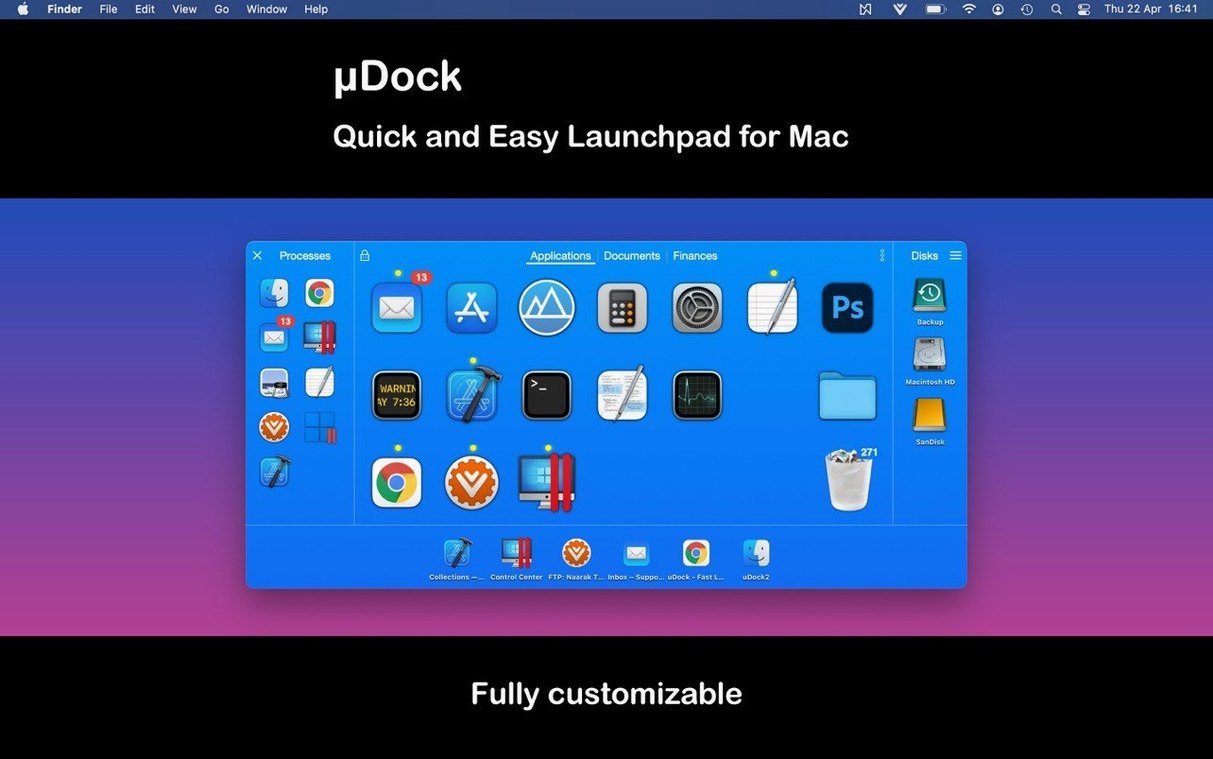
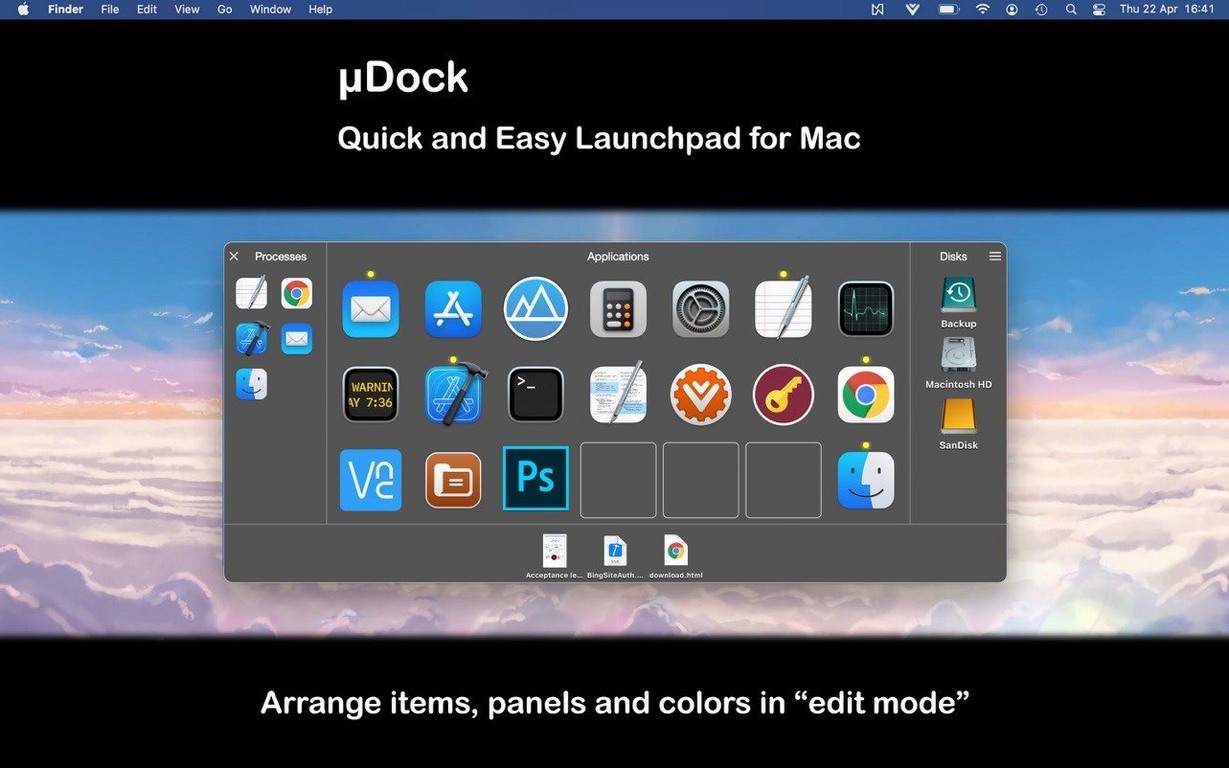
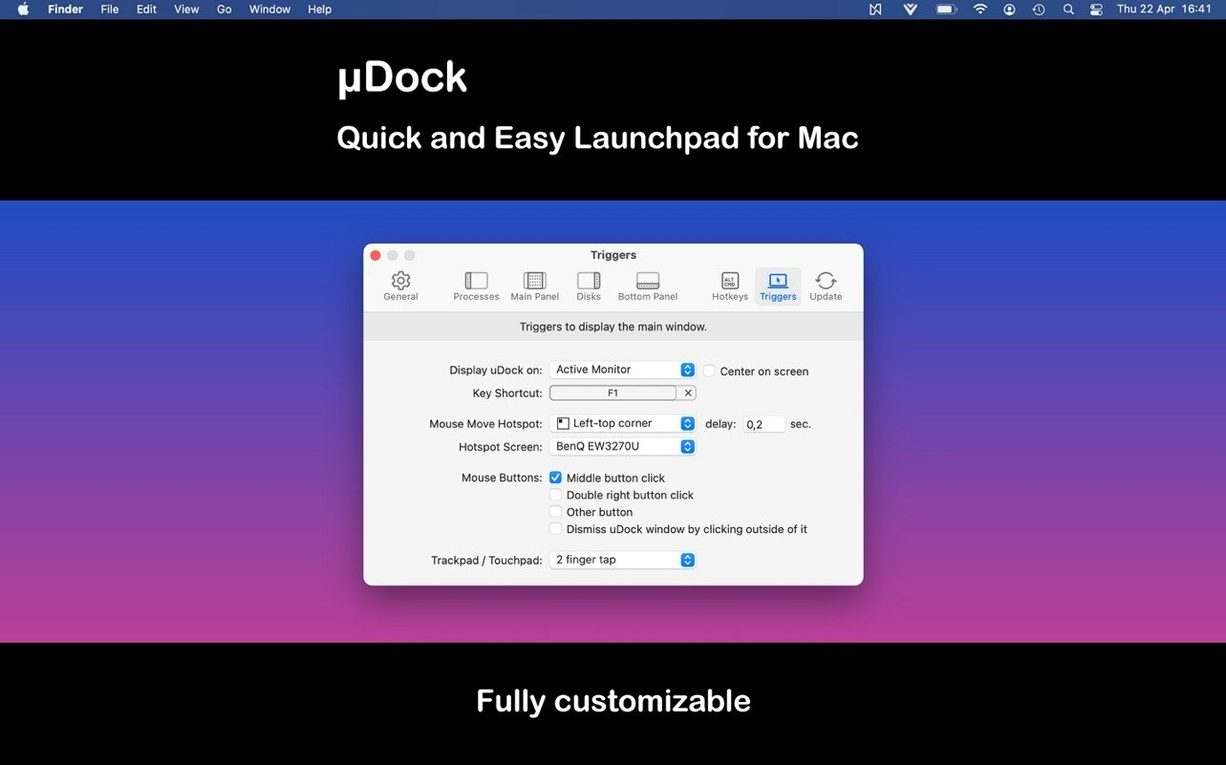
People who keep a dozen apps, folders, and documents within arm’s reach tend to outgrow the standard Mac dock pretty quickly. uDock steps in as a lightweight system extension that lives in the toolbar and stays out of the way until you summon it with a keyboard shortcut or a mouse hotspot.
Assigning hotkeys to apps and files remains the fastest route
The core idea hasn’t budged: you get a highly configurable dock that organizes shortcuts into tidy tabs for applications, documents, music, and folders. Assigning hotkeys to individual apps, files, or folders is still the fastest route to the things you open every day. The quick-access panel for running processes and connected drives remains a handy touch, especially when you want to jump to something that isn’t pinned anywhere. It runs quietly on Intel and Apple Silicon Macs, and the developer keeps it fully compatible with the latest macOS releases—right up through Tahoe. English, German, Spanish, and French are all supported out of the box.
A stability release tightens the tab-and-hotkey workflow
Version 5.3.1 doesn’t shake up the feature list. What you’re getting is a stability release that tightens the existing tab-and-hotkey workflow rather than adding new buttons. That’s actually good news for anyone who already relies on its particular rhythm: the unobtrusive toolbar presence, the mouse-corner activation, and the way it lets you bounce between a project folder, a playlist, and a handful of utilities without hunting through Finder or Launchpad. The built-in SFTP client—capable of uploads, downloads, renames, deletes, and folder creation—remains tucked inside for those occasional remote file tasks. If you’ve been using uDock for a while, this version keeps everything humming. If you’re just discovering it, you’re stepping into a mature setup that hasn’t been overhauled for overhauling’s sake.
What people tend to ask before installing
The first question is almost always whether uDock replaces the native dock entirely. It doesn’t—and that’s by design. Think of it as a supplemental launcher that runs alongside the standard dock, giving you a second layer of shortcuts you can summon on demand. You keep the built-in dock for your everyday pinned apps, and uDock handles the overflow: deep folder shortcuts, documents you’re currently working on, and apps you launch often enough to justify a hotkey but not often enough to pin permanently.
Another common concern is resource usage. Because uDock sits in the system toolbar and stays dormant until activated, it doesn’t constantly redraw or poll in the background. On both Apple Silicon and Intel machines, it runs lean—more like a menu bar utility than a full application. People who are already running several toolbar apps won’t feel a difference.
And yes, the SFTP client comes up. It’s not a full-featured file manager, but for quick uploads to a web server or grabbing a config file from a remote machine without launching a separate app, it does the job. You bookmark a server once and access it from a tab thereafter.
Spend a day noting what you really reach for outside the dock
When you first open the app, resist the urge to configure everything at once. Spend a day or two noting which apps and folders you actually reach for outside the native dock, then start building tabs around those clusters. Most people end up with three or four tabs—say, Work Apps, Current Project, and Media—rather than trying to replicate their entire Applications folder.
Setting up the activation method early matters more than it seems. The default keyboard shortcut works, but if you’re already using that combination elsewhere, switching to a mouse hotspot (a corner of the screen) keeps conflicts at bay. Test both and stick with whichever feels more reflexive.
Don’t sleep on hotkeys for individual documents. Assigning a key combo to a spreadsheet or a working draft means you can open it from any app, no tab switching required. After a week, the muscle memory kicks in and the whole setup starts to feel like an extension of your fingers rather than a separate tool.
- macOS 11 (Big Sur) or later
- Apple Silicon or Intel 64-bit Mac
Questions people ask
Can I assign a keyboard shortcut to any item in uDock?
Yes, hotkeys can be assigned to apps, documents, and folders so you can open them without touching the mouse.
What should I do before uninstalling uDock?
The installation guide recommends quitting the app completely before you remove it from your system.
Also on readers' docks
Sign in or create an account to leave a comment.
No comments yet. Tell me how it got on with your other devices.