Download Tuxera NTFS for macOS
Out of the box, every Mac can see files on a Windows NTFS drive—but the moment you try to copy, rename, or delete anything, the system freezes you out. Here's what people usually want to know before they fix that.
What it actually is — A file system driver that slots into macOS and gives you full read and write access to any NTFS-formatted drive, whether it's a USB stick, an external hard disk, or a disk image you created.
What it unlocks — The ability to edit, copy, move, and delete files on drives that came from a Windows PC. It works across every NTFS version and even handles volumes you use inside a Windows virtual machine.
Who feels the difference — Anyone who shuttles a physical drive between a PC and a Mac regularly. Instead of keeping a FAT32 stick around as a middleman, you just plug the real drive in and get to work.
The macOS Write Block That Leads Everyone Here
Most people arrive at Tuxera NTFS after bumping into the same wall: macOS says no to writing on a drive that worked fine on a PC five minutes ago. The next question is usually “which tool fixes this with the least hassle.” Here's how the landscape looks once you've tried a few.
Paragon NTFS for Mac is the other big name, and it's a close cousin in daily use. Both install a kernel extension, both appear in System Preferences, and both let you manage NTFS volumes from a tidy panel. Where Tuxera pulls ahead is in repair work—Paragon's disk checking tools are more limited, while Tuxera inherited real NTFS maintenance from its Linux heritage. If you've got a drive that Windows itself complains about, Tuxera stands a better chance of patching it up enough to pull your files off. Paragon sometimes mounts drives a hair faster on Apple Silicon machines, but it's marginal enough that most people won't notice.
Mounty sits at the opposite end of the spectrum. It's lightweight, free, and relies on Apple's own built-in NTFS support—which is experimental and disabled by default for good reason. Mounty simply flips a flag and hopes for the best. It works for quick, one-off transfers from a healthy drive, but it offers zero repair tools, no preference pane, and a track record of occasional file system hiccups that can leave a drive in a state macOS won't touch again until you plug it into a Windows machine and run chkdsk. It's the handy pocketknife when Tuxera is the full toolbox.
NTFS-3G (the free, open-source project Tuxera actually grew out of) still exists, and technically it does the job. The catch is performance—write speeds are noticeably slower, especially with lots of small files, and it doesn't include the caching layer Tuxera built to keep things snappy. If you're copying a 40 GB video project to an external drive, the difference between NTFS-3G and Tuxera is the difference between going for coffee and going for lunch.
Per-Drive Caching Toggles That Change the Feel
Tuxera's preference pane does a few things that don't scream for attention but quietly shape how smooth the experience feels.
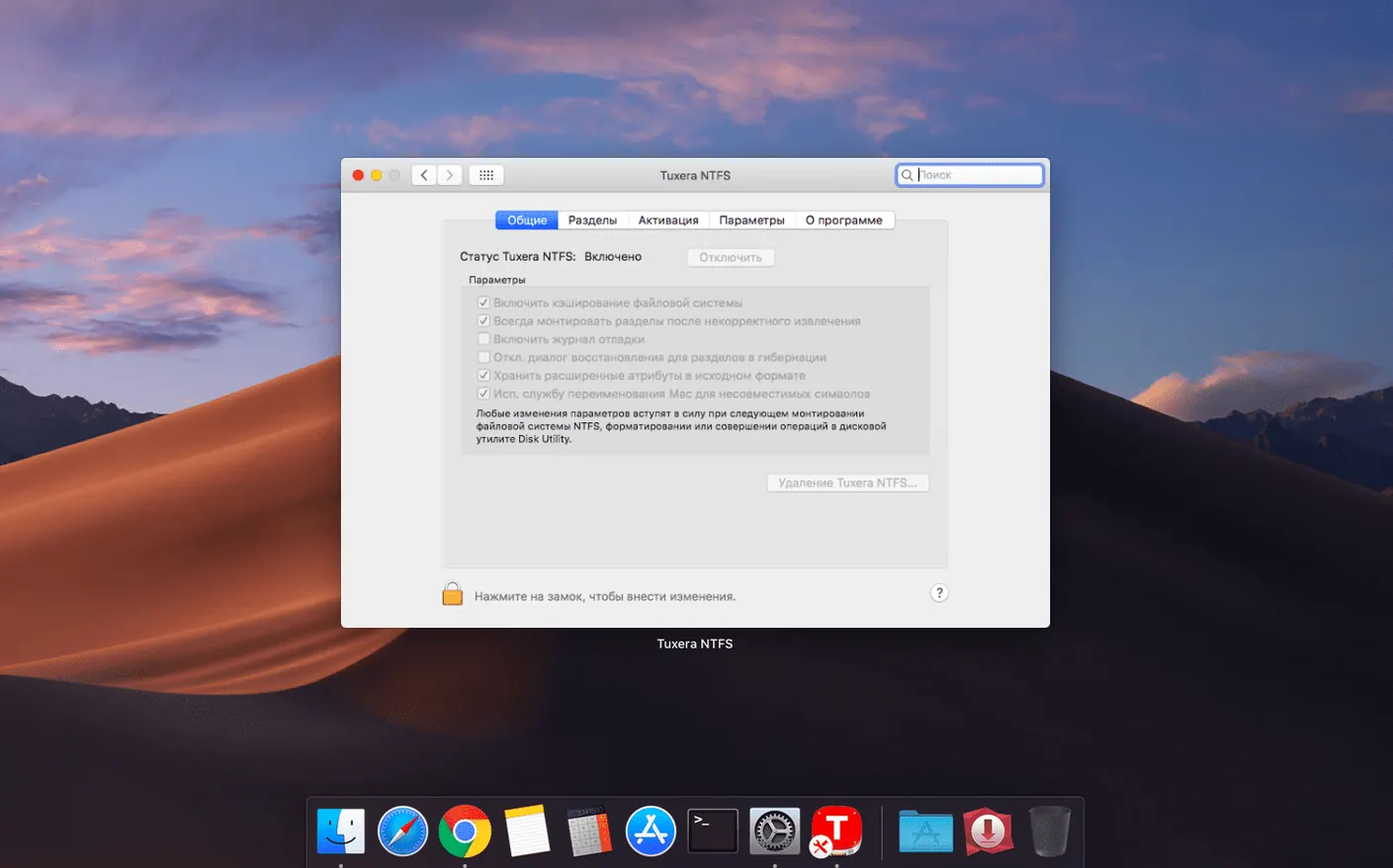
- Per-drive caching controls. In the preferences, you can toggle write caching on or off for individual volumes. Most people leave it on—it dramatically speeds up transfers—but if you're the type who yanks a drive without ejecting, turning it off for that drive means fewer chances of file system damage.
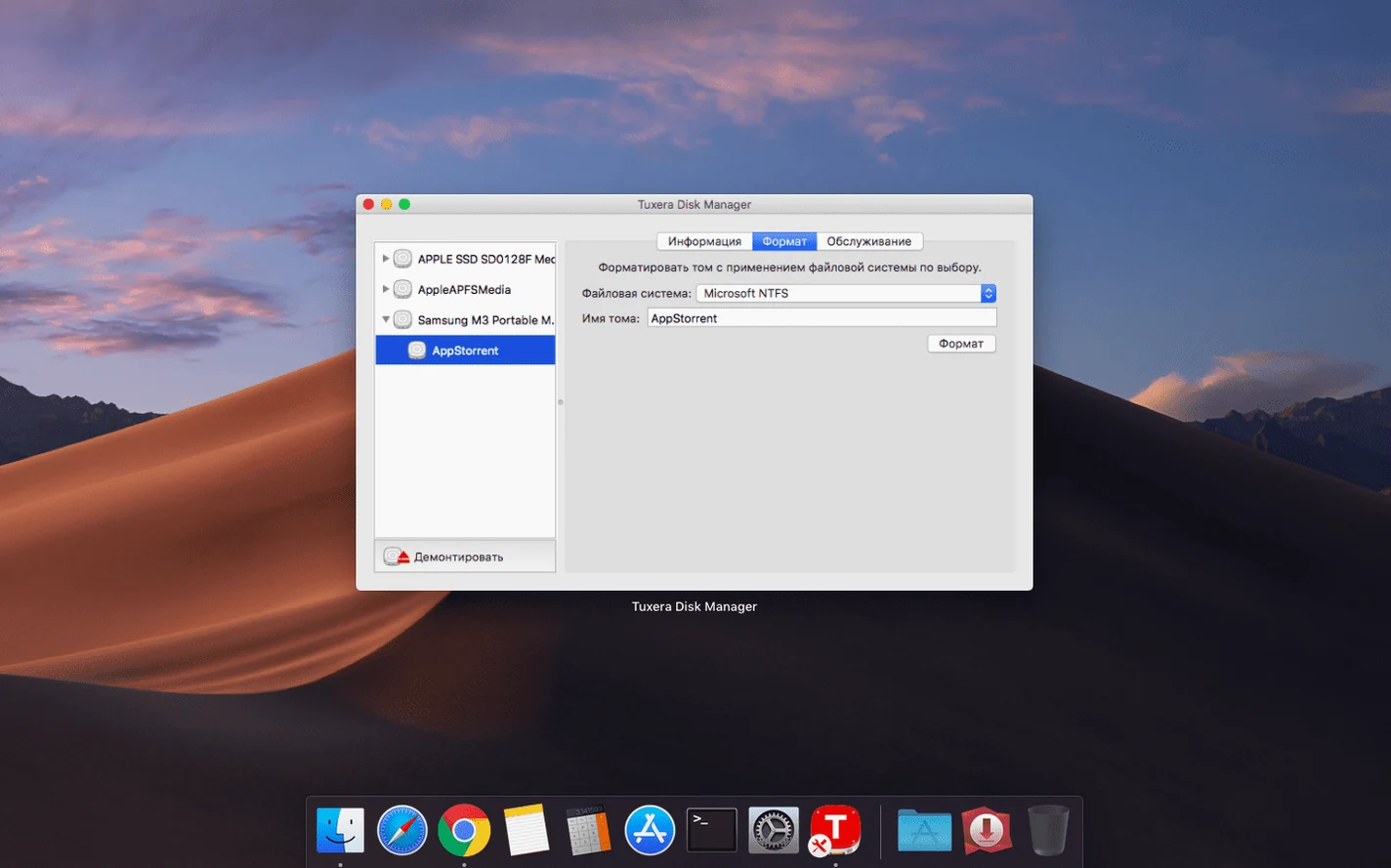
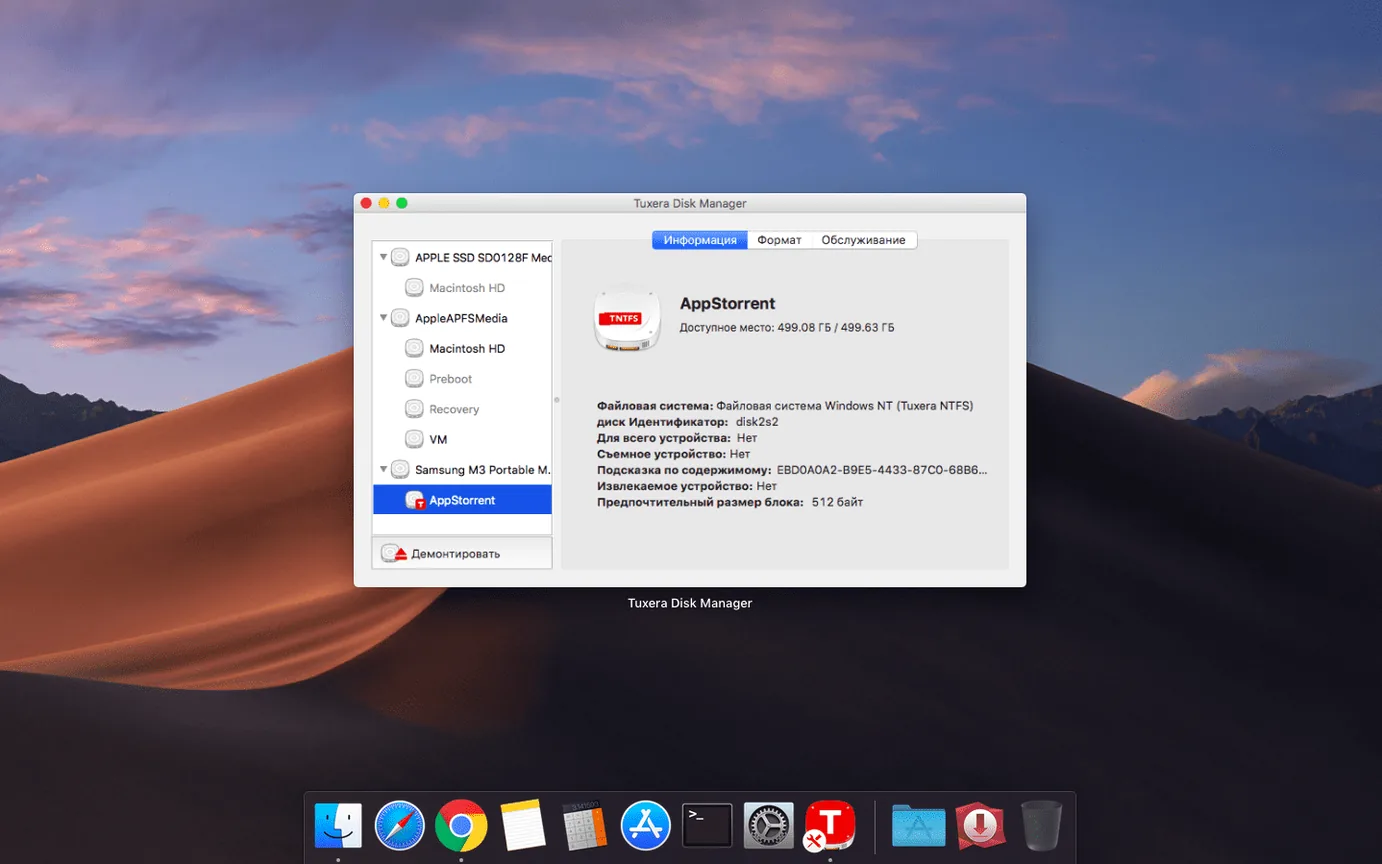
- Disk image creation, right from the menu bar. You can create a formatted NTFS disk image without opening Disk Utility. It's buried in the Tuxera Disk Manager, and it's perfect for testing or for keeping a portable workspace that's readable on both systems.
- Native format support. Plug in a drive, right-click it on the desktop or in Finder, and “Format as NTFS” appears as an option. No terminal commands, no booting into Windows. It's the kind of small thing that saves you a dozen clicks over the years.
- Automatic remounting. If a volume was mounted read-only before Tuxera was installed, the driver detects it and offers to remount it with full read-write access. The prompt is a single click, and it remembers your choice for that drive next time.
Shuttling a 2 TB Samsung T7 Between Mac and Windows Resolve
Imagine someone who edits video on a Mac Studio at home but collaborates with a team that runs DaVinci Resolve on Windows workstations. They keep a 2 TB Samsung T7 formatted in NTFS—it's the shuttle drive that carries project files, rendered timelines, and raw footage back and forth.
On a typical Wednesday, they plug the T7 into the Mac Studio. Without a driver, they'd be stuck: they can watch the renders their colleague dropped in the “Exports” folder, but they can't add their own cuts or reorganize the mess of B-roll that needs sorting. Tuxera NTFS mounts the drive in seconds, and Finder treats it like any other disk. They drag a 22 GB ProRes file onto it, rename the “Rough_Cut_v3” folder to “Rough_Cut_v4,” and delete three duplicate takes—all without a second thought.
Later, the drive goes back to the Windows machine. The new files show up with correct timestamps, something that wasn't always guaranteed before the 2023.1 update squashed that date-stamp bug. The editor doesn't think about file systems at all. That's the whole point.
Run a Check on Your Most-Used Drives Right Away
You can install it, forget it, and mostly be fine. But a few early habits make the long-term experience cleaner.
Run a check on your most-used drives right away. Open Tuxera Disk Manager, select the volume, and click “Check.” It's non-destructive and catches minor file system errors that have been sitting there since the drive's last improper ejection on a Windows PC. Fixing them now means they won't surface as a cryptic “error -36” in Finder three weeks later.
Set up the menu bar indicator. It's off by default. Turning it on gives you a tiny NTFS icon that shows mounted volumes at a glance and lets you eject them from a dropdown. If you work with multiple external drives, this alone saves trips to the desktop or Finder sidebar.
Test with a disposable drive first. Grab an old USB stick, format it as NTFS on a PC, and copy a few files back and forth on your Mac before trusting your main work drive. It's a low-stakes way to confirm everything behaves as expected on your specific macOS version and hardware.
Decide on caching behavior early. In System Preferences > Tuxera NTFS, note the “Enable write caching” checkbox. If your external drives are mostly SSD-based and you tend to eject properly, leave it on for speed. If you're using spinning hard drives and occasionally forget to eject, consider disabling it for those specific volumes—the slight speed trade-off is worth the extra data safety.
Grabbing Q4_Reports Off a Colleague’s NTFS Thumb Drive
Let's walk through what a real session looks like—not a lab test, just a Tuesday morning.
You arrive at your desk with a 64 GB NTFS thumb drive from a colleague. It's loaded with a folder called “Q4_Reports” and a few stray spreadsheets on the root. You plug it into your MacBook Air. The drive appears on the desktop within a few seconds, and because Tuxera is already running, it mounts with full read-write permissions. There's no prompt to approve, no warning to dismiss.
First, you open the “Q4_Reports” folder and rename three files with clearer titles—adding “_FINAL” to two of them and removing a typo from the third. Finder handles it as smoothly as if the drive were APFS. You then copy a 400 MB Keynote presentation from your desktop onto the thumb drive; the progress bar zips across in a few seconds thanks to the caching layer.
Mid-session, you remember the drive felt a little sluggish when your colleague used it yesterday. You open Tuxera Disk Manager from the menu bar, select the volume, and hit “Check.” It finds a minor index inconsistency—nothing critical, but enough to cause slower directory listing over time. You click “Repair,” and it's fixed in under ten seconds. The drive stays mounted the whole time.
You drag a large folder of archived emails onto the drive, then notice you need to eject quickly for a meeting. Instead of hunting for the desktop icon, you click the Tuxera menu bar indicator and eject from the dropdown. The drive unmounts cleanly. You pocket it, knowing the files will open without complaints on the Windows laptop in the conference room.
That's the rhythm Tuxera settles into once it's installed: it stays out of the way until you need it, and when you do, it's already there.
Version 2023.1 fixes one specific timestamp bug:
- Corrected an issue that could set the wrong date or time stamp on files copied to an NTFS volume.
- macOS 10.9 or later
- Works on Intel and Apple Silicon Macs
Questions people ask
Can my Mac read NTFS drives without any extra software?
Yes, but only to read files. Editing, copying, moving, or deleting anything on an NTFS volume requires a third-party driver like Tuxera NTFS.
Does it work with drives I already formatted in Windows?
Absolutely. It's built for external USB drives that were previously formatted in Windows, and it supports every version of the NTFS file system.
Also on readers' docks
Sign in or create an account to leave a comment.
No comments yet. Tell me how it got on with your other devices.