









Download Transmit for macOS
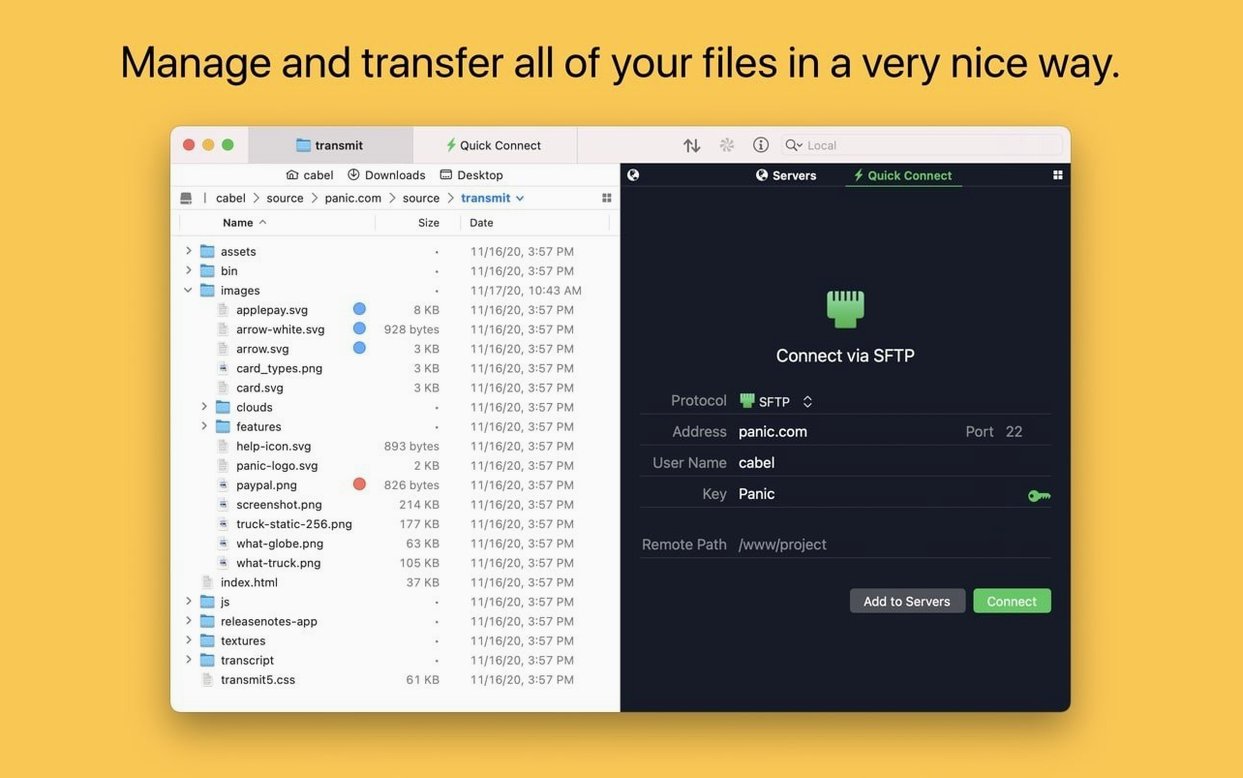
Web developers, designers, and anyone who regularly pushes files to a server still reach for Transmit 5. It's a clean, dependable way to move things over FTP, SFTP, S3, or WebDAV without overcomplicating the job.
Connect to Your Server
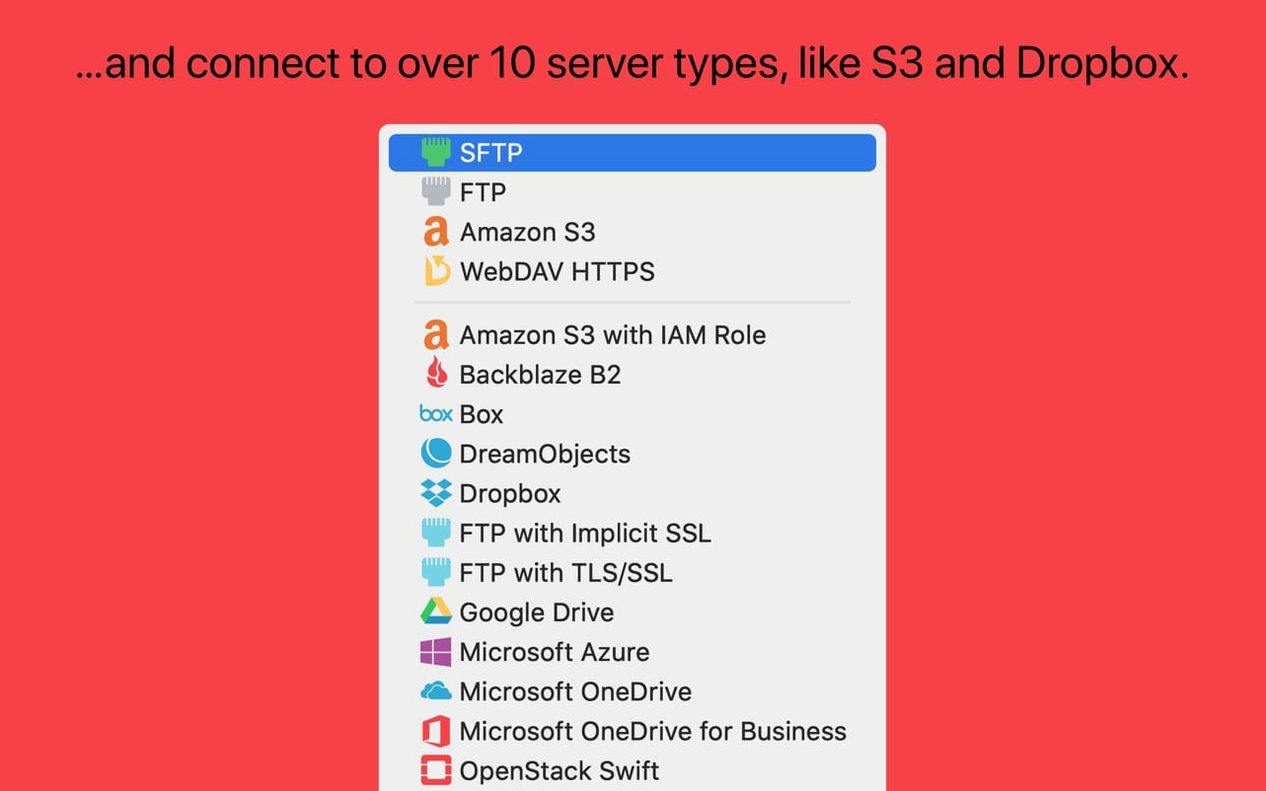
Set up a connection once and Transmit remembers everything. It talks to standard protocols plus a bunch of cloud services like Backblaze B2, Dropbox, Google Drive, and Microsoft Azure, so your remote locations live in one window.
Manage Files Without Friction
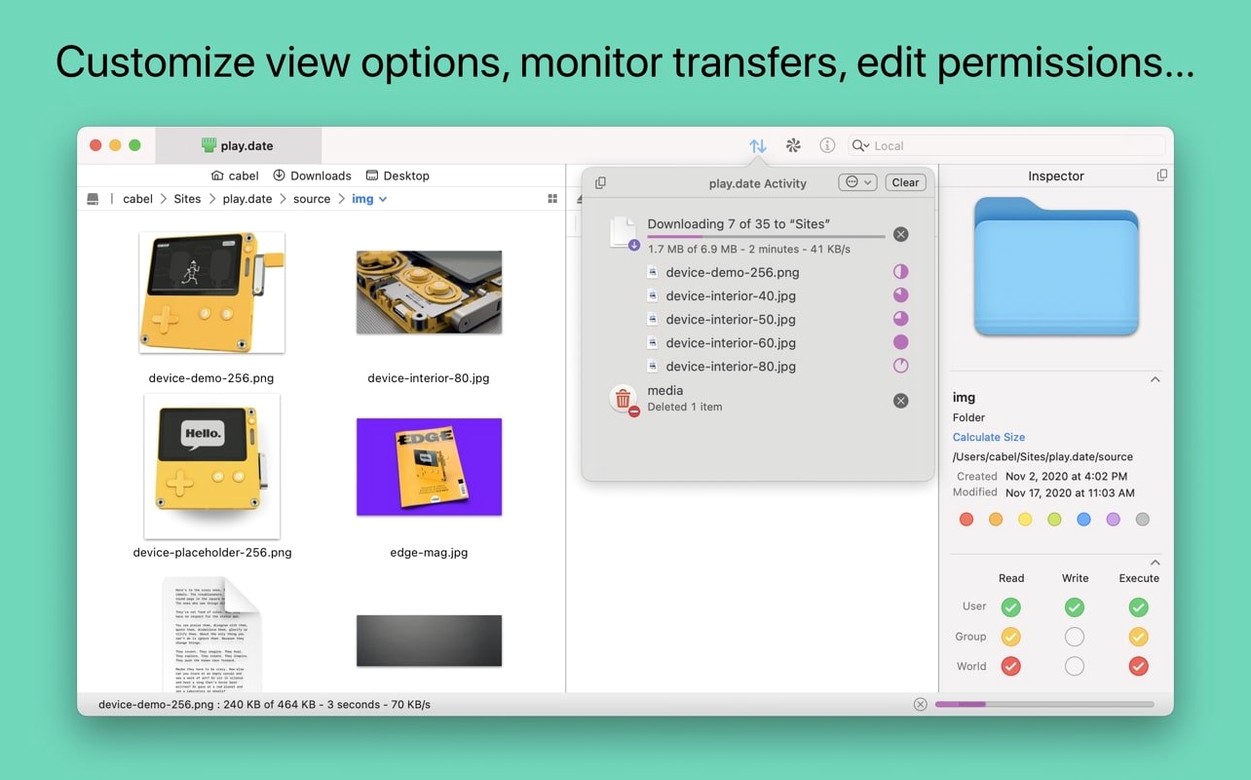
The Places Bar gives you one-click jumps to your favorite local and remote folders. Batch renaming handles a whole list of files at once, and you can generate secure keys right inside the app without hunting for a terminal.
Keep Your Sites in Sync
A Developer's Afternoon Deploy
Picture a front-end dev wrapping up a round of CSS tweaks for a client site. She's got six updated files scattered across three folders in her local build directory. Instead of clicking through each folder manually, she opens the Transmit 5 window where that server is already bookmarked. The right-hand pane sits on the remote /public_html/assets path. She drags the whole local css folder across the split pane and drops it—Transmit overwrites only what changed, and the activity bar confirms the half-dozen transfers in under two seconds. She then tabs over to the S3 connection for the client's asset CDN, sends the same set of optimized images she just exported, and pings the team on Slack. The whole deploy round-trip takes maybe ninety seconds, and she never touched a terminal or opened a browser-based console.
Juggling Multiple Servers Without Losing Track
Transmit 5 earns its keep with people who juggle multiple remote destinations every day. Web developers maintaining client sites over SFTP find it indispensable—bookmark folders, key management, and the sync feature mean less typing and fewer mistakes. Designers who push mockups straight to a staging server love dragging from Sketch or Figma exports into a remote directory without extra steps. Cloud-heavy users who split assets between S3 buckets and a Backblaze B2 archive appreciate having both connection types in one tabbed interface. Even hobbyist site owners dipping into a shared host's FTP can skip the clunky cPanel file manager and just get things done. If your work involves touching three or more servers or buckets in a typical week, Transmit's bookmarking and Panic Sync alone justify the window space.
Sync a Local Build to a Staging Server
Here's a concrete flow for keeping a static site's staging environment up to date:
- Set up the connection. Create a new SFTP bookmark with the staging server's hostname, your SSH key (generate one inside Transmit if you don't have a dedicated key pair), and the remote root directory—something like
/var/www/staging. - Drag the local project folder into the Places Bar. That gives you a one-click shortcut to your
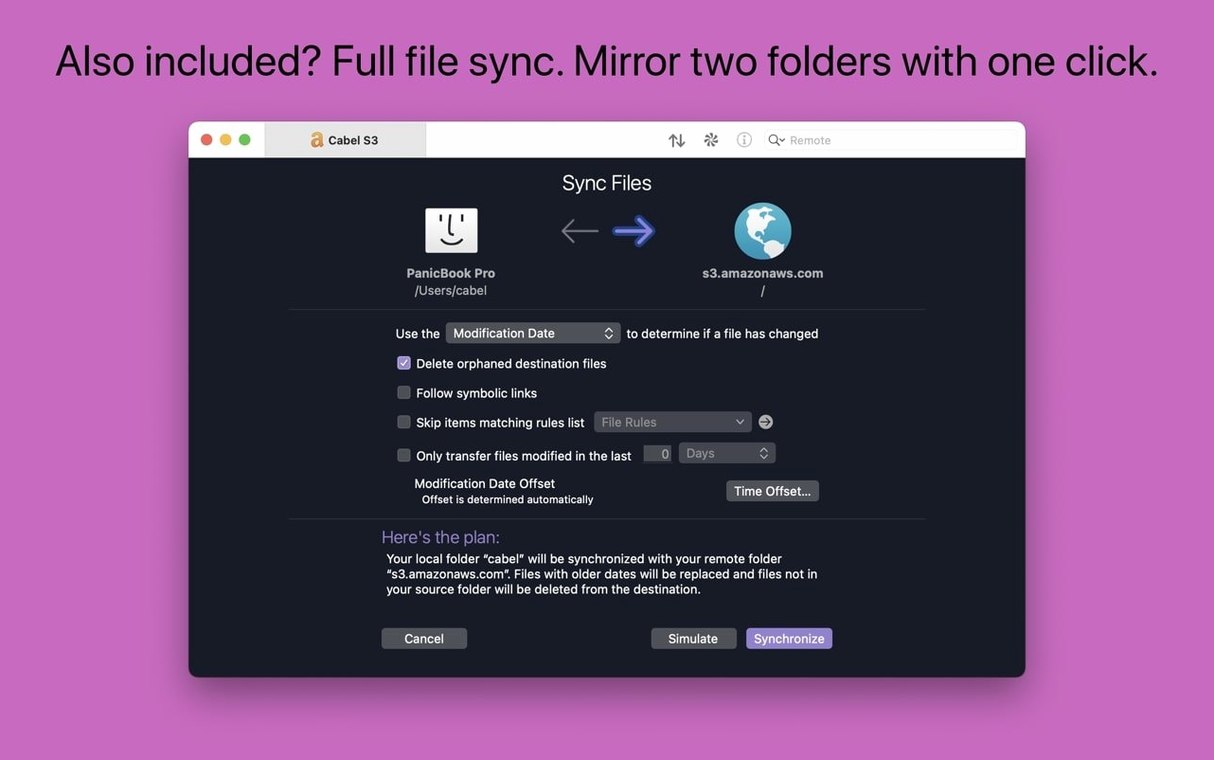
~/Sites/my-project/directory on the left side of the split pane. - Run a local-to-remote sync. Click the Sync button in the toolbar, set direction to Local → Remote, and pick "Update" mode so only newer or changed files transfer. Transmit compares modification dates and sizes, then shows you a preview list before it does anything.
- Spot-check the diff. Glance through the preview—maybe you notice a
.DS_Storefile sneaking in. Deselect it right there, hit Sync, and watch the transfer queue zip through the changed HTML templates and that one updated CSS file. - Verify with the info sidebar. Click a freshly uploaded file on the remote side and open the inspector sidebar. Check the timestamp and permissions to confirm everything landed correctly. If you need to tweak a
chmodvalue, the info panel handles that without a separate command.
For anyone grabbing a Transmit 5 torrent to test the waters, this sync workflow is often the moment the app clicks—it turns what could be a twenty-minute manual upload-and-check routine into a single toolbar click and a quick review. The local-remote sync alone saves enough repetitive dragging to make it a daily driver for staging pushes.
Panic Sync ties your server bookmarks across Macs, so you aren't rebuilding a connection list on every machine. It just quietly updates in the background.
Transmit 5.11.7 arrives with the developer’s newest wave of maintenance, tightening up stability and squashing lingering snags.
- macOS 13 or later
- Apple Silicon or Intel 64-bit Mac
Questions people ask
Does Transmit 5 work on Apple Silicon Macs?
Yes, Transmit 5 runs natively on both Intel and Apple Silicon Macs with macOS 13.0 or later.
How does Transmit handle connections to cloud storage?
You can connect directly to services like Dropbox, Google Drive, Box, and Backblaze B2 alongside traditional FTP and SFTP servers, all from the same interface.
Also on readers' docks
Sign in or create an account to leave a comment.
No comments yet. Tell me how it got on with your other devices.
More in Mac Apps
See all TunesKit iPhone Unlocker
2.7.0.16 Mac Apps
64 MB
TunesKit iPhone Unlocker
2.7.0.16 Mac Apps
64 MB
 Tuxera NTFS
2023.1 Mac Apps
111 MB
Tuxera NTFS
2023.1 Mac Apps
111 MB
 Updated Typeface
4.5.1 Mac Apps
23 MB
Updated Typeface
4.5.1 Mac Apps
23 MB
 Updated Topaz Video AI
1.7.2 Mac Apps
1.6 GB
Updated Topaz Video AI
1.7.2 Mac Apps
1.6 GB
 uDock
6.0 Mac Apps
18 MB
uDock
6.0 Mac Apps
18 MB
 Topaz Photo AI
2.1 Mac Apps
36 MB
Topaz Photo AI
2.1 Mac Apps
36 MB
 Updated Topaz Gigapixel AI
1.4.0 Mac Apps
372 MB
Updated Topaz Gigapixel AI
1.4.0 Mac Apps
372 MB
 ToothFairy
2.8.8 Mac Apps
15 MB
ToothFairy
2.8.8 Mac Apps
15 MB