Download Topaz Video AI for macOS
Footage capped at 480p or a clip so noisy it's almost unusable — those are the moments a desktop enhancer earns its keep. Topaz Video AI takes that material and pushes it toward HD, 4K, or even 8K, pulling focus back into soft shots and cleaning up low-light grain along the way.
macOS 11 or newer on Intel and Apple Silicon
- macOS 11 (Big Sur) or newer
- Runs natively on both Intel and Apple Silicon Macs
- Interface is in English
Upscale old SD or DVD footage into real 4K
The app is built for anyone working with less-than-perfect sources. It can sharpen soft DSLR footage, stabilize shaky handheld clips, denoise grainy low-light video, and upscale old SD or DVD content into genuine HD or 4K. Archival family recordings, game captures, stock footage, music videos, and even film scans all sit within its wheelhouse. The core idea is straightforward: feed it a video, pick a model, and let the app redraw the frames with more detail and fewer artifacts than a simple resize ever could.
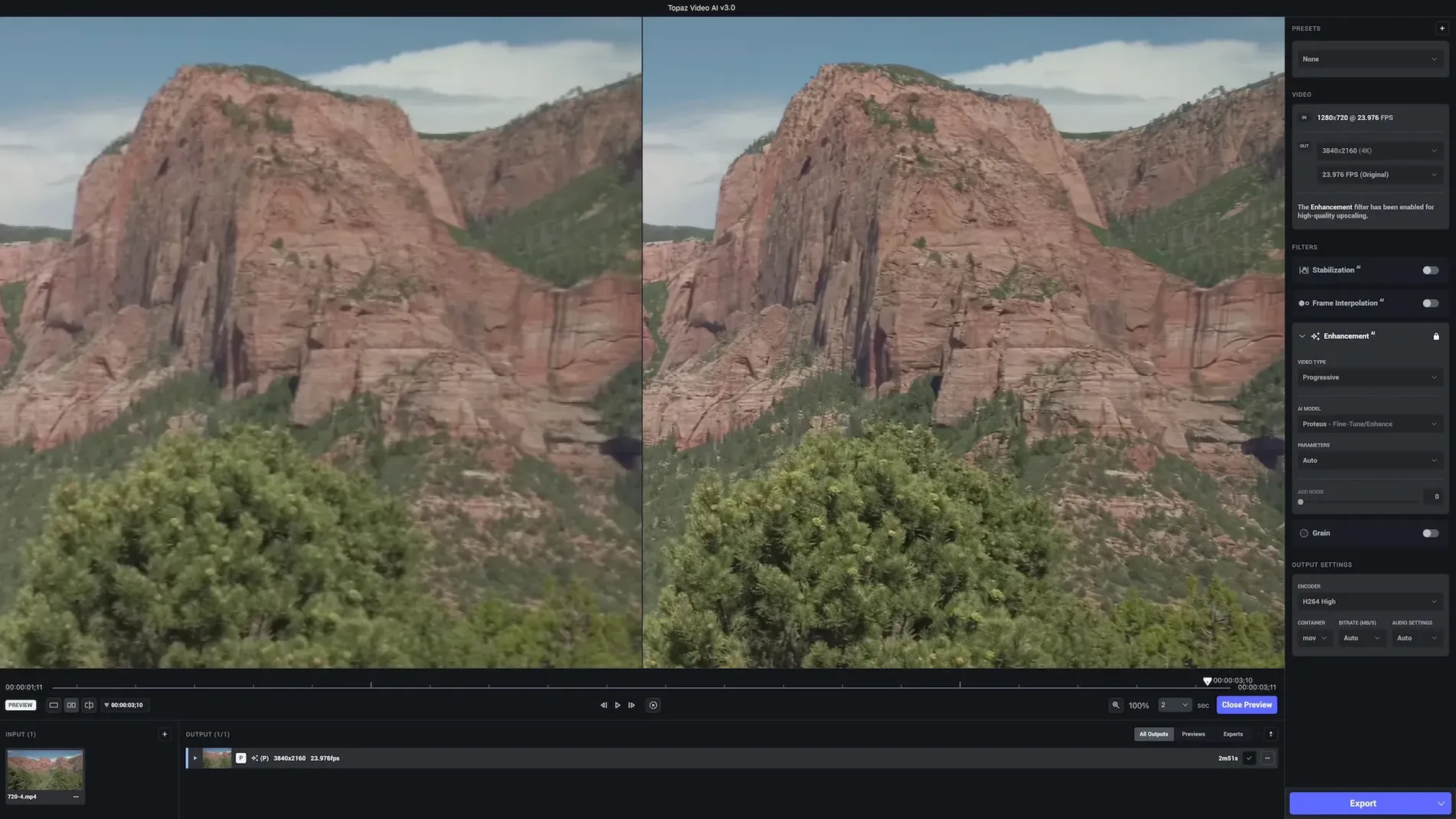
Scrub a split-screen preview before rendering
Topaz Video AI packs a few quiet helpers that don't shout for attention but make daily work smoother. One of my favorites is the comparison view — you can scrub through a split-screen preview before committing to a full render, which saves hours of guesswork when you're trying to decide between the Artemis and Iris models for a particular clip. Tap the arrow keys to step frame by frame, and the difference between original and processed becomes genuinely useful rather than a thumbnail-sized afterthought.
The app also remembers your last-used export settings per project, so if you batch-process a folder of old DV tapes, you're not re-dialing the same codec and resolution each time. A small quality-of-life touch: you can drag a video file straight onto the dock icon and it opens ready to go, no welcome-screen navigation needed. When you're pulling clips from a messy Finder window, that directness matters.
Keyboard shortcuts stay out of the way until you look for them. ⌘R kicks off a render, ⌘I opens the import dialog, and the spacebar previews your source clip in the thumbnail panel. If you spend an afternoon upscaling a batch of game captures, those three keys become muscle memory fast. The trim handles in the preview timeline are another understated win — you can set in and out points without hopping to another app, which keeps the whole enhancement pipeline inside one window.
Turn MiniDV tapes and 8mm film into 4K-ready clips
Archival and restoration folks feel right at home here. If you're pulling MiniDV tapes or digitized 8mm film into a modern timeline, the upscaling and denoising combo turns fuzzy, artifact-riddled sources into something that actually sits comfortably next to 4K footage. The frame-rate tools help too — converting 24p film scans to 30p or 60p for documentary projects without the stutter of simple frame duplication is a practical superpower.
Editors working with mixed-source timelines benefit almost as much. You might have crisp GH6 footage cut alongside older DSLR clips that look soft by comparison. Dropping those weaker shots through Topaz Video AI before assembly means you're not apologizing for the source in the color grade. YouTube creators who pull game captures or screen recordings at 1080p and need them to hold up on a 4K timeline get a similar leg up — the sharpening models clean up compression artifacts that a simple scale-up would only magnify.
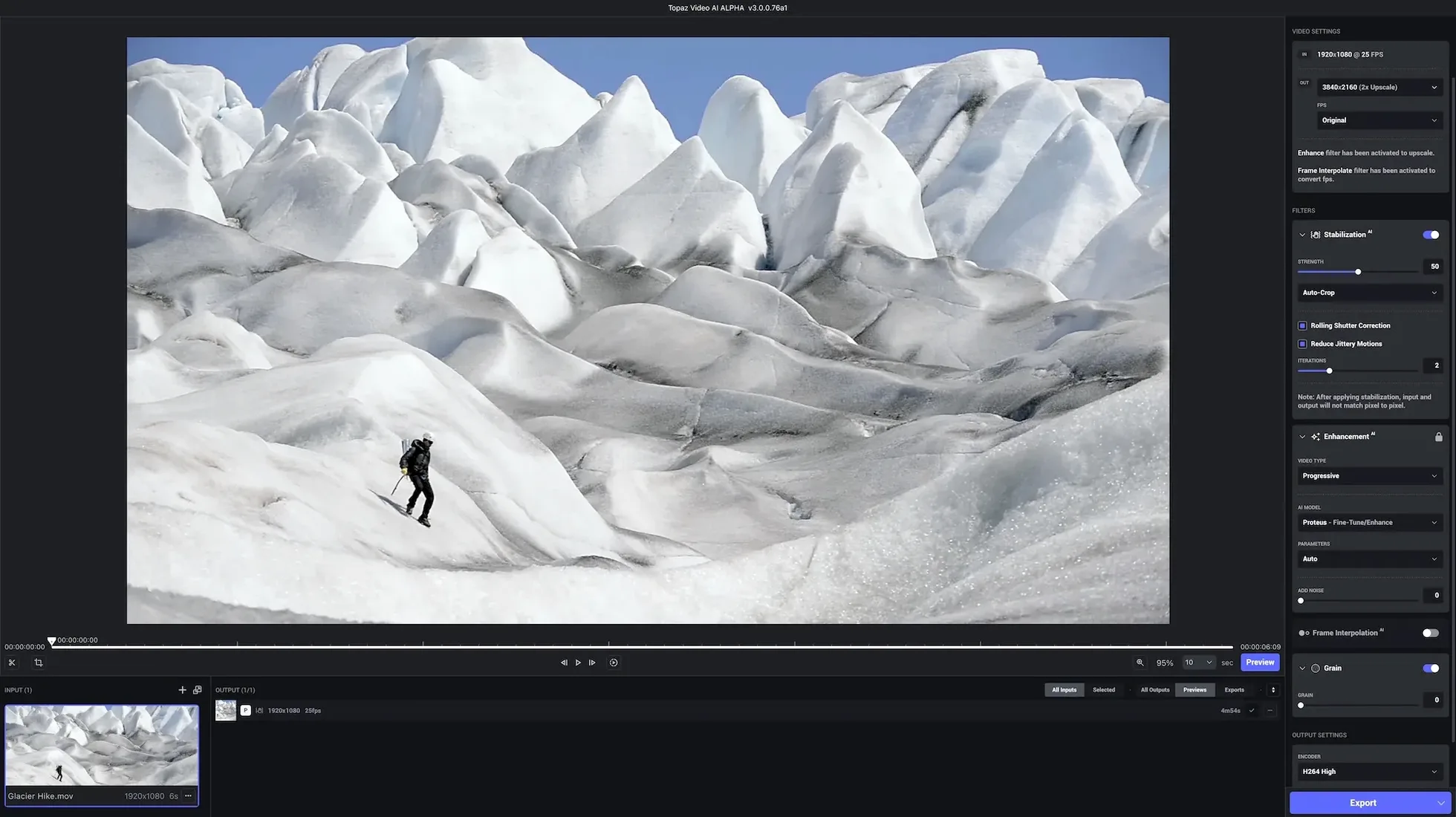
Less obvious but equally real: the app suits people who don't want to learn a compositing tool just to fix a shaky handheld clip. The stabilization model is a one-click affair compared to tracking points in a full NLE, and for run-and-gun footage that just needs to stop wobbling, that simplicity is the whole point.
Faster model loading on M2 and newer Macs
Version 1.7.1 tightened up model loading times across Apple Silicon Macs. Where earlier builds sometimes left you staring at a progress spinner while the neural engine initialized, the current release gets to work noticeably faster — especially on M2 and M3 machines where the media engine can pitch in. The preview window also feels snappier; scrubbing through a 4K clip with a denoise model applied no longer drops frames on a MacBook Pro with 16GB of RAM, which wasn't always true a few point-releases ago.
The export pipeline saw quiet improvements too. ProRes renders now respect the bit-depth of your source more reliably, and h.264 exports at high bitrates don't introduce the subtle blocking that could appear in earlier builds when pushing SD footage to HD. For anyone who batch-processes overnight, the queue system handles interruptions better — if a render fails mid-batch, the remaining clips continue rather than the whole queue stalling out.
The model selection interface also got a rethink somewhere along the way. Instead of a long flat list, related models are grouped by task type, and the tooltips actually explain what each model favors — "preserves grain structure" versus "smoother output" matters when you're enhancing a grainy Super 8 transfer and want to keep the texture alive.
A 5-minute 1080p-to-4K render pegs the GPU near 90%
On an Apple Silicon Mac with 16GB of unified memory, the app feels responsive without being lightweight. A five-minute 1080p clip upscaled to 4K using the Proteus model will peg the GPU near 90% and keep the fans audible, but the system remains usable for browsing or email. On Intel machines, the same task runs two to three times slower — the neural engine on Apple's own chips is doing heavy lifting that OpenCL on older AMD GPUs simply can't match. Memory pressure stays moderate; I've never seen the app push into swap territory, even with 4K source files, but 8GB Macs will feel the pinch if you run a browser and a timeline app alongside it.
Stability in 1.7.1 has been solid through dozens of renders. The app hasn't crashed mid-export once in my recent use, and the only quirk I've hit is the occasional preview-blackout when switching models rapidly — a quick toggle of the comparison view brings it back. Render times are predictable: a ten-minute 1080p clip to 4K with medium denoising takes roughly twelve minutes on an M1 Pro, give or take depending on the model chosen.
A real-world morning with old camcorder tapes
Imagine someone digitizing a box of Hi8 tapes from the late '90s — family birthdays, a grainy school play, some handheld vacation footage with the typical jitter of a palm-sized camcorder. The captures come in at 720x480, interlaced, with the kind of chroma noise that makes skin tones look smeared. They drop a batch of six clips into Topaz Video AI before breakfast.
Deinterlacing gets applied automatically on import, and the Iris model handles the upscale to 1080p with a moderate denoise that pulls the worst of the chroma noise without turning faces into wax. The stabilization model smooths out the handheld wobble on the vacation clips — not gimbal-smooth, but enough that the footage stops distracting. They set the whole batch to export as ProRes 422, grab coffee while the first two clips render, and by mid-morning the folder is full of clean, steady HD versions that can drop straight into a family documentary timeline. The school play clip, once too dark and noisy to use, now has visible facial expressions and a stable frame — not Hollywood, but genuinely watchable in a way the original tape never was. That's the kind of morning where the app earns its spot on the dock.
Topaz Video Pro 1.7.2 has landed. The full rundown of tweaks and polish is over on the Topaz Labs release page, but if you've been waiting for a fresh build, this is your cue to grab it.
- macOS 13 or later
- Apple Silicon & Intel 64-bit
Also on readers' docks
Sign in or create an account to leave a comment.
No comments yet. Tell me how it got on with your other devices.