Download Topaz Gigapixel AI for macOS
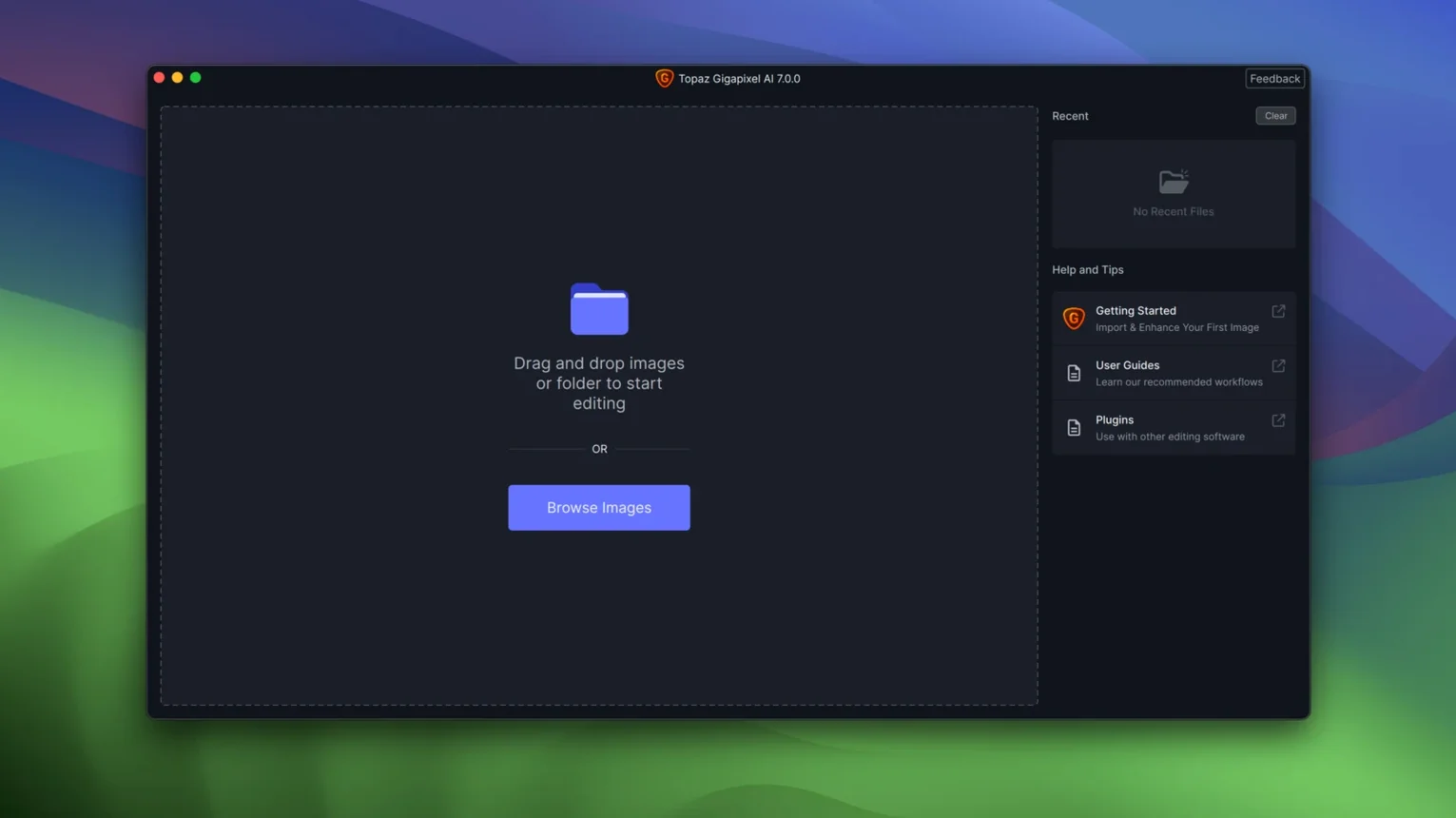
Version 1.3.5 arrives as a clean, architecture-specific package — you grab the ARM build for Apple Silicon or the Intel build for older machines, no guessing. That kind of clarity feels right at home on a Mac where we're used to things just working. Gigapixel AI itself is the legacy line Topaz eventually replaced with Topaz Gigapixel, capping the classic series at 8.4.4, but this 1.x branch keeps the desktop upscaling engine humming on modern macOS.
The specialist pass between library and large-format output
I treat it like a specialist tool that sits between my photo library and whatever I'm prepping for print or a high-res display. It's not a Lightroom replacement or an editor you live in all day — it's the app you call when a crop feels too tight or an old scan needs serious enlargement without turning into a pixelated mess. Batch processing means you can point it at a folder full of product shots or artwork, walk away, and come back to cleanly upscaled images that still look natural next to your original edits.
On iPad and iPhone
There's no companion app here — Gigapixel AI is a desktop-first tool through and through. If you're deep in the Apple ecosystem, the move is to upscale on the Mac, then toss the results into iCloud Photos or your project folders. They'll be waiting on every device, ready to drop into Pixelmator or Keynote.
Face-to-face with Pixelmator Pro and Adobe upscaling engines
If you've been around Mac image tools for a while, you've probably heard of Pixelmator Pro's ML Super Resolution and Adobe's Super Resolution in Lightroom or Camera Raw. They're the two names most people mention when desktop upscaling comes up, and honestly, they each carve out a different niche.
Pixelmator Pro's ML Super Resolution is delightfully simple — select a layer, choose the command, and a few seconds later your image is sharper and larger. It works inside an editor you probably already own, with zero friction. The catch is control: you get one result, no sliders, no preview comparisons. It's quick, it's clever, but it's a single-button move. If the output looks slightly plastic on skin tones or over-sharpens text, your only option is to soften things afterward by hand.
Adobe's Super Resolution, tucked into Camera Raw and Lightroom, tackles the same problem with Adobe's own machine-learning engine. It doubles the linear resolution and does genuinely good work on raw photos — especially landscapes where fine foliage used to dissolve into mush. But it only works on raw files, it doubles rather than letting you choose a scale, and the processing happens inside a larger ecosystem rather than as a standalone step. You're in the Adobe world from start to finish.
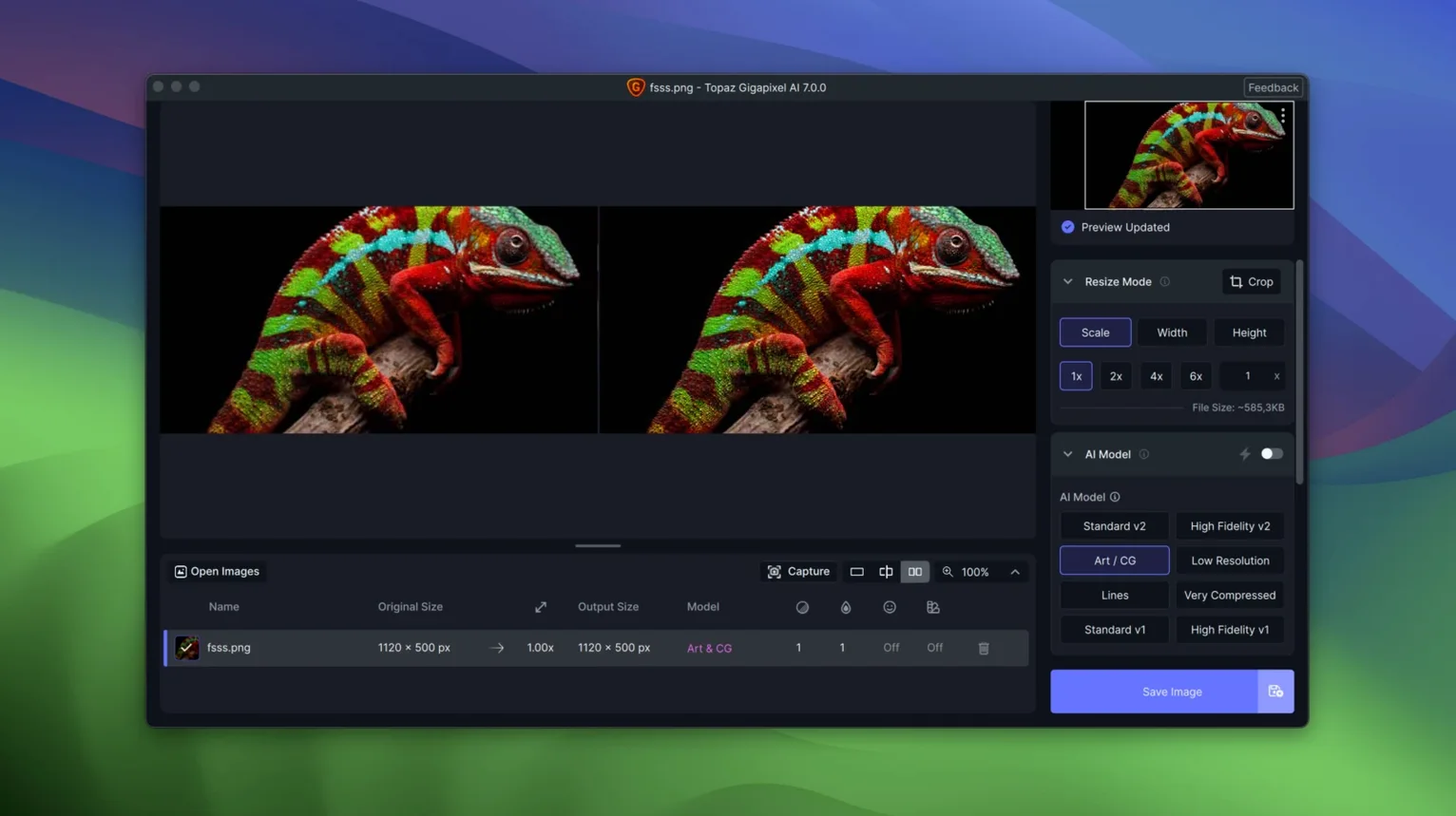
Gigapixel AI feels different from both — it's a dedicated instrument rather than a feature inside a bigger app. The AI models are built specifically for upscaling, and the interface lets you preview results, switch between models, and dial in settings before committing. That extra control matters when you're dealing with tricky material: a low-resolution portrait from an old phone, line art from a scanned comic, or a compressed JPEG pulled from a website. Having a model designed for faces and another tuned for textures gives you options Pixelmator's one-click approach simply can't match. The trade-off is time. Gigapixel AI chews through processing in a way those lighter tools don't, especially on large batches, and you'll notice the fan on Intel machines. But when results count more than seconds, the deliberate approach pays off.
Bouncing edits to Photomator and Photos for the final polish
My usual pattern is to bounce images between Gigapixel AI and whatever I'm using for color and composition work — often Photomator or the stock Photos app for quick corrections, then into Gigapixel for enlargement, then back out for final crops. The app plays well with Finder drag-and-drop, so you can pull images straight from a desktop folder or a mounted external drive without importing into a catalog first. That sounds small, but it means Gigapixel doesn't force its own organizational layer on you — it just processes files and saves them where you tell it to.
The upscaled results drop back into macOS beautifully. A 600% enlargement of a drawing lands in Preview looking crisp, ready for markup or a signature overlay. Toss the same file into Keynote and it behaves exactly like any other high-res image — no transparency glitches, no color profile surprises. If you use Quick Actions in Finder, you can set up a workflow where selected images open in Gigapixel, process, and land in a sibling folder, though you'll need to stitch that together yourself with Automator or a Shortcut that calls the app by name.
One integration I appreciate more than I expected: Gigapixel respects the Mac's color-managed pipeline without fuss. Images saved from the app carry their profiles through, so what you see on a P3 display in the preview window matches what you get in the exported file. For print work, that trust is everything.
Monterey or newer—and the Apple Silicon difference that seals it
Does it really need macOS 12 or later? Yes, the 1.3.5 build requires Monterey as a minimum. If you're holding onto Big Sur, this version won't launch — it leans on frameworks that arrived with Monterey's graphics stack. On the upside, Apple Silicon support is native, so M1 and M2 machines run it without Rosetta translation.
How long does a single image take? It depends wildly on the source resolution, the upscaling factor, and the model you pick. A small JPEG going to 4x on an M1 Mac might finish in under thirty seconds. A large TIFF with the detailed texture model at 6x can take several minutes. Batch processing stretches things further — it's the kind of task you set before lunch rather than watching the progress bar.
Can I use it for video frames or just photos? Gigapixel AI works on still images — JPEG, TIFF, PNG, and a handful of other common formats. There's no direct video frame workflow inside the app. If you need to upscale frames from a video, you'd export them as an image sequence first, process the folder in batch mode, then reassemble the sequence in a video editor.
What happens with text or logos? Clean vector-like graphics sometimes trip up all AI upscalers, and Gigapixel is no exception. Hard edges can get slightly wavy, and small text at low resolution sometimes guesses the letter shapes rather than restoring them. The line art model does better than the standard model here, but if absolute precision matters — like a logo with tiny legal text — you'll want to check the preview carefully.
Nudging the preview split with arrow keys and other hidden gestures
A few things I only discovered after living with the app for a while. First, you can drag the before/after divider in the preview window with the keyboard once you've clicked on it — the arrow keys nudge the split line left or right by single pixels. That level of control makes it much easier to check fine details like eyelashes or fabric texture when you're trying to decide between two AI models.
Second, the app remembers your last output folder per session but also respects a folder you drag onto the save dialog — so if you're working through several client projects at once, you can keep outputs separated without bouncing through the file picker every single time.
Third, the patch command you run during installation sets up permissions once, and after that the app opens like any other Mac app — no terminal windows, no repeated authentication prompts. It's a small thing, but it keeps the experience feeling native rather than hacked together.
Finally, if you're searching for a gigapixel torrent or a Topaz Gigapixel Mac torrent, you'll see plenty of versions floating around that may need a quick check for Apple Silicon compatibility or bundled model files. The architecture-specific 1.3.5 package handles both nicely — ARM and Intel builds come separated, and the included activation means you're not chasing down missing components after a fresh install.
- macOS 13 or later
- Apple Silicon or Intel 64-bit
Also on readers' docks
Sign in or create an account to leave a comment.
No comments yet. Tell me how it got on with your other devices.