Download Techtool Pro for macOS
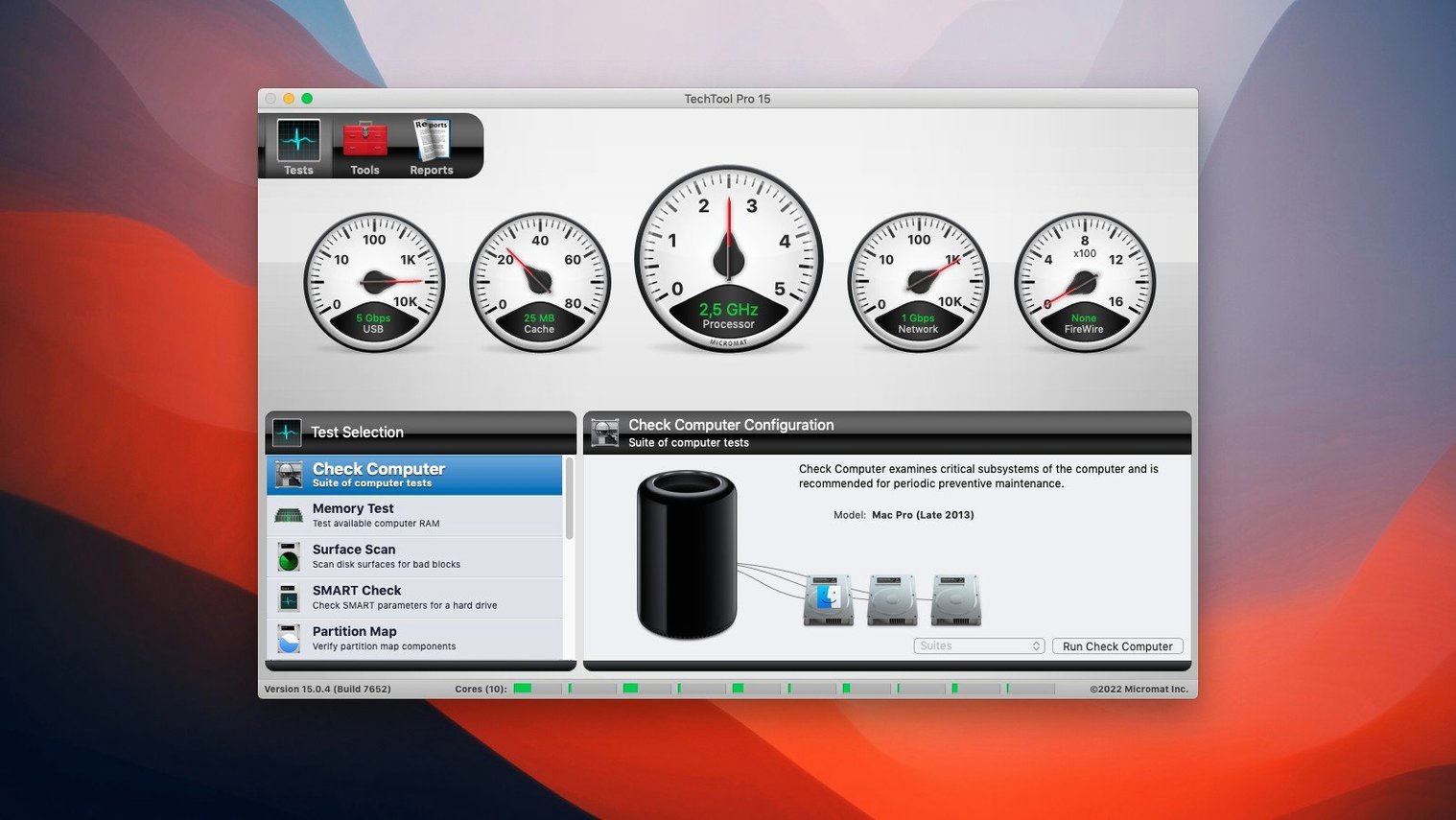
Every hard drive ships with a small collection of spare sectors held in reserve. When a standard read fails, the drive quietly swaps in a spare, and you never notice the handoff. That silence ends the moment those spares run out. TechTool Pro 20 is built to shout about these problems long before you lose a file, and version 20.1.7 recently tightened the Volume Cloning verification so a File Sync clone won’t stumble during its final check.
Run a SMART test and surface-check right away
Newcomers often jump to the flashy repair tools, but the real first move is a combined SMART check and surface scan. The SMART test reads a drive’s internal log of reallocated sectors, spin-up errors, and temperature spikes—indicators that a mechanical failure is approaching. Pairing that with a surface scan lets the utility actually knock on every block, detect bad ones, and recover whatever data is still clinging to them. Together, these two tests draw a map of your drive’s health that no Finder glance can match.
Turn on background monitoring and build a rescue partition
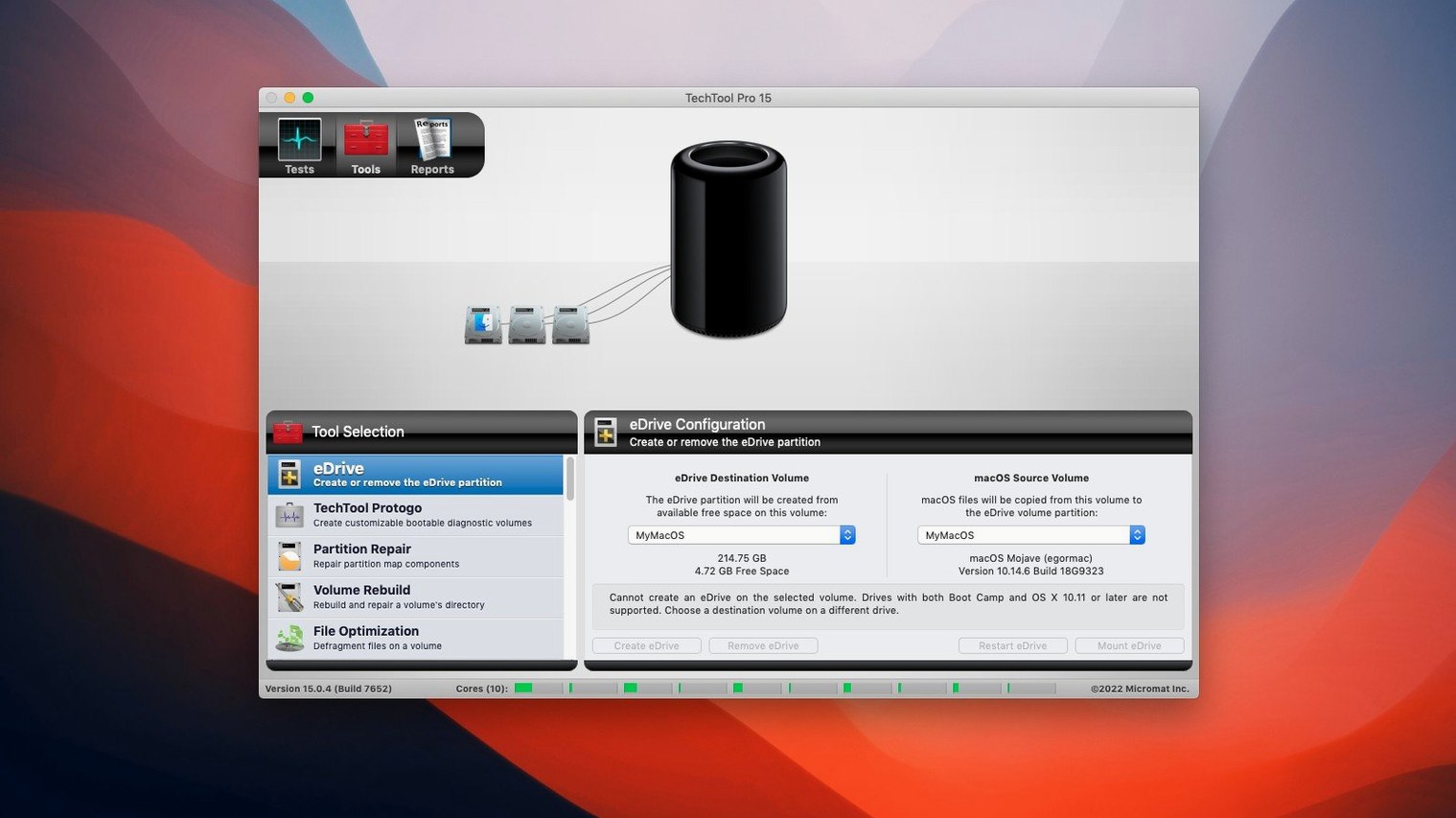
After the initial scan, head into the Techtool Protection settings and flip on continuous monitoring. The app will sit quietly in the background, watching for abnormal system behavior and device configuration changes, and it’ll surface a warning before a minor hiccup turns into a beachball marathon. While that’s settling in, use the integrated Protogo assistant to carve out an emergency boot partition on your active system volume. You get a bootable diagnostic toolkit without hunting down a USB stick, which means the next time your Mac refuses to start, your repair bench is already built in.
TechTool Pro versus the competition
Micromat didn’t invent the Mac utility suite, but it’s been refining its approach for decades. Place it alongside DiskWarrior and Drive Genius, and the personality differences surface fast.
DiskWarrior remains a directory rebuild specialist — it’s the tool you reach for when a volume’s catalog tree is so tangled that Disk Utility throws up its hands. TechTool Pro does directory repair too, but it wraps that skill inside a much broader package: SMART monitoring, surface scans, RAM testing, and the Protogo bootable environment. DiskWarrior rebuilds the map; TechTool Pro checks the neighbourhood, tests the plumbing, and watches the weather.
Drive Genius shares more overlap. Both offer drive cloning, bad-block detection, and permission repair. Where TechTool Pro pulls ahead is in the background protection layer. Techtool Protection runs continuously and sends email alerts when a drive’s SMART state degrades or free space evaporates — Drive Genius is more of a launch-it-when-you’re-worried affair. On the flip side, Drive Genius has long offered a cleaner visual layout for beginners, whereas TechTool Pro’s interface spreads its tools across a tabbed window that rewards familiarity more than first impressions.
Monitor launch crashes finally gone
Build 9559 landed as a maintenance release, but it addressed two friction points that regular users absolutely felt. The crash when TechTool Monitor launched had been a short, sharp annoyance — you’d open the app, see the Monitor icon bounce once, and then nothing. That’s gone now.
The more subtle fix sits inside Volume Cloning. Previously, a File Sync clone could sail through the copy phase and then fail during verification, leaving you with a clone you couldn’t fully trust. That’s the kind of failure you don’t notice until you try to boot from the clone on a deadline. The verification step now completes cleanly, which makes the cloning tool a genuinely dependable pre-upgrade safety net. A handful of smaller refinements round out the build — nothing that rewrites the feature list, but enough that day-to-day reliability feels less like a dice roll.
Workflow: building a pre-upgrade safety net
Say macOS Sequoia’s next point release just dropped, and you’re itching to install it on your daily driver. Here’s a routine that catches hidden problems before the installer even downloads.
- Run a SMART check on your boot drive. Open TechTool Pro, select the drive, and launch the SMART test. If reallocated sectors are climbing, stop here and swap the drive before upgrading anything.
- Surface scan the volume. Even an SSD can develop unreadable blocks. Let the scan map the drive and recover any files sitting on bad sectors. It’s slow, but it’s the most honest health report you’ll get.
- Clone the boot volume. Use the Volume Cloning tool with File Sync selected. The 20.1.7 fix means the verification pass won’t choke, so you’ll end up with a bootable clone on your external drive — your escape hatch if the upgrade goes sideways.
- Flip on Techtool Protection. Set it to monitor free disk space and SMART status. If the upgrade process chews through storage or the drive starts misbehaving mid-install, you’ll get a warning instead of a kernel panic surprise.
- Boot from the clone to test it. Hold Option at startup, select the cloned drive, and confirm your desktop loads. A clone that hasn’t been booted is just a hope. Once you’ve seen the Finder appear, you know the safety net holds.
With the clone verified and monitoring active, run the macOS installer. If anything goes wrong — boot loops, missing user folders, a Finder that won’t launch — you’ve got a working system waiting on the external drive and a diagnostic suite that can dig into what happened without needing a working internal disk.
- macOS 10.13 High Sierra or later
- Works on Intel and Apple Silicon Macs
Questions people ask
Can TechTool Pro 20 salvage files from a drive with bad blocks?
Yes, the surface scan detects bad blocks and attempts to recover the data stored in them before the blocks are marked off-limits.
Does the app need a separate USB drive to create a bootable diagnostic tool?
No, Protogo can create an emergency boot partition directly on your active system volume, so you don’t need a DVD or external drive.
Will it warn me before a drive fails completely?
The SMART test tracks state changes like reallocated sectors and spin-up errors, and continuous monitoring can alert you to approaching failures.
Also on readers' docks
Sign in or create an account to leave a comment.
No comments yet. Tell me how it got on with your other devices.