
Download TechSmith Snagit for macOS
Mac toolbar dragging finally fixed
The 2026.3.3 update lands with fixes squarely aimed at macOS 27 users. Capture toolbars and controls that refused to budge now drag where you want them. A few video playback controls and QuickLook arrow-key navigation in the Library also got the attention they needed. Nothing flashy — just the kind of polish that keeps a daily driver feeling right.
Learn one preset shortcut first
When you open Snagit for the first time, the toolset can look enormous. Here’s a small path that shows off the stuff that actually sticks.
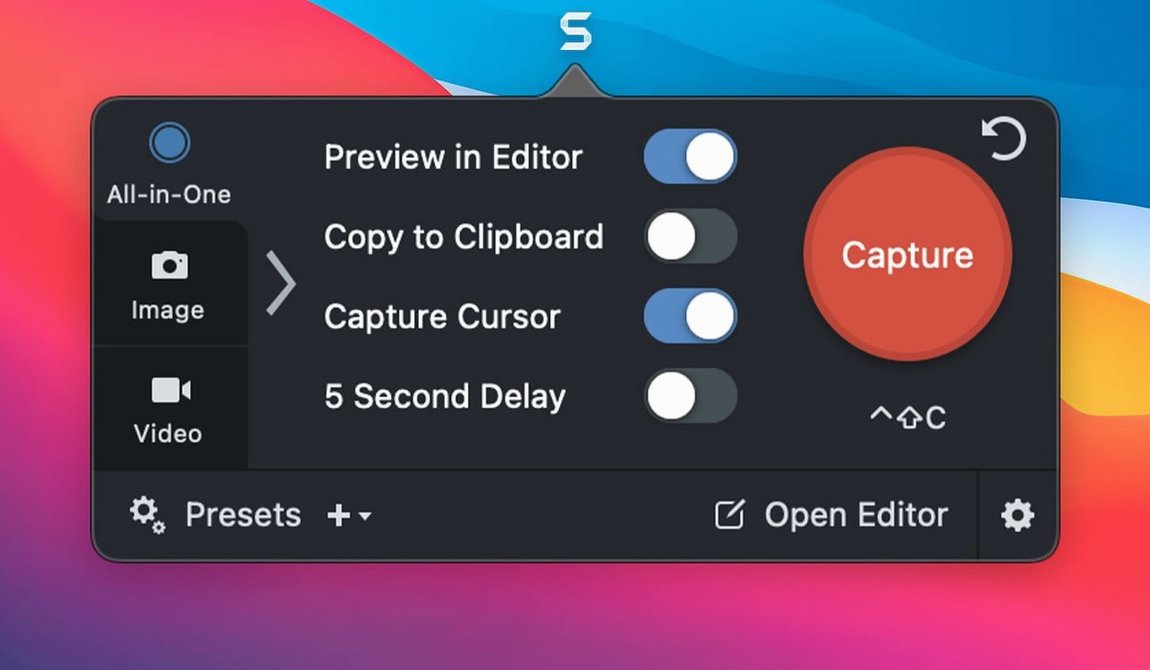
- Pick a preset and learn its shortcut. Open the Capture window and hover over the All-in-One, Image, or Video tabs. Each preset has a keyboard shortcut you can customize. Memorizing just one changes how often you reach for the app.
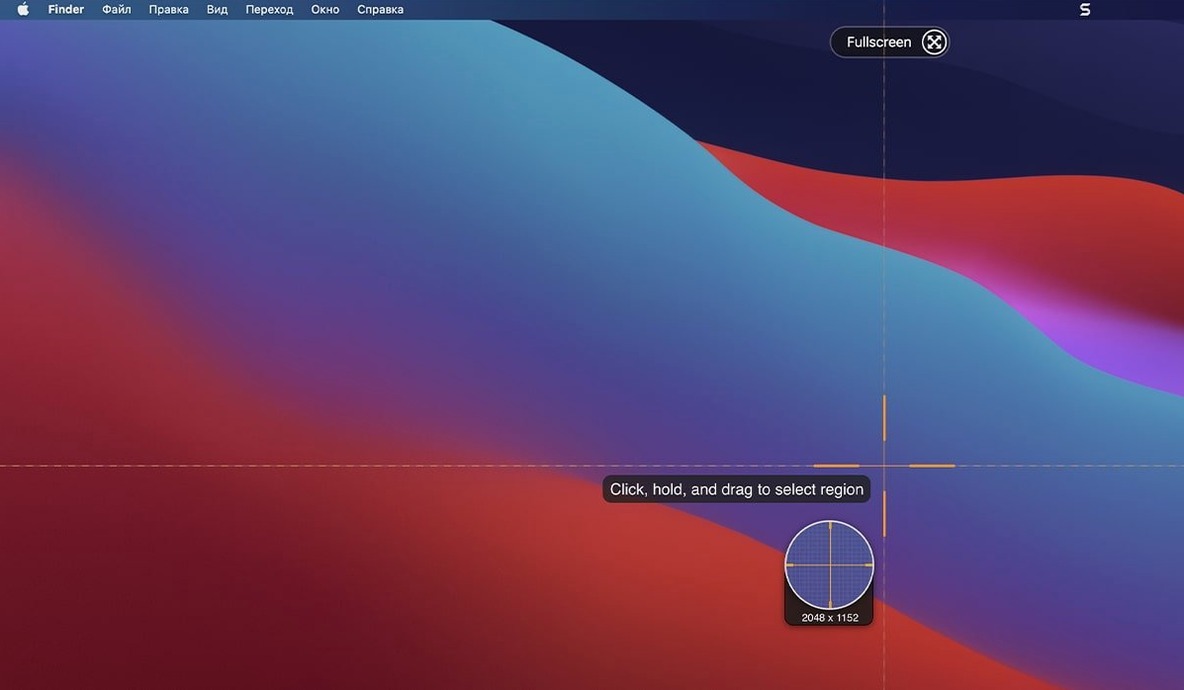
- Capture text from a web page. Grab a region of a browser window. Snagit can pull out the text instead of just the pixels, which is handy for quotes, docs, or anything you’d rather not retype.
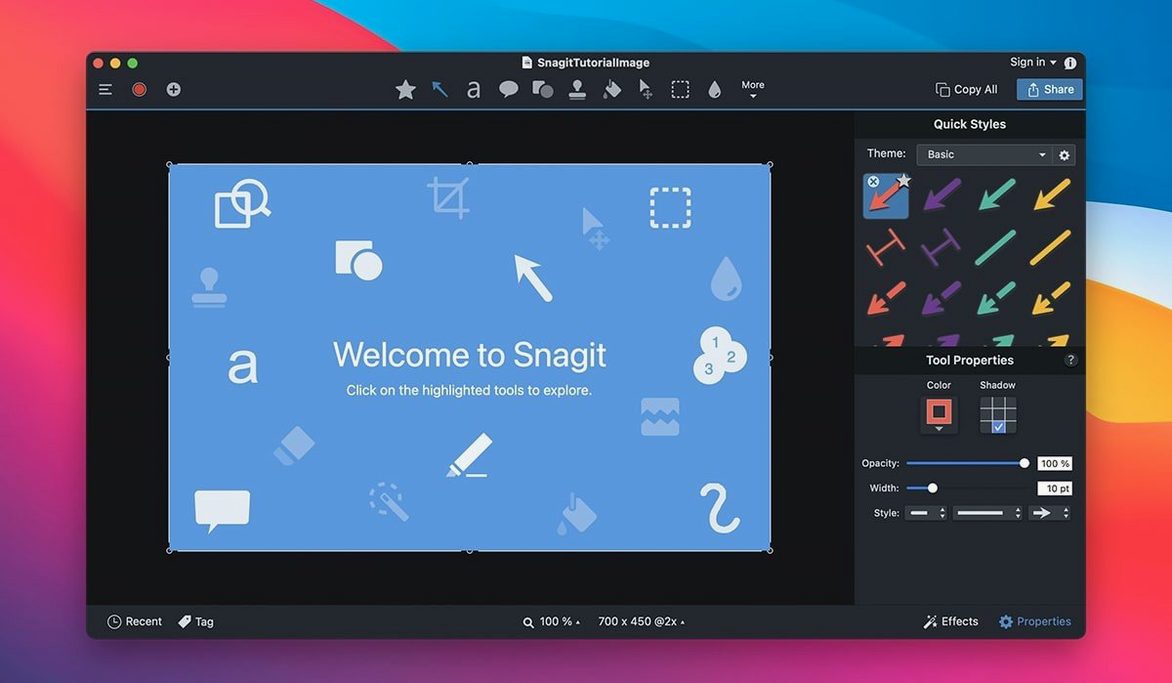
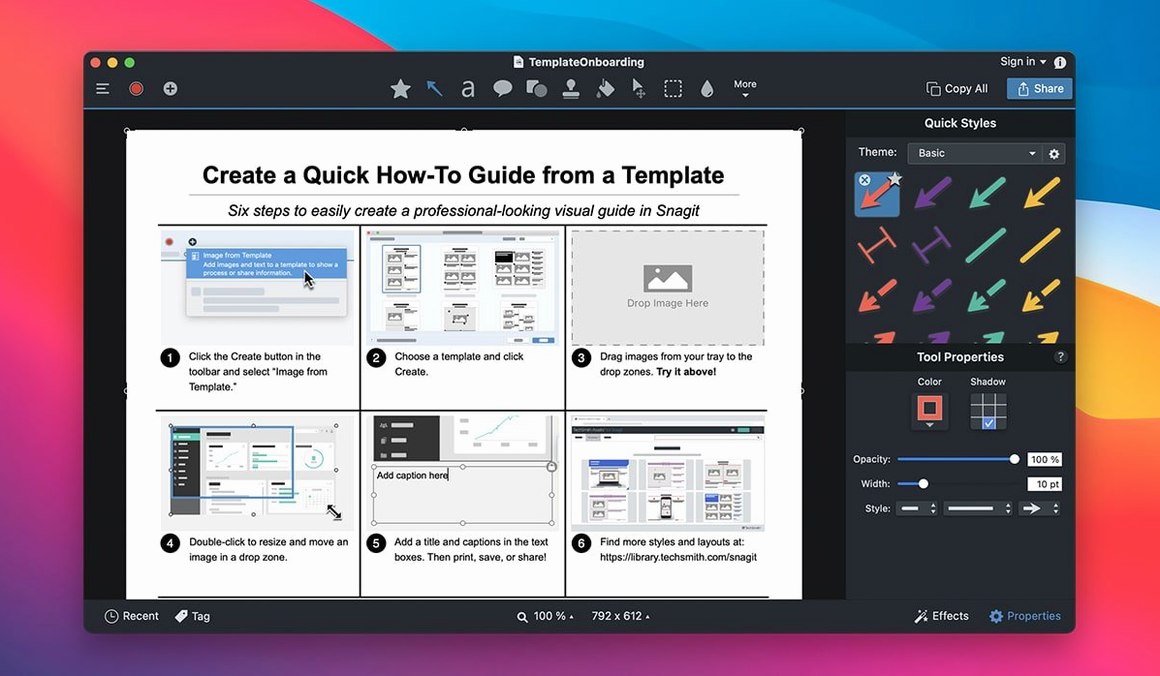
- Add a callout. After a capture, the editor opens automatically. Drag an arrow-and-label callout onto the canvas. The style sticks for the next ones, so annotation becomes muscle memory.
- Give it a rounded corner or a page curl. In the Image menu, try the Rounded Corners or Page Curl effect. It’s a small polish that makes screenshots feel finished rather than raw.
- Search the library by date or source. Snagit organizes captures on its own, but the search bar lets you filter by when you grabbed something or which app it came from. Weeks later, that beats scrolling.
Shortcut conflicts after app installs
A handful of hiccups tend to surface after you’ve been using Snagit for a while. Most have straightforward fixes once you know where to look.
- Capture shortcuts stop working. This often happens after another app claims the same key combination. Open Snagit’s Preferences, head to the Hotkeys tab, and reassign the shortcut. If you’ve recently installed a screenshot utility or a clipboard manager, check its shortcuts first — they love to steal the same real estate.
- Scrolling capture cuts off too early. Not every app plays nicely with the scrolling engine. Browsers are fine, but some document viewers or custom UI frameworks throw it off. As a workaround, try capturing in shorter chunks, or switch to All-in-One and manually select a tall region. Slowing down your scroll speed sometimes helps the stitching algorithm keep up.
- Video recording has no audio. On macOS 15 and later, Snagit needs explicit microphone permission. Check System Settings > Privacy & Security > Microphone and make sure Snagit is toggled on. If you use an external mic, confirm it’s selected in the recording toolbar before you hit record — it won’t switch automatically.
- Library thumbnails look blurry or outdated. A corrupted cache is usually the culprit. Quit Snagit, then delete the Library cache folder inside
~/Library/Caches/com.techsmith.snagit. The app rebuilds it on the next launch, and thumbnails come back sharp.
Skipping tags creates later chaos
Most missteps are not about knowing the features — they’re about workflow habits that make things harder than they need to be.
Skipping tags early on. When you’re capturing a dozen images for a project, tagging feels like admin overhead. But a month later, when you’re hunting for that one screenshot of a settings panel, tags beat the search bar hands-down. Even a quick client-name or tutorial-draft tag saves a scroll marathon.
Ignoring the share destinations. Snagit can send captures straight to MindManager, OneNote, or an FTP server, but people often default to exporting a file and attaching it manually. Setting up one or two regular destinations turns the app from a photo bin into a proper delivery tool.
Piling everything into one library. Snagit stores everything automatically, which is great until you have three thousand captures. Use the Library’s folder system or separate libraries for different projects. It takes thirty seconds to set up and prevents the kind of library fatigue that makes people give up on searching altogether.
Over-annotating before confirming the capture is the right one. The editor is tempting, but callouts, highlights, and shadows get flattened into the image. Do a quick check that you’ve grabbed the correct region before spending five minutes decorating the wrong window.
Move the toolbar off your work area
Hit the ground running with a few setup moves that pay off immediately.
- Tame the capture toolbar position. Grab it and drag it to an edge of the screen where it won’t block what you’re working on. The 2026.3.3 update fixed the toolbar-stuck-in-place bug on macOS 27, so now it actually stays where you put it.
- Pick a theme for callouts and stick to it. Before annotating anything important, choose a consistent arrow style, label font, and color. Snagit remembers the last-used style, so subsequent captures look cohesive without extra effort. Your documentation will thank you.
- Test the page-curl and shadow effects on a throwaway capture. These styling tools are fun but can get heavy-handed. Try them at 50% intensity first — subtle shadows often look more professional than full defaults, especially for blog headers or client deliverables.
- Set up a custom capture preset for your most repeated task. If you’re constantly grabbing the same browser window or a fixed-size region, save it as a preset. Name it something obvious, assign a keyboard shortcut, and you’ve just removed three clicks from every capture.
- Run a practice video recording with a short countdown. The recording toolbar has a timer option. Use it once to check audio levels and make sure the capture area is correct. Discovering a cropped-off window after a five-minute recording is something you only want to experience once.
These five moves cover capture, text extraction, annotation, quick styling, and finding things later. Master them and the rest of the app reveals itself naturally.
Version 2026.4.3 is here, and you can find the full rundown of what's changed over on TechSmith's support site.
- macOS 15 or later
- Apple Silicon or Intel 64-bit Mac
Questions people ask
Can Snagit share captures directly to Microsoft Office apps?
Yes, you can publish captures straight to Microsoft Office Project, MindManager, and OneNote from the Share menu.
Also on readers' docks
Sign in or create an account to leave a comment.
No comments yet. Tell me how it got on with your other devices.