









Download SuperDuper! for macOS
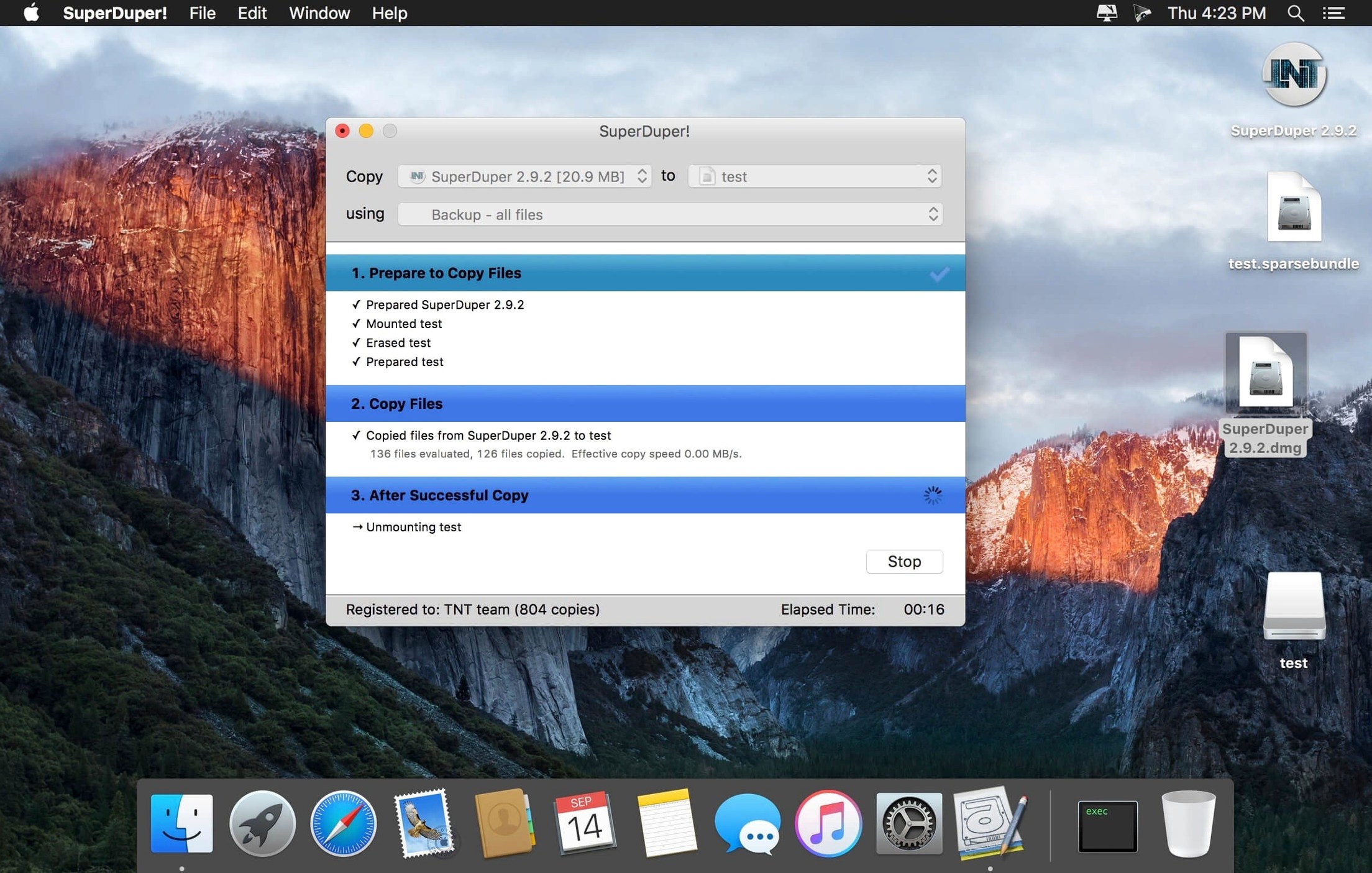
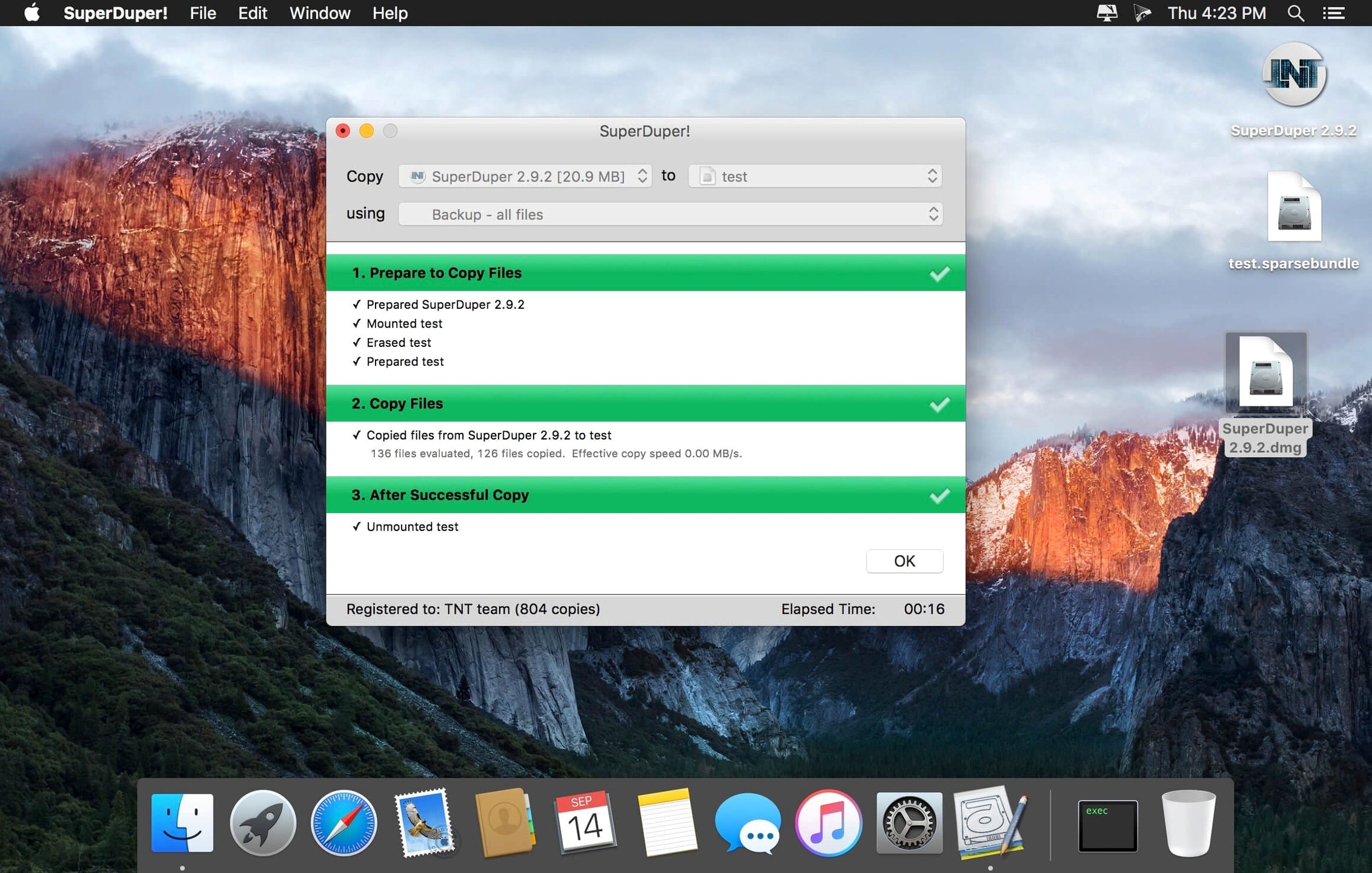
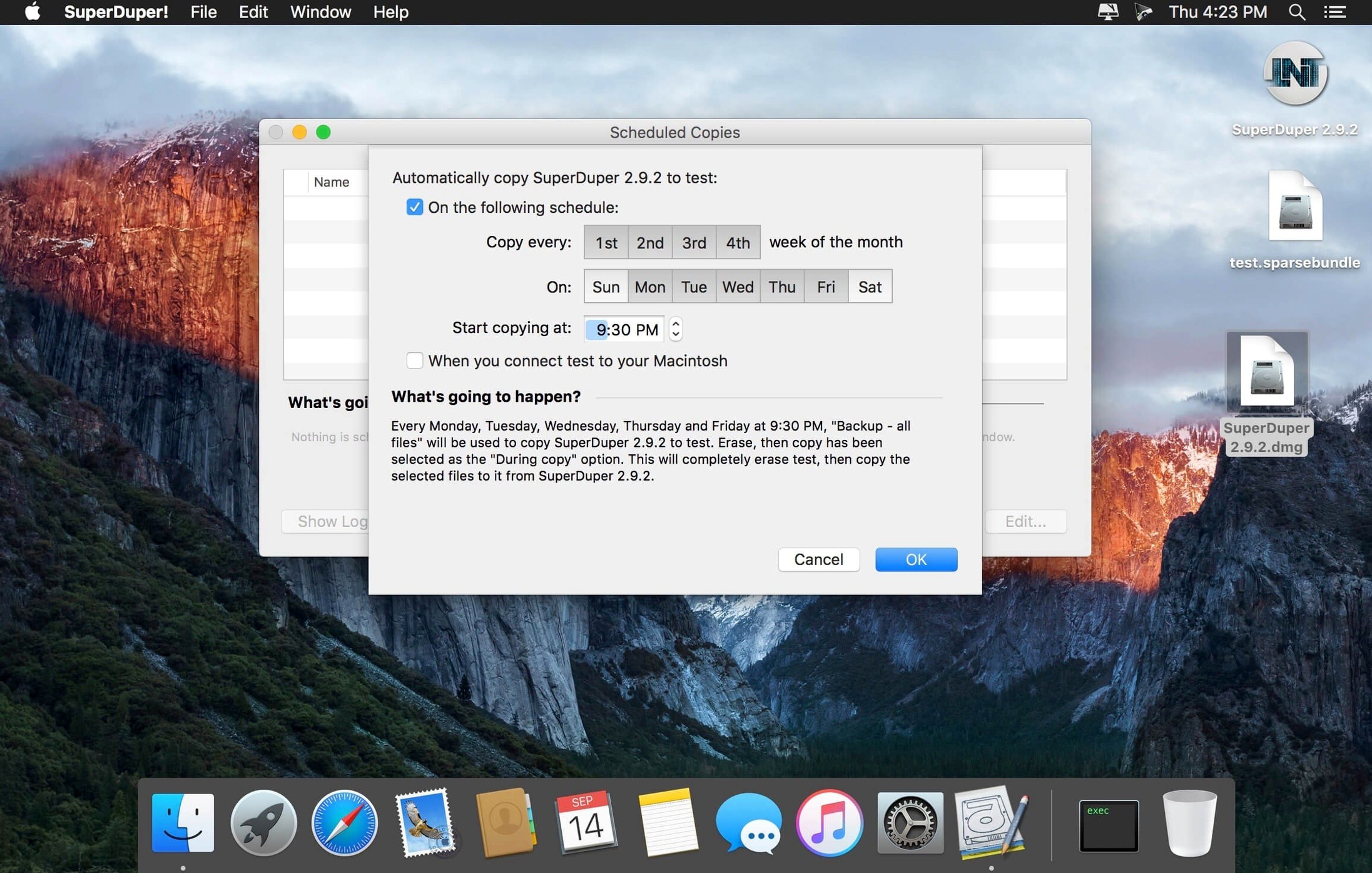
A clone can save an afternoon of reinstallation, and SuperDuper! turns that into a three-click job.
Bootable clone — a complete, startable copy of your Mac on an external drive. You plug it in, hold Option at startup, and you’re back at your desktop with every file, app, and preference in place.
Smart Update — subsequent runs copy only what changed. A one-hour clone becomes a five-minute refresh. Perfect for nightly desk duty before a trip.
Scripts — saved instructions that let you skip caches, large media folders, or Xcode junk. You build a script once, then point the app at it whenever you run a backup.
Disk image cloning — instead of copying to a physical drive, you create a compressed, portable .dmg file. Handy for archiving a system snapshot before a risky macOS beta install.
Let’s walk through a common weekend scenario: you’re replacing an aging SSD with a roomier one, but you’d rather not spend Monday morning reinstalling plug-ins, email accounts, and those little utility apps you forgot you relied on. Start by connecting the new drive in an external enclosure. Launch SuperDuper! and, on the main panel, set your current internal drive as the source and the new external SSD as the destination. Choose Backup – all files from the pop-up, then click Copy Now. Grab a coffee — the first pass copies every sector. Once it finishes, shut down, swap the drives physically, and hold Option at startup to boot from the new disk. The Mac comes up exactly as it was, dock and all. After a day of using it without hiccups, you can run one more Smart Update to catch any files you created before the swap, then retire the old drive.
Stack multiple schedules on one Mac
Several thoughtful touches hide in plain sight on the main window. The Schedule… button doesn’t just set a single alarm — you can stack multiple schedules. One Mac might run a bootable clone every night at 2 a.m. and a separate documents-only backup to a network volume at noon, both from the same app.
During a copy, the progress bar gives a live bytes-per-second readout. It’s a tiny detail, but when you’re chasing a sluggish USB bus or a failing cable, watching the throughput drop tells you the story before the error sheet appears. If you ever need to stop mid-copy, Cmd-period works here, just like in the Finder.
Have a drive that’s smaller than your source? SuperDuper! will warn you before it starts, but you can pre-trim the job with a custom script that skips Steam libraries, iOS backups, or your bulging Photos library. The script editor is a plain list of checkboxes and folder paths, no scripting language to learn.
Playing well with macOS and other apps
Because SuperDuper! writes a standard APFS or HFS+ volume, the clone integrates with macOS without any middleman. Migration Assistant recognizes the drive and offers to pull accounts, apps, and settings from it — useful when giving an old Mac to a family member who’ll set up their own user account on it.
Time Machine and SuperDuper! coexist peacefully. Many folks let Time Machine handle hourly version history while SuperDuper! keeps a bootable safety net on a separate partition. If you’ve got Backblaze or another cloud backup running, the app won’t trip it up; the clone is just a disk at the end of the day, so those services can back it up like any other connected volume.
Disk Utility sees cloned volumes as first-class citizens. You can run First Aid on a clone after a power outage, or resize its container before starting a new backup. And if you’re a Terminal fan, diskutil list shows the clone’s partitions with the same naming scheme you’d expect from any Mac-formatted drive — no proprietary container format to worry about.
For folks who manage multiple Macs at home, one installation of the app can create clones for different machines. Keep a labeled external SSD for the iMac and another for the MacBook Pro, and rotate them through the same dock. The scheduler remembers which drive was last used for which backup job.
Bootable Apple Silicon clones need this setup
Will the clone boot an Apple Silicon Mac? Yes, as long as the destination drive is formatted correctly and you’ve allowed booting from external media in Startup Security Utility. The app itself is a universal binary, so it runs natively whether you’re on an M-series chip or an Intel Mac.
What happens if the source drive has FileVault turned on? SuperDuper! copies the encrypted volume, and the clone remains encrypted. You’ll need the same password to unlock it at boot, which is exactly what you want for a true mirror of a secured Mac.
Can I clone just my user folder and leave the system behind? Absolutely. Pick a script template that targets only your home directory, or build your own that includes the folders you care about. The resulting backup won’t boot the machine, but it’s a quick way to grab everything under your account before wiping a work laptop.
People often search for a superduper for mac download when they’ve heard about the bootable clone trick but aren’t sure which utility pulls it off. What sets the app apart is that the free mode already handles a full, bootable copy without nag screens — you can test the entire workflow on any spare USB drive before committing to a routine.
A workaround was added for a startup-drive visibility issue under macOS 27 Golden Gate.
- macOS 10.13 or later
- Intel and Apple Silicon Macs
Questions people ask
Can I move my entire system to a new Mac with SuperDuper?
Yes. You can create an exact, bootable copy of your disk and restore it onto another compatible Mac, carrying over your system, settings, and files in one go.
Does SuperDuper support scheduled backups?
It can be configured to make periodic copies of important data, and its Smart Update feature means repeated backups complete quickly by only updating changed files.
Also on readers' docks
Sign in or create an account to leave a comment.
No comments yet. Tell me how it got on with your other devices.
More in Mac Apps
See all Super Vectorizer Pro
2.3.3 Mac Apps
8 MB
Super Vectorizer Pro
2.3.3 Mac Apps
8 MB
 Subtitle Studio
1.5.11 Mac Apps
31 MB
Subtitle Studio
1.5.11 Mac Apps
31 MB
 Sublime Text
4.0 Build 4215 Mac Apps
54 MB
Sublime Text
4.0 Build 4215 Mac Apps
54 MB
 SwitchResX
4.14.2 Mac Apps
6 MB
SwitchResX
4.14.2 Mac Apps
6 MB
 TablePlus
6.8.0 Mac Apps
91 MB
TablePlus
6.8.0 Mac Apps
91 MB
 Tahoe Cache Cleaner
26.6.0.0.0 Mac Apps
143 MB
Tahoe Cache Cleaner
26.6.0.0.0 Mac Apps
143 MB
 Updated TechSmith Snagit
2026.4.3 Mac Apps
195 MB
Updated TechSmith Snagit
2026.4.3 Mac Apps
195 MB
 Techtool Pro
20.1.7 Mac Apps
318 MB
Techtool Pro
20.1.7 Mac Apps
318 MB