
Download Sensei for macOS
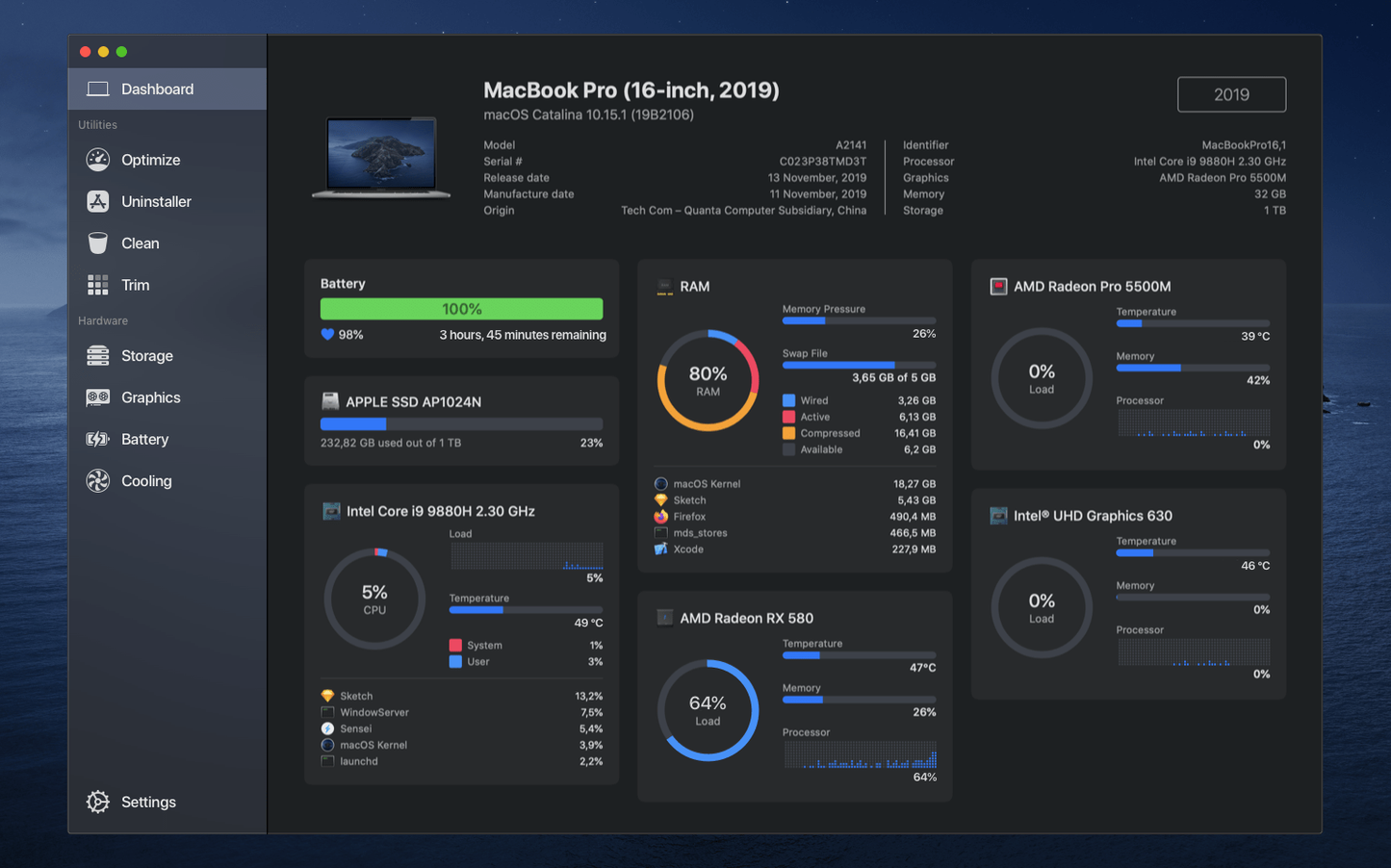
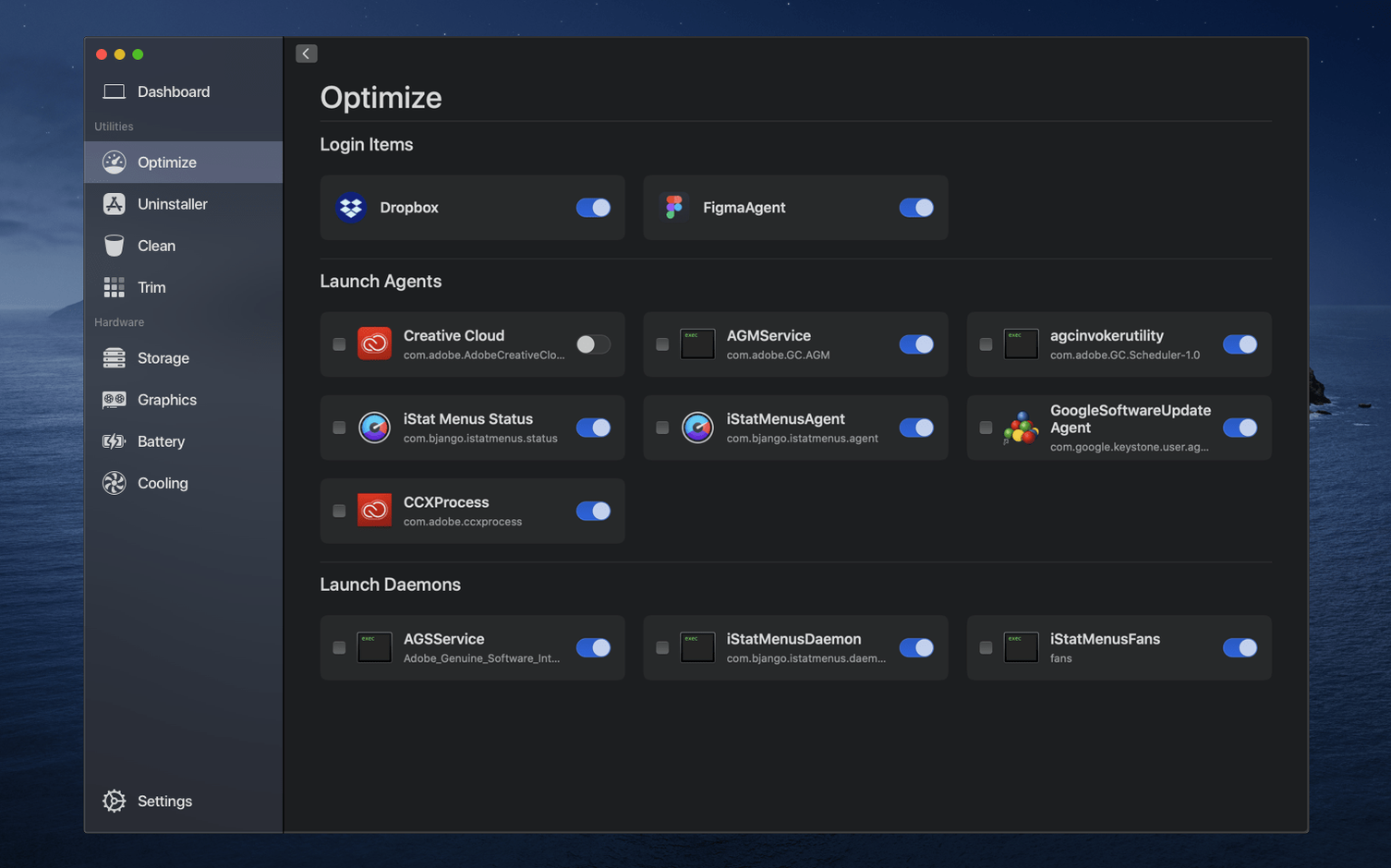
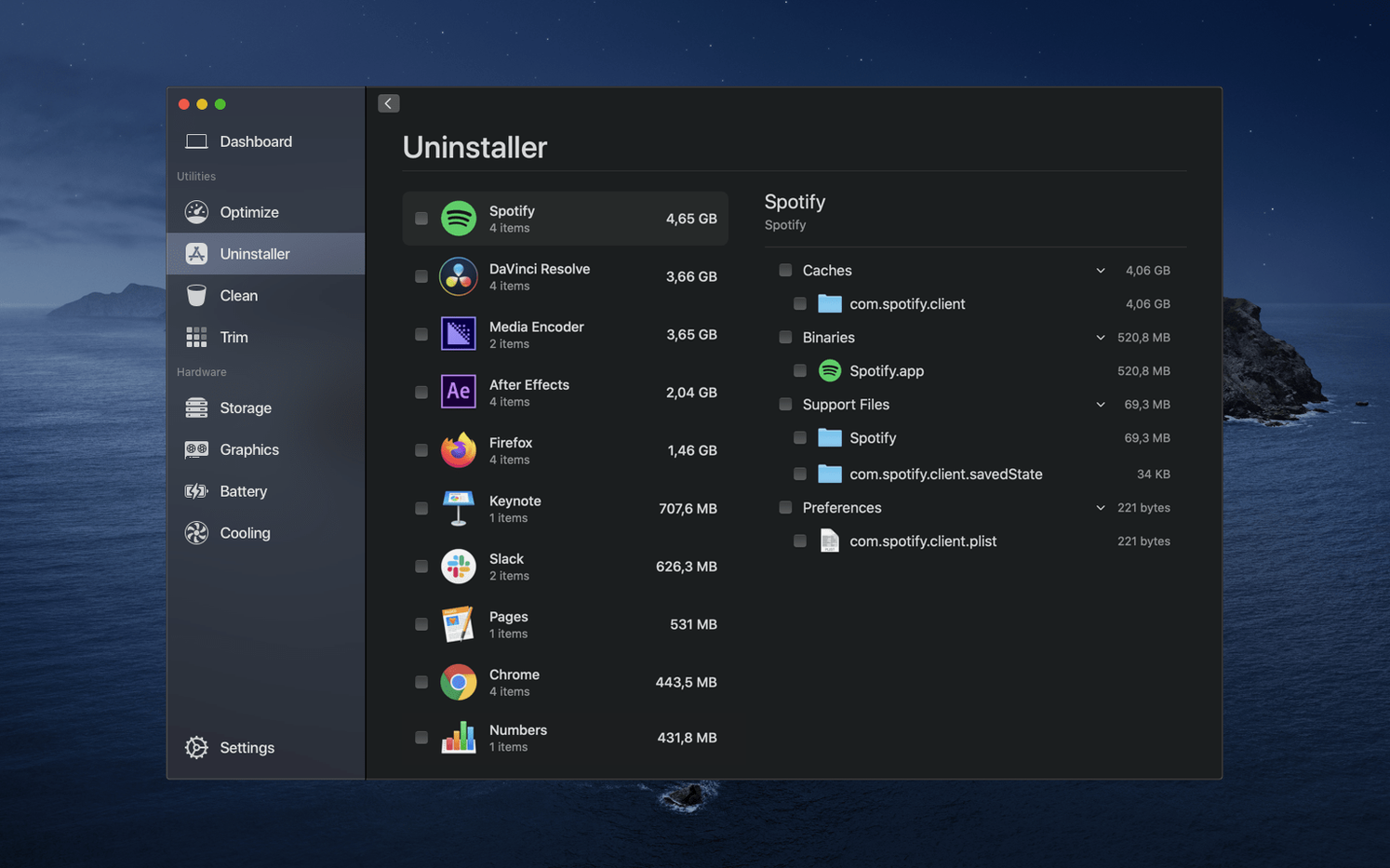
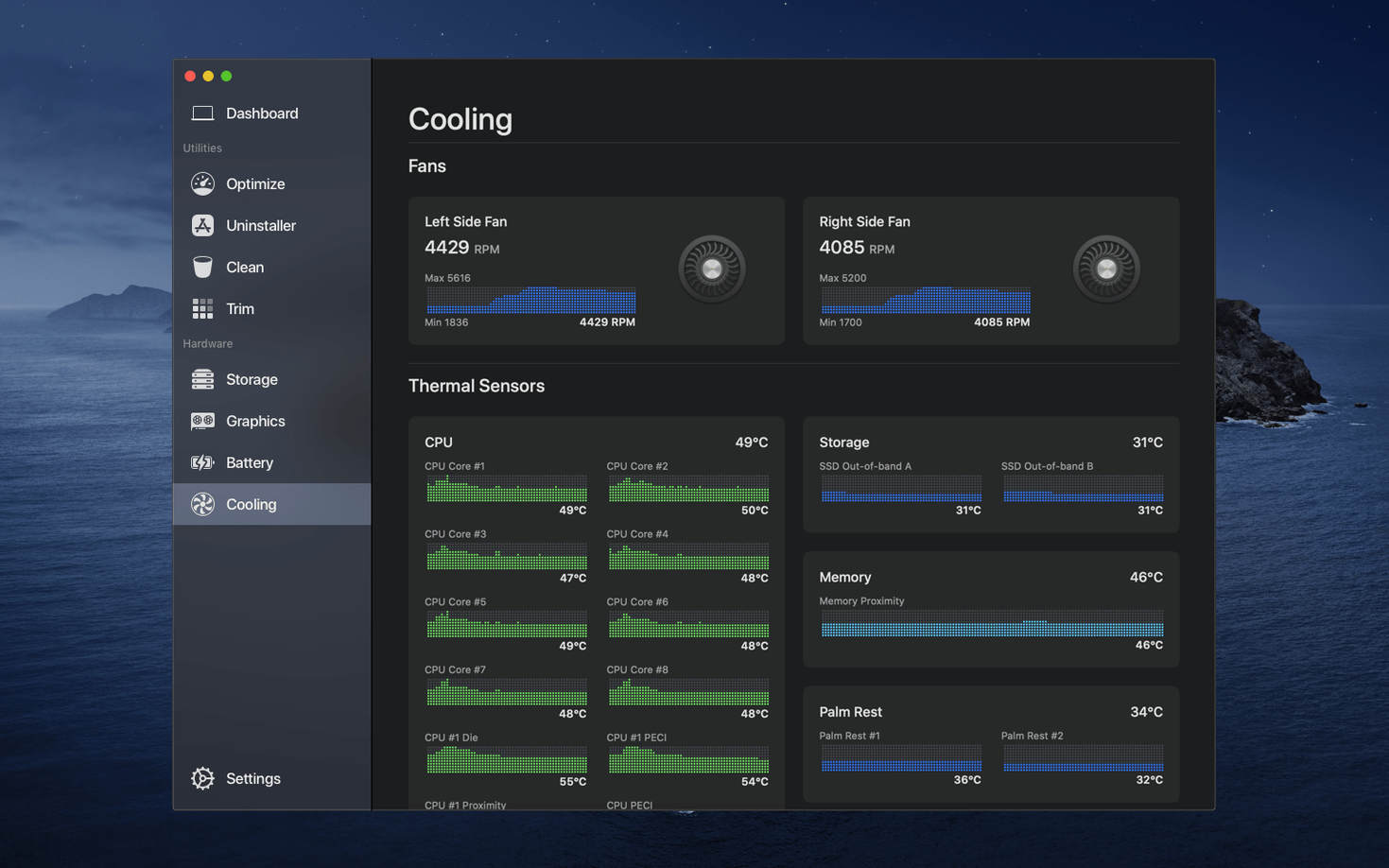
Sensei runs on Apple Silicon and Intel Macs alike, asking only for macOS 14 or later. It is built by Cindori AB and feels equally at home on a MacBook Air or a Mac Studio.
A deeper look at the tools pro users lean on
- Menu bar system monitor. Keep an always-available dashboard tucked in the corner. It shows real-time CPU, memory, disk, and network stats without pulling you away from actual work.
- Fan control and temperature tracking. Let the machine manage itself or dial in a custom curve. Temperature sensors across the hardware let you spot a hot drive or a pegged GPU before throttling kicks in.
- Battery health. Beyond a simple percentage, you get cycle count, capacity, and wear level. Useful when you are nursing an older battery through a long day.
- Disk cleanup and disk Sensei tools. Tear into large files, system caches, and forgotten downloads with a clean interface that makes space reclamation feel less like guesswork.
Everything lives inside a calm, modern single window that switches views without clutter. The cleanup scans are quick, and the hardware panels read like a technician’s notebook rather than a marketing dashboard. If you already live in Activity Monitor but want deeper visibility — especially for thermal and storage health — Sensei fills that gap without feeling bloated.
Barely-there CPU footprint on M1
On an M1 MacBook Air the menu bar monitor barely registers — typically under 0.3% CPU while idling, and memory sits around 60 MB. That figure climbs slightly during a full disk scan, but not enough to make the fans spin up on machines that rarely spin them at all. Intel Macs show similar restraint, though I noticed a brief spike when the trim force tool runs its initial pass.
Stability has been uneventful in the best way. Across weeks of letting the menu bar widget sit there, waking from sleep, and running cleanup scans back to back, I have yet to see a beach ball or a silent crash. The app respects macOS privacy prompts the first time it needs full disk access, and the helper daemon stays quiet until called. If you have been burned by system cleaners that feel held together with tape, Sensei's restraint is refreshing.
Menu bar tweak for disk and network at a glance
A few defaults reward a quick visit to preferences before you settle into a routine:
- Menu bar widget detail. The default compact view shows CPU and memory. I switch mine to include disk activity and network throughput — the extra row never feels cramped, and it saves a click when something saturates the drive.
- Temperature unit. Celsius is the factory setting. If your brain works in Fahrenheit, flip it once and forget it.
- Cleanup exclusions. Before running the first full scan, add any folders where you keep deliberately large or cache-heavy project files. Sensei respects the list immediately.
- Launch at login. Off by default. If the menu bar monitor becomes part of your workflow, toggle it on so you never start a session without the hardware overview ready.
1.6.0 dashboard puts thermals and power in one pane
The jump to sensei 1.6.0 brought a redesigned dashboard layout that grouped thermal and power data into a single pane — less scrolling, faster glances. Sensei 1.7.0 followed with native Apple Silicon support for the disk cleanup engine, which cut scan times roughly in half on M-series Macs. A point release, sensei 1.7.1, quietly fixed a rare bug where the menu bar widget would freeze after waking from hibernation on certain Intel configurations.
Version 2.x consolidated all of that into the unified window we see today. The current 2.1.2 build feels like the payoff: trim enabling works without a terminal command, fan curves apply instantly rather than after a reboot, and the battery panel now separates design capacity from current maximum in a way that makes degradation obvious at a glance. If you last tried a sensei download back in the 1.x days, the leap in polish is significant.
- macOS 14 or later
- Apple Silicon and Intel Macs
- Languages: English, Russian, Spanish, Simplified Chinese, Dutch, French, Swedish, Japanese
Questions people ask
Can Sensei control my Mac’s cooling fans?
Yes, it offers manual fan control alongside temperature monitoring so you can adjust cooling curves to your preference.
Does it show battery health details?
It reports cycle count, capacity, and wear level, giving you a clearer picture of battery condition beyond the menu bar icon.
What kind of cleanup does Sensei do?
It finds large files, system caches, and old downloads through a straightforward disk cleanup tool, helping free space without digging through folders.
Also on readers' docks
Sign in or create an account to leave a comment.
No comments yet. Tell me how it got on with your other devices.