Download Screen Studio for macOS
A single recording can export at up to 4K resolution running at 60 frames per second, which keeps every automatic zoom crisp even on a 5K display.
Shape the frame after you stop recording
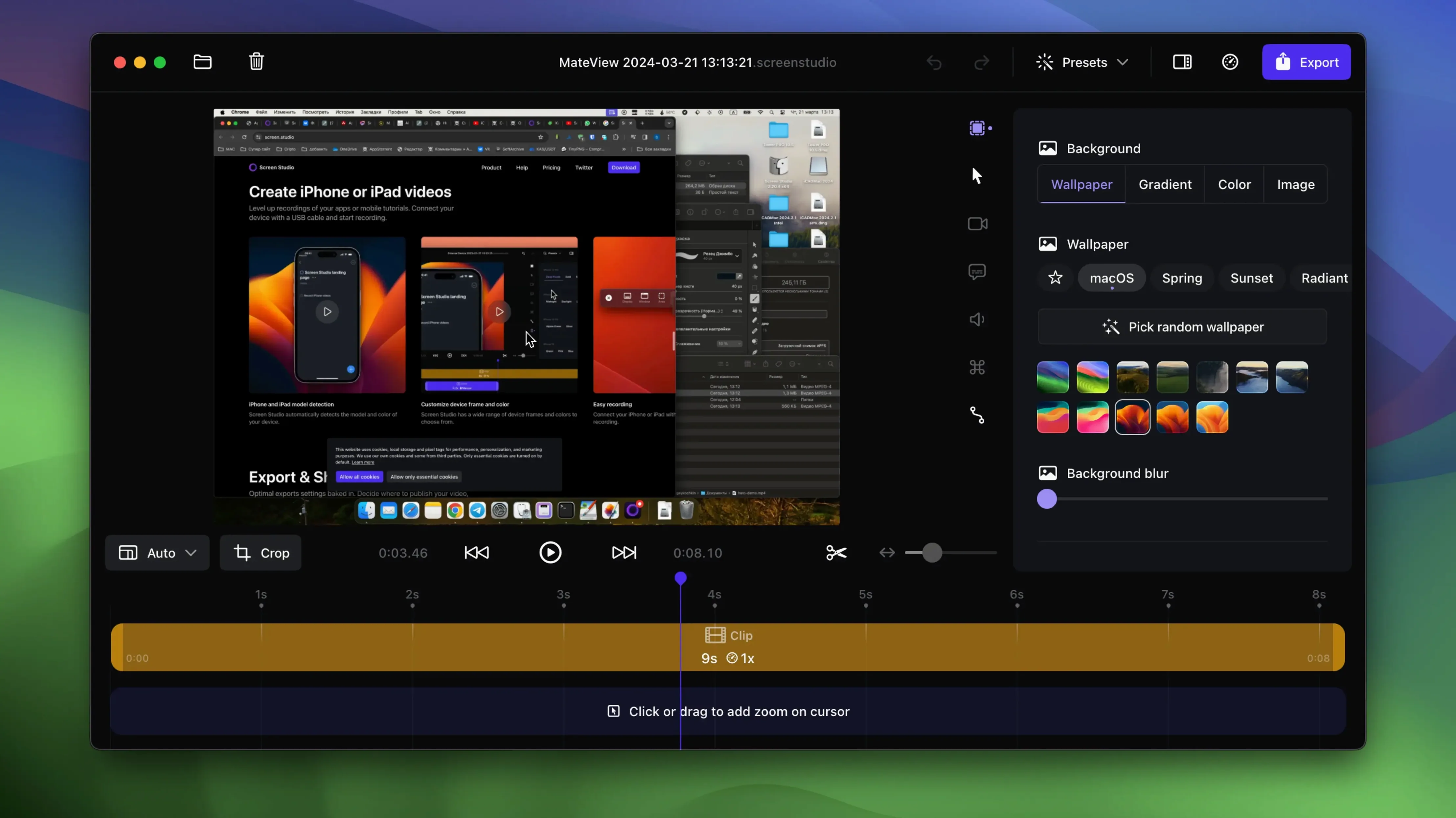
The background, spacing, shadow, and padding aren't locked in once you finish. You pull them around in the editor until the framing feels right, without re-shooting anything.
Rework the cursor until it tells the story
Screen Studio smooths motion automatically, but you can also resize the pointer later or turn on cursor looping so it returns to its starting spot near the end of the clip—handy for looping demos.
Trim, speed up, and share without leaving the app
Cut and crop sections on a timeline, accelerate the slow bits, then generate a shareable link straight from the export panel. Desktop icons hide during recording so the final video looks cleaner with no extra cleanup pass.
A full recording-to-share workflow, start to finish
Let's walk through recording a quick product feature teaser for social media — the kind of clip that needs to feel polished but shouldn't eat half your morning. You open Screen Studio and select New Recording. Before hitting record, you decide what's in frame: maybe just a single app window, or the whole screen with desktop icons automatically hidden by toggling that option in the overlay settings. You plug in your iPhone via USB, and Screen Studio detects the model and color straight away — no fiddling with resolution or framing on the device itself.
You start recording and demonstrate the feature once, talking through the steps while Screen Studio captures your voice, system audio, and the webcam feed as a small selfie overlay. Cursor motions are being smoothed in real time, and the app is already tracking where your clicks land so it can build zoom keyframes later. When you're done, you stop the recording and immediately see an editable timeline.
Now comes the part that saves re-shoots. You drag through the timeline and decide the middle section needs a tighter focus on a dropdown menu. You click to add a manual zoom there, adjusting its start and end points by pulling the handles on the timeline — no re-recording, no external editor. You trim three seconds of hesitation at the start, speed up a loading spinner segment to 2x, then switch the canvas to vertical export. The framing adjusts automatically, keeping the important UI elements centered instead of cropping them awkwardly.
Before exporting, you normalize the voice audio level so your quiet mumble at the start matches the louder finish. You check the transcript, generated locally, to make sure the captions align. Finally, you export a 1080×1920 clip at 60 fps and copy the shareable link, dropping it into a team chat. The whole thing took under eight minutes, and the automatic zooms look like someone spent an hour keyframing them.
First days with Screen Studio: practical habits to build
When you install Screen Studio and open it for the first time, the polish is immediate — maybe too immediate, because it's tempting to just record everything and hope for the best. A few small habits make the difference between "this is clever" and "this is my daily driver."
- Turn on desktop icon hiding early. It's a checkbox in the recording overlay, and you'll forget it exists until you export a clip with a messy desktop full of screenshots. Toggle it once and leave it on.
- Set your default export dimensions. If most of your work ends up on Twitter or TikTok, switch the default canvas to vertical now, not after every recording. Screen Studio respects the last setting you used, so one intentional export teaches it your preference.
- Record a throwaway clip and play with zoom editing. Drag manual zooms onto the timeline, adjust their duration by pulling the edges, and stack two in a row to see how the automatic smoothing handles the transitions. It's intuitive, but ten minutes of experimenting stops you from fighting the defaults later.
- Check the system audio source. By default Screen Studio can capture audio from all apps, but if you're recording a call and don't want notification pings in the final video, switch to recording only the selected app's audio before you start.
- Let the transcript generate while you do something else. It runs locally and doesn't phone home, but it still takes a moment. Start the transcript right after stopping a recording, then trim or adjust framing while it processes.
One more thing: the clipboard export option is easy to overlook. After exporting a short clip, you can copy it directly to the clipboard and paste it into Messages, Slack, or a Notion page without ever touching the Finder. For quick internal walkthroughs, it's faster than generating a shareable link.
Turning ‘How Do I?’ Tickets Into Instant Cursor-Driven Walkthroughs
Mara works in customer support for a SaaS company, and her day is full of "how do I..." questions that are faster to show than to type. Before Screen Studio, she'd record a quick Loom, apologize for the ugly cursor jumps, and hope the customer could read the tiny text she was clicking on. Now her workflow is tighter.
She gets a ticket about a confusing settings panel. Instead of writing a six-paragraph reply, she opens Screen Studio, selects just the browser window showing the settings, and records herself clicking through the fix. The cursor smoothing kicks in automatically, so her slightly shaky trackpad movements look deliberate. The app zooms in on each dropdown as she interacts with it. She stops recording, trims the dead air at the start, and copies the video to her clipboard. She pastes it into the support thread. The whole response — from reading the ticket to hitting send — takes under two minutes, and the customer gets a clear, zoomed-in walkthrough that shows exactly where to click.
Later, she records a longer internal training clip showing a new feature for the sales team. This time she connects her iPhone and records the mobile app experience directly through USB, with the device frame automatically detected and matching her actual phone color. She exports it as a GIF for the company wiki and as a 4K video for the all-hands presentation. The same recording, two outputs, no re-shooting.
How Screen Studio fits among similar Mac screen recorders
Mac screen recording isn't a sparse category, but the apps fall into different philosophies. Next to Cleanshot X, Screen Studio feels less like a screenshot-and-annotation toolkit and more like a video-first instrument. Cleanshot X excels at still captures, arrows, and blurring sensitive info, with screen recording as one feature among many. Screen Studio ignores still images entirely and focuses on making motion look deliberate: automatic zooms, cursor smoothing, and post-recording framing adjustments that Cleanshot X doesn't attempt.
Compared to OBS Studio, the difference is philosophy. OBS is a broadcast Swiss Army knife — scenes, sources, streaming, multi-device capture — and it rewards people who enjoy building a setup. Screen Studio strips all of that away. No scenes, no source management, no streaming. What you get instead is a post-recording editor that automatically builds zooms around your clicks, smooths cursor paths you didn't know were jerky, and lets you crop for vertical export without re-encoding in another app. OBS gives you control over everything; Screen Studio makes the recording look finished without you touching much.
Loom sits somewhere else again — it's built for quick async video messages with a focus on cloud sharing and viewer comments. Screen Studio doesn't have Loom's library management or team collaboration features, but it produces significantly more polished output. Loom records what you see; Screen Studio records what you see and then helps you frame it, zoom it, and export it in formats Loom doesn't touch, including 4K60 and local GIF export. If you're sending a quick internal update, Loom might be faster. If you're publishing a demo that looks like it had an editor, Screen Studio pulls ahead.
People who gravitate toward Screen Studio tend to want one thing: a recording that looks polished without ever opening a traditional video editor. If you're already comfortable in Final Cut or DaVinci Resolve, Screen Studio won't replace them — but it might mean you never need to launch them for a two-minute product demo again.
- macOS 13 or later
- Apple Silicon or Intel 64-bit Mac
Questions people ask
Does Screen Studio run on an iPad or iPhone?
No, it's a macOS-only application and recommends macOS 13.1 or later.
Can I change how the cursor looks after I've finished recording?
Yes, you can adjust cursor size and enable cursor looping in the editor after the recording is done.
Also on readers' docks
Sign in or create an account to leave a comment.
No comments yet. Tell me how it got on with your other devices.