
Download RAR Extractor for macOS
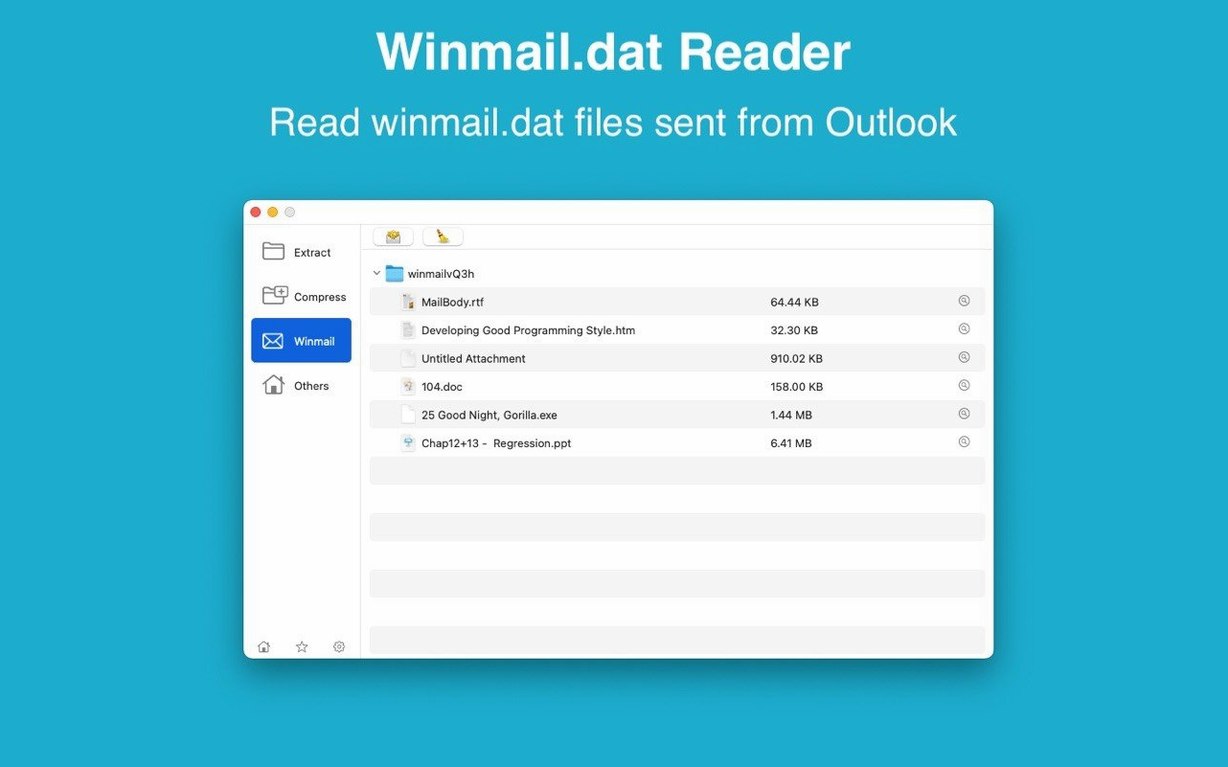
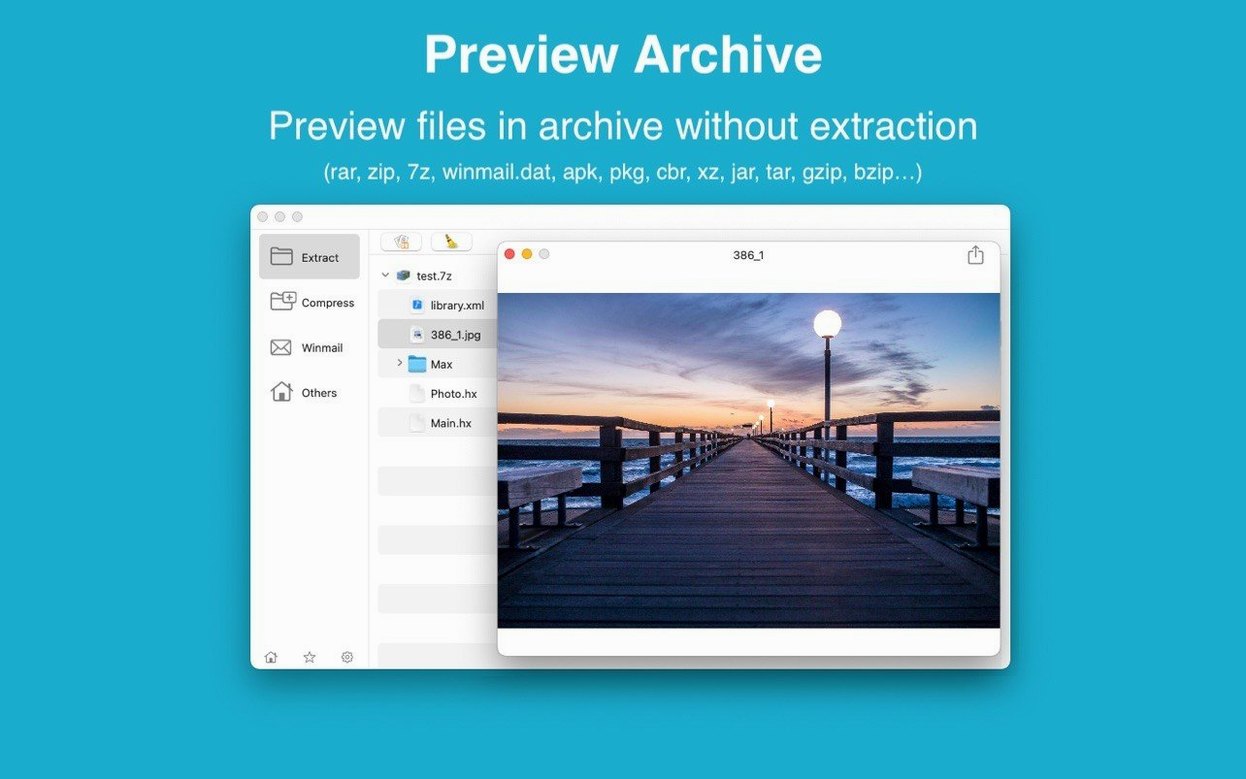
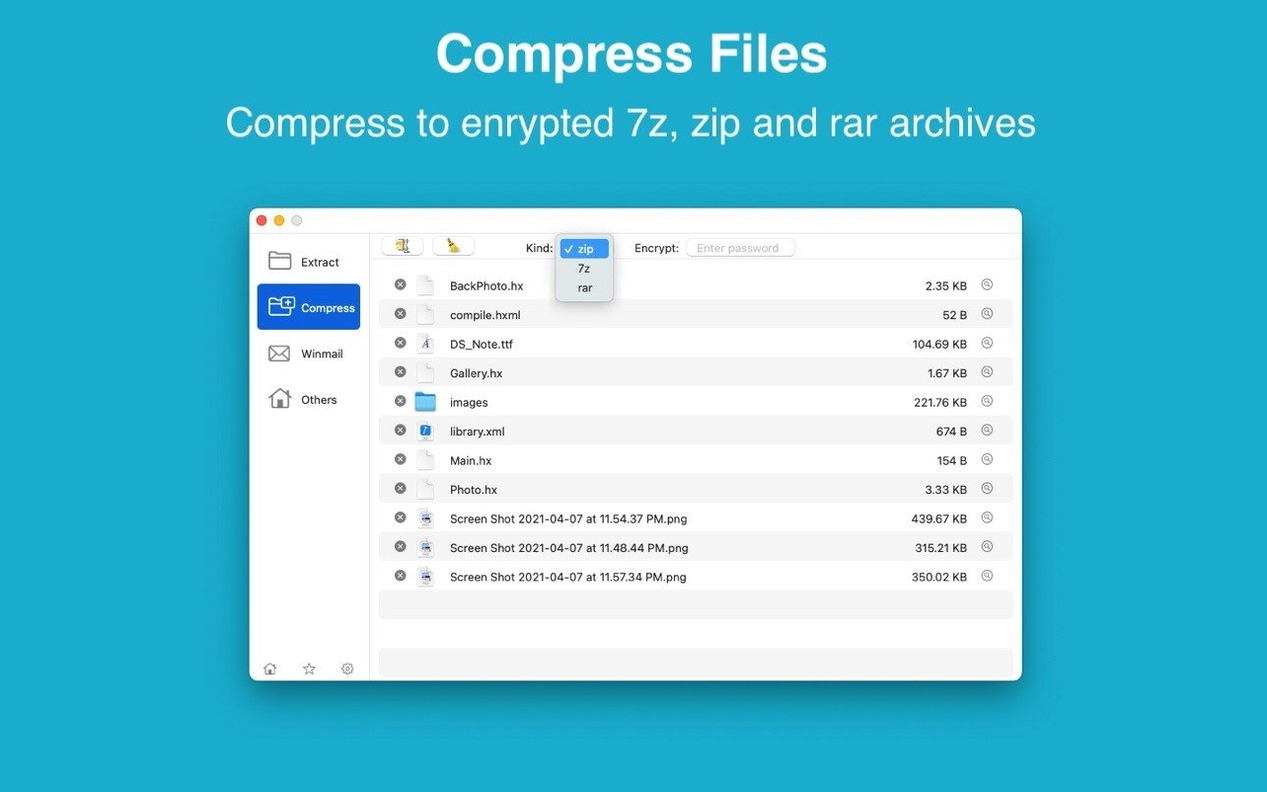
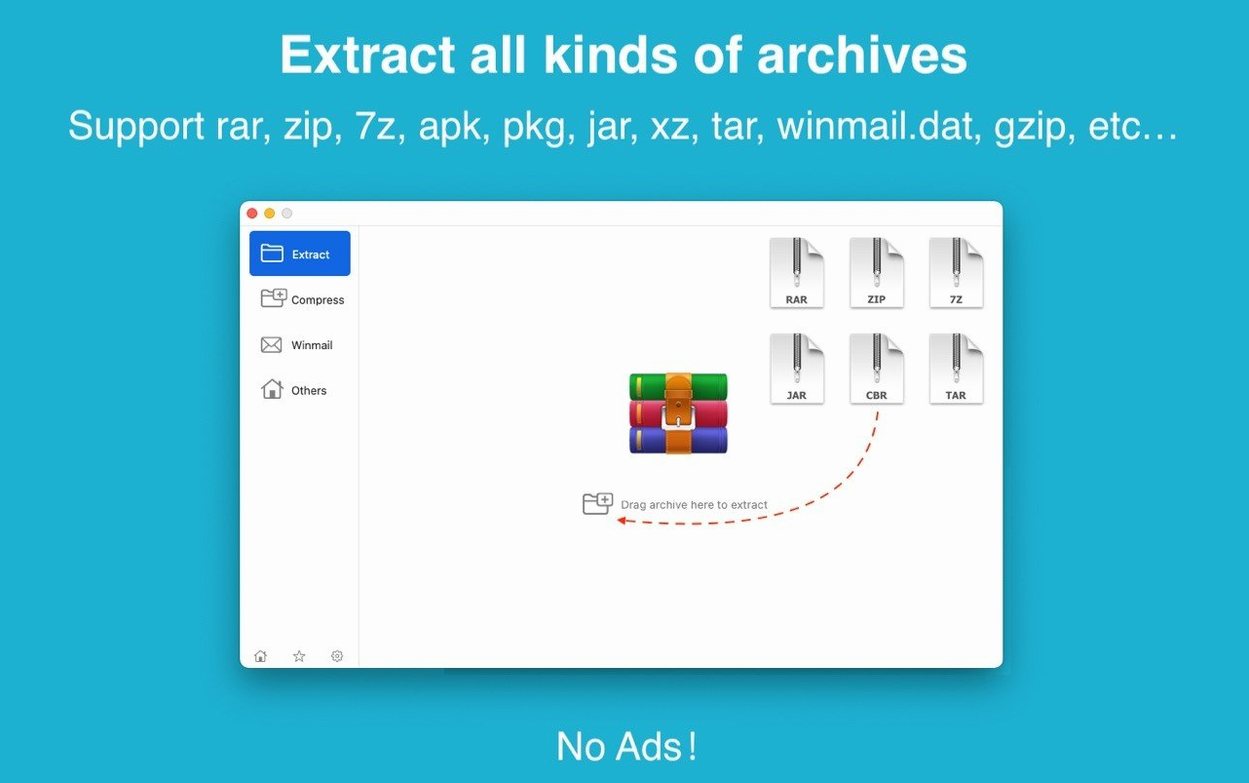
Version 13.9.6 arrived as a quiet maintenance update, keeping the engine running smoothly on both Apple Silicon and Intel Macs running macOS 11.5 or later. While the release notes didn't detail specific changes, the stability improvements tend to show up where they matter most — handling large, multi-part archives without complaining.
Archive browsing and selective extraction
A dual-window display gives you two ways to work. One window shows the archive's contents in a straightforward file list, while the other holds your destination. This makes selective extraction feel natural: grab a single folder from a 4 GB archive without unpacking the whole thing. Encrypted archives don't slow you down either — the app asks for the password once and lets you browse before you extract. Dragging an archive straight to the desktop for quick unpacking rounds out the workflow, and batch mode handles a stack of files while you move on to something else.
Compression that takes security seriously
Creating archives brings AES-256 encryption into the mix for both ZIP and 7Z formats — the same standard you'd expect from a dedicated encryption tool. The interface switches between English and Simplified Chinese, which keeps things accessible without adding clutter. For anyone who has wrestled with command-line flags or dealt with archives that arrived password-protected and nested three deep, this is where the app earns its keep. The tools are there when you need them and stay out of the way when you don't.
A real-world workflow: client assets from download to organized folder
Picture this: a client sends over a winmail.dat file, two password-protected RARs full of branding assets, and a 7Z archive with print-ready PDFs — all in one chaotic email thread. Here's how I'd untangle that mess with RAR Extractor in under five minutes.
I start by dragging the winmail.dat attachment straight onto the Dock icon. The preview window pops up immediately and shows me the actual files buried inside — a Word document and three PNGs that Outlook decided to mangle. I select them and hit extract to a new folder on the desktop. No guessing, no third-party web tools.
Next up: the password-protected RARs. The client included the password in a separate message, so I select both archives in Finder and drop them onto the app window. It prompts for the password once and applies it to both files — batch extraction with encryption handled transparently. While those unpack, I drag the 7Z file onto the desktop area within the dual-window view, which extracts directly without opening a separate dialog. Everything lands in neat folders, named after the archives, ready to drop into my project structure.
The whole sequence feels less like running a tool and more like telling Finder to be smarter about archives. I didn't open a single preferences panel during that workflow — the defaults just worked.
Double-click any archive opens in file-list view
Setting RAR Extractor as the default archive app changes how the whole system behaves. Double-click any supported archive in Finder and it opens in the file-list view instead of Apple's built-in Archive Utility. Right-click a .rar or .7z and the "Open With" menu includes it automatically. This matters when you're jumping between Finder, Mail, and a download manager — the app slots into existing muscle memory rather than demanding a separate workflow.
Integration with Quick Look is the one missing piece, but the built-in fast preview fills that gap reasonably well. Select a file inside an archive, tap the spacebar-like preview button, and you get a look at the contents without extracting. It's not as instantaneous as Quick Look for loose files, but for checking which of six identically-named PDFs is the final version, it saves real time.
For users who live in the terminal, the app doesn't offer command-line integration — but that's fine. It complements rather than replaces tools like unrar or 7z. I tend to use RAR Extractor for visual browsing and selective extraction, then drop into Terminal for scripting repetitive unpacking tasks. The two approaches coexist without stepping on each other.
Spotlight also benefits: extracted files appear in search results immediately because the app writes to standard Finder-visible locations. No sandboxed containers to dig through, no temporary folders that vanish on quit.
Switch default extraction to a fixed destination
The preferences window is compact — there's no sprawling settings panel to get lost in — but a few tweaks make daily use smoother:
- Default extraction destination. The app defaults to the same folder as the archive. I switch this to a dedicated "Unpacked" folder inside my Downloads directory. It keeps the desktop clean and makes batch extractions predictable.
- Post-extraction behavior. You can set the app to open the destination folder automatically after extraction completes. I leave this on — it's the fastest way to jump into the files without hunting through Finder.
- Default compression format. When creating archives, the app remembers your last choice, but setting 7Z as the default in preferences saves a click every time. The AES-256 encryption option appears in the save dialog regardless of format, so you're not locking yourself into anything.
- Dual-window vs. single-window mode. If you prefer a more compact view, you can collapse to a single window that shows only the archive contents. I stick with dual-window for extraction tasks and switch to single when I'm just browsing what's inside an archive.
One thing worth knowing: the app respects macOS appearance settings automatically — light mode, dark mode, it follows the system. No separate theme toggle needed.
2 GB multi-part RAR unpacks in one coffee break
On an Apple Silicon Mac, extraction speed sits comfortably in the "fast enough that I stop thinking about it" category. A 2 GB multi-part RAR set unpacks in roughly the same time it takes to make a cup of coffee. The progress bar stays responsive, and the app doesn't beachball even when chewing through a heavily compressed 7Z archive with AES-256 encryption layered on top.
Memory usage hovers around 120–180 MB during extraction, spiking briefly to 250 MB on larger archives before settling back down. That's modest enough to keep running alongside Photoshop, a dozen browser tabs, and Spotify without triggering memory pressure warnings. The app releases resources promptly after extraction completes — no slow leak that builds up over a full workday.
Stability has been uneventful, which is exactly what you want from a utility app. Across several weeks of daily use, I haven't seen a single crash or hung extraction. The only quirk I've noticed: archives with deeply nested folder structures — think eight levels deep with long filenames — occasionally trigger a brief pause while the file list populates. The extraction itself still completes without errors; it's purely a display refresh delay.
For anyone who regularly handles winmail.dat files from Outlook-using colleagues or needs a rar extractor unarchiver mac solution that doesn't demand terminal fluency, this app sits in a sweet spot. It's not trying to be a power user's Swiss Army knife — it's a focused tool that handles the formats people actually encounter, handles them reliably, and stays out of the way the rest of the time.
- macOS 11.5 or later
- Apple Silicon & Intel 64-bit
Also on readers' docks
Sign in or create an account to leave a comment.
No comments yet. Tell me how it got on with your other devices.