
Download QSpace Pro for macOS
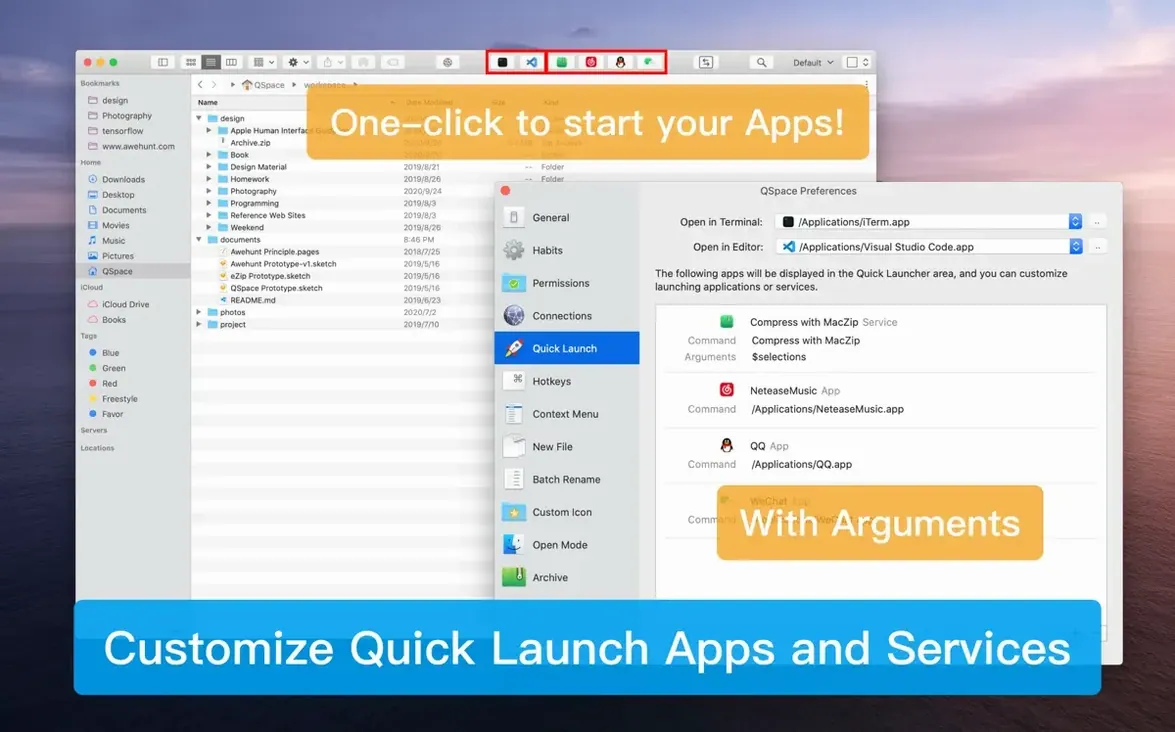
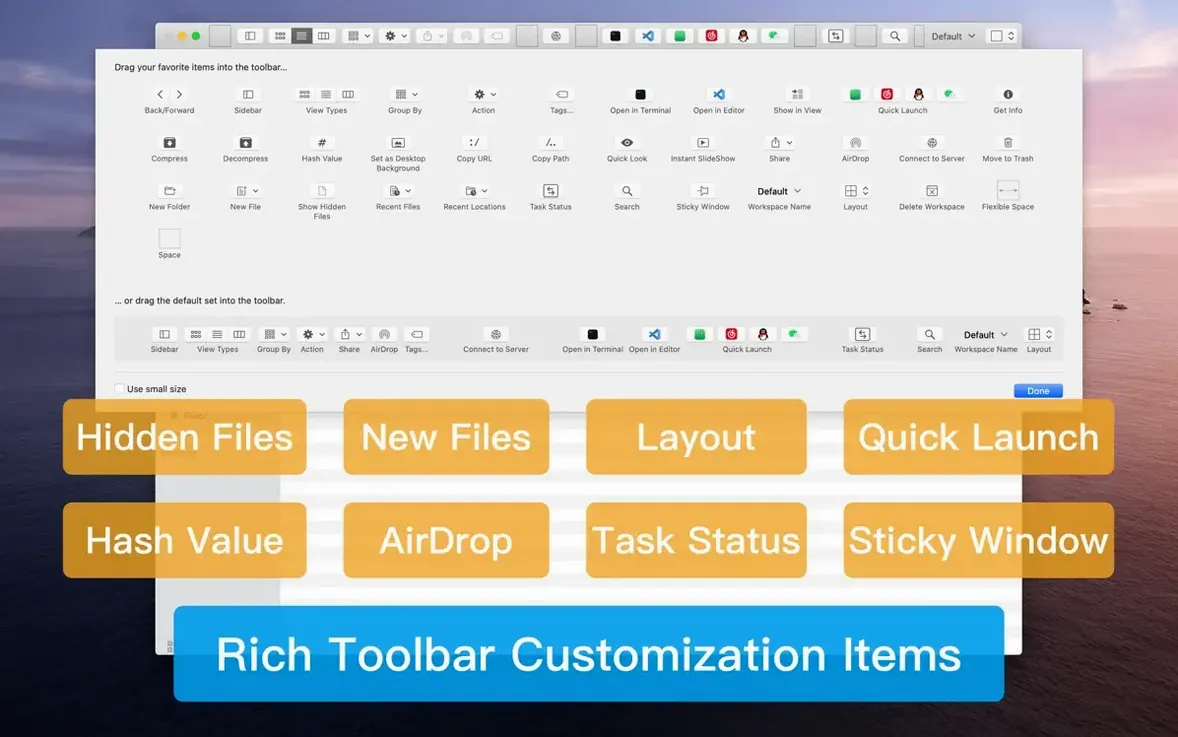
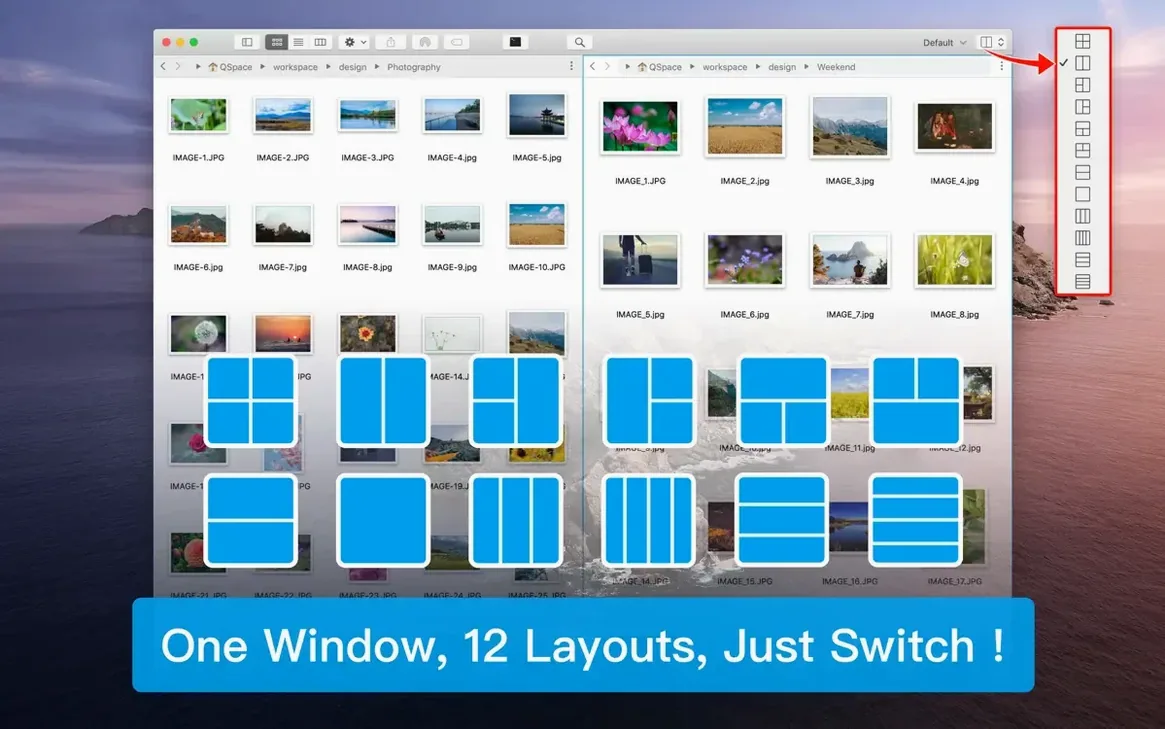
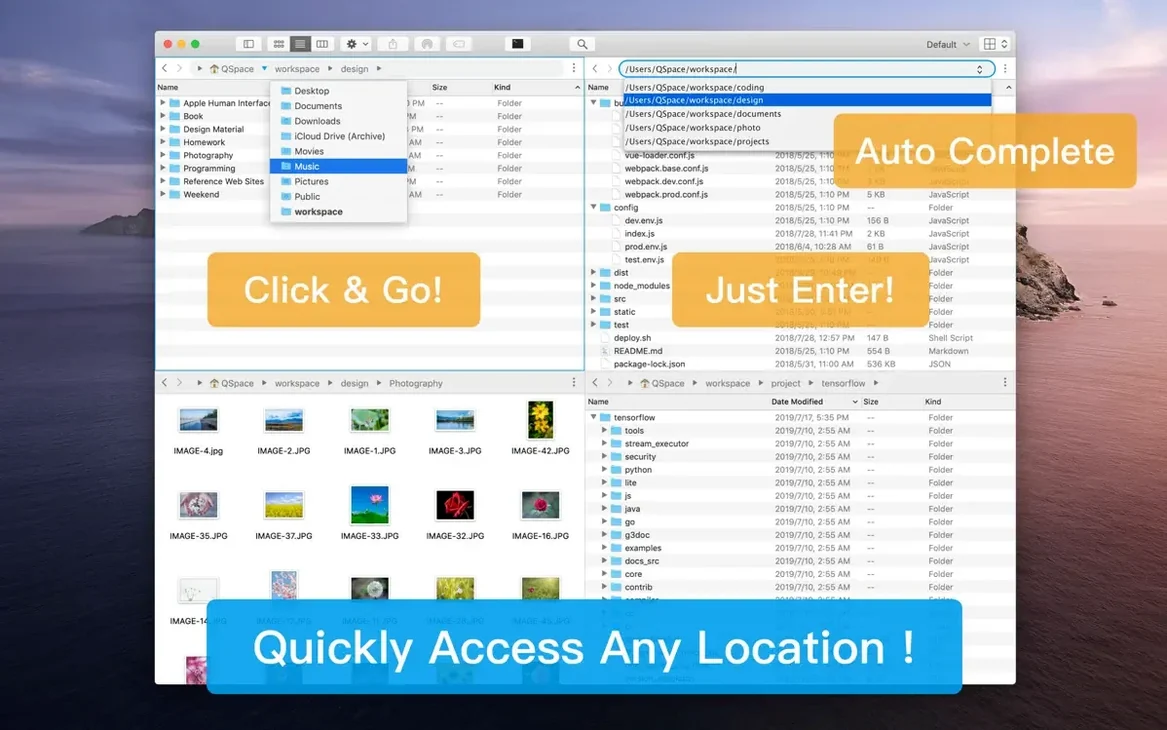
You've just connected an external drive, expanded a zip archive, and now you need to move a handful of those files into three different project folders. With Finder you'd open one window, then another, then start juggling tabs. QSpace Pro tosses that dance out the window by giving you up to four file panels in a single workspace, with full cut, copy, paste, and drag-and-drop support between every pane.
Runs on Apple Silicon and Intel, One License for Two Macs
QSpace Pro runs on macOS 10.13 High Sierra and later, and it's a universal binary — so it works natively on both Apple Silicon and 64-bit Intel Macs. One license covers up to two devices at the same time, and the interface speaks Russian, English, German, Dutch, French, Japanese, and both Simplified and Traditional Chinese.
How does it actually work?
It borrows Finder-like principles so nothing feels alien, then layers on extras. Each pane can point to a different location, and you can customize the sidebar with bookmark groups or change what appears in the right-click context menu. A configurable quick launcher sits ready for your most-used folders, and you can even open any selected folder straight into Terminal or iTerm.
What makes it more than just extra panes?
Workspaces let you save and recall entire pane layouts — one for a coding project, another for photo sorting. The batch renaming tool gives you a live preview as you build rules, and the archive manager can now browse inside nested archives without extracting everything first. Pane minimization, added in the latest release, lets you tidy the window with a drag when you don't need all four panels at once.
Silent SFTP Dropouts and Other Recovered Failures
Even a well-oiled file manager throws a curveball now and then. Here are a few things I've tripped over with QSpace Pro and what actually gets you moving again.
Remote connections drop silently. You've mounted an SFTP server in one pane, walked away for coffee, and come back to a frozen listing. The fix is usually in the connection settings: bump the keep-alive interval down to 30 seconds and make sure the timeout isn't set too aggressively. If the server uses key-based auth, double-check that the private key path hasn't changed — QSpace doesn't always warn you when a key goes missing.
Drag-and-drop between panes feels inconsistent. If a drag copies instead of moving, check whether the source and destination live on different volumes. That's expected Finder behavior, and QSpace follows the same rule. Hold Command during the drag to force a move, or Option to force a copy, regardless of volume.
Workspace tabs vanish on restart. The automatic state-saving is reliable, but it only kicks in if you quit the app normally. A crash or force-quit bypasses it. Get into the habit of hitting Command-S in the Workspace menu before shutting down, especially after a big reorganisation. That writes the state to disk explicitly.
Archive browsing shows garbled filenames. This crops up with ZIP files created on Windows, where the encoding doesn't match. Head into the archive preferences and switch the fallback encoding to the one matching the source — GBK for Chinese archives, Shift JIS for Japanese ones. The nested archive browsing added in 6.3.2.023 handles encodings per-layer, so you might need to adjust it for each level inside the archive.
Four-Pane SD Card Ingest and Bulk Rename Routine
Here's a task I do weekly — pulling photos off an SD card, renaming them sensibly, and filing them into dated folders, all without leaving one window.
Start with a four-pane layout. Top-left points to the SD card's DCIM folder, top-right to a staging folder on your desktop, bottom-left to your main Photos archive, and bottom-right stays empty as a preview area. Select the shots you want — Space gives you a Quick Look preview right inside QSpace, so you can cull the blurry ones without opening another app.
Drag the keepers from the SD pane into the staging pane. Now select them all in staging and fire up the batch renamer. Set a rule to replace the camera's default prefix with the shoot date and add a two-digit sequence. The live preview shows exactly what you'll get before you commit — no more renaming twice because the numbering started at zero instead of one.
With the files renamed, select them again and hit the archive command. Choose 7Z compression at normal level, and give the archive a name that matches the folder you'll create. Now switch to the bottom-left pane, create a new folder with Command-Shift-N, and drop the archive in. One window, four panes, no Finder windows stacked on top of each other.
Preferences Redesign and Grouped Options in the Latest Update
The jump to 6.3.2.023 brought a handful of quality-of-life improvements that quietly reshape how you move through the app. The preferences page redesign is the first thing you'll notice — it's flatter and groups related options more logically, so you spend less time hunting for the checkbox that turns off animation on pane switching.
Pane minimization is the feature I didn't know I wanted. When you're only using two of four panes, dragging the divider to collapse the extras feels satisfying and reclaims screen space instantly. Custom keyboard shortcuts for minimizing and restoring panes mean your hands never leave the keys. It's a small thing that makes the whole interface breathe better on a 13-inch screen.
On the visual side, theme accent colors and intensity sliders let you dial in a look that matches the rest of your Mac. If you run a dark menu bar with a specific tint, QSpace can follow suit instead of sticking out. The enhanced archive manager now lets you drill into a ZIP inside a ZIP without extracting the outer layer first — useful when developers distribute source bundles that way.
Under the hood, the reduced interface lag is real, especially when switching between workspaces with many tabs. On newer macOS builds the panes redraw faster, and a crash that used to bite when editing quick-launch command items has been squashed. If you've been holding off on updating because of stability worries, this build addresses the most reported papercuts.
Users who rely on qspace pro mac connectivity for remote workflows will appreciate that the connection handling got quieter — fewer spurious reconnection prompts. And if you've been searching for a qspace pro macos free alternative that doesn't compromise on multi-pane muscle, the current build shows the developer is still actively refining the experience rather than letting it stagnate. The macOS 26-specific context menu additions hint at deeper system integration still in the works.
QSpace Pro 7.0.4 ships with the developer's latest round of fixes and refinements so panes, tabs, and drags stay reliable.
- macOS 10.13 or later
- Apple Silicon and Intel 64-bit
Questions people ask
Can I use it on more than one Mac?
Yes — one account works on up to two devices at the same time, so you can keep it on a desktop and a laptop without buying a second license.
Does it replace Finder completely?
It works alongside Finder rather than replacing it, using similar interface ideas while adding multi-pane workspaces, batch renaming, and a customizable context menu that Finder doesn't offer.
Also on readers' docks
Sign in or create an account to leave a comment.
No comments yet. Tell me how it got on with your other devices.