Download PowerPhotos for macOS
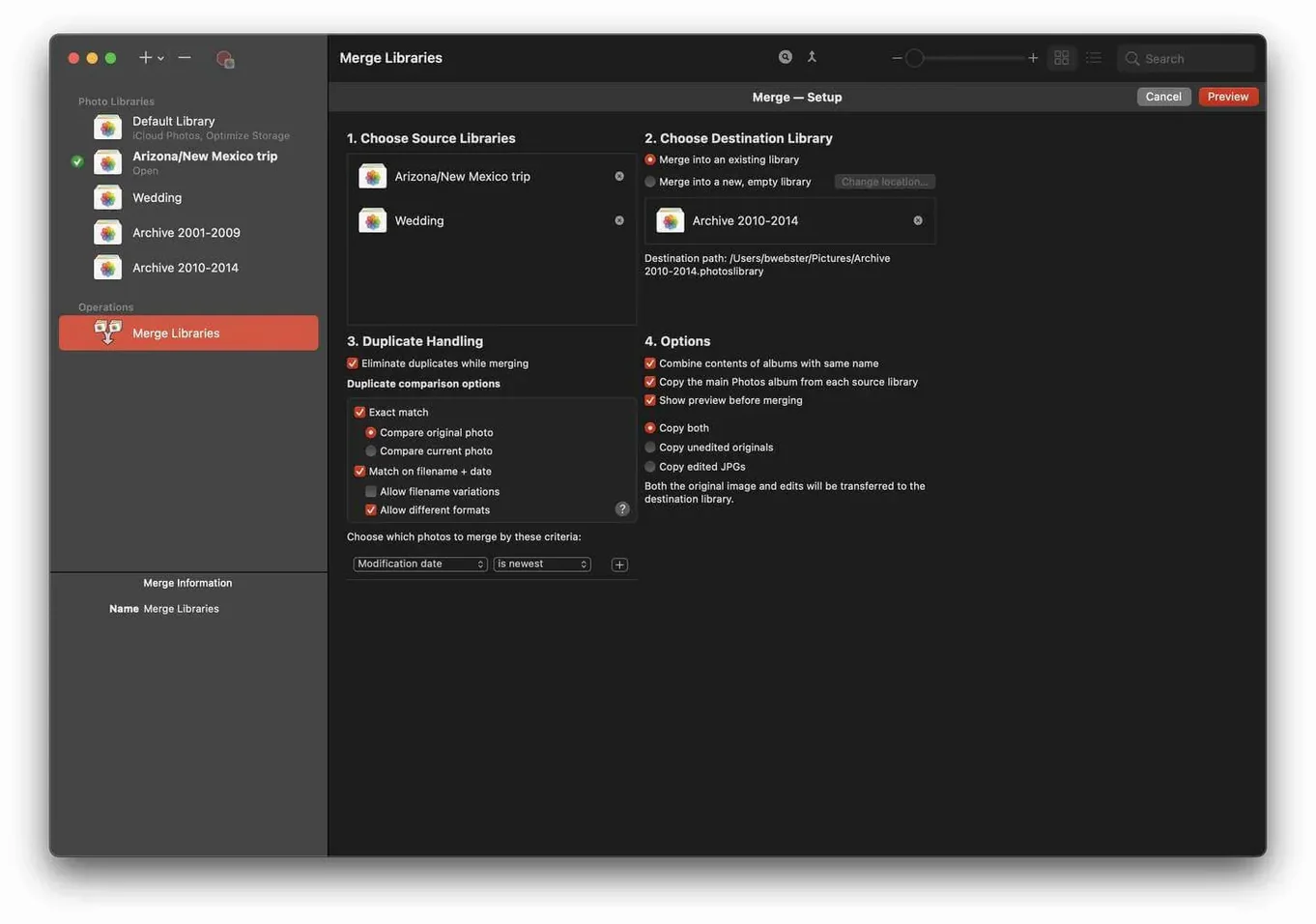
You’ve just got back from a trip and your main Photos library is ballooning past 200 GB. Instead of letting one library grow until your Mac groans, you decide to split the holiday snaps into their own library — keeping the main one lean without losing a single image.
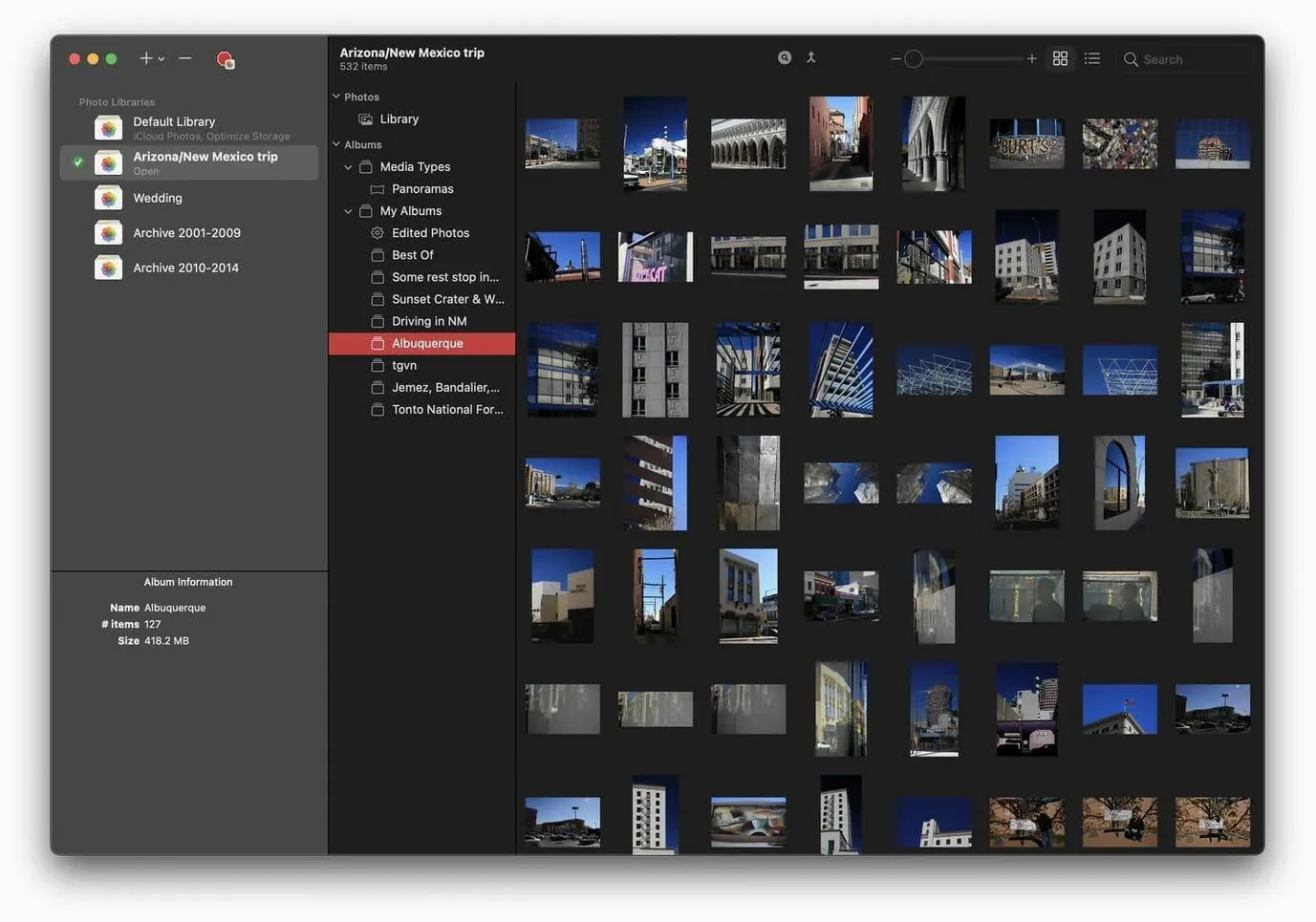
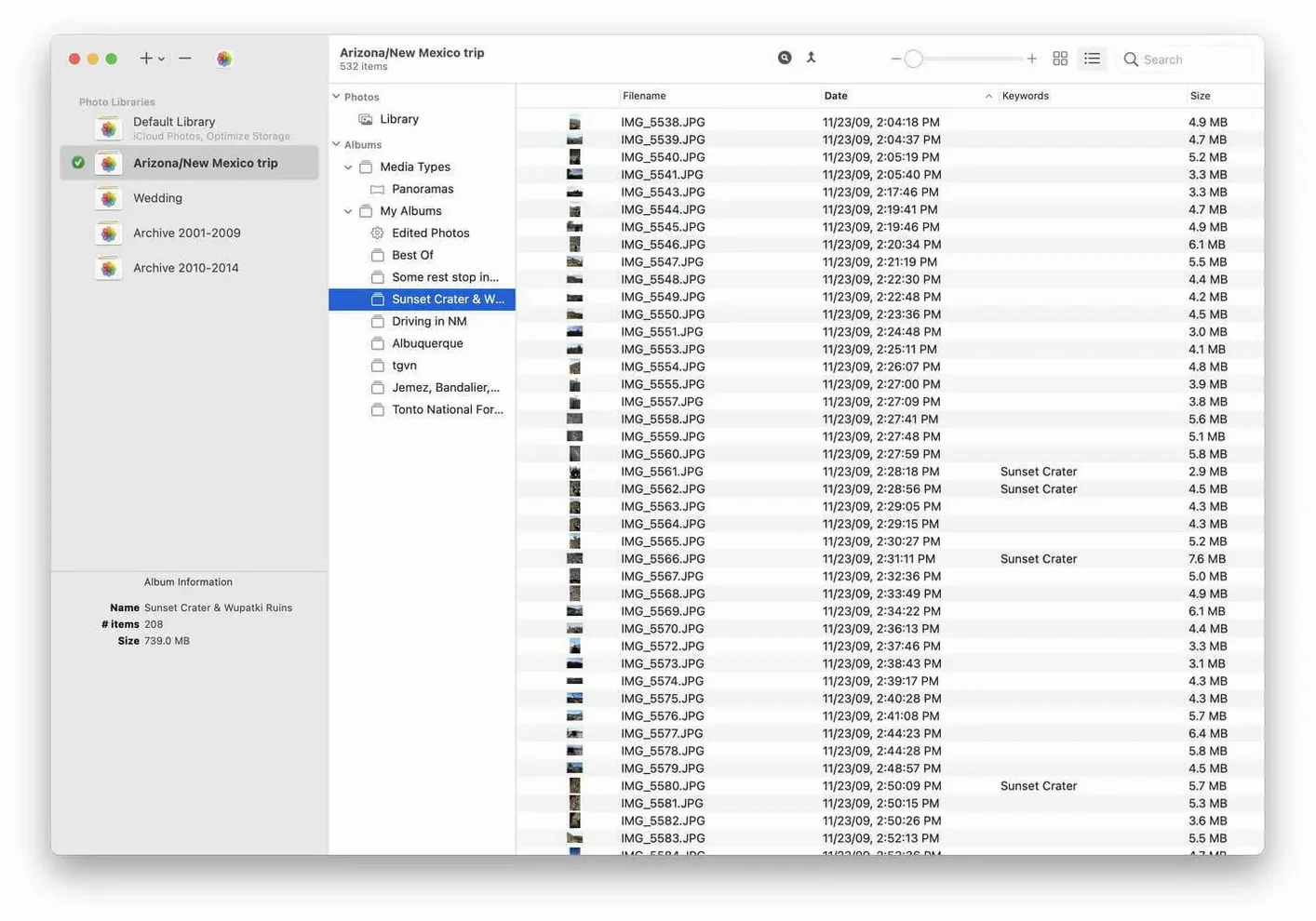
PowerPhotos 3, from Fat Cat Software, is built exactly for that. It works alongside Apple’s Photos app, letting you create and juggle multiple libraries instead of being stuck with a single monolithic one. The built-in browser lets you peek inside any library right from PowerPhotos without launching Photos each time, which saves a surprising number of clicks when you’re hunting down a specific shot.
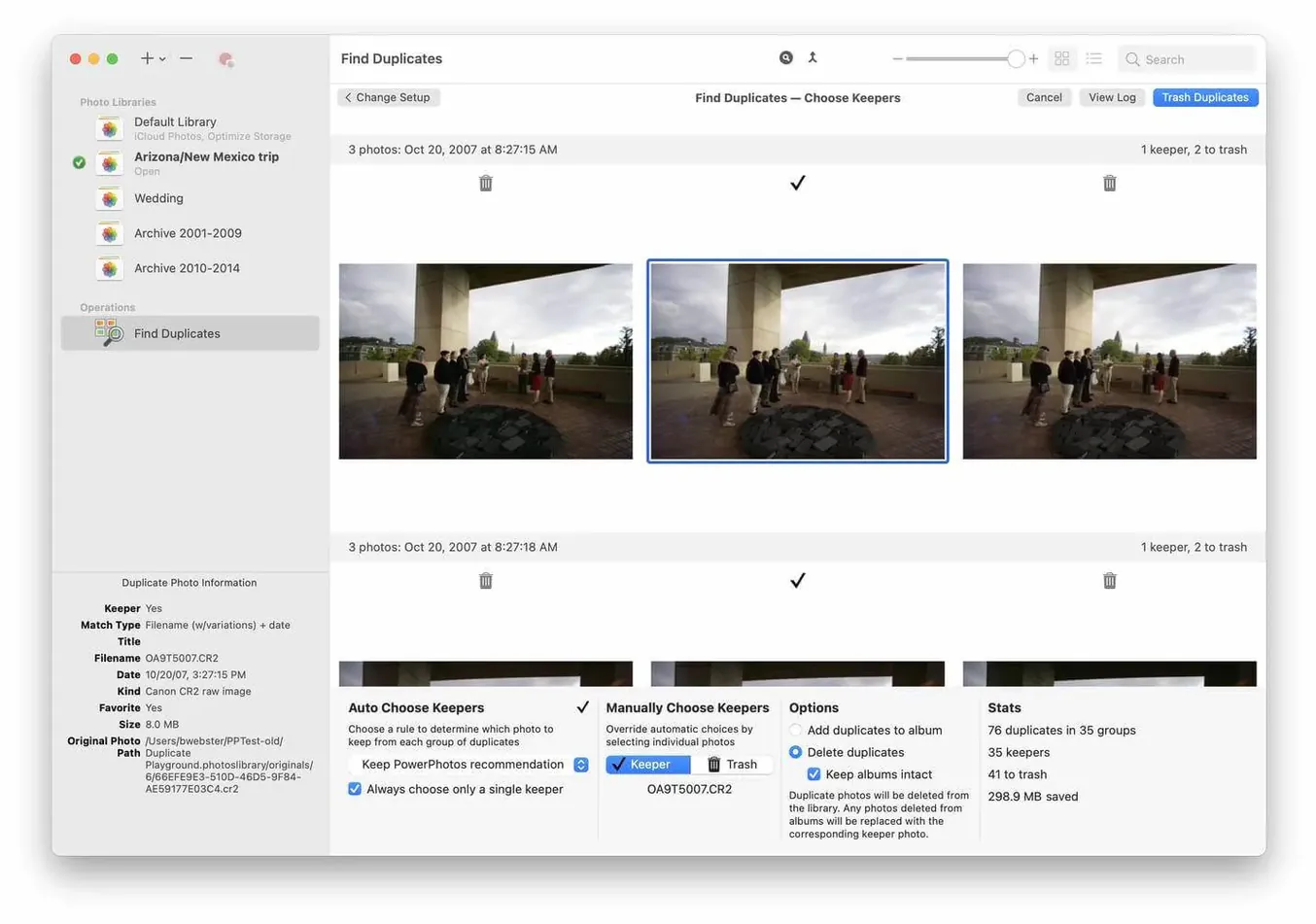
Its duplicate finder scans across libraries — not just one — comparing photos side by side and suggesting which copies to ditch. That alone can claw back tens of gigabytes if your collection spans several libraries.
If you’re on macOS 14 or later, you’re set: PowerPhotos 3 runs natively on both Apple Silicon and Intel Macs, so there’s no compatibility dance to figure out.
A Typical Session
I sit down on a Sunday morning with my main Photos library open, plus two older libraries I've neglected for months. The goal is simple: pull out the best shots from last year into a clean 2024 Highlights library, then hunt down whatever's been duplicated across the lot.
I fire up PowerPhotos — its own window, not Photos itself — and the sidebar shows all three libraries lined up like folders in Finder. No need to quit and relaunch anything. Clicking a library reveals its contents right inside PowerPhotos. Thumbnails pop in fast, and I can scroll through months of photos without ever opening Photos.
I create a new library from the File menu, calling it 2024 Highlights. PowerPhotos asks where to save the file; I drop it on an external SSD. Now the real work begins. I switch to my main library in the sidebar, select the 2024 albums I care about, and drag them straight into the new library. A progress bar runs, and within a minute those photos are copied over — originals untouched, just duplicated into the fresh library.
Next, the duplicate hunt. I hit the Duplicate Browser and point it at all three libraries. PowerPhotos chews through the metadata for a couple of minutes, then presents pairs side by side. I spot four identical versions of a sunset timelapse spread across libraries. With a click, I mark the extras for removal. The app warns me it's moving them to a temporary trash album inside the library — nothing is permanently deleted until I choose to empty it. Smart.
By the time my coffee's cold, I've trimmed nearly 30 GB and my 2024 library is a tidy 42 GB, sitting on the external drive while my main library stays light and fast.
Snags Worth Knowing About
Even a focused tool like PowerPhotos has its friction points, and a few trip up new users regularly.
- iCloud syncing confusion. Only one library can be the System Photo Library — the one that syncs with iCloud. People often split a library, then wonder why the new one won't upload. The fix: decide which library needs iCloud, make it the system library in Photos preferences, and treat the others as local-only vaults.
- Slow duplicate scans on big libraries. Point PowerPhotos at a 500 GB library and the initial scan can feel glacial. The workaround is to scan one library at a time, or run scans overnight. The app isn't frozen — it's just churning through tens of thousands of hashes.
- Permissions hiccups after macOS updates. A point update can revoke PowerPhotos' access to your Photos libraries. If it suddenly shows empty libraries or throws an error, head into System Settings > Privacy > Photos and re-enable the toggle for PowerPhotos.
- Accidental library duplication. Dragging an album between libraries copies it — it doesn't move it. Several users end up with the same photos in three places, then run a duplicate scan and wonder why everything's flagged. The habit to build: after a copy, delete the originals from the source library manually if you intended a move.
Duplicate tools that skip multi-library merging
There aren't many apps that touch Apple's Photos libraries directly, but a handful overlap.
Photos Duplicate Cleaner focuses strictly on duplicates inside a single Photos library. It's lighter and faster for that one job, but it won't touch multiple libraries and has no library-splitting features. If you only want to sweep one library for copies, it does the trick. If you're wrangling several libraries, PowerPhotos is the only one that can scan across them all.
Gemini 2 scans for duplicates across your entire Mac, not just Photos libraries. It catches loose image files, folders of RAW exports, anything. But it can't browse inside Photos libraries natively — you'd need to export everything first or grant it access to the library package, which feels brittle. PowerPhotos plays nice with the library structure Apple expects, so there's less risk of corrupting anything.
iPhoto Library Manager is Fat Cat Software's older tool for iPhoto libraries. It does a similar job for the pre-Photos era, but it's a dead end if your libraries have been migrated. PowerPhotos is its modern counterpart, built for the current Photos framework. Anyone still sitting on old iPhoto libraries would use both, but for Photos-only workflows, PowerPhotos is the one that's actively maintained and sandbox-aware.
If you're hunting for a powerphotos download or stumbled across mention of a powerphotos torrent, the version that matches this write-up is 3.4.8, built for macOS 14 and up. The duplicate detection engine in this release handles large libraries noticeably better than earlier 3.x builds, especially on Apple Silicon Macs where the scanning threads spread across efficiency cores without choking the interface.
- macOS 14 or later
- Apple Silicon or Intel 64-bit Mac
- Works with Apple’s Photos app
Questions people ask
Does PowerPhotos work with Apple’s Photos app, or is it a full replacement?
It works alongside the built-in Photos app. You still use Photos for editing and iCloud syncing; PowerPhotos handles library management, duplicates, and browsing across multiple libraries.
Also on readers' docks
Sign in or create an account to leave a comment.
No comments yet. Tell me how it got on with your other devices.