Download Presentify for macOS
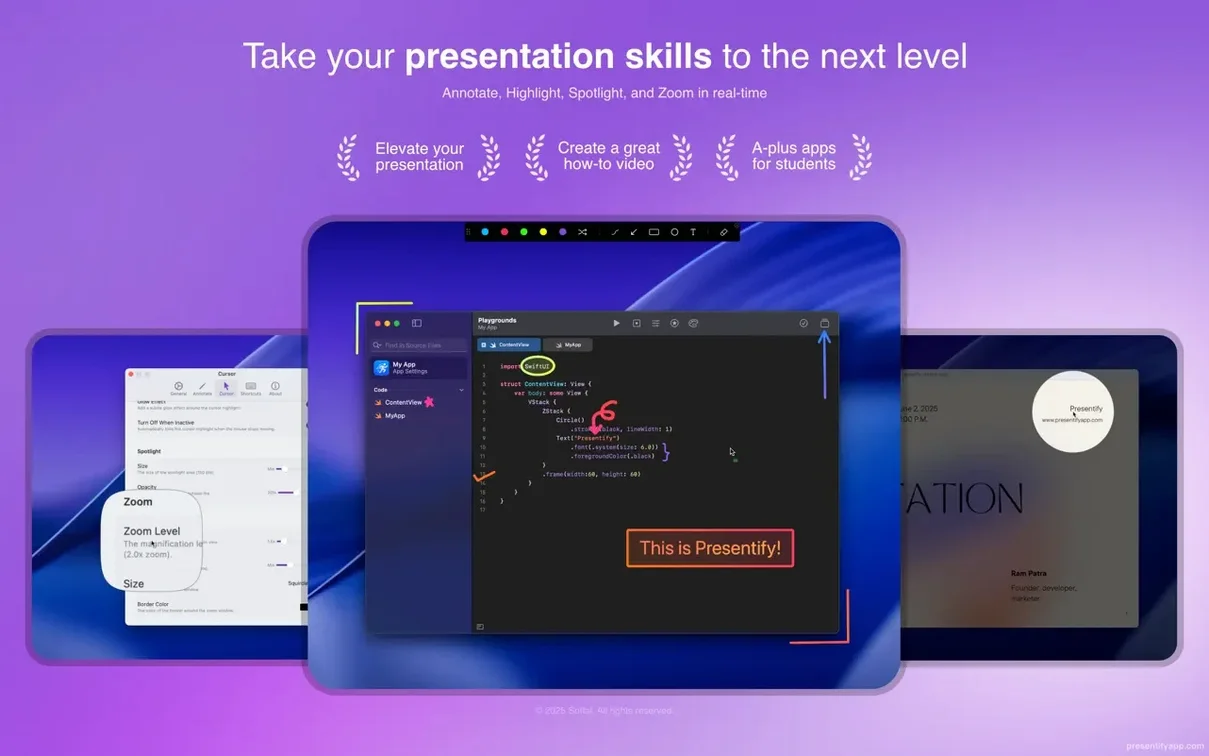
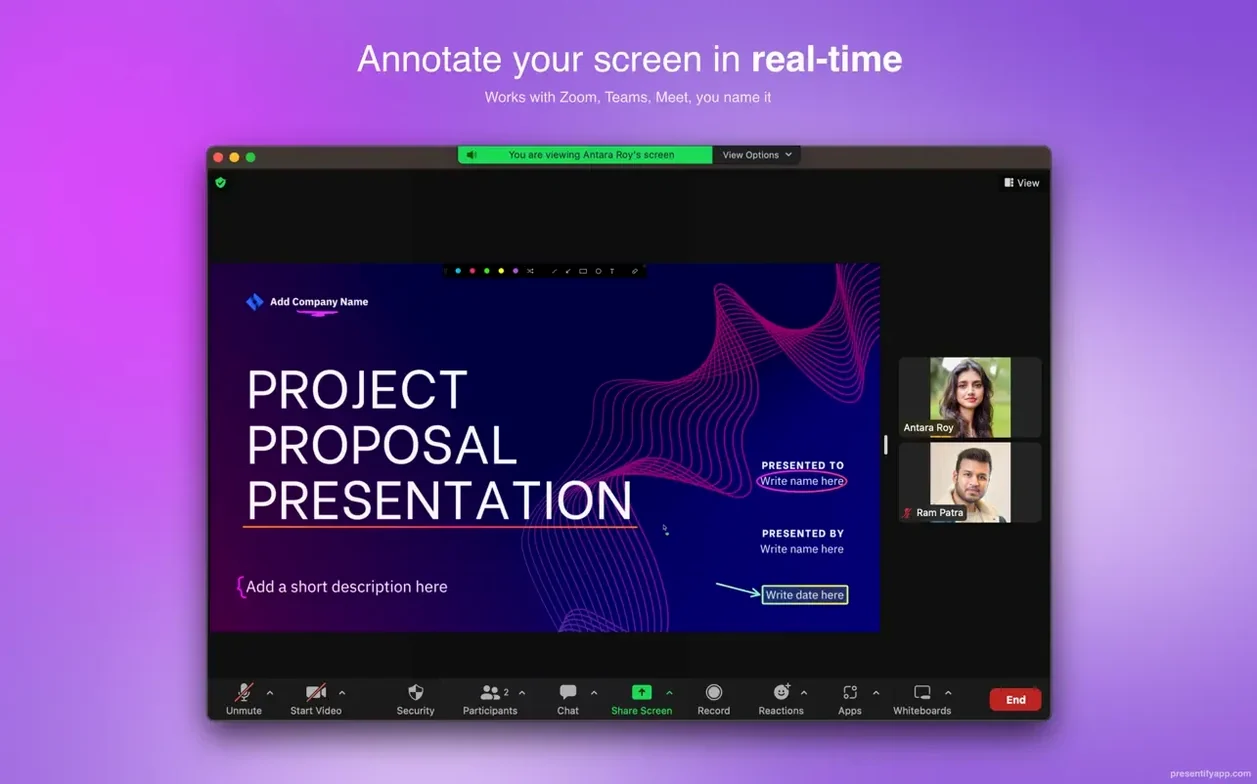
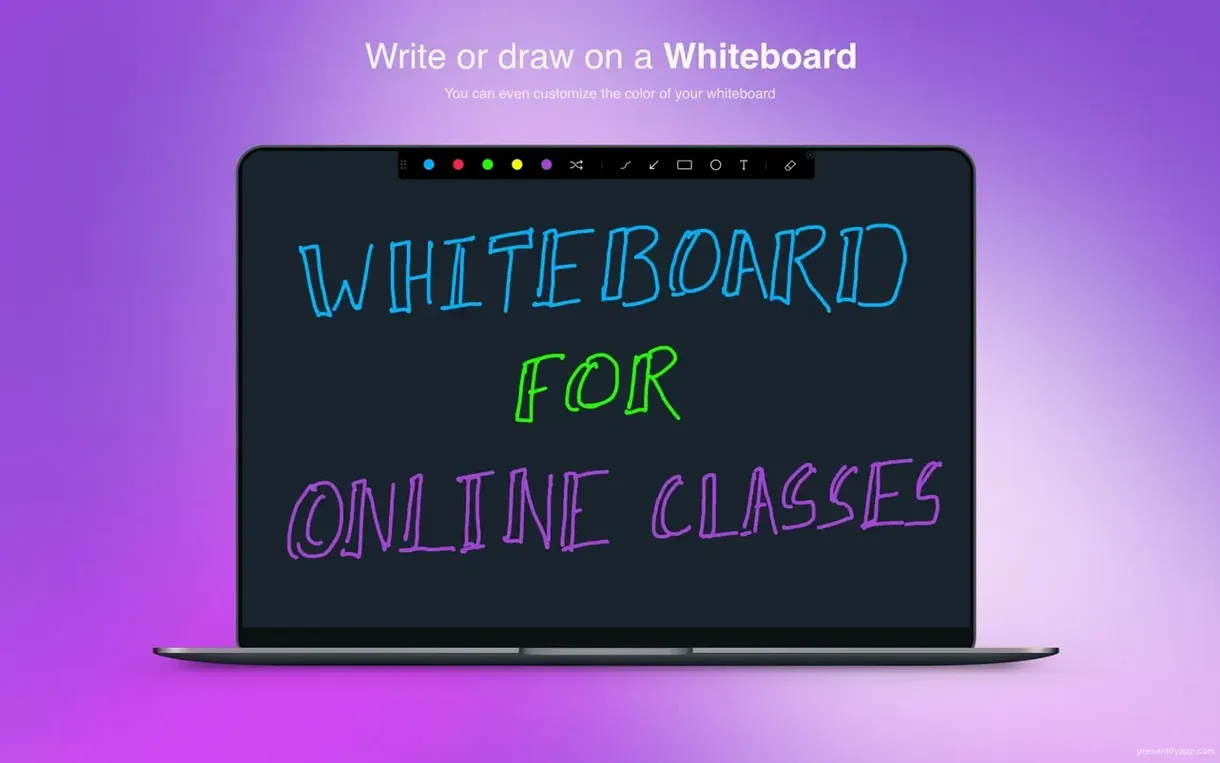
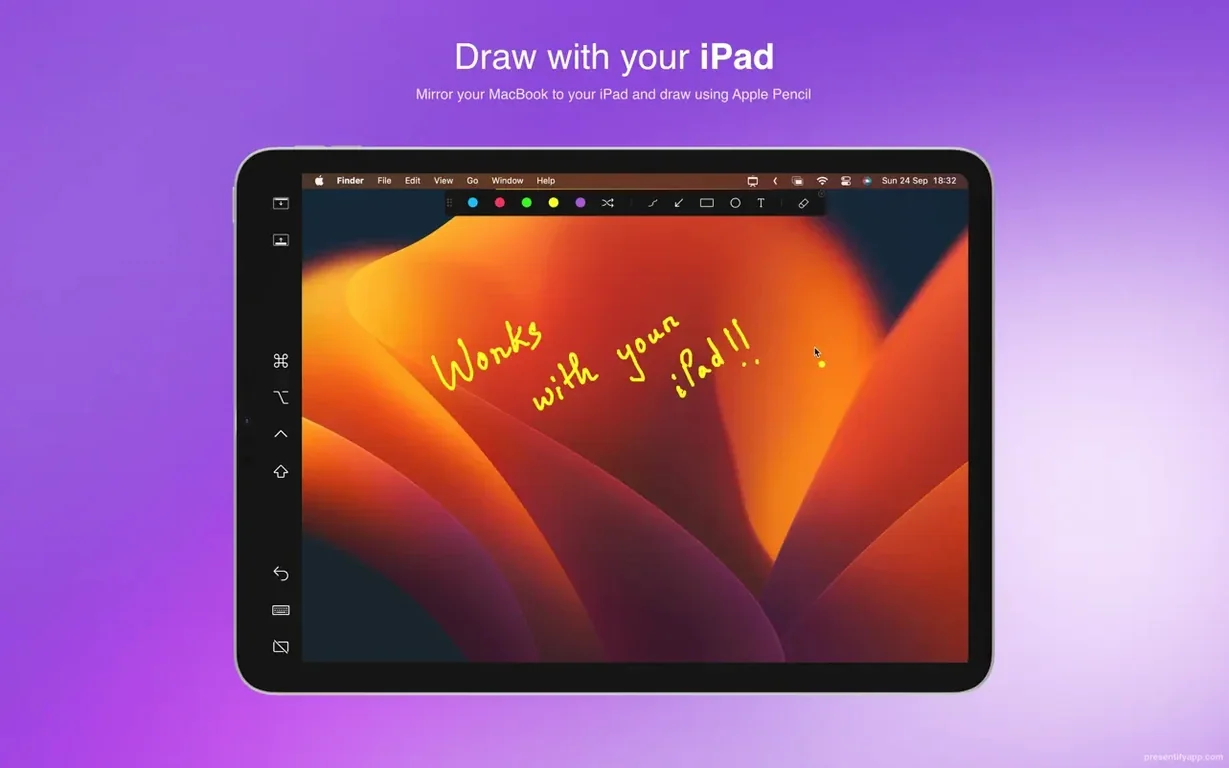
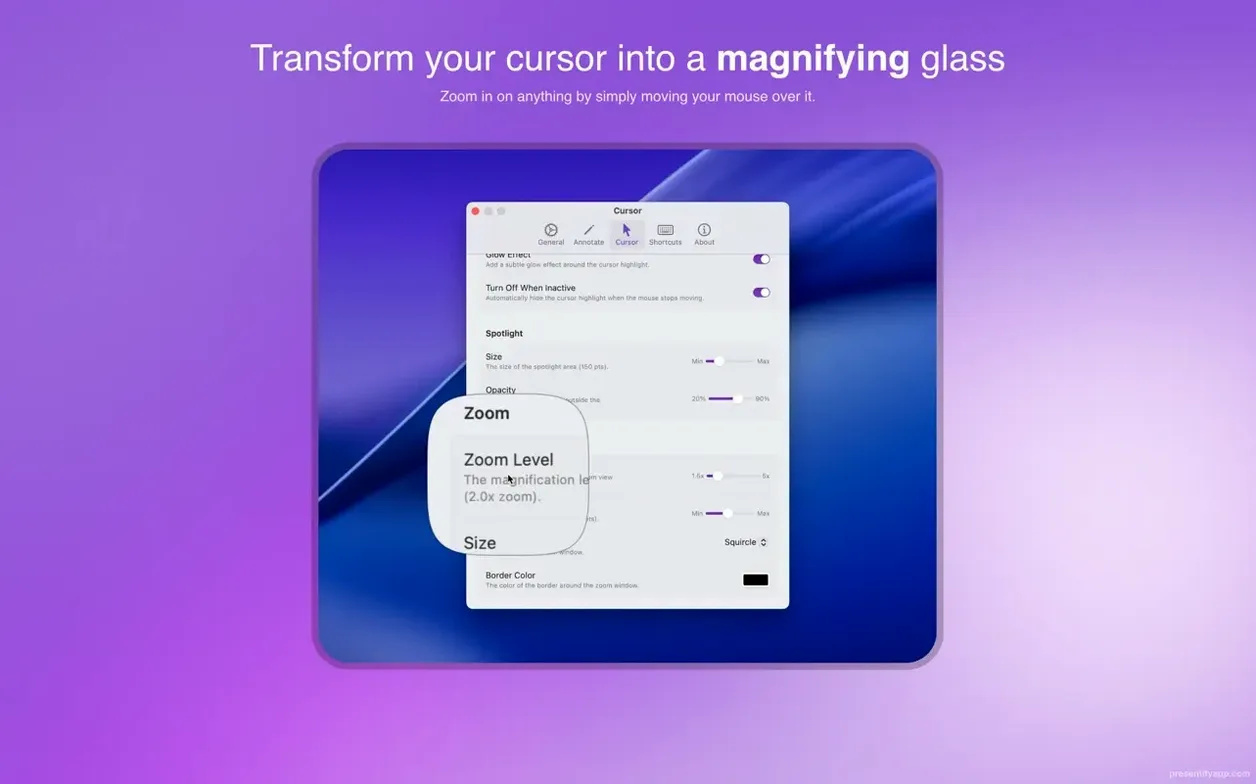
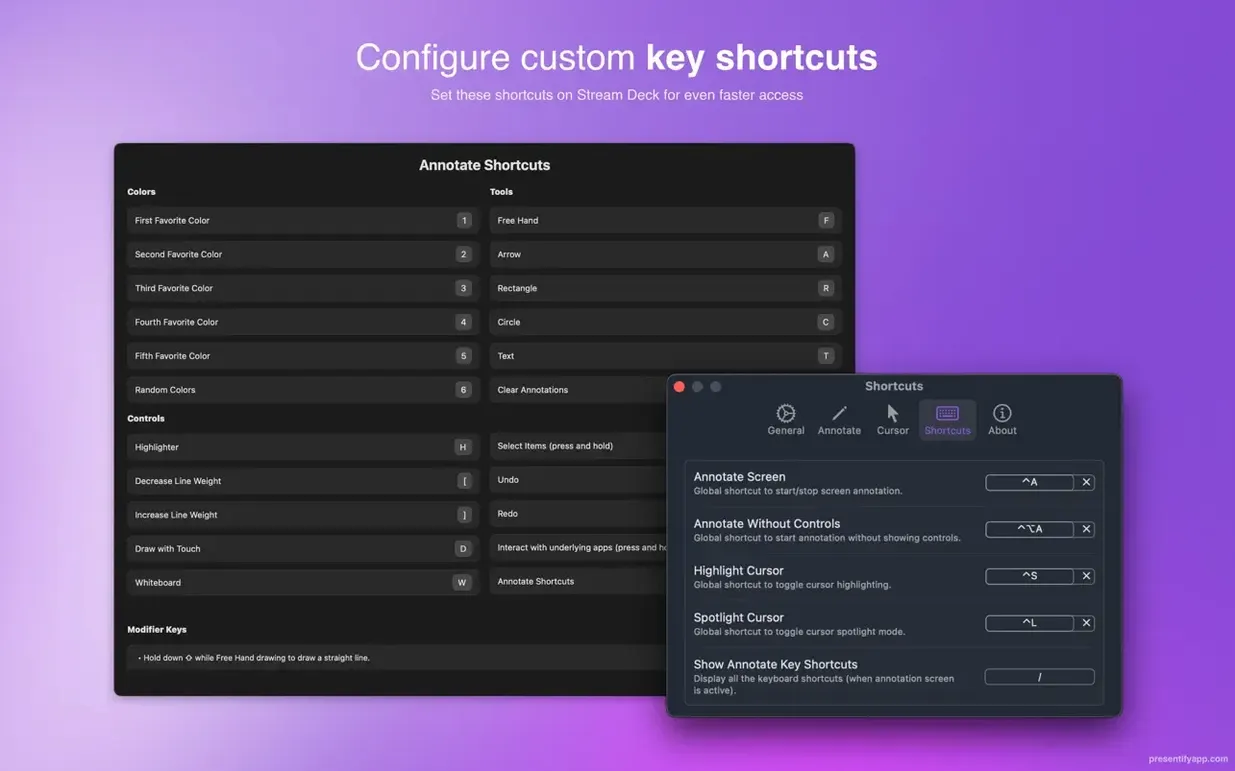
Presentify is a menu bar app that layers drawing tools, cursor highlights, and a spotlight effect over anything on your Mac screen. You can sketch out ideas during a Keynote talk, circle a bug in a code review, or underline text in a PDF while students watch — all without leaving the app you're already in.
Auto-Erase Annotations That Vanish After a Few Seconds
The 8.1.3 release refines the annotation engine that has made Presentify a quiet favorite among educators and presenters. Annotations erase themselves automatically after a few seconds, so you never break the flow to clean up. You can still scribble with a pen, drop rectangles and arrows, or type short text callouts right onto a frozen screen. The app runs natively on both Intel and Apple Silicon Macs, draws smoothly in full-screen mode, and plays nicely with Keynote. Localization covers five languages — English, German, Spanish, French, and Russian — which makes it a practical pick for multilingual teams.
Cursor Ring and Movable Spotlight Stay Unchanged
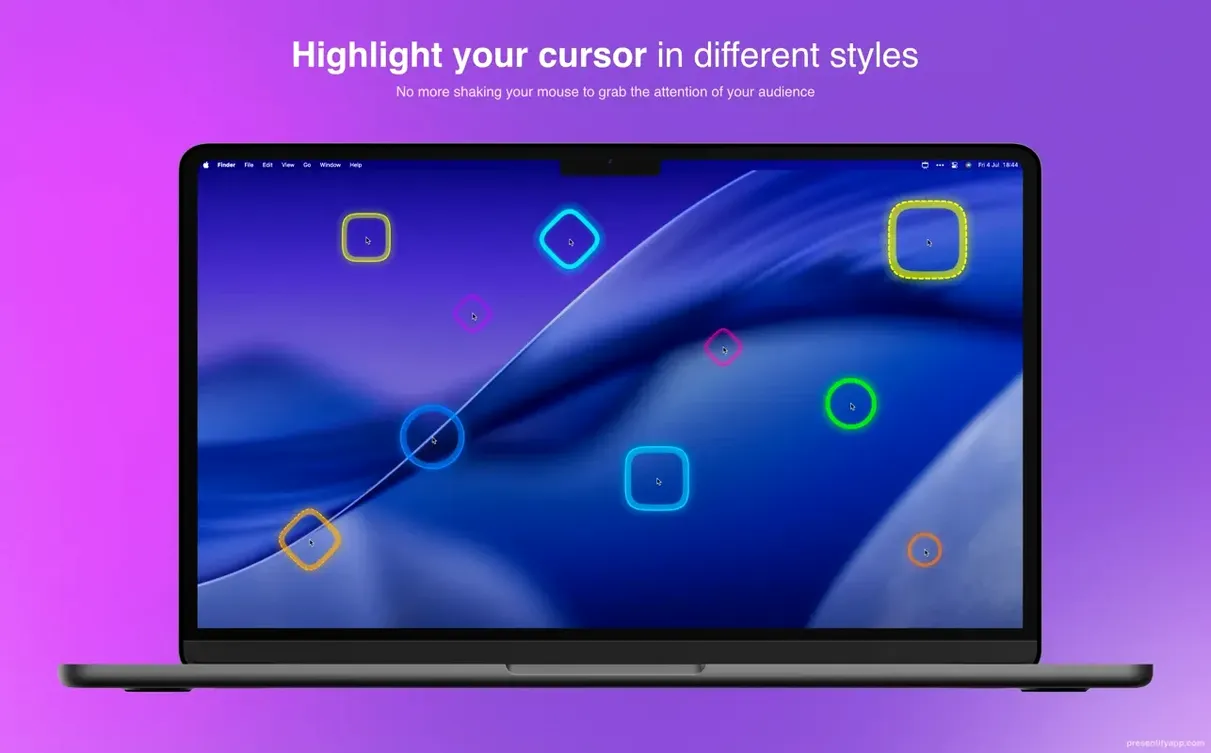
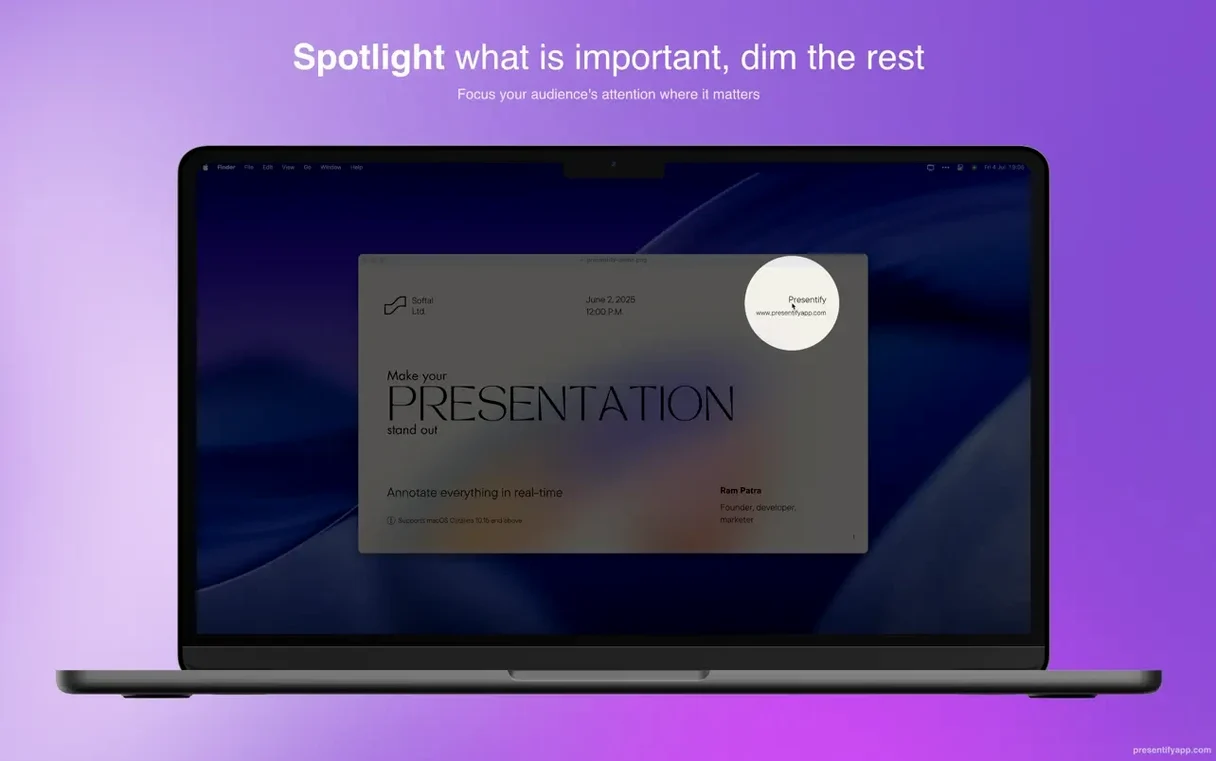
All the core tools that people rely on are exactly where they belong. Cursor highlighting puts a colored ring around your pointer so nobody loses track of it. The spotlight effect dims everything except a circular area you control, and the zoom tool magnifies small UI elements or dense spreadsheet cells on the fly. Whether you are annotating a paused video, a live webpage, or an image slideshow, everything happens in real time. It remains a lightweight companion that sits in the menu bar, stays out of your way, and jumps into action the moment you need to point something out.
How Presentify stacks up against similar Mac annotation tools
Annotation apps for macOS fall into a few camps, and Presentify carves out a spot that is genuinely hard to pin down. I have used it alongside a couple of other popular options, and the differences show up fast once you move past the feature lists.
ScreenBrush is probably the closest cousin. It draws on top of the screen, offers shapes, and highlights the cursor. Where Presentify pulls ahead is the spotlight-and-zoom combo and the automatic erasing. ScreenBrush makes you clean up manually, which sounds minor until you are ten slides into a training session and your screen is a mess of forgotten arrows. Presentify's self-cleaning annotations keep the focus on what you are saying right now, not what you said three minutes ago. ScreenBrush also lacks a proper zoom tool, so Presentify wins for detail work like explaining tiny toolbar icons or spreadsheet formulas.
DemoPro is a screencasting app with a built-in annotation layer, and it is aimed more at video creators than live presenters. It records, trims, and exports. Presentify does none of that — it is purely a live visual aid. If you need to annotate during a Zoom call or an in-person Keynote, Presentify feels lighter and more immediate. DemoPro's annotation tools sit inside its recording interface; Presentify lives in your menu bar and works across everything, no switching contexts.
Mouseposé is a single-purpose tool that highlights clicks and shows keystrokes. It does one thing well, but it does not draw rectangles, type text callouts, or zoom into a region. Presentify covers Mouseposé's cursor duties and adds a whole drawing toolkit on top. For anyone who needs more than a glowing click indicator, Presentify makes Mouseposé feel like a feature rather than a competitor.
45 MB Idle Memory on an M1 MacBook Air
After weeks of daily use across Zoom calls, Keynote rehearsals, and impromptu code walkthroughs, Presentify stays remarkably quiet. On an M1 MacBook Air with 16 GB of RAM, it idles at around 45 MB of memory and barely registers CPU time unless you are actively drawing. Even then, the spike is a blip — nothing that would make a screen recording stutter or a video call drop frames.
Full-screen apps are where some overlay tools choke, but Presentify handles them without complaint. I have annotated paused YouTube videos, Xcode projects, and Figma mockups in full-screen mode, and the drawing layer stays responsive. The automatic eraser never lags behind; annotations fade out on schedule, and you can tweak the duration in preferences if the default feels rushed or slow.
Stability has been uneventful in the best way. No crashes during this testing period, no drawing freezes mid-call, and no conflicts with Zoom or Google Meet screen sharing. One quirk worth mentioning: on first launch after installation, the app sometimes needs a trip through Activity Monitor to quit and relaunch properly. Once past that one-time hiccup, it opens from the menu bar reliably every time. If you use a graphics tablet from Wacom or XP-Pen, pressure sensitivity works as expected, though I found the sweet spot is keeping the drawing mode set to "pen" rather than "highlighter" for tablets — the line weight feels more natural.
Online Instructors, Developers, and Designers Who Sketch Live
Three groups stand out as natural fits, and the reasons differ more than you might expect.
Online instructors and trainers live in a world of constant screen sharing. They need to underline a term in a PDF, circle a diagram step, and zoom into a spreadsheet cell — often within the same five-minute explanation. Presentify's tool switching is quick enough to keep up, and the auto-erase means they never interrupt the lesson to tidy the screen. The text annotation tool, while simple, saves them from having to scribble illegible handwriting when a typed word like "homework due" will do.
Software developers during code reviews or pair programming sessions benefit from the spotlight and zoom more than the drawing itself. A quick spotlight dims the rest of the IDE so a junior dev sees exactly which function you are talking about. A zoom click magnifies a regex pattern or a linter error that would otherwise be too small to read over a shared screen. The cursor highlight, which sounds like a gimmick on paper, turns out to be genuinely useful when you are pointing at line 247 of a file and your colleague's eyes are wandering.
Video creators who make tutorials and walkthroughs — especially those who record live rather than editing heavily in post — get a fast annotation layer without needing to open a separate video editor. You can draw an arrow to a button, type a short label, and keep recording. The annotations vanish on their own, so the recording stays clean without you touching a timeline. It is not a replacement for motion graphics in Final Cut Pro, but for quick YouTube demos or internal training clips, it removes a surprising amount of editing friction.
If your day involves pointing at things on a Mac screen while other people watch — whether that is a classroom of students, a remote team on Google Meet, or a Twitch chat following along — Presentify earns its keep in the menu bar.
- macOS 13 Ventura or newer
- Intel 64-bit or Apple Silicon Mac
Questions people ask
Can Presentify annotate videos and code in real time?
Yes, you can draw and type over anything on your screen — including videos, images, PDFs, and code — without pausing or switching apps.
Does Presentify work with Keynote and full-screen presentations?
Absolutely. It works in full-screen mode and layers annotations right on top of Keynote slides and other presentation software.
Also on readers' docks
Sign in or create an account to leave a comment.
No comments yet. Tell me how it got on with your other devices.