Download PlistEdit Pro for macOS
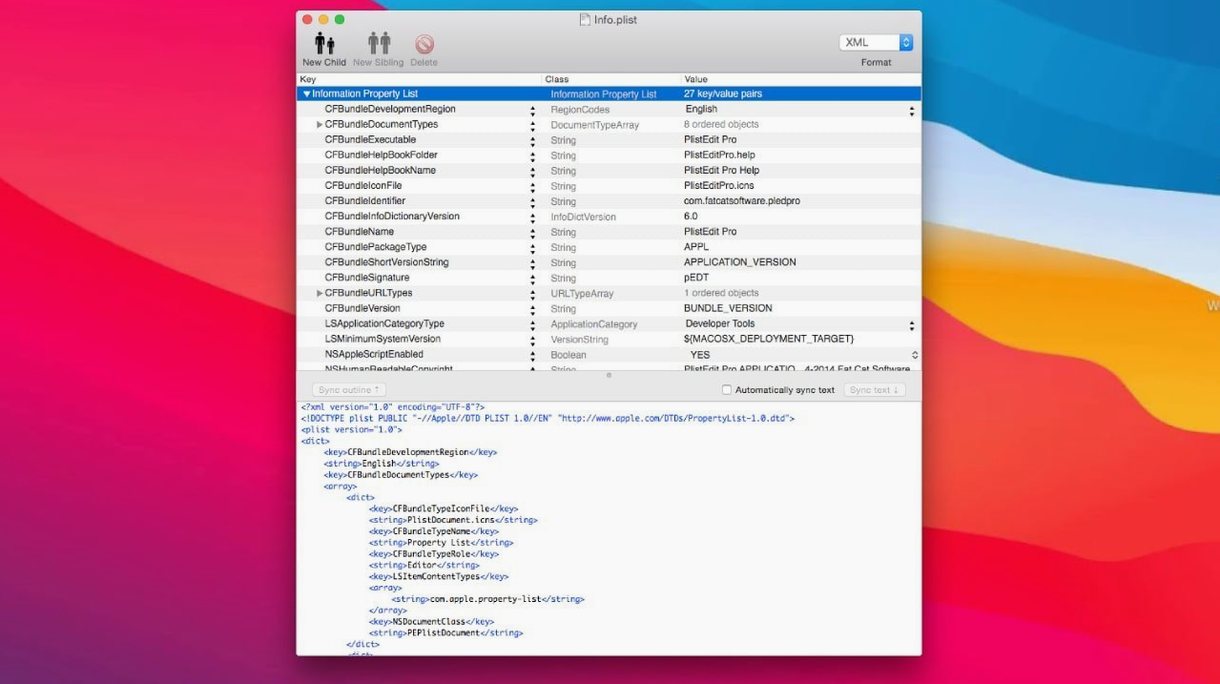
Double-clicking a .plist file normally opens Xcode—which feels like overkill for changing a single boolean flag. Other times, the file is locked away in a bundle, and you just want to browse the raw structure without a fight. That's the exact problem PlistEdit Pro solves.
One Real Task: Editing a Hidden App Preference
Let's say I want to tweak a setting in an app that doesn't expose a checkbox in its own preferences window. The value lives in a preference plist, buried in ~/Library/Preferences. Here's how the whole thing plays out in PlistEdit Pro:
- Open the preferences browser. Instead of hunting through Finder, I launch the built-in browser. It lists the preference files for every app on my Mac, all neatly labelled. I pick the target app from the list and its plist opens instantly in an outline view.
- Navigate and edit with the keyboard. I unfold a couple of dictionary keys using the arrow keys, spot the boolean I need, and flip it from NO to YES with a single keystroke. The outline view means I never have to squint at raw XML tags.
- Save and test. I hit save, relaunch the app, and the hidden behavior is active. If a future update overwrites my tweak, the 'Ask to revert' popover will let me know the file changed on disk, so I can re-apply my edit.
More Than Just Plists
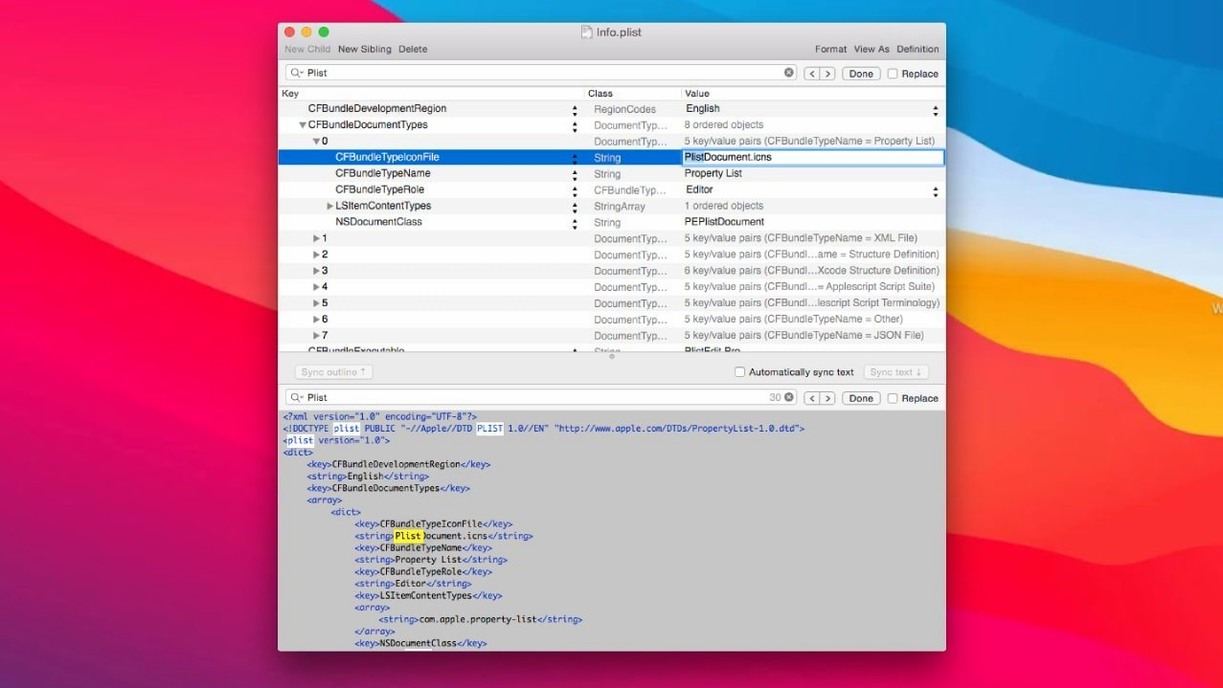
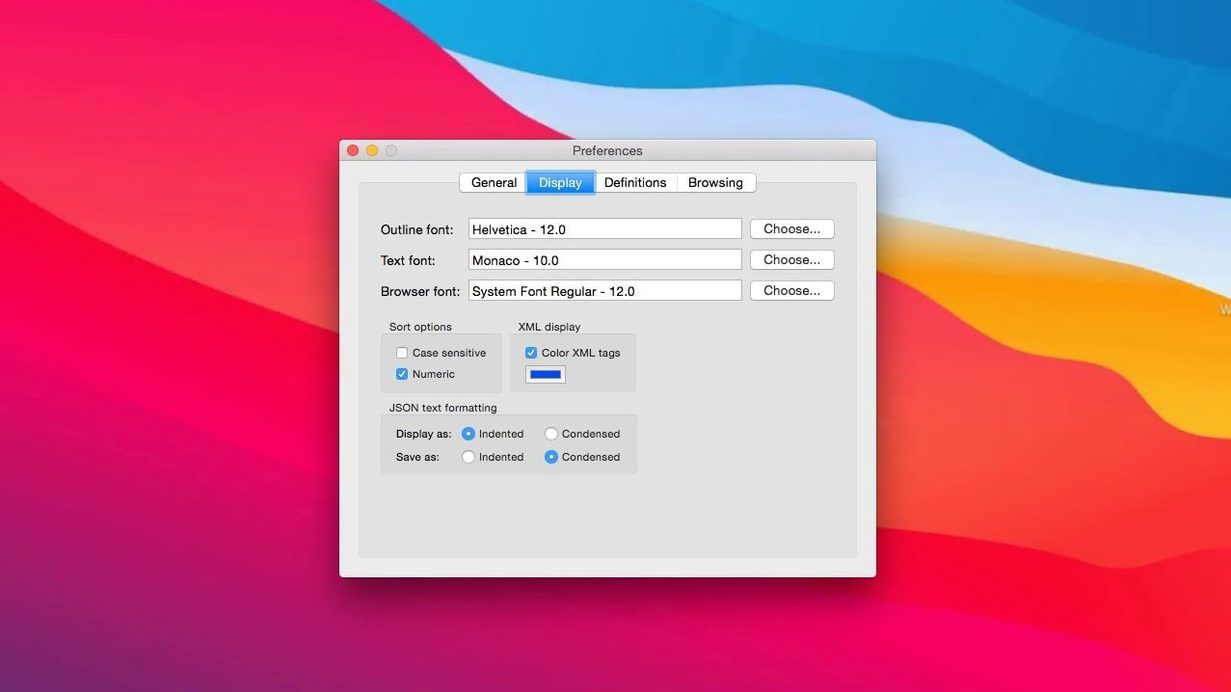
While its name anchors it in the Apple world, PlistEdit Pro is a capable JSON editor too. The same outline view works for .json files, and if I ever need to see the raw text, a quick toggle switches to a plain text mode with customizable fonts. The app also ships with a `pledit` command-line tool, which means I can automate batch changes via AppleScript or a shell script without even opening the main window.
When Preferences Browser Shows No Data
Even a focused tool like this can leave you scratching your head. Here are a few sticky moments that pop up in everyday use, and what to do when you hit them.
The preferences browser comes up empty for an app. Some apps—especially sandboxed ones or those from the App Store—store their preferences inside a container folder rather than directly in ~/Library/Preferences. The built-in browser only scans the standard locations, so you won't see those entries listed. The fix is straightforward: open the plist manually via File > Open, navigate into ~/Library/Containers, find the app's bundle identifier, and dig into its Data/Library/Preferences folder. The file opens and edits exactly the same way once you've located it.
JSON files open as a flat text dump instead of an outline. PlistEdit Pro sniffs the file extension to decide whether to use its structured view. If you're opening a .json file that has no extension, or one with an unusual naming convention, the app may fall back to plain text mode. Just flip the view toggle yourself—the outline button sits right in the toolbar, and clicking it will parse the JSON and present it as a collapsible tree. If the JSON itself is malformed, though, the outline view will refuse to load, and you'll need to fix the syntax in text mode first.
Undo doesn't seem to go back far enough. Multi-level undo is supported, but it follows the outline view's selection context. If you edit a value deep inside a nested dictionary, then click on a completely different key and start editing there, the undo chain resets to that new context. The trick is to stay within the same logical area while making a sequence of related changes, or use the pledit command-line tool for scripted edits where a full undo history doesn't matter.
macOS 14 Minimum Raises the Bar
Version 1.10.0 draws a clear line in the sand: it requires macOS 14 or later. That's the headline change, and it means anyone still holding onto an older Mac will need to stick with a previous release. But the jump to version 1.1 brought a handful of interface refinements that genuinely affect how the app feels day to day.
The preferences browser options used to live as checkboxes floating in the window itself—functional, but cluttered. Now those toggles sit inside a toolbar menu, which keeps the browser panel cleaner and faster to scan. The 'Ask to revert' behavior got a similar tidy-up: instead of a dialog box that interrupts your flow, the notification appears as a small popover that slides out from the document window. You can dismiss it with a glance or click to reapply your own version of the file. Both changes are subtle, but they add up to less visual noise when you're hopping between a dozen plist files.
Direct Plist Editing for Devs and Admins
Three groups of Mac users will feel right at home here, each for slightly different reasons.
iOS and macOS developers tweaking app configurations. If your daily workflow involves editing Info.plist files, entitlements, or build settings outside of Xcode's project editor, having a dedicated plist editor that preserves the structure without adding unwanted formatting is a quiet productivity win. The drag-and-drop interface for moving keys between files is something no text editor can replicate.
Power users who customize their Mac's behavior. The kind of person who writes defaults commands in Terminal already knows the value of a good preferences browser. PlistEdit Pro turns that workflow into a visual one—browse, expand, change, save. No typos, no mistyped domain strings, and the folder search feature means you can hunt down every plist on disk that references a specific key, which is invaluable when you're trying to figure out which preference file actually controls a particular behavior.
Anyone who occasionally fights with JSON. Maybe you're editing a configuration file for a web project, or tweaking a game's settings file that happens to use JSON. The collapsible outline view makes deeply nested structures readable in seconds, and the dual view mode means you can flip to raw text whenever you need to copy a snippet into documentation or a chat window.
Version 1.10.0 requires macOS 14 or later and brings several interface refinements. The preferences browser's options have moved into a tidy toolbar menu, and the file-change alert is now a compact popover instead of a full dialog.
- macOS 14 or later
- Apple Silicon or Intel Mac
Questions people ask
Can PlistEdit Pro edit JSON files as well as property lists?
Yes, it handles JSON files directly, letting you switch between an organized outline view and a plain text editor for the raw data.
Also on readers' docks
Sign in or create an account to leave a comment.
No comments yet. Tell me how it got on with your other devices.