Download Pixelmator Pro for macOS
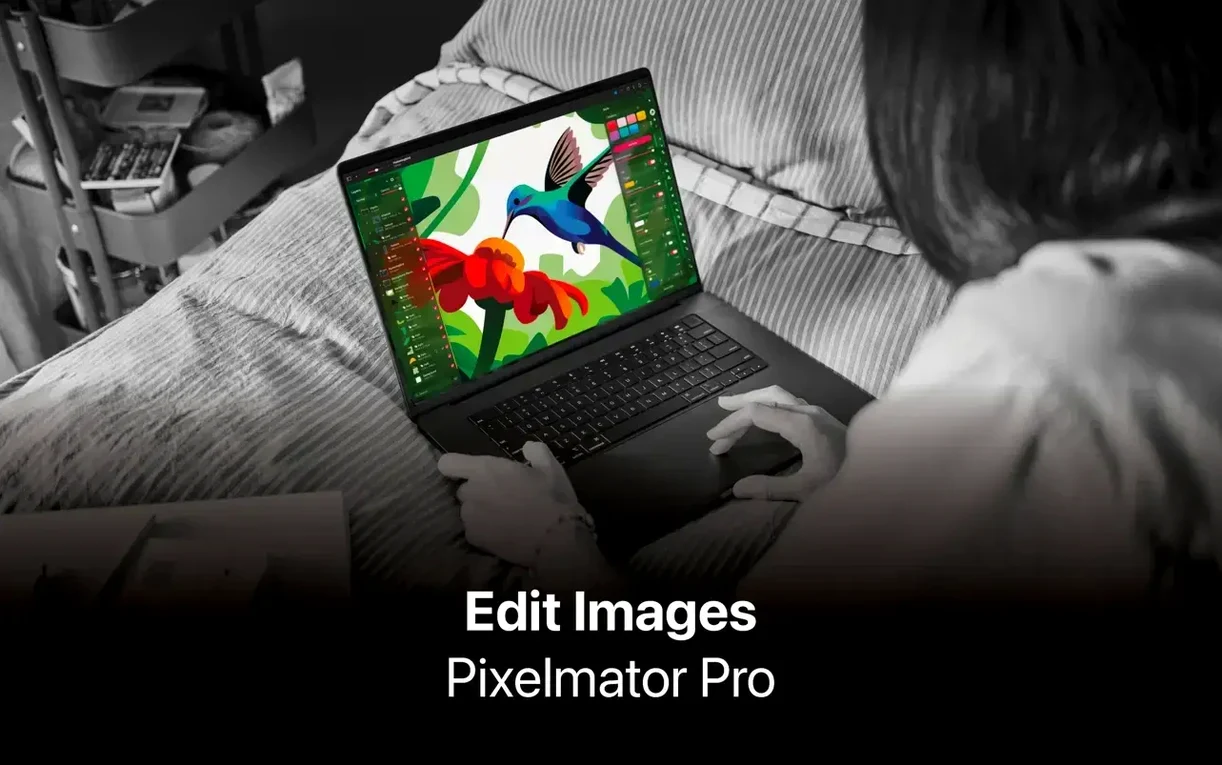
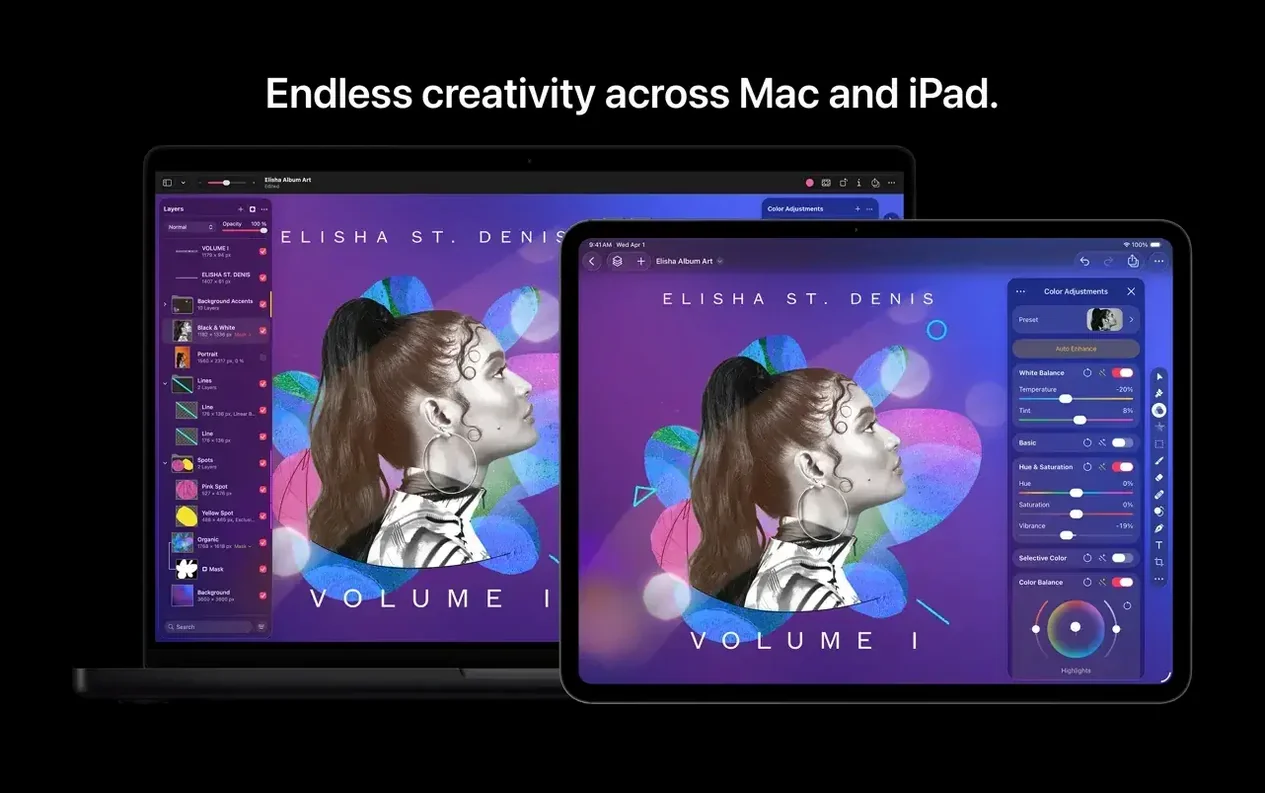
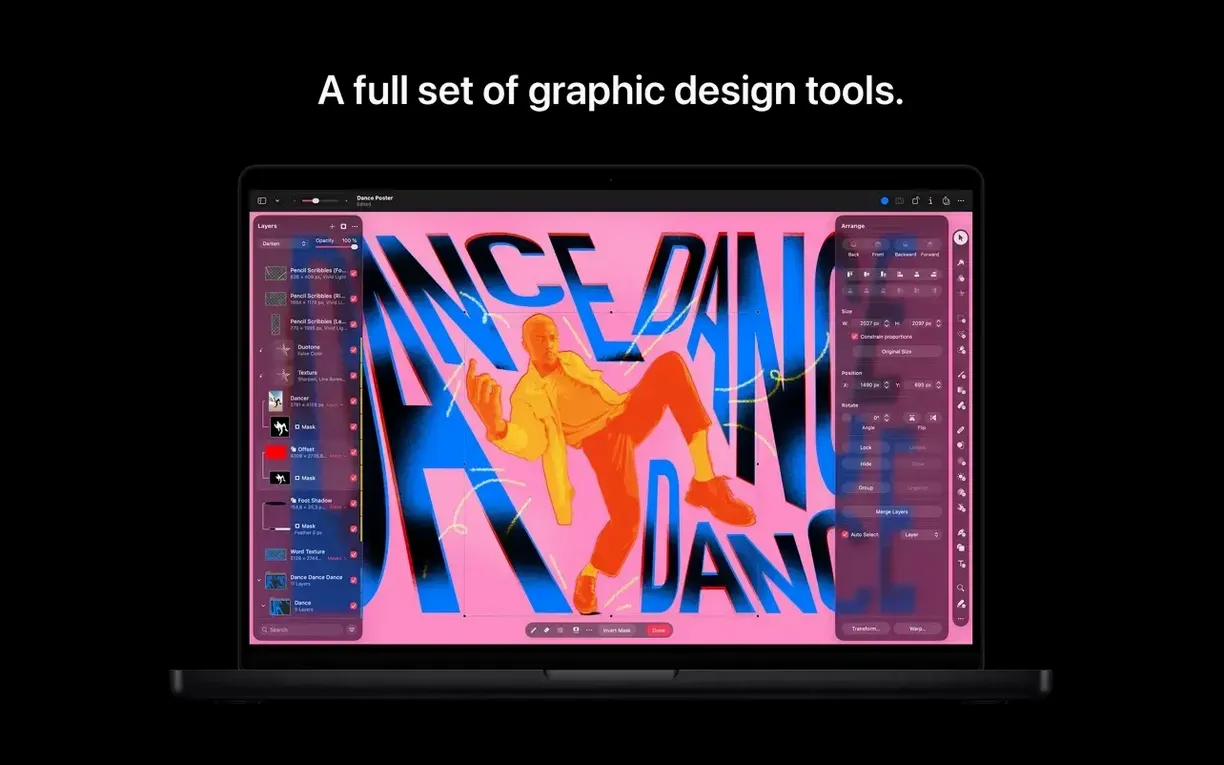
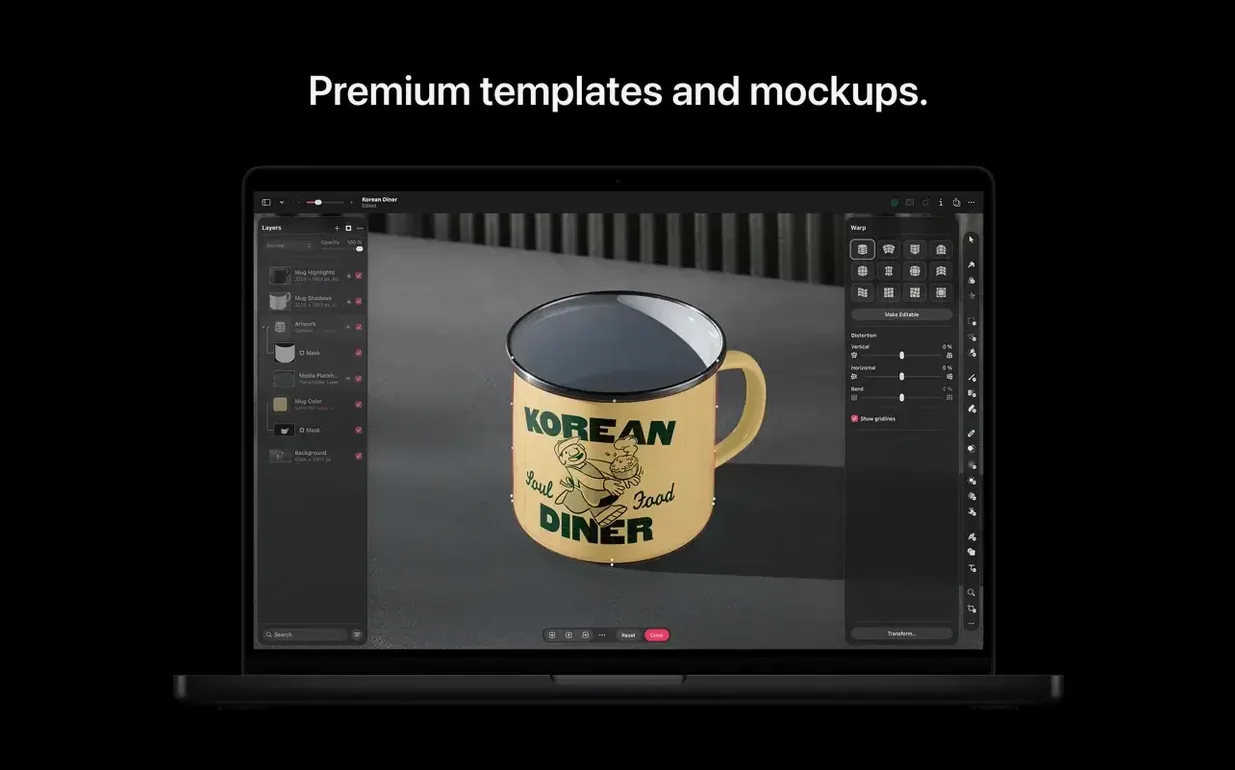
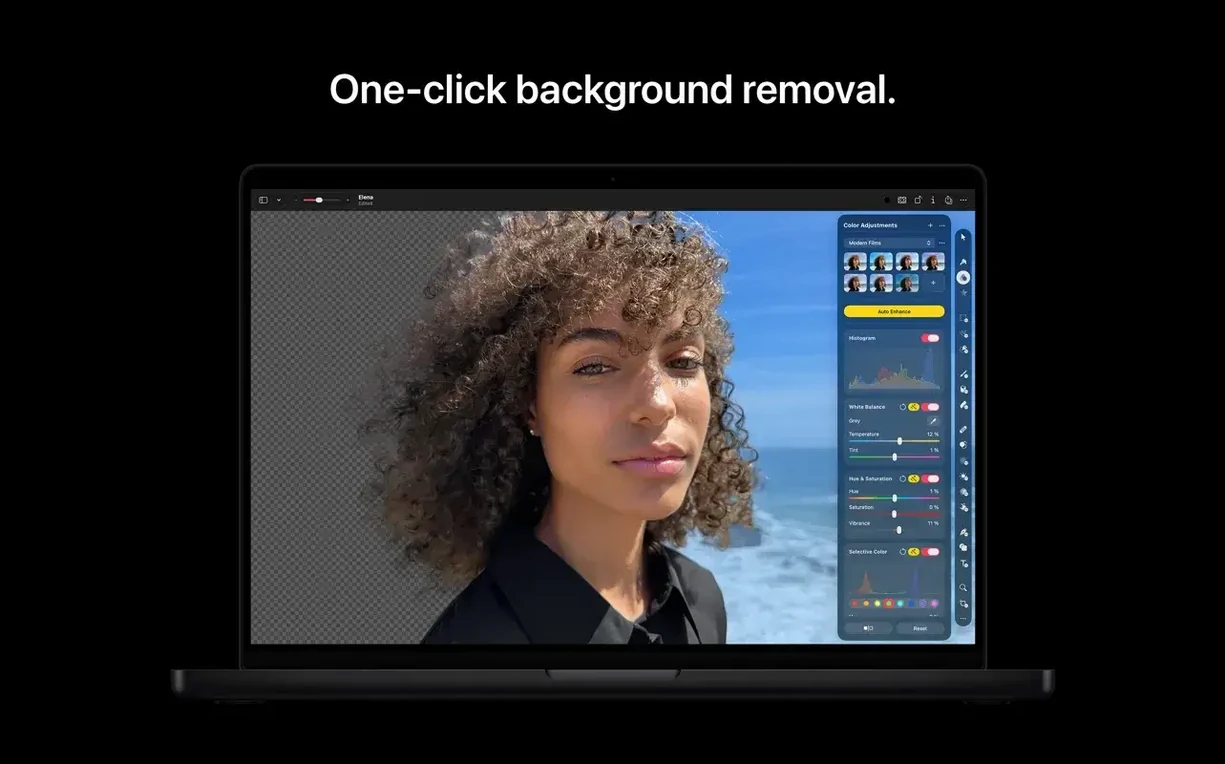
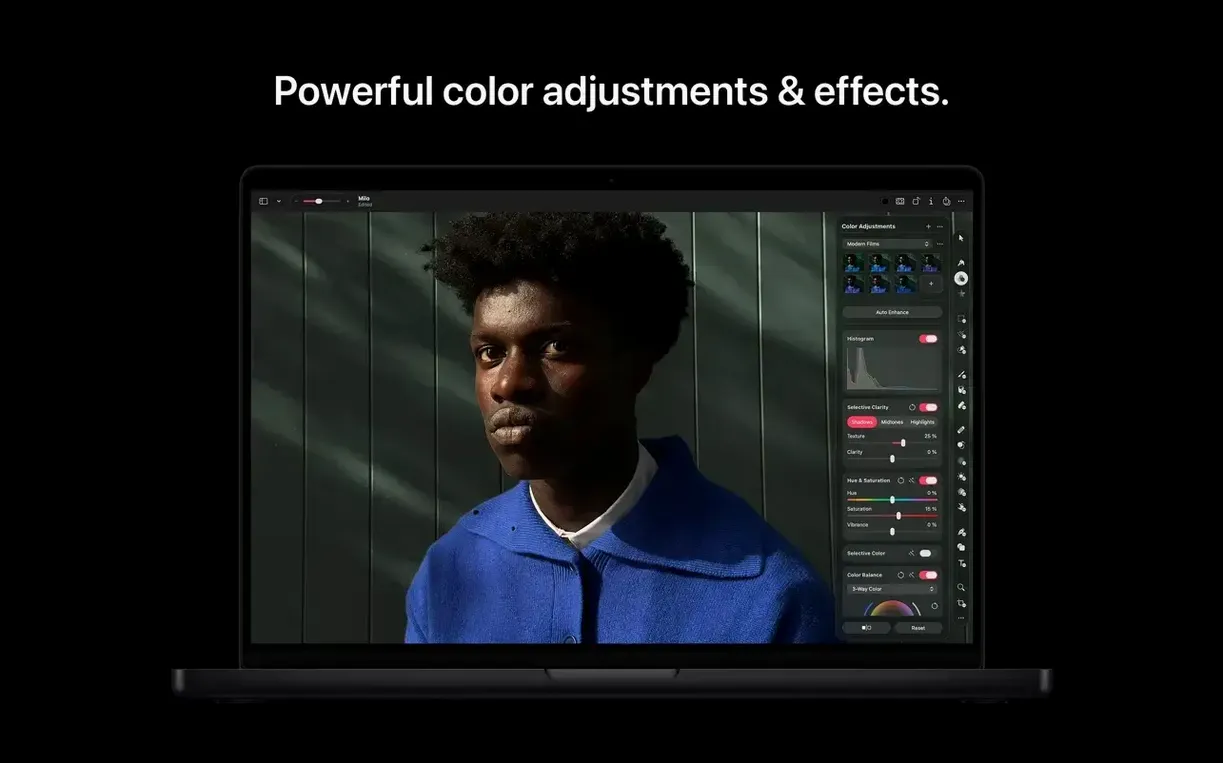
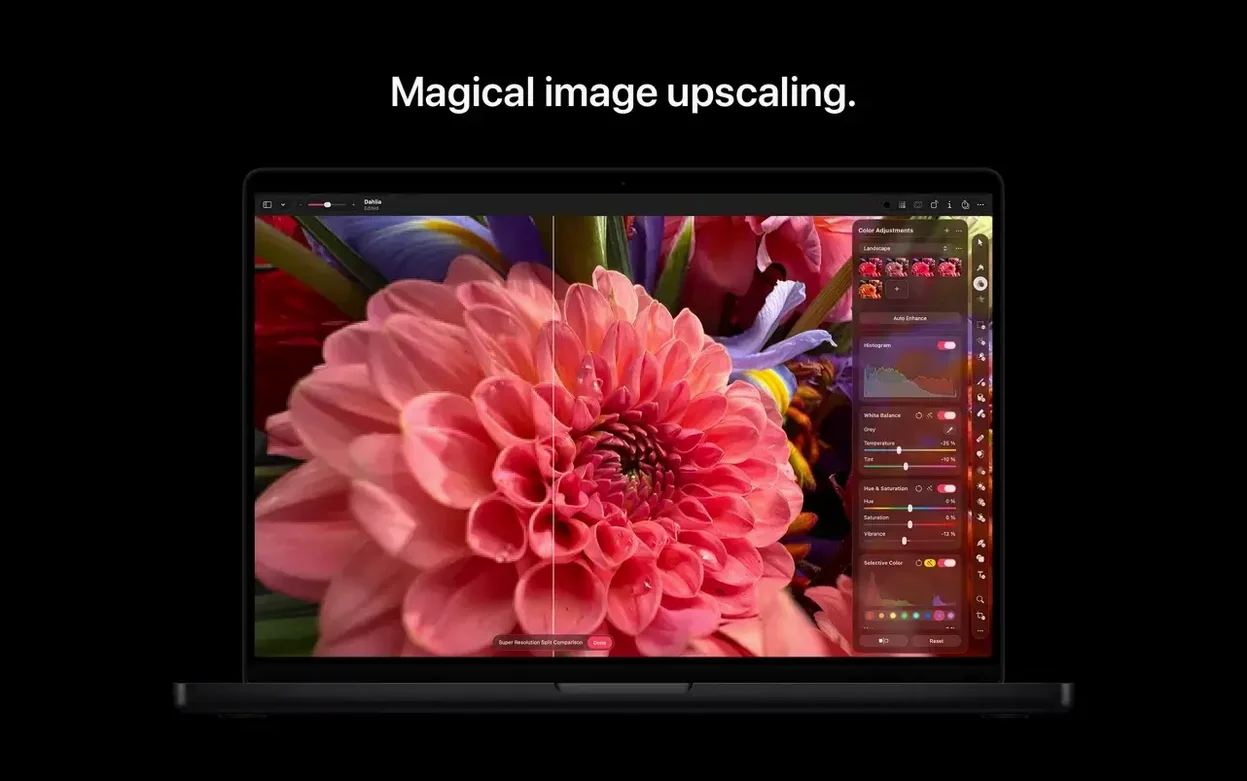
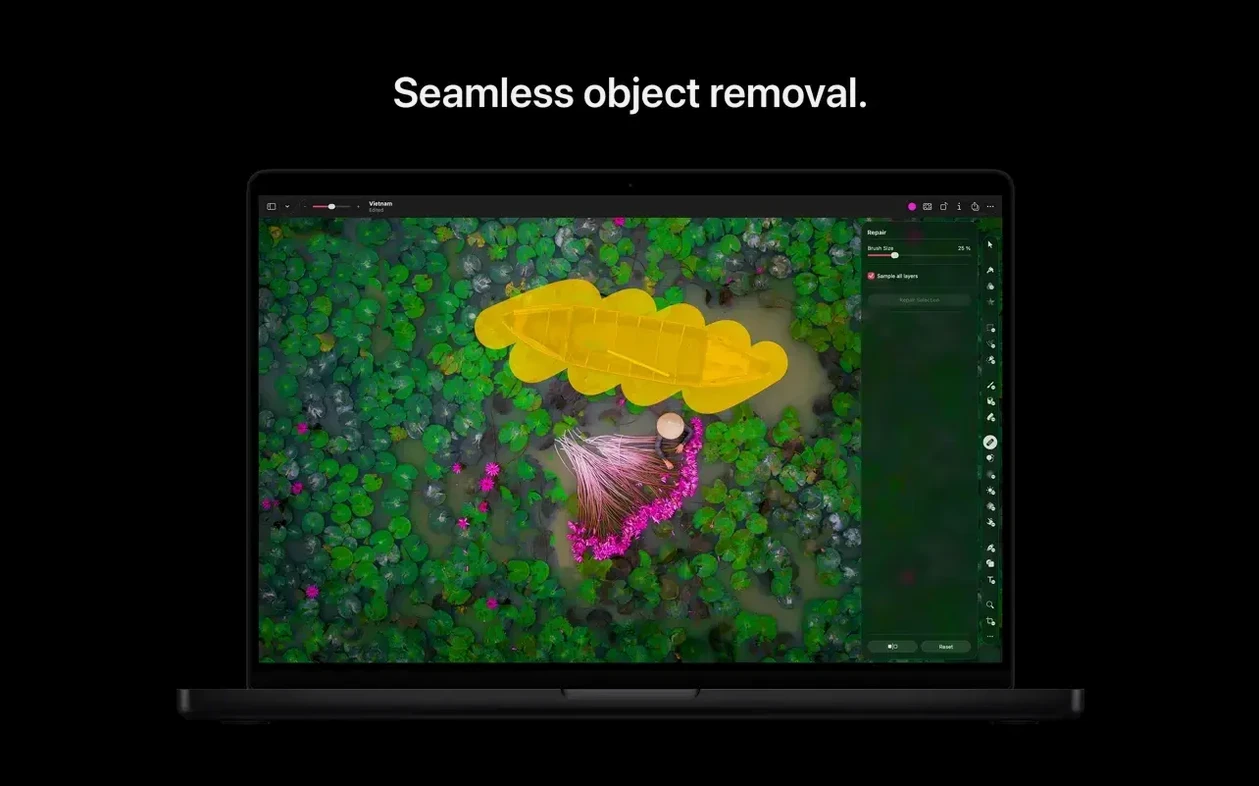
If you've spent time in the Photos app tweaking sliders and wishing for one more layer of control, Pixelmator Pro is the logical next step. It opens images directly from your Photos library, lets you work in a familiar single-window layout, and saves your edits right back where they came from. Version 4.3 landed on June 30, 2026, and while the core toolkit for photo enhancement, compositing, painting, and text remains rock-solid, the headline additions push it somewhere new.
Full Photos library integration with layered PSD support
- Photo editing that starts and ends inside the Photos app, with full library integration
- Working with layered PSDs alongside JPEG, PNG, HEIF, SVG, and other common formats
- Batch processing repetitive edits through Automator actions
- Designers who need custom vector shapes described in plain text rather than drawn from scratch
- Accessibility, with enhanced Switch Control and VoiceOver support in this release
Requires Apple silicon and macOS 26, single-window only
- The app requires a Mac with Apple silicon and macOS 26 or later
- It is a single-window editor — no floating tool palettes scattered across your desktop
- Sharing goes to Photos, Mail, and AirDrop directly, but third-party cloud services need extra steps
Shift-Command-F bypasses toolbar for Content Hub fills
Some of Pixelmator Pro's best touches aren't in the feature list — they're the tiny shortcuts that make a session feel fluid once you absorb them. The Quick Fill with Content Hub shortcut (press Shift-Command-F) bypasses the toolbar entirely when you want to pull in a stock graphic or photo and keep moving. If you're masking, hold Option while clicking a layer thumbnail to view the mask as grayscale right on the canvas — release to snap back to your composite. The Color Adjustments panel remembers its last state per document, so the sliders you were nudging a minute ago are still there when you double-click the layer again.
Another detail: the Reposition tool accepts a single click to drop a pin, then lets you drag from that anchor point without switching modes. Combine it with the Warp overlay toggle (the little grid icon in the tool options bar) and you can nudge a subject's posture or reshape an object edge without ever opening a dialog. For anyone who works with text, the Type tool respects paragraph styles stored in the document — copy a text box, paste it elsewhere, and it brings its formatting along without you telling it to.
The batch Automator actions deserve a second look even if you don't normally script things. Apple ships ready-made workflows for converting formats, applying color profiles, and resizing to common dimensions. Dropping a folder of product photos onto one of these is faster than opening each file, and the action runs quietly in the background while you handle something else.
A product photographer's afternoon
Imagine someone who runs a small online shop — handmade ceramics, maybe, or vintage camera gear. They shoot on a table near a window, tethered to their Mac, and the RAWs land in Photos. A typical batch might be forty frames of the same bowl from different angles, all lit consistently but needing the same cleanup: a speck of dust on the backdrop, a slight color cast from the window glass, and a crop to square for the store listing.
Instead of opening each image, they select all forty in Photos and choose Edit With > Pixelmator Pro. The first file opens. They use the Repair tool to tap away the dust — three clicks, done. A quick White Balance pick on the backdrop corrects the cast, and the Crop tool set to Square snaps the composition. Before closing, they save the document. The real time-saver: those repair spots, the white balance adjustment, and the crop are all non-destructive layers. Back in Photos, they select the remaining thirty-nine images, right-click, and choose Paste Edits. Pixelmator Pro applies the same adjustment stack to every frame, and because the repairs are content-aware per image, the dust removal recalculates for each one. The whole batch is ready in under two minutes.
Playing well with others
Pixelmator Pro sits comfortably inside the Mac ecosystem without demanding center stage. The Photos extension means you can start an edit from within Photos, round-trip to Pixelmator Pro for layer work or the new Generate Image tools, and save back to the library as a modified version — the original RAWs stay untouched. AirDrop sharing is one click from the Share menu, handy for sending a quick comp to an iPad running the companion app or to a colleague across the room.
Because it opens and writes layered PSDs, there's a natural handoff to anyone who needs Photoshop for final prep — a print shop, say, or a collaborator who lives in Adobe's world. SVG files come in as editable vector layers, so a logo designed in Sketch or exported from Illustrator doesn't need to be flattened before you incorporate it into a composition. And the Automator integration connects Pixelmator Pro to the wider macOS automation layer: combine a Folder Action that watches a "To Convert" folder with a Pixelmator Pro Automator action that outputs HEIF files, and you've built a drag-and-drop converter that requires zero interaction after setup.
A less obvious connection is Continuity Camera. Shoot a quick item with an iPhone, and the photo appears on the Mac desktop almost immediately. Drag it onto the Pixelmator Pro icon in the Dock, and you're editing within seconds — no import dialog, no intermediate step.
Compositing from a blank canvas with Content Hub drag-in
Here's how a composite might come together in version 4.3, starting from a blank canvas.
First, create a new document at screen resolution, 72 dpi, with a transparent background. Hit Shift-Command-F to open Content Hub, and drag in a sky photo from the built-in Unsplash collection — it lands as a new layer. Stretch it slightly with the Transform handles to fill the canvas width. Then head to Generate Image (the new 4.3 feature), type "a glass bottle on a wooden table, soft morning light, shallow depth of field," and let the model cook. Three variations appear in a side panel. Pick the one where the bottle's highlights catch the light naturally, and insert it as a new layer above the sky.
The bottle needs blending. Switch its layer blend mode to Multiply and drop the opacity to 85%. Grab the Eraser tool at low hardness and gently brush away the generated table edge so the bottle feels like it's sitting in the scene rather than pasted on. Now for shadows: duplicate the bottle layer, fill it with black using a Color Overlay layer style, blur it with Gaussian Blur (around 12 px), and drag it slightly down and left. Set the shadow layer to Multiply at 40%, and the bottle suddenly has weight.
Finish with a Color Adjustment layer clipped to the whole stack. A gentle S-curve in Curves, a tiny bump in Vibrance, and the composite looks cohesive — not like two sources stitched together. Save the project as a Pixelmator Pro document so the layers remain editable, then export a JPEG through the Share menu to drop into a presentation. From blank canvas to finished composite, maybe fifteen minutes, and nothing left the app.
Version 4.3 introduces several generative tools and a fresh way to grab assets:
- Content Hub for inserting photos, graphics, shapes, and illustrations while you work
- Generate Image turns text descriptions into images directly on your canvas
- Generate from Image lets you edit and transform existing images using text prompts
- Custom vector shapes can now be created from text descriptions
- Improved support for Switch Control and VoiceOver
- macOS 26 or later
- Mac with Apple silicon
Questions people ask
Can Pixelmator Pro open Photoshop files?
Yes, it opens and edits layered PSD files, along with JPEG, TIFF, PNG, HEIF, SVG, PDF, GIF, BMP, TGA, and JPEG 2000 formats.
Also on readers' docks
Sign in or create an account to leave a comment.
No comments yet. Tell me how it got on with your other devices.