









Download Photo Mechanic for macOS
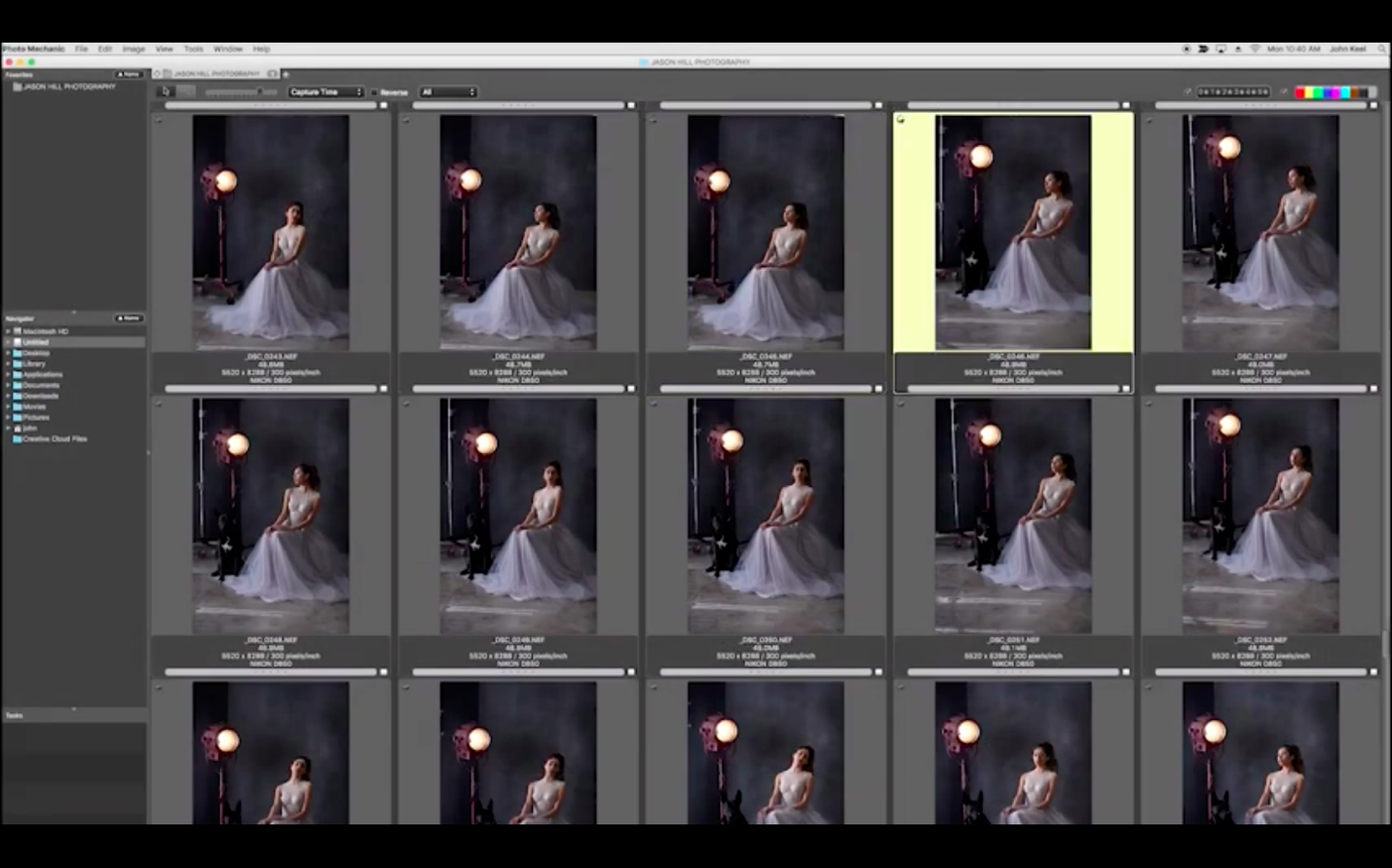
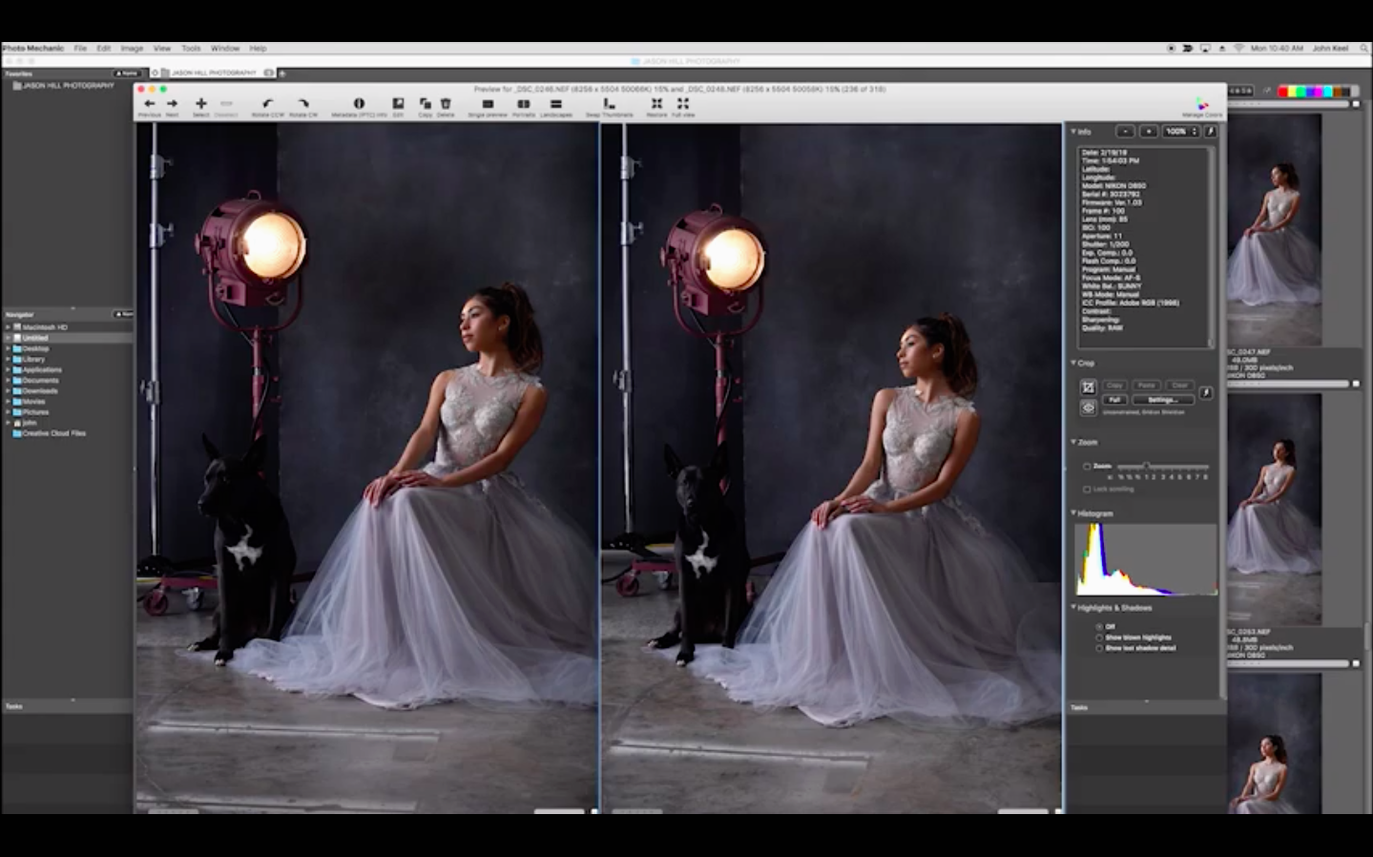
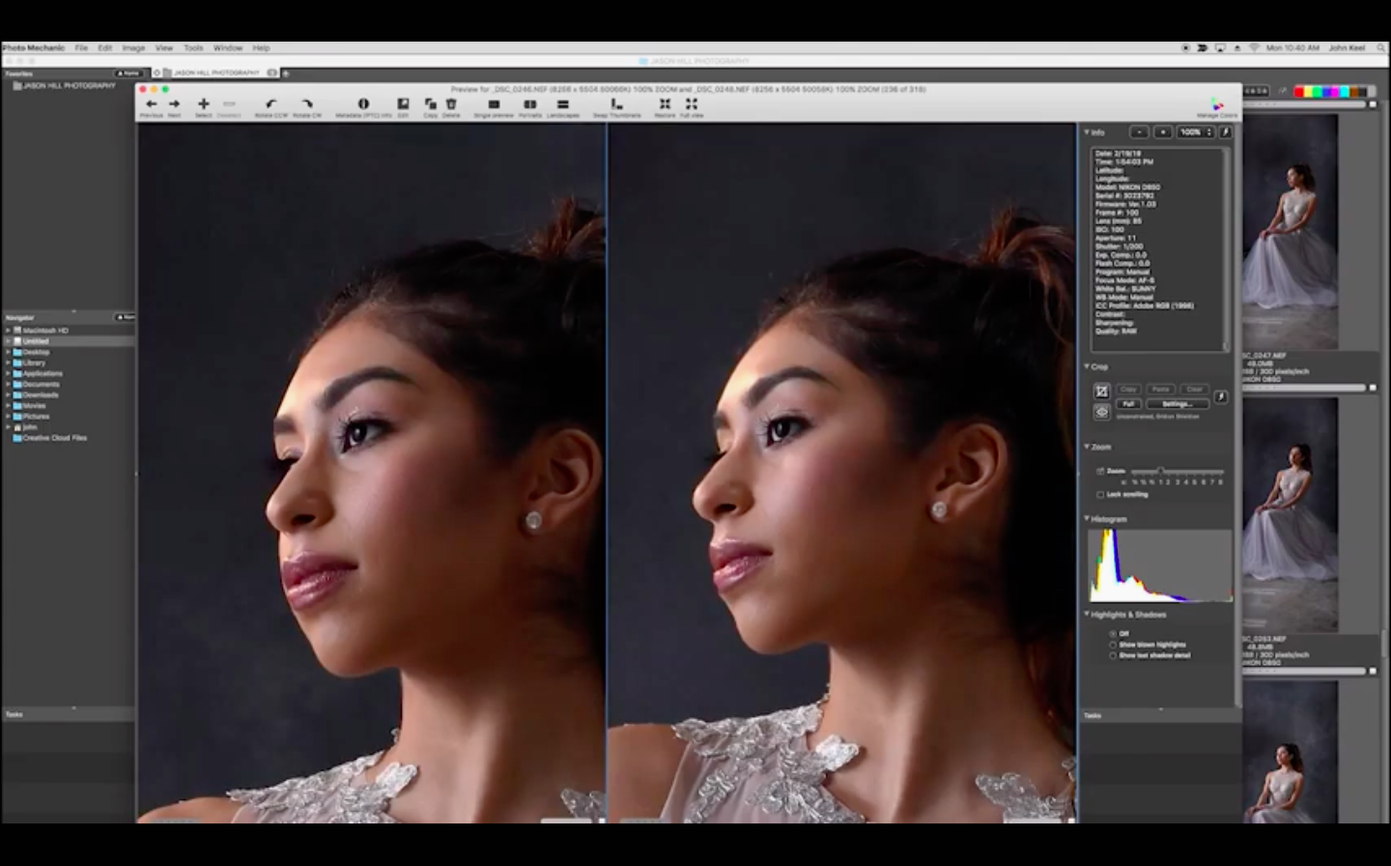
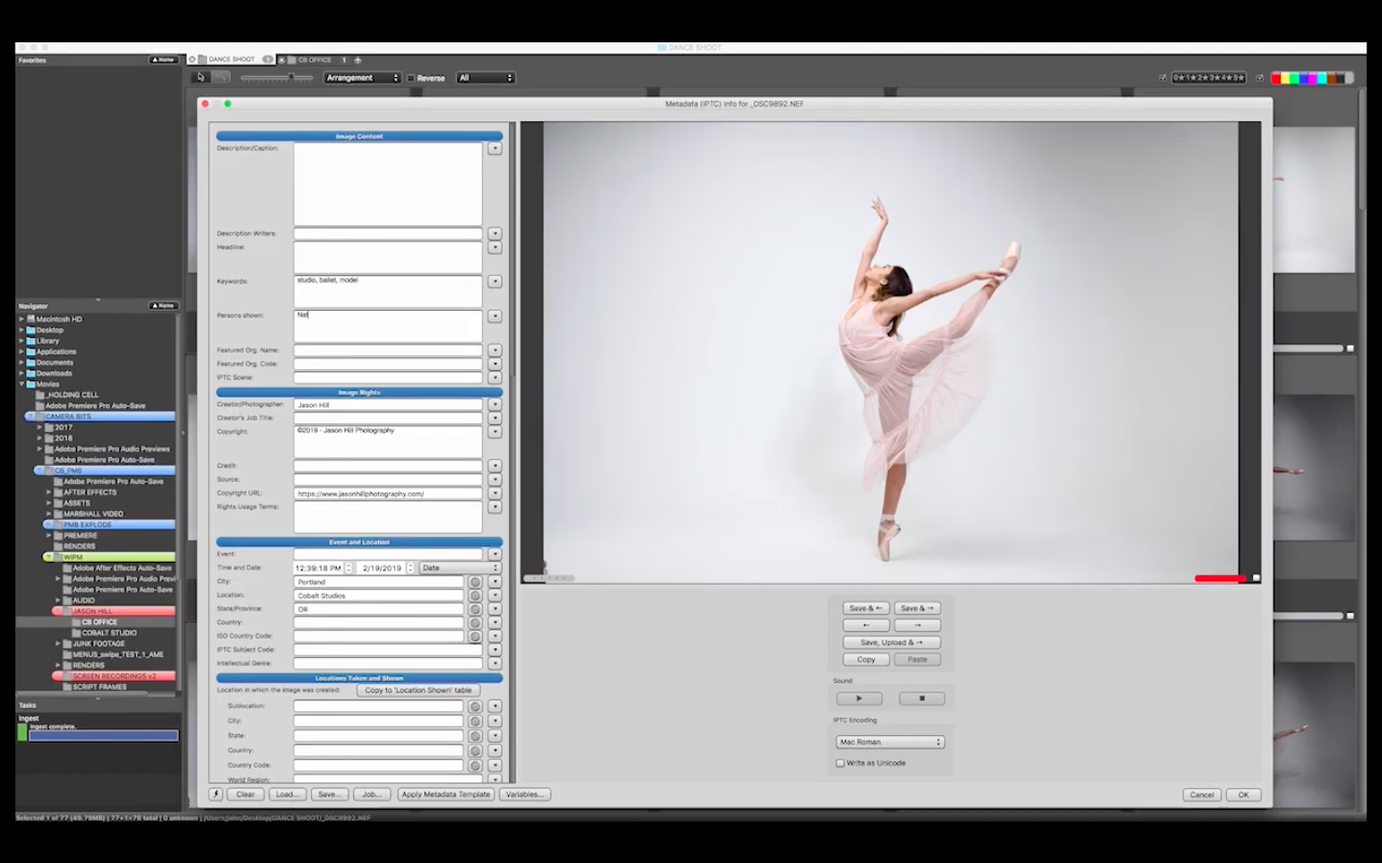
Photo Mechanic doesn't import images into a library — it reads files straight from the disk. That one design choice means it can scroll through a folder of 50,000 raw files with the same snappiness most apps reserve for a hundred. Photographers who come home from a wedding or a track meet tend to notice that first.
Does it actually edit photos?
It edits what the camera wrote, not the pixels. Metadata is the real workload here: titles, descriptions, keywords, copyright contacts, event names, GPS coordinates, and capture dates. You can stamp that data across batches, rename thousands of files with custom sequences, and apply color labels or star ratings that travel with the image into Lightroom or Capture One. The app also handles side-by-side comparisons, resizing, FTP uploads, and burning to disc — all without building a database first.
What's the catch on a modern Mac?
Camera Bits ships a native Apple Silicon build, so the app doesn't lean on Rosetta. It requires macOS 13 or later, and the interface stays in English. Incremental update notes live in the Readme and on the company forum rather than inside the app itself, which is worth knowing if you like to check what changed before you update. The full-screen viewing mode turns a laptop into a quick culling station, and the lack of catalog overhead means the app stays responsive even when a memory card dump lands on an external drive.
Don't overthink the first cull
The biggest time-sink after installing Photo Mechanic isn't learning the interface — it's second-guessing every rating. New users often stare at a burst of 20 near-identical frames and freeze up. The app rewards speed, not perfection. Set your color labels early: red for definite rejects, green for keepers, yellow for maybes. You can always refine later, but the goal in the first pass is to shrink a 2,000-shot folder down to 200 before you ever open an editor.
Another day-one habit worth forming: create a custom metadata template before you tag anything. Skip the temptation to fill in keywords one photo at a time. Under the Metadata menu, the Template lets you pre-load your name, copyright, event location, and a batch of starting keywords. Apply it to the whole folder on import — then tweak individual shots from there. It saves an hour on a busy Monday.
Where it fits between your other tools
Photo Mechanic doesn't want to be your only photo app. It shines brightest sitting upstream of everything else. A common workflow looks like this: ingest straight from the card reader, cull and tag in Photo Mechanic, then send the survivors to Lightroom for raw processing or to Photoshop for pixel-level work. Because metadata edits write directly into the file — or into a sidecar XMP for raw formats — every star rating, keyword, and color label appears automatically in Adobe apps and Capture One.
On the macOS side, the app plays well with Finder tags and Spotlight. Keywords you embed in Photo Mechanic become searchable through a regular Finder search, which means you can pull up a shoot from three years ago without opening any photo software at all. The FTP uploader also talks to Automator if you're the type who likes folder actions: drop finished JPEGs into a watched folder, and Automator can hand them off for web delivery without you touching the keyboard.
For users hunting a photo mechanic mac download, the Apple Silicon build is the one to grab. It doesn't just launch faster — it sustains responsiveness through long culling sessions on battery power, which matters if you're sorting a wedding on a MacBook Air in a coffee shop.
Renaming files outside the app breaks your edits
The most frequent mistake is confusing Photo Mechanic with a catalog app like Lightroom Classic. It doesn't store previews in a database, so if you rename or move files in the Finder after tagging them, the app won't know where they went. Always move and rename from within Photo Mechanic itself — its file-handling tools update paths cleanly, and you avoid the dreaded "file offline" headache later.
Another trap: ignoring the ingest dialog's backup options. The app can copy files to a primary location and a secondary backup simultaneously during card import. Beginners often skip setting the second destination because it looks like an optional extra step. It isn't. That checkbox is the difference between a safe archive and a single-drive gamble.
Also worth watching: the "save as" and "export" distinction. The app lets you save metadata changes directly to the original file, but if you're working with raw files and accidentally strip the XMP sidecar by saving in the wrong dialog, your tags vanish when you open the image elsewhere. A quick test run with a duplicate folder in the first few days clears that confusion fast.
Some folks searching a Photo Mechanic torrent or a cracked version can find a build that predates Apple Silicon support entirely—just check the Get Info panel to confirm it's Universal or ARM-native before launching. Those versions crawl on modern Macs and crash on Ventura or later. The current release, build 2025.1.8239, runs natively and handles the security frameworks in macOS 13 and above without workarounds.
- macOS 13 or later
- Apple Silicon Mac
Questions people ask
Can Photo Mechanic change the date a photo was taken?
Yes, you can adjust the capture date and time directly in the metadata panel, which is handy when you forgot to set the clock on a second body.
Does it run natively on Apple Silicon Macs?
Camera Bits provides an Apple Silicon-native version that runs without Rosetta, requiring macOS 13 or later.
Also on readers' docks
Sign in or create an account to leave a comment.
No comments yet. Tell me how it got on with your other devices.
More in Mac Apps
See all Permute
4.0.11 Mac Apps
84 MB
Permute
4.0.11 Mac Apps
84 MB
 Photomator
3.4.15 Mac Apps
662 MB
Photomator
3.4.15 Mac Apps
662 MB
 Perfectly Clear WorkBench
4.8.0.2871 Mac Apps
200 MB
Perfectly Clear WorkBench
4.8.0.2871 Mac Apps
200 MB
 PhotoScape X Pro
4.3 Mac Apps
452 MB
PhotoScape X Pro
4.3 Mac Apps
452 MB
 PhotoSweeper
5.5.5 Mac Apps
42 MB
PhotoSweeper
5.5.5 Mac Apps
42 MB
 Picview - Image Viewer
1.5.7 Mac Apps
11 MB
Picview - Image Viewer
1.5.7 Mac Apps
11 MB
 Updated Path Finder
26.1.10 Mac Apps
26 MB
Updated Path Finder
26.1.10 Mac Apps
26 MB
 Updated PasteNow
2.35 Mac Apps
7 MB
Updated PasteNow
2.35 Mac Apps
7 MB