









Download Path Finder for macOS
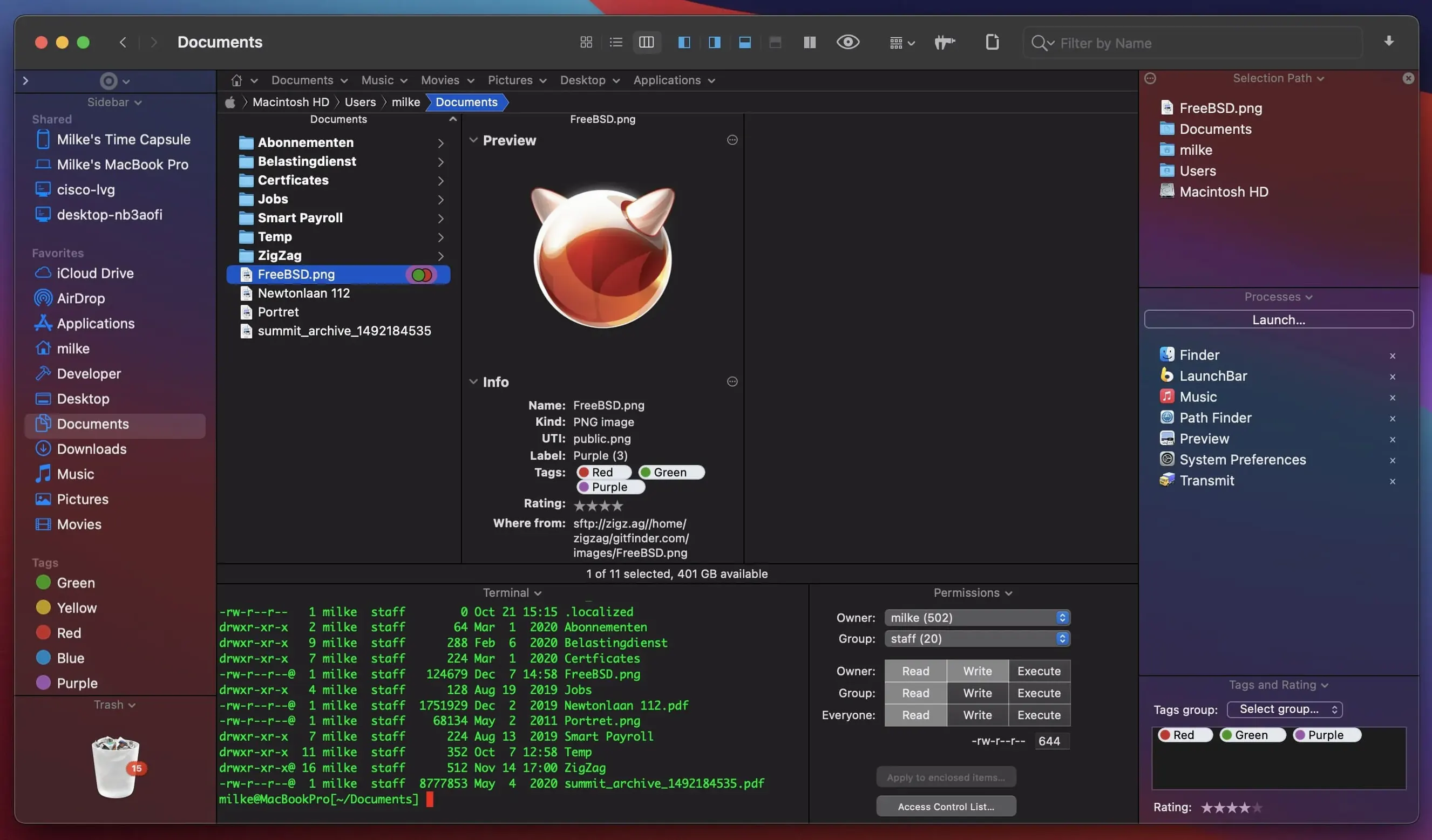
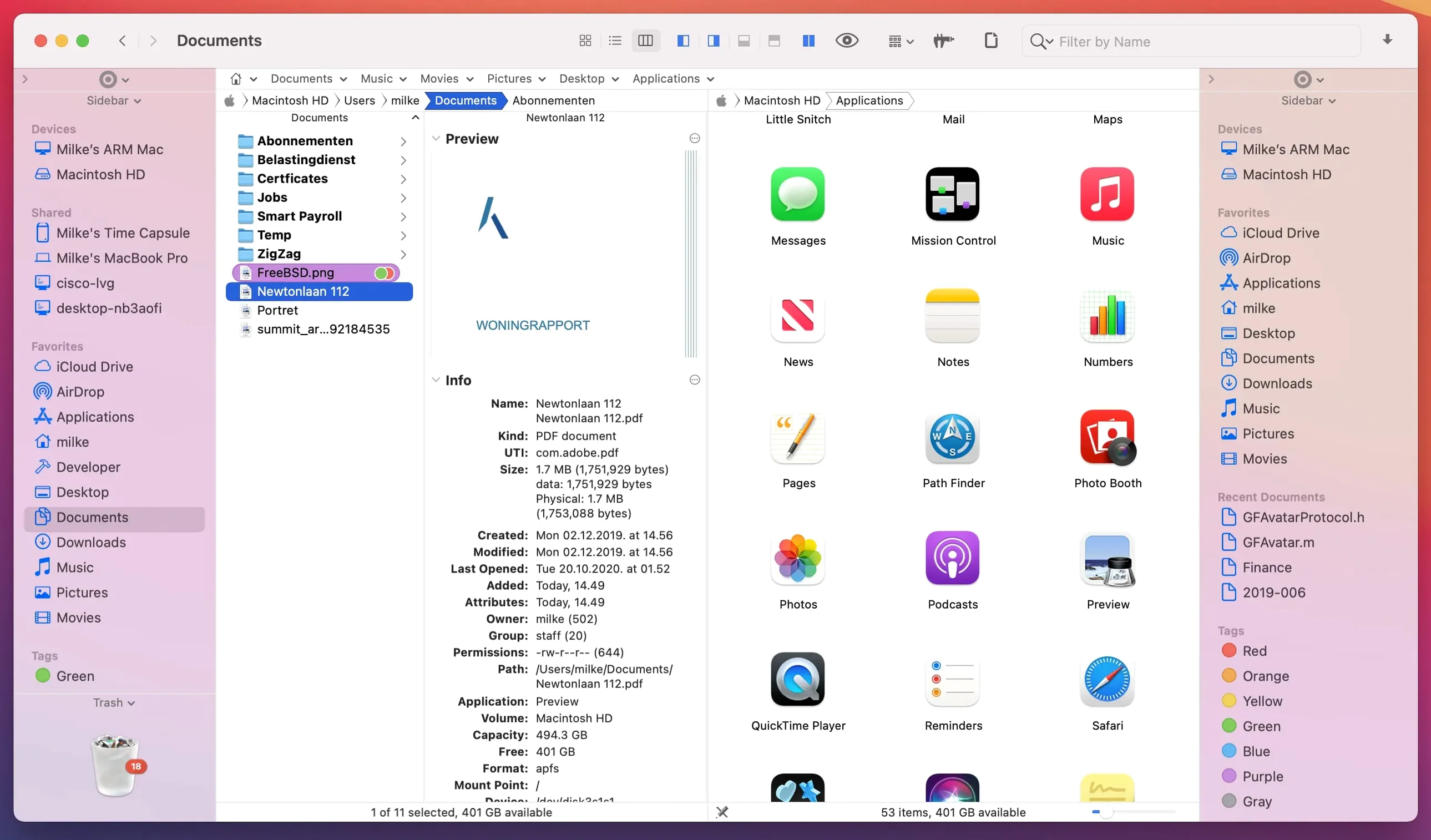
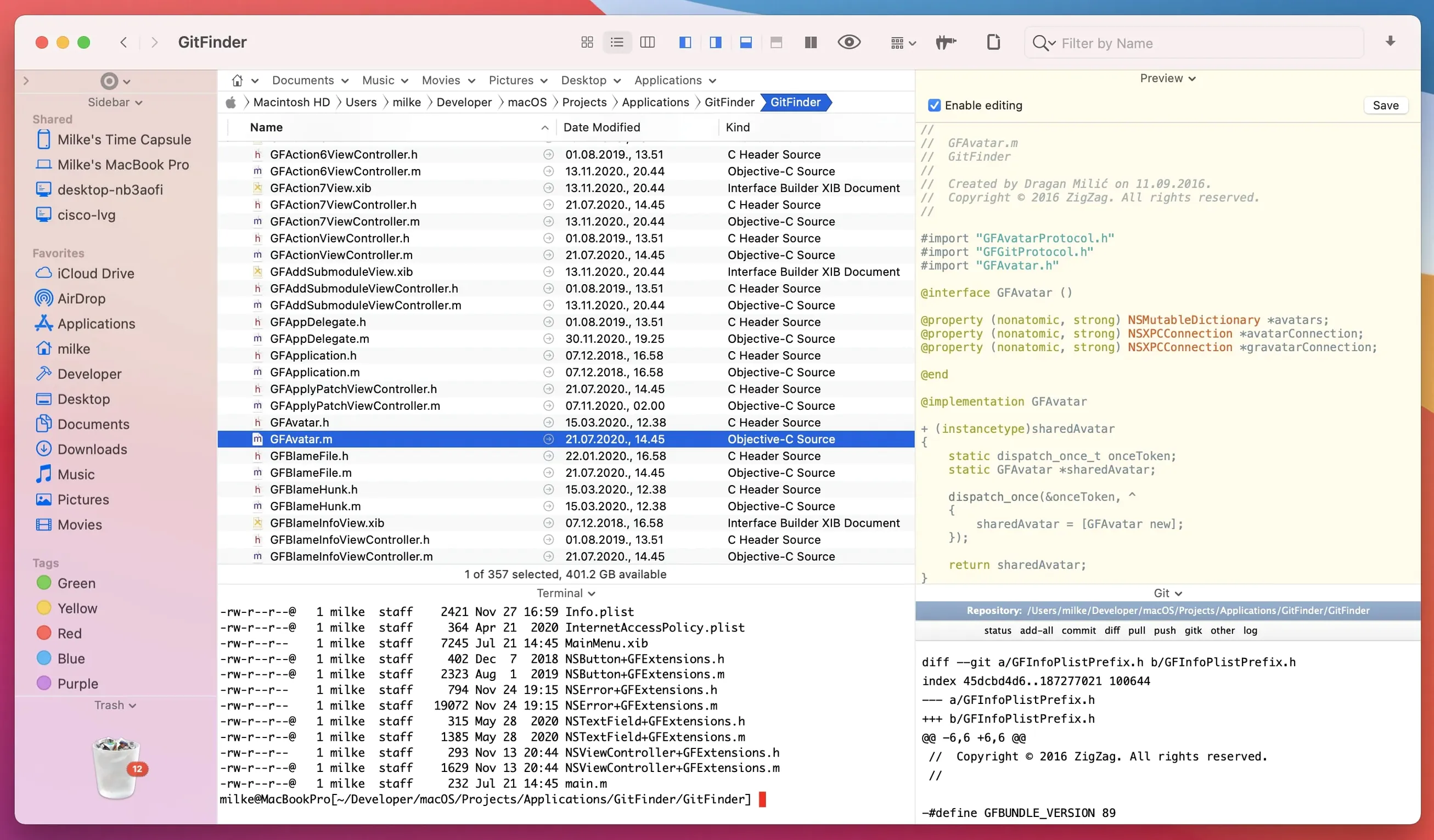
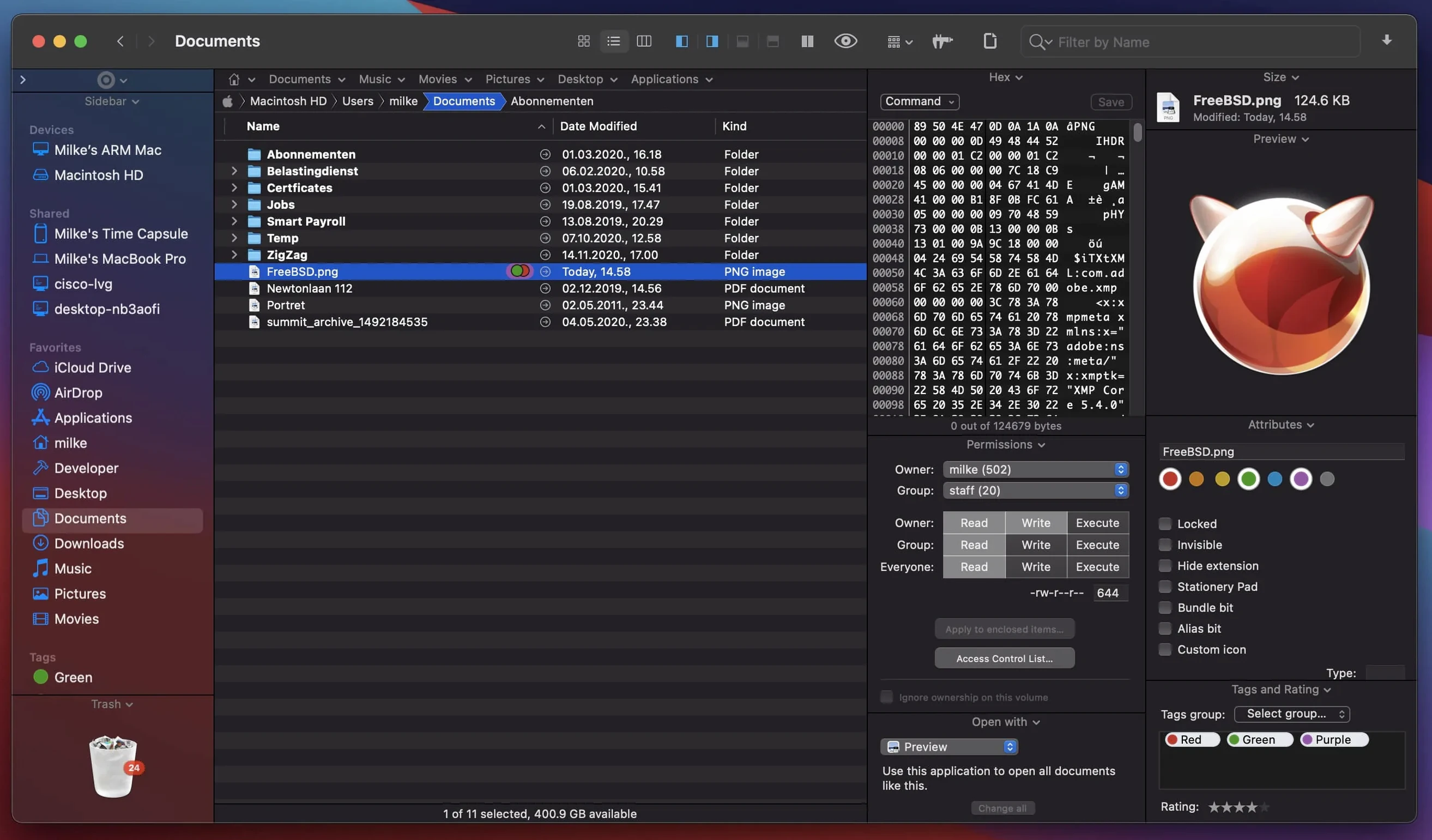
If you've ever tried dragging files between two Finder windows and wished they'd just sit side by side, Path Finder is the app that heard you. Cocoatech built it as a direct replacement for the macOS Finder, with a dual-pane view at its heart. Version 26 takes that idea further with a more powerful way to browse, organize, preview, and manage files without opening a stack of separate windows.
Does it actually replace Finder?
Yes — it's designed to be your everyday file manager. You get tabs, a dual-pane layout, and the same basic navigation, just with way more tools packed into the same window.
What file tasks does it handle that Finder doesn't?
You can convert CD, DVD, and Blu-ray disc images, manage running processes, handle archives, and search by keyword, extension, or type with finer control. The built-in preview covers documents, audio, and video files without launching separate apps.
Will it feel familiar right away?
Pretty much. It speaks the same visual language as Finder but adds things like batch rename, label and tag color badges, and iCloud status icons across Icons, List, and Columns views. If you know how to drag and drop on a Mac, you'll be at home — just with more panes and tabs to play with.
How Path Finder fits into a wider macOS workflow
Path Finder doesn't feel like an island. It pulls in things you already use — iCloud status icons light up right inside the file list, so you can see what's local and what's waiting to download before you even touch a file. Label and tag color badges show up across Icons, List, and Columns views, matching the tags you've set in Finder or other apps. That matters when you bounce between tools: tag a batch of images in Path Finder, and those same colors follow you into Finder, Spotlight searches, and apps that read the macOS tagging system.
It also plays nicely with Quick Look. Hit the spacebar on a document, image, or video, and you get the same instant preview you know from Finder — no need to launch a separate viewer. The difference here is you can have that preview floating over a dual-pane setup, comparing two folders while checking a file's contents at the same time. For anyone who juggles assets across projects, that's a quiet productivity bump.
And then there's the process manager. It's not something you'd expect in a file browser, but having it tucked into the same window means you can quit a stuck app or check what's eating CPU without switching to Activity Monitor. It's a small touch that pulls a system-level task into your file management flow.
Workflow: reorganizing a messy photo library between local and external drives
Let's say you've got a folder of travel photos scattered across your Mac's internal drive and a USB-C SSD. The goal: consolidate them into one clean folder structure on the external drive, rename the keepers, and zip up the discards for archiving.
Open Path Finder and switch to dual-pane view. On the left pane, navigate to the internal folder. On the right, browse to the external drive. You can now see both folder trees without toggling windows. Start by selecting the left pane and using the search bar — filter by .cr2 to pull all raw files together, then drag them straight across to a new Raws folder on the external drive. No extra Finder windows, no minimizing.
Next, batch rename the files you're keeping. Select them on the external drive, open the batch rename module, and strip out the camera's default naming in one pass. While you're at it, tag the favorites with a red label — those badges will show up immediately in both panes and any other Mac app that reads tags.
For the leftover JPEGs and outtakes, select them on the internal drive, right-click, and use Path Finder's archive tool to compress them into a single zip. The built-in preview pane lets you spot-check a few images before you commit them to the archive. Finally, drag that zip to a cold-storage folder on the external drive and delete the originals from the internal — all within the same dual-pane layout, no desktop clutter.
Keyboard shortcuts that bypass the mouse entirely
Some of Path Finder's best bits don't announce themselves. Here are a few worth knowing:
- Keyboard-only browsing. You can navigate folders, select files, and open previews without touching a mouse. Arrow keys,
Tabbetween panes, andReturnto open. If you're already a keyboard-heavy Mac user, this slots right into your muscle memory. - Built-in FTP client. It lives in the same browsing interface — no need to launch a separate app like FileZilla. Connect to a server, and it appears as another pane you can drag files into or out of, just like a local folder.
- App uninstaller. When you drag an app to the Trash and still find leftover preference files weeks later, Path Finder's uninstall module catches those stragglers. It's not flashy, but it saves you from hunting through
~/Librarymanually. - Drop stack. You can pile up files from different locations into a temporary holding area, then move or copy them all at once to a destination. Handy when you're gathering assets from across a deep folder tree.
- Custom hotkeys. Path Finder lets you remap system shortcuts so commands like Move to… or Copy Path sit under your fingers. If you've ever cursed macOS for not having a proper cut and paste for files, this is where you fix that.
- List View tweaks. The recent fix for double-click behavior and multi-item selection in List View makes column sorting feel snappier. Click a column header to sort by name, date, or size, and the update means your selections stick reliably — small but welcome when you're rapidly reordering a long file list.
Path Finder 26.1.10 has landed. The developer's official release notes over on the Cocoatech store page cover all the tweaks in this one — go take a peek if you enjoy the fine print.
- macOS 13 (Ventura) or later
- Apple Silicon or Intel 64-bit Mac
Questions people ask
Can I switch back to the regular Finder if I need to?
Absolutely. Path Finder runs as a separate app, so the standard Finder is still there whenever you want it.
Also on readers' docks
Sign in or create an account to leave a comment.
No comments yet. Tell me how it got on with your other devices.
More in Mac Apps
See all Updated PasteNow
2.35 Mac Apps
7 MB
Updated PasteNow
2.35 Mac Apps
7 MB
 Paste
6.6.2 Mac Apps
28 MB
Paste
6.6.2 Mac Apps
28 MB
 Updated Parallels Desktop
27.0.3-58680 Mac Apps
186 MB
Updated Parallels Desktop
27.0.3-58680 Mac Apps
186 MB
 Perfectly Clear WorkBench
4.8.0.2871 Mac Apps
200 MB
Perfectly Clear WorkBench
4.8.0.2871 Mac Apps
200 MB
 Permute
4.0.11 Mac Apps
84 MB
Permute
4.0.11 Mac Apps
84 MB
 Paragon NTFS
LAST Mac Apps
70 MB
Paragon NTFS
LAST Mac Apps
70 MB
 Photo Mechanic
2025.1.8239 Mac Apps
64 MB
Photo Mechanic
2025.1.8239 Mac Apps
64 MB
 Pacifist
4.1.4 Mac Apps
38 MB
Pacifist
4.1.4 Mac Apps
38 MB