








Download Permute for macOS
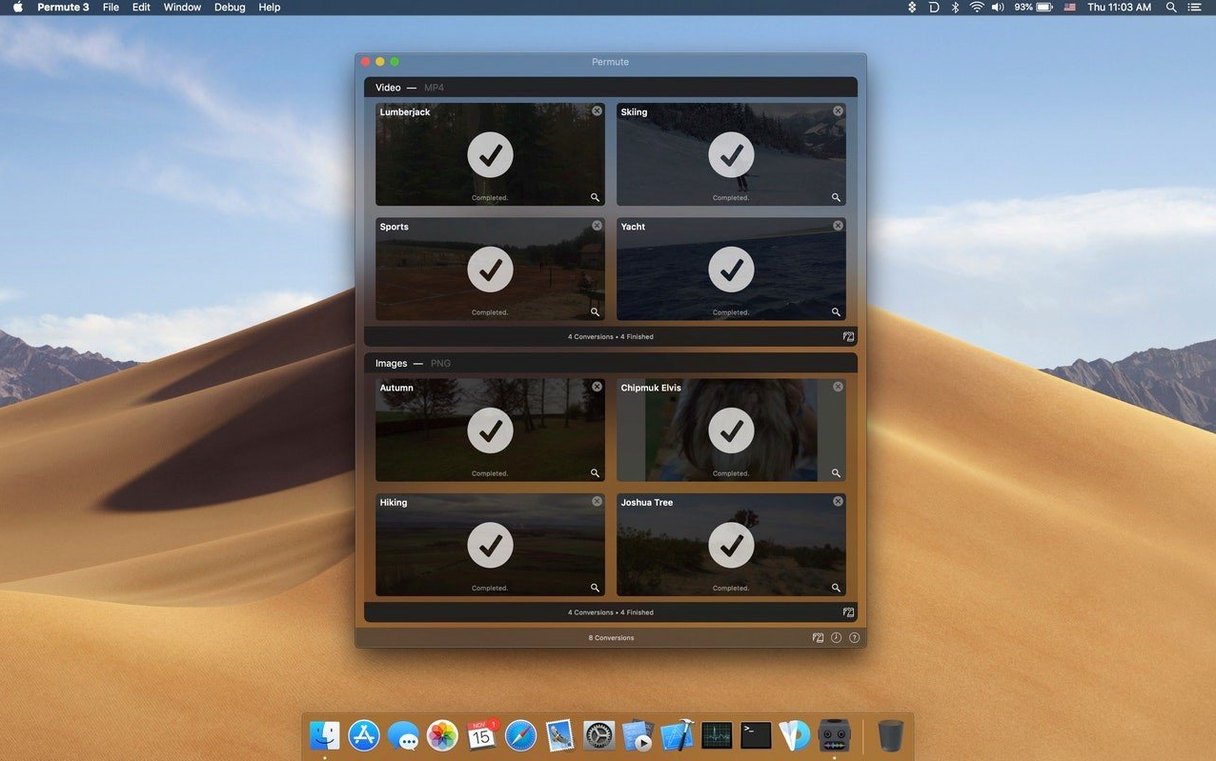
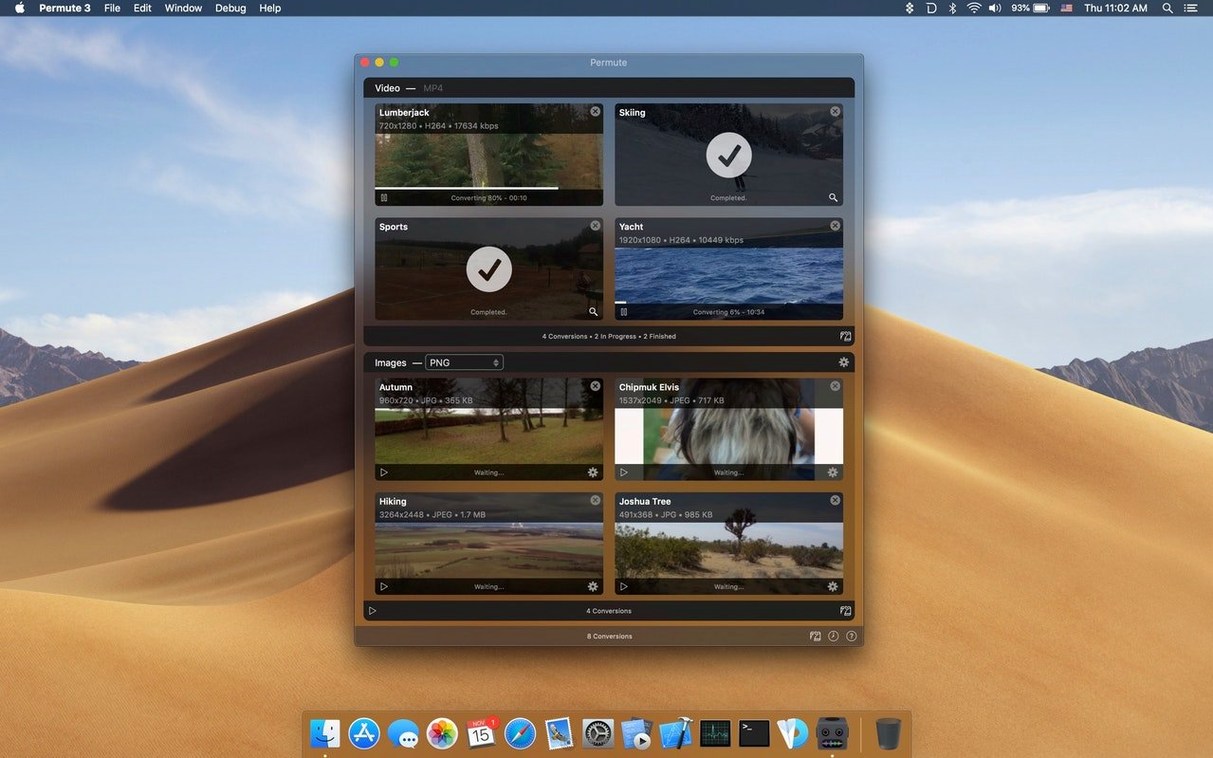
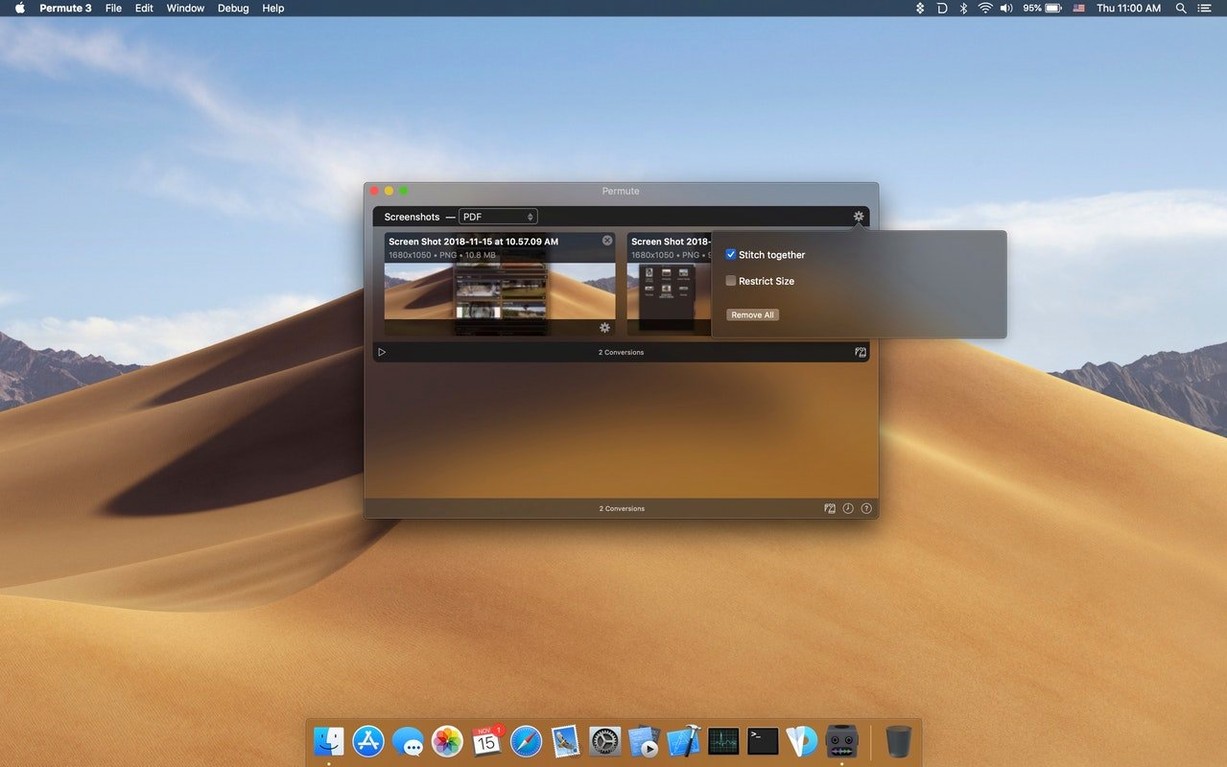
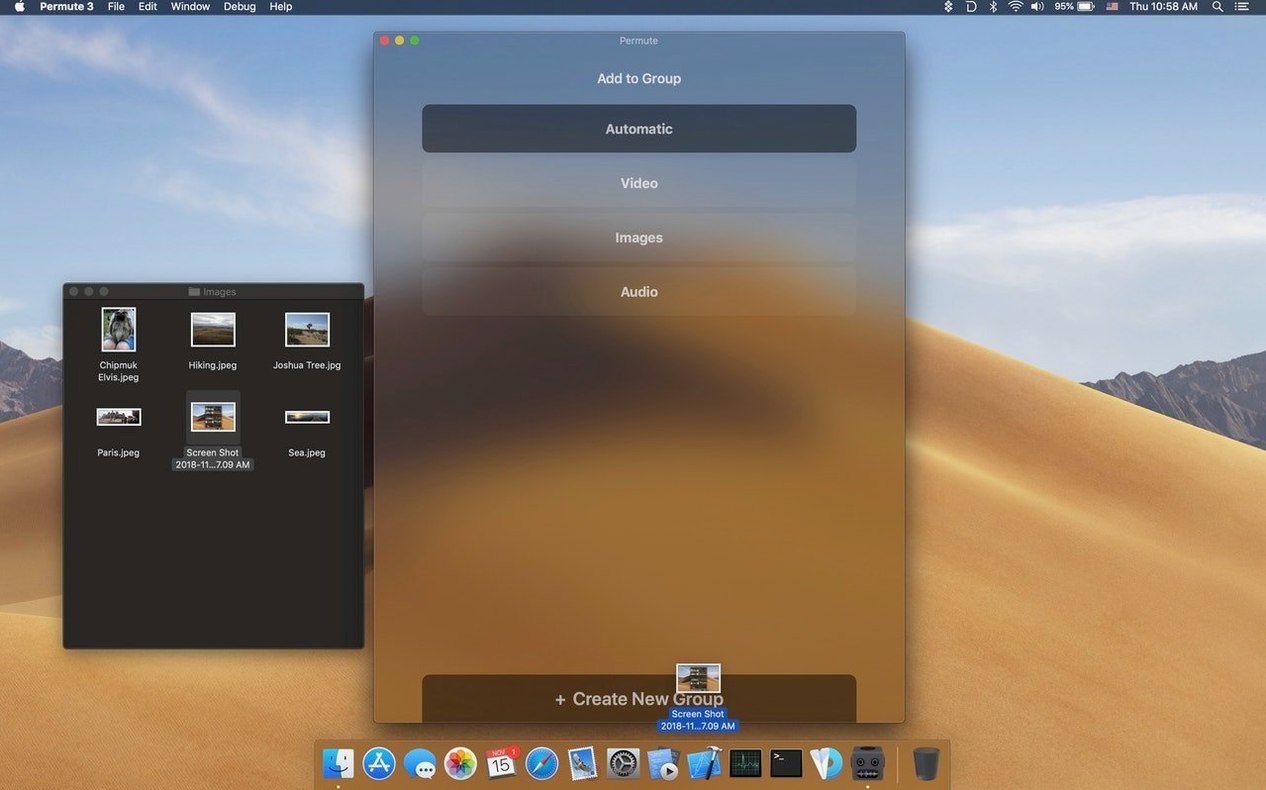
It started with a DVD I needed as an MP4 for a flight, and now Permute 4 handles a few dozen conversions a week without me thinking about it. The app sits in the menu bar and converts video, audio, and images between pretty much any format you throw at it — all powered by FFmpeg libraries under the LGPLv2.1.
What makes it click is how little friction there is. Drag in a video and tell it to spit out an audio file, add a subtitle track to a movie, or turn a folder of images into a single ISO. The interface stays out of the way, so the job gets done while you keep working.
Charlie Monroe Software built this for macOS 26 and Apple Silicon, and it feels native from the dock icon to the progress bars. It speaks fifteen languages, which says a lot about who is using it — people who just need a file in a different shape, no matter where they are.
If you regularly bump into format walls — a video that will not play, an audio file your editor refuses, or a batch of images that need a uniform type — Permute 4 earns its spot on the dock.
First days with Permute 4
Right after installing, drop your most common output formats into the presets panel and give each a custom name. I keep an "Audio only – AAC" preset, a "TV ready – H.265" one, and an image preset that converts everything to JPEG at 80% quality. That way you are not reconfiguring settings every time you drag a file in — the conversion becomes a one-step drag.
Another thing worth doing early: open Preferences and check the After conversion behavior. I set mine to move originals to a "Converted" folder rather than trashing them, but if you are confident in your settings, automatic deletion saves a lot of cleanup. While you are there, pin the output folder to somewhere predictable — I use a folder on the desktop that I clear out weekly.
If you work with subtitles, test a small clip with an SRT file before trusting a full-length movie to the queue. Drop the video file onto Permute, then drag the subtitle file onto the same conversion job. The preview pane confirms the track is embedded properly, and that thirty-second test has saved me from encoding a feature film twice more times than I care to admit.
Drag two clips in, get one merged video out
The most common one is whether Permute 4 can merge two video clips into one. It can, and it is simpler than most people expect — select both files in Finder, drag them in together, and the app asks if you want to combine them or convert them separately. The merged output uses the settings of whatever preset you choose next, so pick your quality before you confirm the join.
Another question is about DVD and ISO handling. Permute converts files to ISO format but does not rip protected discs. If you have a folder of video files you want bundled as an ISO, it handles that without fuss. People coming from other converters also ask about queue limits — there aren't any. Stack up dozens of files and let them run overnight; the app processes them in order and wakes the Mac to finish if you allow it in Energy Saver settings.
The "what formats does it actually support" question has a short answer: if FFmpeg can read it, Permute can convert it. That covers a huge range, and the app adds a few niceties on top, like preserving metadata where the format allows and offering device-specific presets that save you from memorizing codec profiles.
A ProRes screen grab, a FLAC folder, and a Sunday deadline
Monday morning, I have three things to handle. A screen recording from the weekend in a massive ProRes file that needs to become something shareable, a folder of FLACs a friend sent that my car stereo will not read, and a video lecture that I want as audio for a walk later.
I drag the screen recording in first, pick the "TV ready" preset I made earlier, and hit convert. While it encodes, I grab the folder of FLACs — twelve tracks — and drop them in as a batch. I choose an MP3 preset, and they stack up in the queue behind the video job. The lecture video goes in last; I switch the output to audio-only, pick AAC, and drop it to the bottom of the list.
The whole queue churns while I answer emails. Permute shows per-file progress in the menu bar, and a single click brings the main window forward when I want to check how the big ProRes conversion is doing. Forty minutes later, all three jobs are done. The screen recording is a tidy H.265 MP4, the FLACs are now MP3s with album art intact, and the lecture sits on my phone as a podcast-ready audio file. I drag the originals to an archive folder and move on — the whole session felt like a background task, not a production.
- macOS: macOS 26 or later
- Architecture: Apple Silicon
Also on readers' docks
Sign in or create an account to leave a comment.
No comments yet. Tell me how it got on with your other devices.
More in Mac Apps
See all Perfectly Clear WorkBench
4.8.0.2871 Mac Apps
200 MB
Perfectly Clear WorkBench
4.8.0.2871 Mac Apps
200 MB
 Photo Mechanic
2025.1.8239 Mac Apps
64 MB
Photo Mechanic
2025.1.8239 Mac Apps
64 MB
 Photomator
3.4.15 Mac Apps
662 MB
Photomator
3.4.15 Mac Apps
662 MB
 PhotoScape X Pro
4.3 Mac Apps
452 MB
PhotoScape X Pro
4.3 Mac Apps
452 MB
 PhotoSweeper
5.5.5 Mac Apps
42 MB
PhotoSweeper
5.5.5 Mac Apps
42 MB
 Picview - Image Viewer
1.5.7 Mac Apps
11 MB
Picview - Image Viewer
1.5.7 Mac Apps
11 MB
 Updated Path Finder
26.1.10 Mac Apps
26 MB
Updated Path Finder
26.1.10 Mac Apps
26 MB
 Updated PasteNow
2.35 Mac Apps
7 MB
Updated PasteNow
2.35 Mac Apps
7 MB