








Download Parallels Desktop for macOS
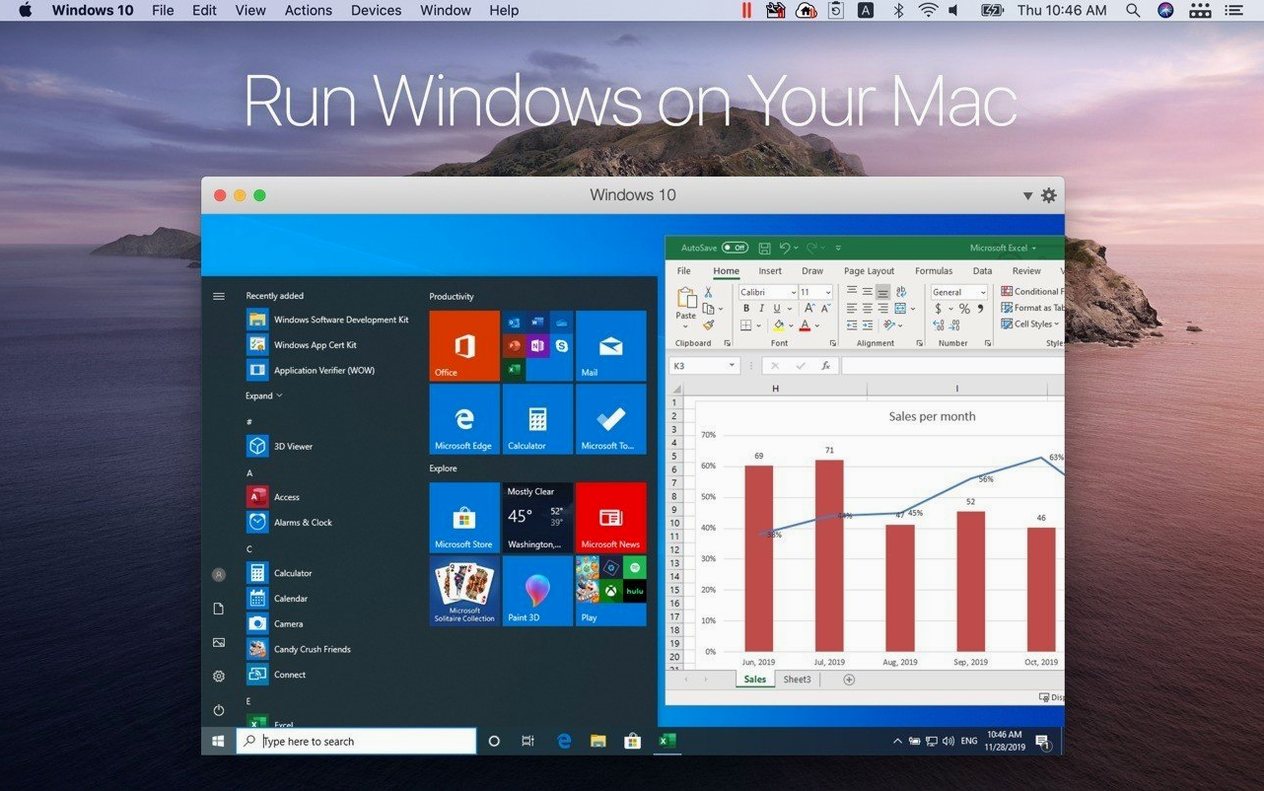
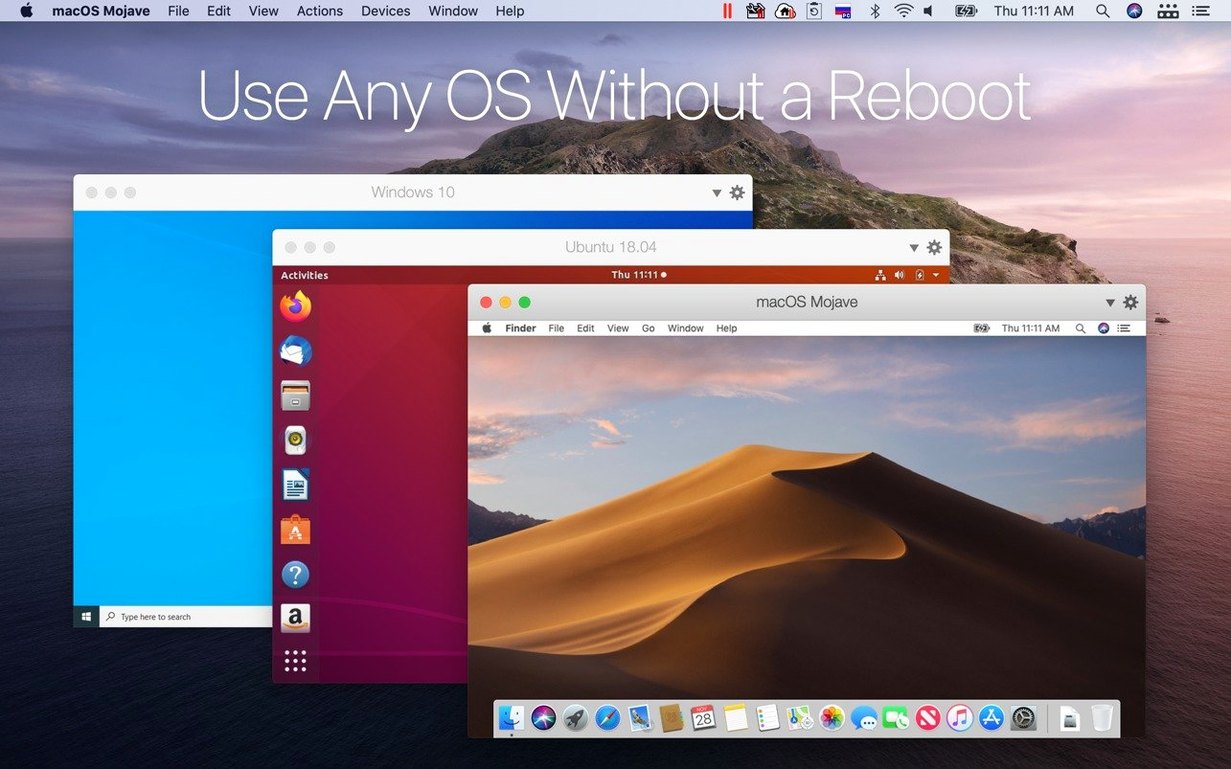
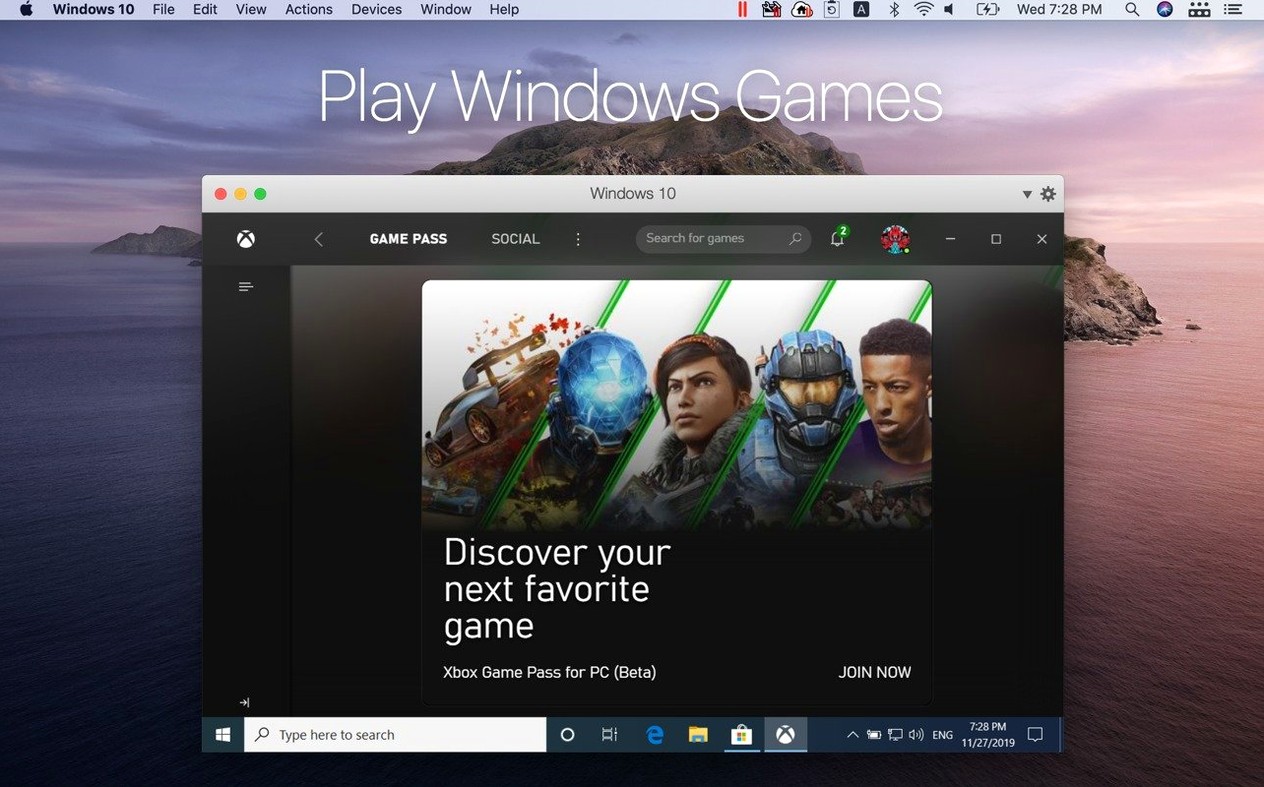
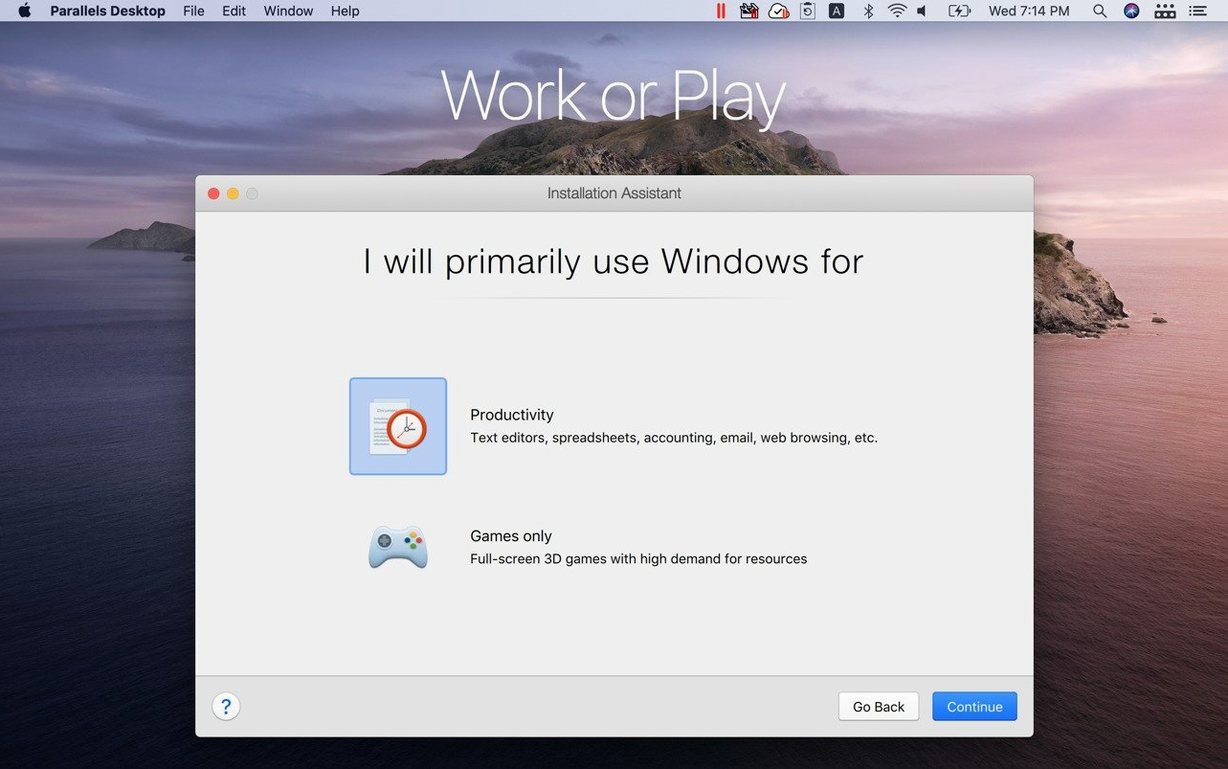
Parallels Desktop 27 landed with a quiet but meaningful shift — Boot Camp support is gone, and in its place sits ARM SystemReady SR 3.1 certification plus out-of-the-box support for brand-new Linux distros like Ubuntu 26.04 LTS and Fedora 44. If you've just installed it, the cleanest path forward is to lean into what it does best right now: running other operating systems alongside macOS without friction.
- Set up shared folders early. Pick a Mac folder that lives in your iCloud Drive or your daily workspace and hand it to Windows or Linux. Dragging files back and forth gets old fast; a shared folder makes both systems feel like one machine.
- Turn on cross-platform copy and paste. Text and images move between Mac and Windows with a simple ⌘C / ⌘V once you enable shared clipboard. It's the first thing I miss when it's off.
- Try a Linux VM you've never used. With Debian 13.6, Kali Linux 2026.2, and even x86_64 emulation for Ubuntu 26.04 LTS now built in, there's no excuse not to spin up a fresh distro. Download, point Parallels at the ISO, and you're exploring a new desktop in minutes.
- Run Windows apps in Coherence mode. Instead of living in a full Windows desktop, pick one or two must-have Windows apps and let them float on your Mac screen like native citizens. It spoils you quickly.
Parallels shines brightest when you stop treating the guest OS as a separate island. Share a folder, sync the clipboard, then pick the one Windows app or Linux tool you actually need — and let the rest fade into the background.
A Workflow That Earns Its Keep: Testing a Linux Web App
Here's a scenario I lean on constantly. A client sends over a small web application that runs on Ubuntu Server, and I need to poke at it before deploying it anywhere real. Parallels 27 makes this almost too easy now that Ubuntu 26.04 LTS support ships out of the box.
I start by clicking the plus button in the Control Center and choosing Ubuntu 26.04 LTS from the list — no ISO hunting. Parallels downloads and installs it while I refill my coffee. Once the VM boots, I don't bother with the desktop. I install openssh-server right in the terminal, grab the IP address with ip a, and from that point forward I connect from my Mac's Terminal app. The VM window shrinks to a headless sliver I can ignore.
The web app files sit in a shared Mac folder I mapped during setup. On the Ubuntu side, that folder appears under /media/psf/. I cd into it, run the app's start script, and test everything from Safari on the Mac side. When I need to edit a configuration file, I open it in VS Code on macOS — the shared folder means changes appear instantly inside the VM. No FTP, no SCP, no mental context-switching.
When I'm done, I suspend the VM. It wakes in under three seconds next time. The whole loop — download, configure, test, suspend — feels less like managing a virtual machine and more like having a disposable server I can summon on demand.
Boost CPU and RAM Beyond Half-Core Defaults
Parallels ships with sensible defaults, but a few tweaks pay off immediately. Head into the configuration pane for your main VM and hit these first:
- CPU and memory sliders. By default, Parallels often allocates half your Mac's cores and a conservative slice of RAM. If you're on a machine with 16 GB or more, bump the guest up to 6 or 8 GB — especially for Windows 11, which sulks with less. Leave at least 8 GB for macOS, though. Starving the host makes everything feel sluggish.
- Graphics memory. The default sits around 256 MB. Push it to 512 MB or higher if you plan to run anything that draws a UI beyond basic dialog boxes. The difference in Coherence mode is noticeable — fewer redraw hiccups when dragging windows.
- Startup and shutdown behavior. I change "When closing the virtual machine" from "Suspend" to "Ask me what to do." Suspend is brilliant most days, but occasionally you want a clean reboot, and Parallels won't guess which you need.
- Shared profile folders. Under the Sharing tab, uncheck any folder you don't actually want the guest OS to see. The defaults can be generous, and I prefer my Downloads folder stay Mac-only unless I explicitly need it.
One more that's easy to miss: in Parallels Desktop's own preferences (not the VM configuration), you can set whether Windows apps appear in the Mac's Dock while in Coherence mode. I turn that on, then immediately pin only the two or three Windows apps I actually use. The rest stay hidden, which keeps the Dock from turning into a confusing mess.
Drag Files Straight Into Windows Apps
Parallels has been around long enough to accumulate plenty of thoughtful touches, and version 27 keeps the best of them alive. Here are a few I stumbled into or wish I'd known sooner:
- Drag a file onto a Windows app icon in the Dock. While in Coherence mode, grab a PDF from Finder and drop it on the Word icon. It opens immediately, just like a native Mac app would behave. No need to dig through file dialogs inside Windows.
- Custom keyboard profiles. Under the VM's hardware settings, you can remap specific key combinations. I swap the Windows Ctrl behavior so it matches the Mac Command key position for cut, copy, and paste. Muscle memory stays intact, and I stop accidentally closing windows.
- Snapshot with a single click. Before running a risky installer or a system update, open the Snapshots panel from the menu bar and click the camera icon. If things go sideways, roll back in seconds. I take one before every major Linux distro upgrade, and it has saved me from a broken desktop more times than I care to admit.
- Open a Windows app directly from Spotlight. Once Parallels indexes your guest OS, typing the name of a Windows application into Spotlight on the Mac side brings it up. Hit Enter, and the VM wakes from suspend and launches the app. It feels borderline magical the first few times.
- Silent mode for notifications. Windows loves to announce itself. In the VM's Options tab, under "Startup and Shutdown," you can suppress guest notifications while the VM is in the background. I enable it and never look back.
Apple Silicon Takes Over as Intel Mac Support Disappears
The jump to Parallels 27 brought a handful of changes that affect everyday workflows more than the version number suggests. The biggest headline is the removal of Intel Mac support, which means if you're on Apple Silicon — and at this point, with the macOS 26 requirement, you are — the codebase is now entirely focused on ARM. That translates to leaner background processes and fewer compatibility shims running under the hood.
Boot Camp support also disappeared in version 27. For anyone who still had a Boot Camp partition lying around from an Intel Mac, that stings. But the practical effect on current hardware is nil, since Apple Silicon Macs never supported Boot Camp in the first place. The removal cleans up the interface and eliminates a configuration path that no longer applied.
The ARM SystemReady SR 3.1 certification is less flashy but genuinely useful. It means more ARM-based Linux distributions install without fiddling with kernel parameters or boot flags. In practice, I spun up Fedora 44 and Kali Linux 2026.2 without touching a single advanced setting — just pick the ISO, click create, and they boot cleanly. The addition of x86_64 emulation for Ubuntu 26.04 LTS is another quiet win, letting you run software compiled for Intel processors inside an ARM VM without a second thought.
Stability and security fixes are the kind of bullet point that usually makes eyes glaze over, but in 27.0.2 I noticed fewer random pauses when switching between full-screen Windows and my Mac desktop spaces. It's not dramatic, just smoother around the edges.
How Parallels Desktop Compares with Similar Mac Apps
The virtualization landscape on macOS has shrunk and specialized, so Parallels sits alongside a few distinct alternatives. Each takes a different path, and the right choice depends on what you actually run day to day.
VMware Fusion remains the closest direct competitor. It handles Windows and Linux VMs capably and offers a free personal-use license that attracts a loyal following. Where Parallels pulls ahead is in the integration layer — Coherence mode, shared clipboard that rarely breaks, and the way Windows apps behave inside the Mac Dock. VMware's Unity mode aims for the same goal but feels rougher, with occasional window focus quirks and less polish around drag-and-drop between operating systems. If you spend most of your time inside a full-screen Windows desktop and don't care about blending the two UIs, VMware holds its own. If you want Windows apps to feel like Mac citizens, Parallels still leads.
UTM takes a different approach entirely. Built on QEMU, it's open-source and prioritizes flexibility over polish. You can emulate a staggering range of architectures, from old PowerPC Macs to obscure Linux builds, and it costs nothing. The trade-off is speed and convenience. Parallels runs Windows and Linux noticeably faster on Apple Silicon, and setup involves far fewer manual steps. UTM appeals to tinkerers and retro-computing enthusiasts; Parallels is for people who need a second OS working reliably at nine in the morning with a deadline looming.
CrossOver by CodeWeavers isn't virtualization at all — it translates Windows API calls directly to macOS, no Windows license or VM required. For a single application that runs well under CrossOver, it's the lightest-weight option. The catch is compatibility. Many apps work, many don't, and troubleshooting involves a spreadsheet of tweaks and Wine configurations. Parallels gives you a real Windows environment where software runs as the developer intended. I keep both tools around: CrossOver for the one stubborn app that works perfectly under translation, and Parallels for everything else that needs the full Windows stack.
Parallels Desktop 27.0.3-58680 has landed. For the full rundown of tweaks and fixes, head over to the official release notes on the Parallels knowledge base.
- macOS 26 or later
- Apple Silicon Mac
Also on readers' docks
Sign in or create an account to leave a comment.
No comments yet. Tell me how it got on with your other devices.
More in Mac Apps
See all Paragon NTFS
LAST Mac Apps
70 MB
Paragon NTFS
LAST Mac Apps
70 MB
 Paste
6.6.2 Mac Apps
28 MB
Paste
6.6.2 Mac Apps
28 MB
 Pacifist
4.1.4 Mac Apps
38 MB
Pacifist
4.1.4 Mac Apps
38 MB
 Updated PasteNow
2.35 Mac Apps
7 MB
Updated PasteNow
2.35 Mac Apps
7 MB
 Updated Path Finder
26.1.10 Mac Apps
26 MB
Updated Path Finder
26.1.10 Mac Apps
26 MB
 OpenIn - Advanced Link Handler
4.5.1 Mac Apps
16 MB
OpenIn - Advanced Link Handler
4.5.1 Mac Apps
16 MB
 One Switch
1.35.4 Mac Apps
7 MB
One Switch
1.35.4 Mac Apps
7 MB
 ON1 Photo RAW
2026.5.2 v20.5.2.19304 Mac Apps
1.1 GB
ON1 Photo RAW
2026.5.2 v20.5.2.19304 Mac Apps
1.1 GB