








Download One Switch for macOS
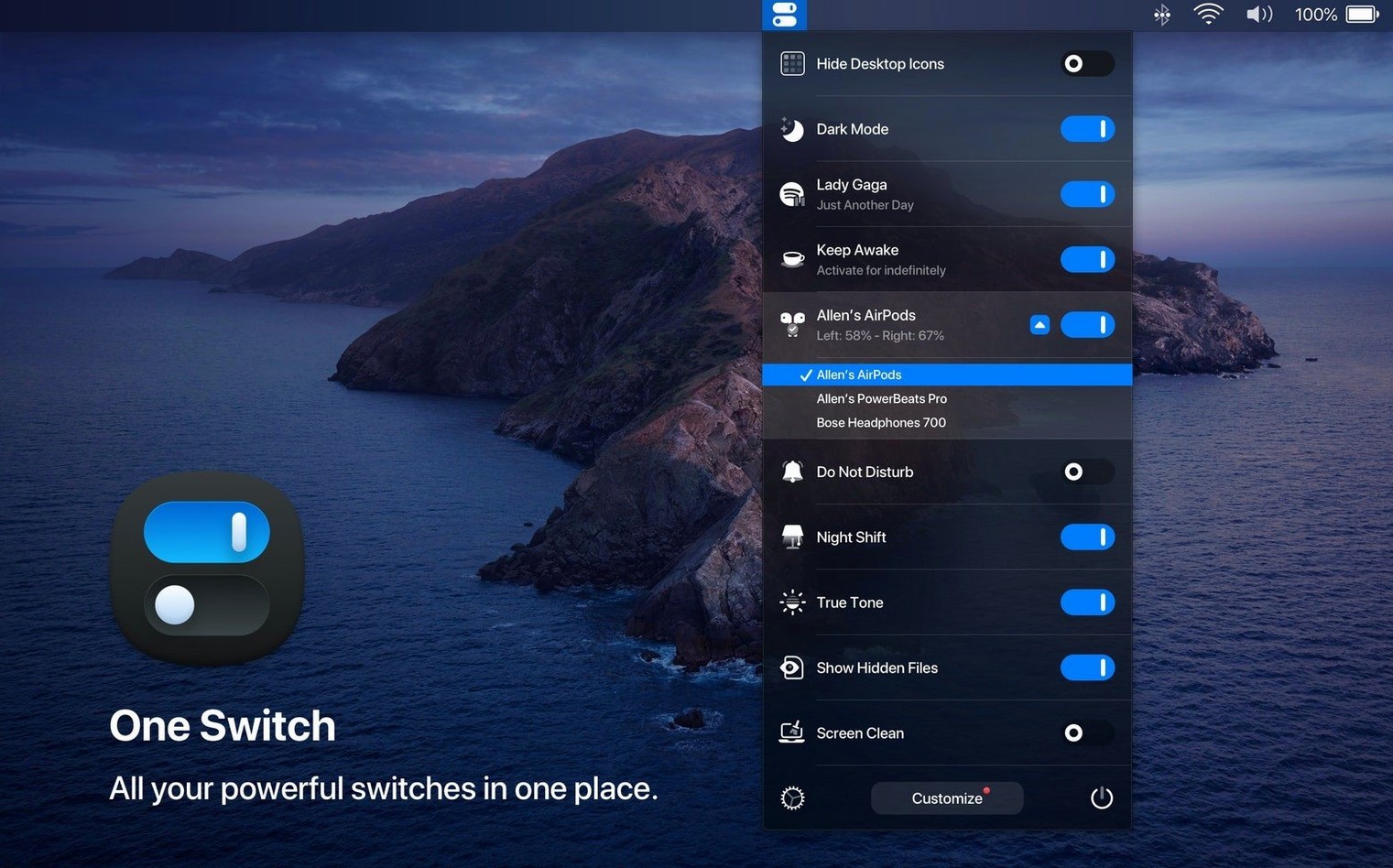
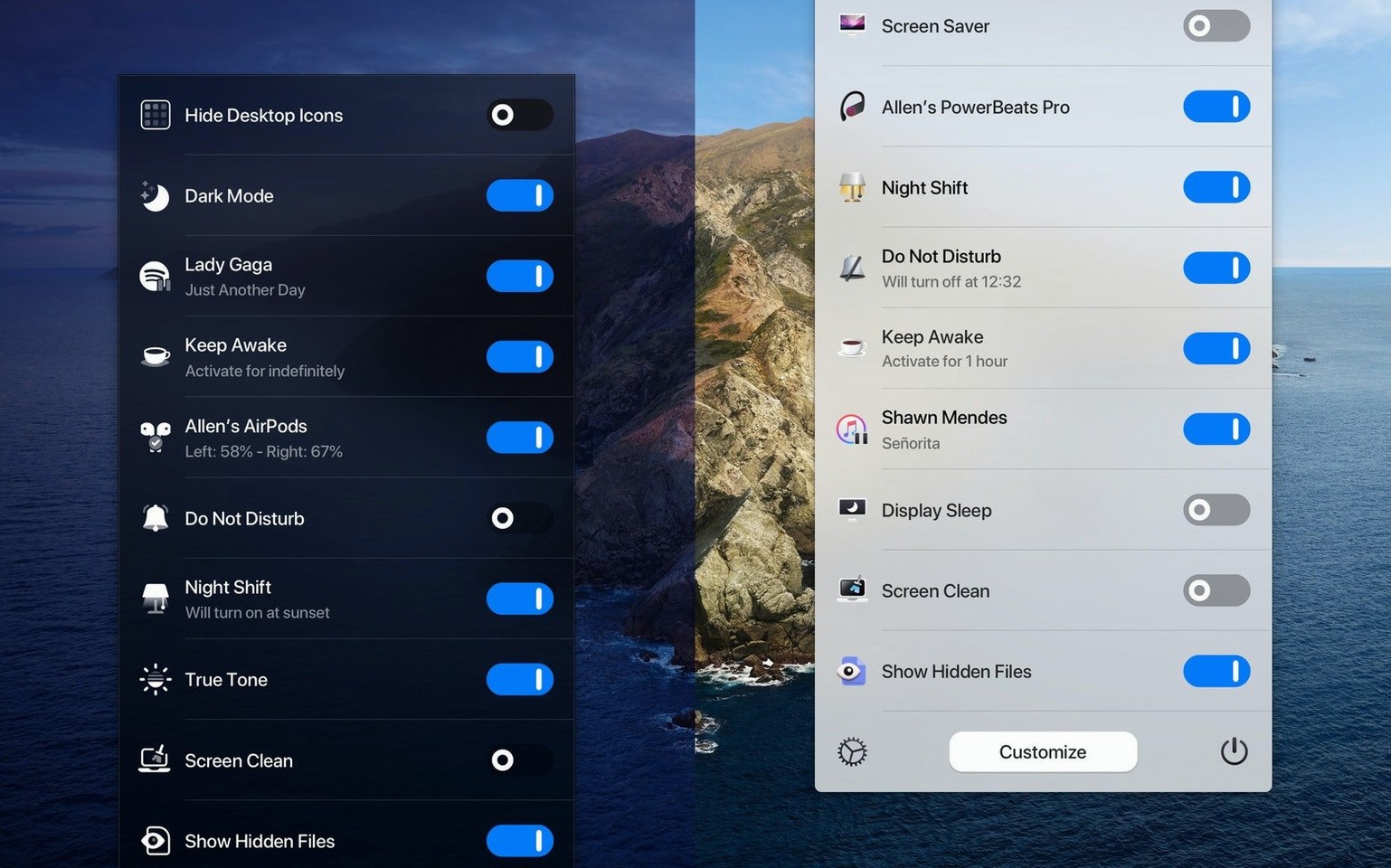
One Switch runs on any Mac with macOS 10.15 or later — Intel and Apple Silicon machines alike. It lives in your menu bar, where a single click opens a tidy panel of toggles. No hunting through System Settings, no extra apps cluttering the Dock.
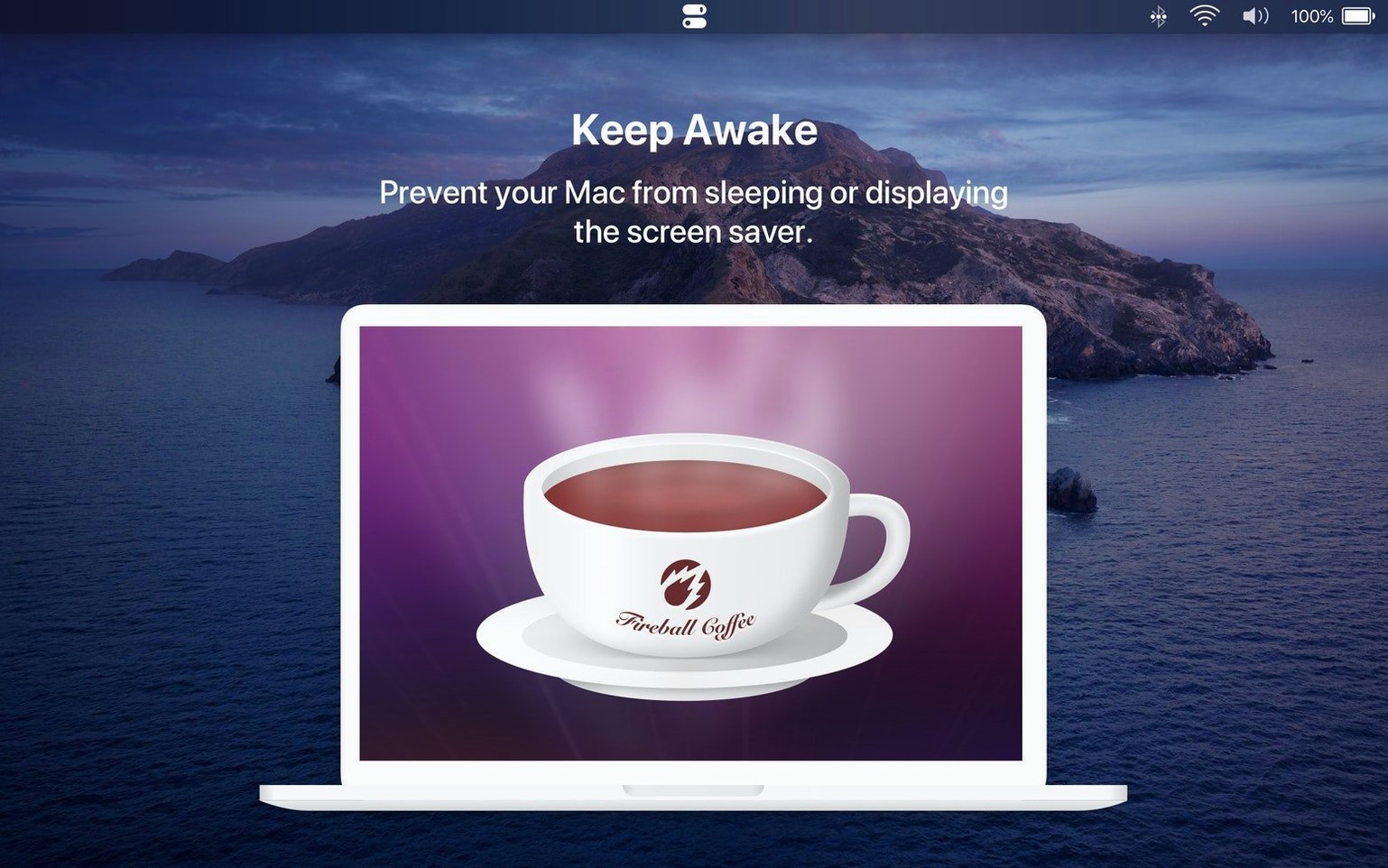
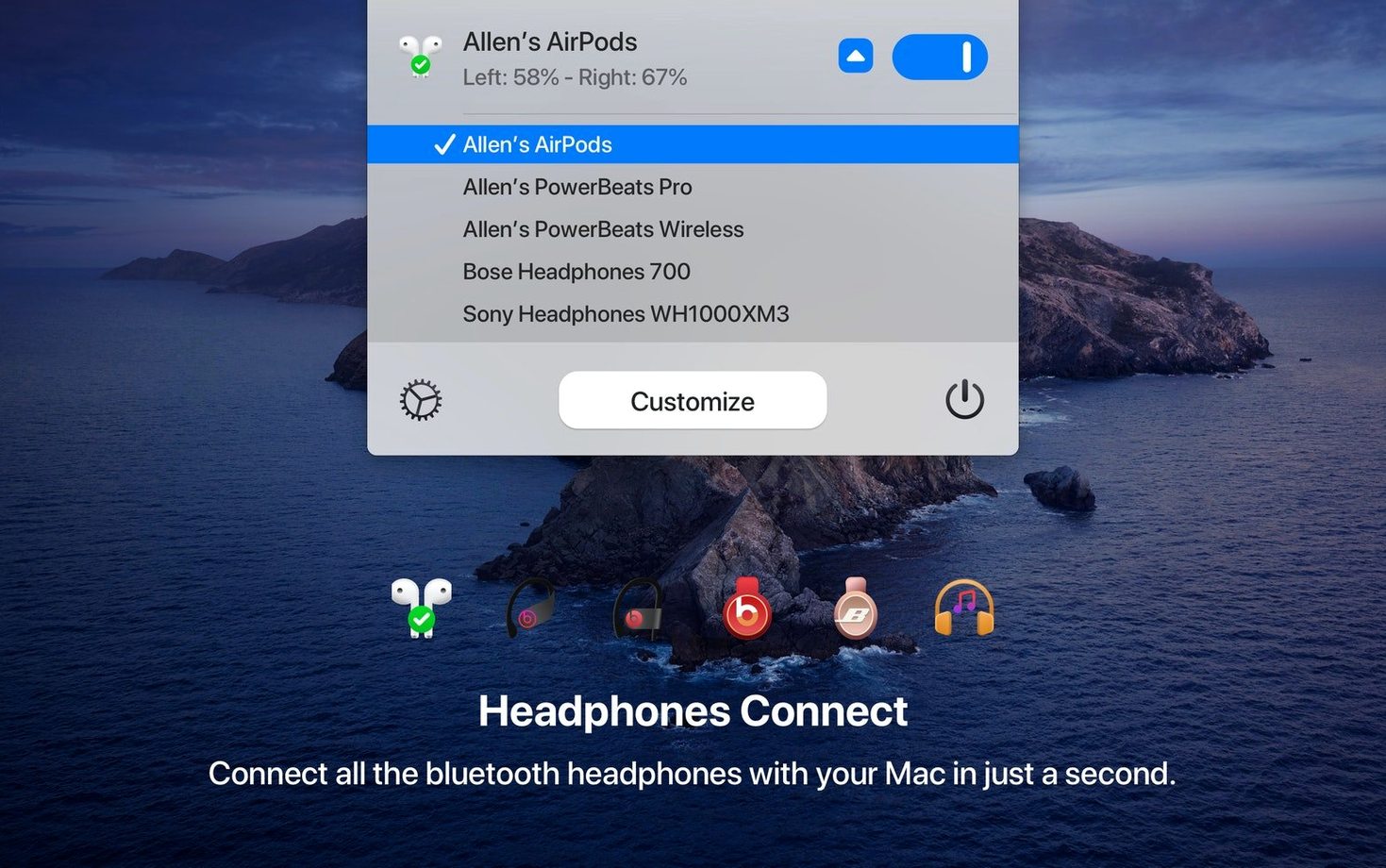
Think of it as a collection of shortcuts you actually reach for. You can flip between Light and Dark appearance, hide or show desktop icons, connect your AirPods, or start the screen saver. Want to step away? Send the Mac to sleep right from the menu, or set automatic sleep and wake times so the machine powers down on your schedule. Notification control is in there too.
The beauty is in what you don't see. Fireball lets you pick which switches appear in the menu and which stay hidden. If you never touch the screen saver toggle, just disable it. The panel stays lean, showing only the controls that match your habits. It replaces a handful of separate utilities and buried system preferences with one drop-down list that's always a click away.
If your menu bar is already crowded with tiny icons that each do one thing, One Switch is a welcome consolidation. It's for people who tweak settings often enough to want them close by, but not so often they want an app for every toggle.
A Quick Session With One Switch
Picture a typical late afternoon. I'm wrapping up design feedback, Slack is buzzing, and I need to focus for a solid hour of writing. Here's how One Switch fits into the next sixty seconds.
I click the menu bar icon — a tiny switch that's always visible — and the panel drops down. First tap: Do Not Disturb. Notifications hush immediately. No diving into the Control Center, no glancing at the sidebar. Second tap: Dark Mode. The screen warms down to a comfortable glow that won't tire my eyes as evening creeps in. I'm already two toggles deep and haven't touched a system preference pane.
Then I remember my desktop is a mess of screenshots from the morning. Third tap: Hide Desktop Icons. The clutter vanishes. It's not deleted — just tucked away until I toggle it back on. The whole sequence took maybe four seconds, and now I'm looking at a clean, calm workspace with zero distractions. I write for an hour, and when I'm ready to rejoin the world, the same three taps in reverse bring everything back.
Later that night, I plug in my MacBook and click Sleep from the menu. The screen goes dark without me reaching for the power button or waiting for the lid-close delay. It's a small thing, but small things add up when you repeat them every single day.
Little Tricks Worth Knowing
A few conveniences hide just below the surface, and they're easy to miss on a first pass. The Screen Saver switch doesn't just start your default saver — it's a fast way to lock the screen if you've set a password requirement afterward. One tap and the room is yours again.
The AirPods connection toggle is smarter than it looks. If your AirPods are already paired with the Mac, it jumps straight to connecting them. No Bluetooth menu, no waiting for the device list to populate. It's the difference between a three-step dance and a single click when you're jumping into a call.
You can also set automatic sleep and wake times from the preferences. This isn't a one-off toggle — it's a schedule. Tell the Mac to sleep at 11 p.m. and wake at 7 a.m., and One Switch handles it daily. Combine it with the manual sleep switch for ad-hoc naps, and you've got full control over when the machine rests.
If you keep exactly seven switches active at once, the menu panel stays perfectly compact without scrolling. Any more and things start to feel cluttered. Fireball caps the visible set at seven for a reason — it's the sweet spot where everything you need is immediately reachable, and nothing extra gets in the way.
Turn Off the Switches You Never Touch
Open the preferences pane right after installing. The first thing I'd change is which switches actually show up. By default, most are enabled, but you probably don't need all of them. I keep Dark Mode, Do Not Disturb, Hide Desktop Icons, Sleep, Screen Saver, and AirPods in the active set. The rest stay hidden until I need them.
Next, look at the auto Dark Mode schedule. You can let the app flip between Light and Dark appearance based on the time of day, which is more flexible than Apple's built-in sunset trigger. It's a small quality-of-life bump if your working hours don't match the sun's schedule.
Finally, consider where the menu bar icon sits. If you use Bartender or a similar utility, make sure One Switch stays visible and not hidden behind a collapse arrow. The whole point is one-click access — burying the icon defeats its purpose. Drag it to a spot you'll naturally reach for, and the muscle memory builds fast.
Version 1.35.4 brings the app to a wider audience with new interface languages:
- German, Italian, Japanese, Korean, Portuguese, Russian, and Spanish are now supported alongside English.
- macOS 10.15 or later
- Intel 64-bit or Apple Silicon Mac
Also on readers' docks
Sign in or create an account to leave a comment.
No comments yet. Tell me how it got on with your other devices.
More in Mac Apps
See all ON1 Photo RAW
2026.5.2 v20.5.2.19304 Mac Apps
1.1 GB
ON1 Photo RAW
2026.5.2 v20.5.2.19304 Mac Apps
1.1 GB
 OpenIn - Advanced Link Handler
4.5.1 Mac Apps
16 MB
OpenIn - Advanced Link Handler
4.5.1 Mac Apps
16 MB
 Pacifist
4.1.4 Mac Apps
38 MB
Pacifist
4.1.4 Mac Apps
38 MB
 OmniPlayer: MKV Video Player Pro
2.1.22 Mac Apps
78 MB
OmniPlayer: MKV Video Player Pro
2.1.22 Mac Apps
78 MB
 Paragon NTFS
LAST Mac Apps
70 MB
Paragon NTFS
LAST Mac Apps
70 MB
 Updated Parallels Desktop
27.0.3-58680 Mac Apps
186 MB
Updated Parallels Desktop
27.0.3-58680 Mac Apps
186 MB
 OmniGraffle Pro
7.26 Mac Apps
73 MB
OmniGraffle Pro
7.26 Mac Apps
73 MB
 Paste
6.6.2 Mac Apps
28 MB
Paste
6.6.2 Mac Apps
28 MB